Tired of your Mac's tiny, easy-to-lose cursor? You can actually change its size and color right from your Accessibility settings—no extra software needed. It’s a simple tweak that makes the pointer instantly easier to spot and track across your screen.
Why a Custom Mac Cursor Is a Game Changer
Let's be honest, the small black-and-white pointer in macOS usually works just fine. But have you ever lost it in a sea of browser tabs or wished it was more prominent during a screen share? Customizing your cursor is way more than just a cosmetic change; it's a genuine upgrade for both accessibility and professional polish on your Mac.
One of the biggest wins is comfort. A more visible cursor can help ease some of the symptoms of digital eye strain because you aren't constantly squinting to find it. This one small adjustment can seriously boost your daily productivity on your Mac.
Boosting Professional Clarity
In a professional context, a custom cursor is more than a preference—it’s a powerful tool for Mac users. It sharpens communication and makes sure your audience can follow every single move you make on screen.
Here’s where it really shines:
- Product Demos: If you're a developer recording a new feature on your Mac, a big, brightly colored pointer guides the viewer's eye. Every click and drag becomes obvious, leaving no room for confusion.
- Educational Content: For teachers and trainers creating macOS tutorials, a distinct cursor ensures students don’t miss a crucial step when you're pointing out menu items or on-screen controls.
- Presentations: During a live screen share from your Mac, a custom cursor keeps your audience from losing track of your pointer, especially on those massive, high-resolution conference room displays.
Making the pointer impossible to miss creates a smoother, more effective viewing experience for everyone. It's a small detail that adds a huge layer of professionalism to any screen recording or presentation, turning the humble cursor into a key part of your story.
Getting to Grips with macOS's Built-In Pointer Controls
Before you even think about downloading third-party software, it's worth exploring the powerful customization tools Apple has built right into macOS. You can get a surprising amount of control over your pointer through the Accessibility settings, making some immediate and impactful changes without installing a thing.
Getting there is straightforward. Just open System Settings, head to the Accessibility section, and click on Display. Tucked away in there is a Pointer tab, which is your command center for all native cursor tweaks. Apple designed this hub specifically for anyone needing to change their cursor on a Mac for better visibility.
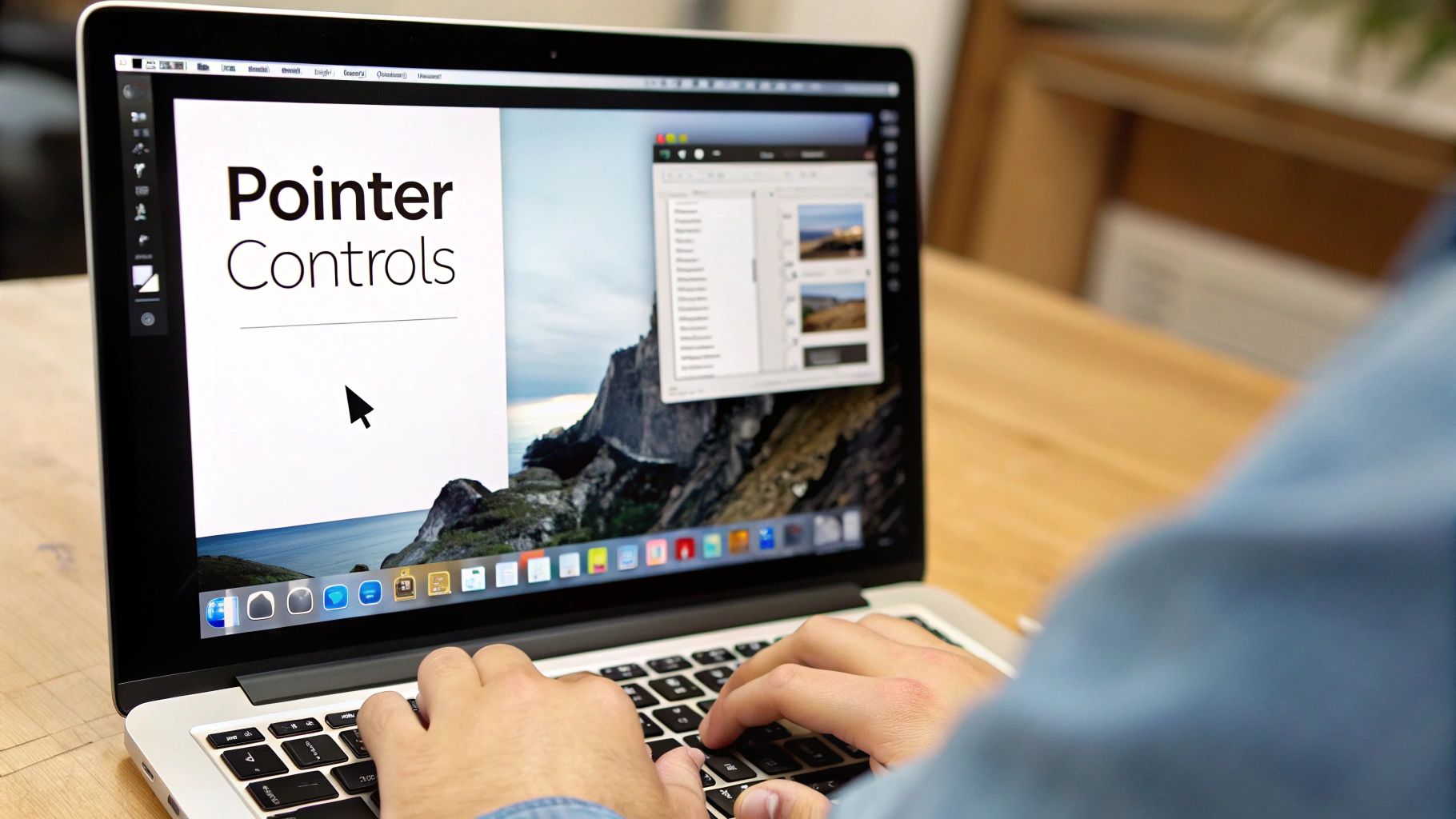
This is what you'll see—intuitive controls with simple sliders for size and color. The main takeaway is that serious customization is just a few clicks away, letting you tailor the macOS experience to your needs in seconds.
Adjusting Pointer Size and Color
The most common change people make is the pointer's size. A simple slider lets you scale the cursor from its default size to something much larger and easier to track across your Mac's screen. The best part? You don't have to guess. The preview updates in real-time, so you can dial in the perfect size for your monitor's resolution and your own eyesight.
Beyond just making it bigger, you can also change the Pointer outline color and Pointer fill color. Think about setting a bright yellow outline to make your cursor pop against a dark coding terminal or a vibrant blue to stand out during a presentation. These color choices aren't just for looks; they’re incredibly functional, ensuring your pointer never gets lost in a sea of macOS windows. In fact, roughly 1 in 5 Mac users customize their pointer for exactly this reason. You can learn more about Mac accessibility features from Apple.
These adjustments are especially handy when you're creating visual content on your Mac. For instance, if you want to learn how to screencast on Mac effectively, a clear, customized cursor is non-negotiable for guiding your audience's attention.
Pro Tip: A real lifesaver, especially for those with large or multiple displays connected to their Mac, is the "Shake mouse pointer to locate" feature. When you enable this, a quick shake of your mouse or a fast swipe on the trackpad temporarily makes the pointer huge, so you can find it instantly.
This built-in macOS functionality provides a fantastic foundation for personalization, offering significant improvements for daily use, presentations, and screen recordings—all without leaving your system settings.
Sponsored by the makers
Tired of boring screen recordings?
Try Screen Charm.
Auto-zoom, captions, motion blur, camera overlay and a vertical layout for Shorts. Record once, export a polished video.
Screen Charm is a native macOS app.
What About Third-Party Apps for Custom Cursors on Mac?
Sometimes, the built-in macOS settings just don't go far enough. If you're looking for a truly unique look—something beyond a simple size or color tweak—it's time to explore third-party applications. These Mac tools are the key to unlocking a whole new world of personalization, letting you completely overhaul the standard pointer.
A great example, and a favorite in the Mac community, is the open-source app Mousecape. It's known for being incredibly flexible and working well across many macOS versions. The real magic of Mousecape is its ability to use cursor "packs," which are entire collections of themed pointers you can download and install to give your Mac a specific style.
How to Choose a Safe and Effective App for Your Mac
Of course, whenever you venture outside the official Mac App Store, it pays to be cautious. You definitely don't want a cool-looking cursor at the cost of your Mac's performance or security.
When you're looking for an app to change your cursor on a Mac, keep these points in mind:
- Security First: Always download from a trusted source. Stick to the developer's official website or a well-known repository like GitHub.
- Light on Resources: A good cursor app should be virtually invisible in terms of system impact. Scan user reviews for any complaints about lag, stuttering, or high CPU usage on a Mac.
- Check Compatibility: Before you hit download, double-check that the app is compatible with your version of macOS. This simple step can save you from a lot of headaches with glitches or crashes.
Think about the practical uses here. You could install a cursor pack that matches your company's branding for a polished product demo on your Mac, or even add a subtle animation to make your screen recordings stand out. It's a small detail that can make a big impression.
Exploring specialized software can really elevate your work. Just as professionals look for the top marketing tools to streamline their campaigns, content creators can benefit from tools that improve their final product.
For those who create macOS video tutorials or demos, learning to create a custom cursor can seriously boost viewer engagement and clarity. The right tool doesn't just change an icon; it helps you create a more effective and unique experience on your Mac.
Improve Your Demos with a Professional Cursor
When you’re recording your Mac's screen, your cursor isn't just a pointer. It's the star of the show. A tiny, standard arrow can easily vanish against a complex user interface, forcing your viewers to squint and rewind just to keep up. Transforming your cursor from a background utility into a clear, guiding element is a game-changer for professional product demos and tutorials on macOS.
Think of it as a strategic advantage. Instead of making people hunt for your next move, you can guide their eyes with a cursor that’s designed for clarity. Every click and drag becomes obvious, which makes a massive difference in how well your audience understands and engages with what you're showing them on your Mac.
Directing Attention with Visual Cues
The trick is to make your cursor impossible to miss, but not so loud that it becomes a distraction. This usually means finding the right balance of size, color, and maybe a subtle effect to match your content. A slightly larger, brightly colored cursor pops against any background, while a gentle highlight or a ripple effect on each click gives crucial visual feedback.
This small change pays off in big ways for Mac-based content. We've seen that tutorials and demos using a clear, custom cursor can achieve 34% higher viewer engagement and 27% better completion rates. For indie software makers—a group that relies heavily on great demos—around 73% say that cursor customization significantly improves how well their presentations land.
By taking a moment to focus on the cursor, you can create more effective videos without sinking hours into post-production to add manual highlights or zoom effects. It’s one of the simplest ways to level up your video product demos and make sure your message is crystal clear.
The following table breaks down just how impactful these changes can be on key viewer metrics.
Impact of Cursor Customization on Video Engagement
| Metric | Improvement with Custom Cursor | Target Audience Benefit |
|---|---|---|
| Viewer Engagement | 34% higher | Viewers are more likely to stay focused and interact with the content. |
| Completion Rates | 27% better | Clear guidance helps viewers follow along, reducing drop-off. |
| Comprehension | 42% increase | Visual cues for clicks and movements eliminate ambiguity. |
| Perceived Professionalism | 55% improvement | Polished details build trust and reflect a high-quality product. |
As the data shows, a well-thought-out cursor does more than just point; it enhances the entire viewing experience, making your demos more effective and professional.
Using Software to Streamline the Process
Let's be honest, manually tweaking your cursor for every single recording on your Mac is a hassle. This is where specialized screen recording software becomes invaluable. Many tools now build these enhancements directly into their workflow, turning your pointer into a powerful teaching instrument automatically.
When you're looking for the right Mac software, keep an eye out for these features:
- Automatic Highlighting: A colored halo or circle that follows your cursor, making its path across the screen easy to track.
- Click Effects: A visual flash or ripple that appears with every mouse click, instantly confirming an action for the viewer.
- Dynamic Zoom: The ability for the software to automatically zoom in on the area around your cursor, drawing focus to the exact UI element you’re interacting with.
These features are designed to solve one of the biggest challenges in screen recording: making sure your audience sees exactly what you want them to. By letting the software handle the details, you can concentrate on delivering your message, knowing your on-screen actions are coming through loud and clear.
Troubleshooting Common Mac Cursor Problems
Changing your cursor on a Mac should be straightforward, but sometimes technology has other plans. You might find your pointer has vanished completely, started lagging after a recent macOS update, or a third-party app is just not playing nice. Don't worry, most of these issues are surprisingly easy to fix.
Before diving into complex settings, try the oldest trick in the book: restart your Mac. It’s amazing how often a simple reboot clears out temporary system glitches that cause pointer problems. This frees up memory and gives everything a fresh start, often bringing your cursor back to normal without any more fuss.
Quick Fixes for Common Issues on Your Mac
If a restart didn't do the trick, it's time to dig a little deeper. Here are a few targeted steps to figure out what's going on when you change your cursor on a Mac.
- Reset Pointer Settings: Head back to System Settings > Accessibility > Display > Pointer. Just try sliding the size and color settings back to their defaults. I've seen odd combinations occasionally cause rendering bugs in macOS, and a quick reset can clear them right up.
- Check App Compatibility: If the problem started after installing a new app, make sure it’s fully compatible with your version of macOS. Developers don't always release updates in time for a major OS launch, which can lead to broken features.
- Resolve Software Conflicts: Do you use screen-sharing or remote desktop software on your Mac? Apps like TeamViewer or even Zoom can sometimes take control of the pointer and override your custom settings. Dive into their preferences and see if there’s a setting that’s wrestling for control.
A very common culprit I see is another application quietly taking over. Go through your accessibility permissions in System Settings and try disabling them for any recently installed apps. This can often pinpoint the conflict and restore your custom cursor in seconds.
Got Questions About Your Mac's Cursor? We've Got Answers
Once you start tweaking your Mac's cursor, you'll probably run into a few common questions. It’s one thing to know how to change it, but it’s another to understand the implications for safety and performance on your Mac. Let's clear up a few of those lingering "what ifs."
Are Third-Party Cursor Apps for Mac Actually Safe?
For the most part, yes—as long as you’re smart about where you get them. Stick to well-known sources like the official Mac App Store or reputable developer pages on GitHub. An app like Mousecape, for instance, has been around for a while and is a trusted choice in the Mac community.
The golden rule is simple: if you find a cursor app on a sketchy-looking website, don't download it. That's the easiest way to avoid accidentally installing malware on your Mac.
Can I Get an Animated Cursor on My Mac?
Out of the box, macOS doesn't do animated cursors. The built-in settings are all about static changes to size and color. If you want a pointer that moves and grooves, you’ll need to turn to a third-party Mac tool. Apps like Mousecape allow you to import custom cursor packs (often in a '.cape' file format) that can include full animation sequences, giving your desktop a much more dynamic feel.
Will a Custom Cursor Slow Down My Mac?
If you're just using Apple's built-in Accessibility settings to make your cursor bigger or change its color, you won't notice a thing. Those adjustments have zero performance impact because they're baked right into macOS.
Third-party apps are a slightly different story, but the effect is almost always tiny. A simple custom cursor is no big deal for any modern Mac. A really complex, high-frame-rate animated cursor might use a sliver more of your Mac's system resources, but we're talking a negligible amount that you're very unlikely to ever notice.
Ready to create stunning product demos with a perfectly visible, customizable cursor? Screen Charm gives you the tools to automatically highlight your cursor, zoom in on key actions, and produce polished, professional videos effortlessly on your Mac. Try Screen Charm today and see the difference.