QuickTime screen recording alternative
Screen Charm vs QuickTime Player
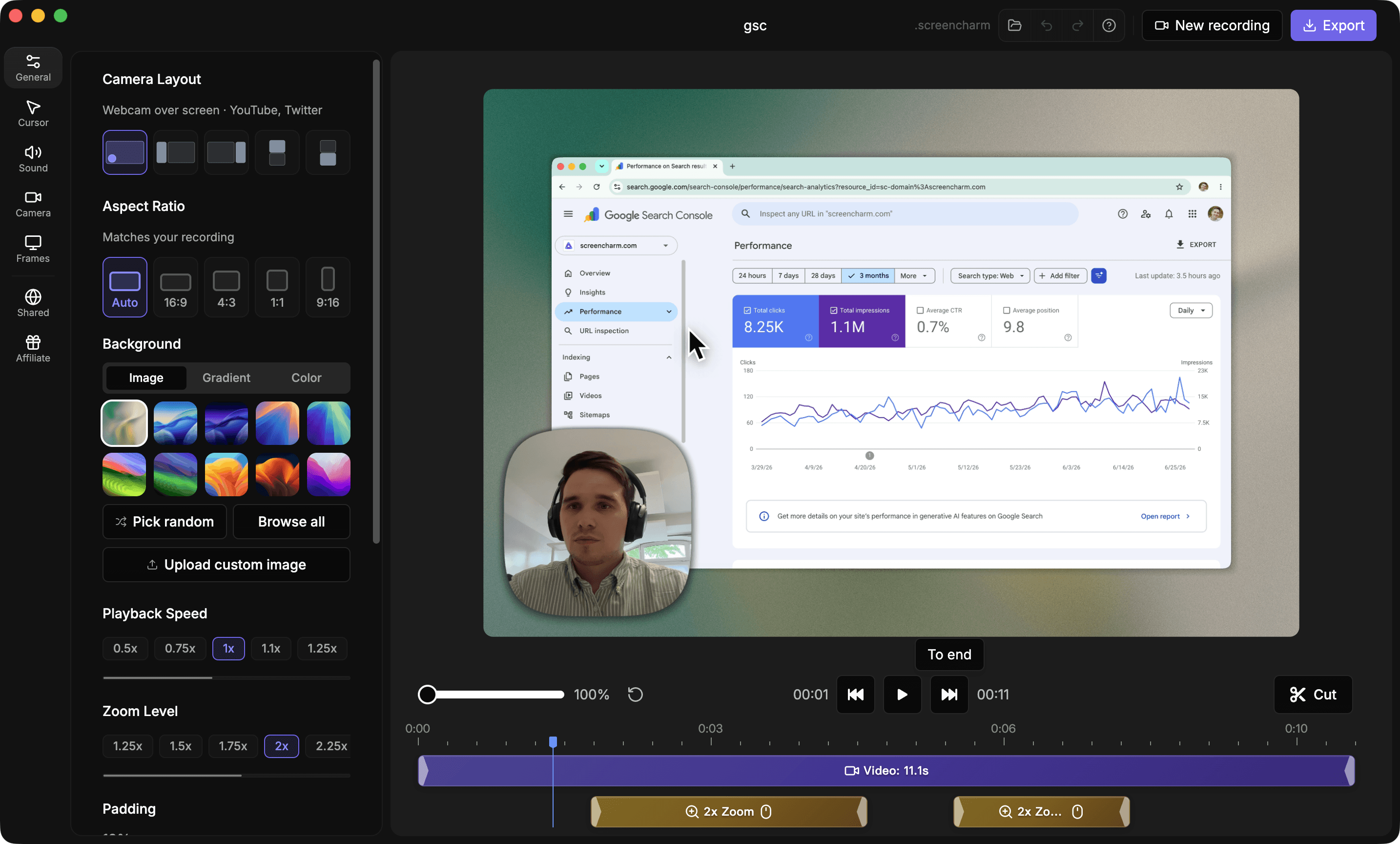
QuickTime Player is built into every Mac and can record your screen for free. Screen Charm adds automatic zoom on clicks, motion blur, webcam overlay, background music, and a built-in editor so your recordings look polished without any extra work.

Screen Charm
Polished Mac recordings
- Polished Mac screen recordings with automatic zoom
- Cursor effects, motion blur, and background music
- Built-in trim editor and local 4K MP4 export
- Webcam overlay for talking-head demos
- One-time $79 purchase, no subscription
Public reviews: 4.8 ⭐ (Product Hunt)
Users: 750+ Mac users
🏆 #4 Product Hunt Daily

QuickTime Player
Product website- Quick raw screen capture with no setup
- Already installed on every Mac at no cost
- Simple single-window or full-screen recordings
- No account or internet required
- Basic video playback and lightweight trimming
Similar to: VLC, Windows Camera
Typical users: Mac users needing basic captures
TLDR: QuickTime Player comes free with every Mac and is perfectly fine for capturing a raw screen session. It records in MOV format at up to 4K, supports mic audio, and requires zero setup.
The big gaps are everything that comes after the recording starts: no automatic zoom to highlight your clicks, no cursor effects, no motion blur, no background music, and no built-in trim editor. You get a flat video file and nothing else.
Screen Charm fills exactly those gaps. It records in the same native Mac way but adds auto-zoom, cursor polish, motion blur, webcam overlay, background music, a trim editor, and local 4K MP4 export for a one-time $79 purchase. If you want your recordings to look professional without a subscription or post-production workflow, Screen Charm is the upgrade.
Landing page previews
See the products side by side
A quick visual look at the Screen Charm homepage and the QuickTime Player landing page before you compare features, pricing, and workflow.
Use Screen Charm when
You want recordings that look professionally polished: auto-zoom, cursor effects, motion blur, background music, webcam overlay, and 4K MP4 export, all from a native Mac app you buy once.
Use QuickTime when
You need a quick raw capture right now with no installation, no cost, and no frills. QuickTime is already on your Mac.
Screen Charm vs QuickTime Player: feature comparison
A practical side-by-side for Mac creators comparing polish, pricing, recording workflow, export control, and sharing.
Pricing
One-time purchase
Screen Charm
QuickTime Player
Free to use
Screen Charm
QuickTime Player
Subscription required
Screen Charm
QuickTime Player
Works without an account
Screen Charm
QuickTime Player
Recording
Native Mac app
Screen Charm
QuickTime Player
System audio capture
Screen Charm
QuickTime Player
Mic audio capture
Screen Charm
QuickTime Player
Webcam overlay
Screen Charm
QuickTime Player
Pause and resume
Screen Charm
QuickTime Player
Works offline
Screen Charm
QuickTime Player
4K recording
Screen Charm
QuickTime Player
Visual Polish
Automatic zoom on clicks
Screen Charm
QuickTime Player
Cursor spotlight and effects
Screen Charm
QuickTime Player
Automatic motion blur
Screen Charm
QuickTime Player
Background music
Screen Charm
QuickTime Player
Branded backgrounds
Screen Charm
QuickTime Player
Device frames
Screen Charm
QuickTime Player
Generate captions
Screen Charm
QuickTime Player
Editing
Built-in trim editor
Screen Charm
QuickTime Player
Cut and merge clips
Screen Charm
QuickTime Player
Export to MP4
Screen Charm
QuickTime Player
Export to MOV
Screen Charm
QuickTime Player
| Feature |  |  |
|---|---|---|
| Pricing | ||
| One-time purchase | ||
| Free to use | ||
| Subscription required | ||
| Works without an account | ||
| Recording | ||
| Native Mac app | ||
| System audio capture | ||
| Mic audio capture | ||
| Webcam overlay | ||
| Pause and resume | ||
| Works offline | ||
| 4K recording | ||
| Visual Polish | ||
| Automatic zoom on clicks | ||
| Cursor spotlight and effects | ||
| Automatic motion blur | ||
| Background music | ||
| Branded backgrounds | ||
| Device frames | ||
| Generate captions | ||
| Editing | ||
| Built-in trim editor | Basic | |
| Cut and merge clips | Basic | |
| Export to MP4 | ||
| Export to MOV | ||
QuickTime Player
Free (built into macOS)
QuickTime Player is included with every Mac at no cost. Screen Charm is a one-time $79 purchase.
Price takeaway
QuickTime is free. Screen Charm is $79 once, which buys you everything QuickTime lacks: zoom, polish, music, and a built-in editor.
Key differences between Screen Charm and QuickTime Player
Raw capture vs polished demo
Screen Charm: Adds automatic zoom, cursor effects, motion blur, and background music during recording so no post-production is needed.
QuickTime: Records a flat, unedited video. What you record is what you get, with only basic trimming available.
System audio
Screen Charm: Captures system audio natively without extra drivers.
QuickTime: Cannot capture system audio. You need a third-party virtual audio driver like BlackHole or Soundflower.
Webcam overlay
Screen Charm: Shows your webcam feed as a picture-in-picture overlay during recording.
QuickTime: No webcam overlay. QuickTime can record the camera separately, but not overlaid on screen.
Choose Screen Charm if
- You want recordings that look polished without editing.
- You need auto-zoom to highlight clicks and interactions.
- You want to capture system audio without extra drivers.
- You need a webcam overlay for presenter demos.
- You export to MP4 and want motion blur and music included.
Choose QuickTime Player if
- You just need a quick raw screen capture right now.
- You do not want to spend any money.
- Your recording is only for personal reference.
- You are already on macOS and need zero setup.
- You record occasional one-offs where polish does not matter.
Frequently asked questions
Can QuickTime record system audio on Mac?
Not natively. QuickTime Player can record microphone audio, but it cannot capture what is playing through your speakers without a virtual audio driver like BlackHole or Soundflower. Screen Charm captures system audio out of the box.
Is QuickTime good enough for screen recording?
For a quick raw capture, yes. For polished product demos, tutorials, or any video where you want auto-zoom, cursor effects, webcam overlay, background music, or motion blur, QuickTime falls short. Screen Charm handles all of that natively.
Does QuickTime support webcam overlay?
No. QuickTime can record your screen or your webcam separately, but it cannot overlay the webcam feed on top of your screen recording. Screen Charm does this with a resizable, movable webcam bubble.
What format does QuickTime export in?
QuickTime saves recordings as MOV files. Screen Charm exports locally as MP4, which is more widely compatible with web players, social media, and video editors.
Compare Screen Charm with other tools
Create polished Mac recordings for a one-time price
Screen Charm gives you auto-zoom, captions, pause and resume, webcam overlay, system audio, cursor effects, and 4K export without a monthly subscription.