Free online tool
Free Screenshot Beautifier
- 100% free
- No sign-up
- No watermark
- No upload
- Unlimited use
Default macOS wallpapers, built in
Every default Apple wallpaper from the latest macOS releases (Tahoe, Sequoia, Sonoma, Ventura, Monterey, and Big Sur) is bundled with the editor. One click to apply, plus 10 royalty-free nature & abstract photos, 18 designer gradients, and a 42-color palette for solid backgrounds.
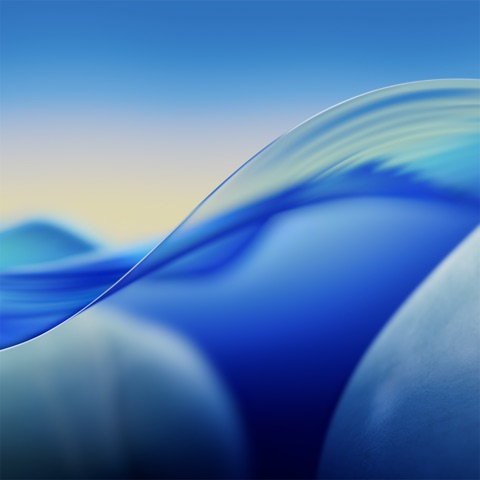 Tahoe LightmacOS 26
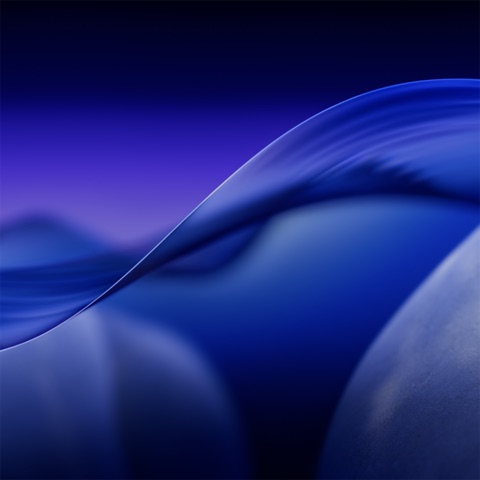 Tahoe DarkmacOS 26
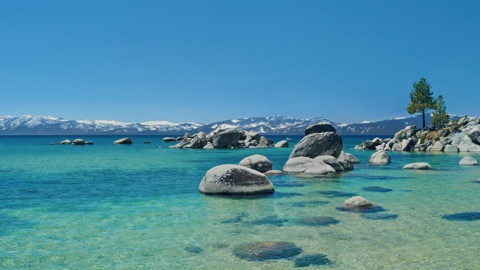 Tahoe BeachmacOS 26
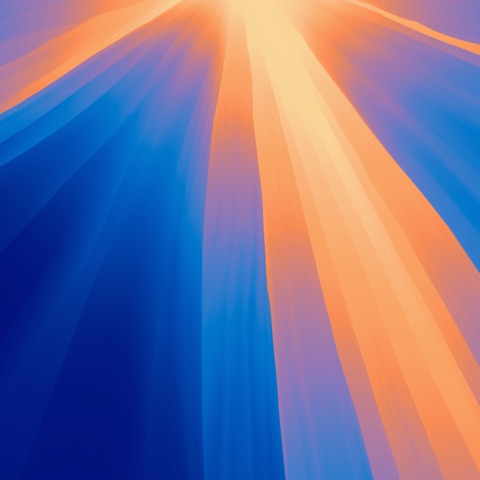 Sequoia LightmacOS 15
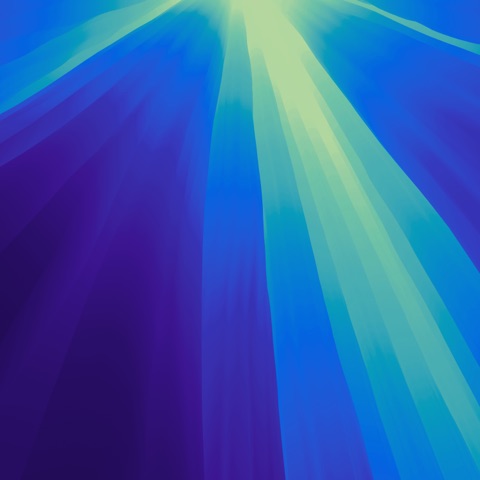 Sequoia DarkmacOS 15
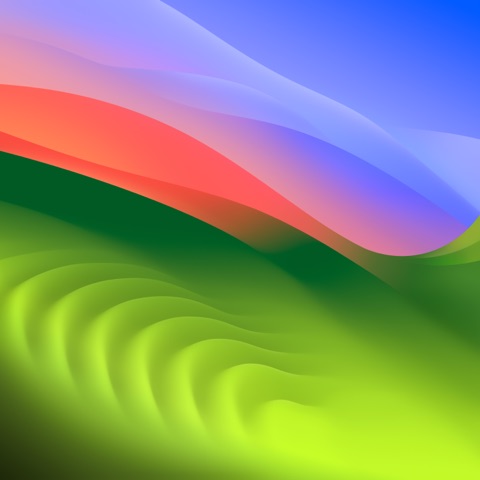 Sonoma LightmacOS 14
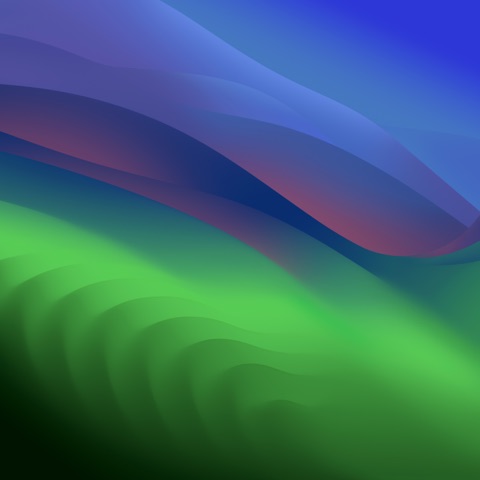 Sonoma DarkmacOS 14
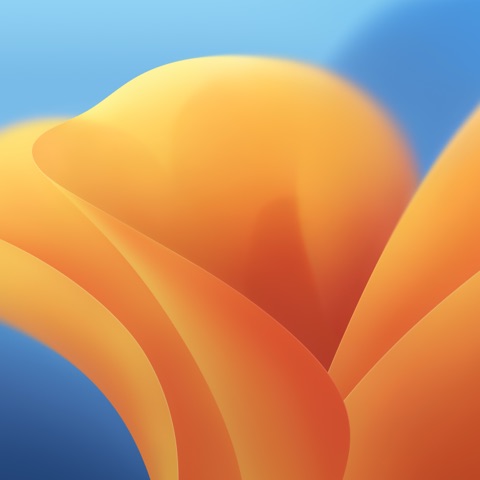 Ventura LightmacOS 13
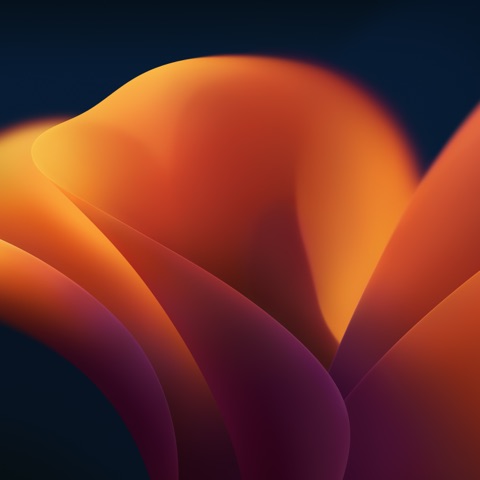 Ventura DarkmacOS 13
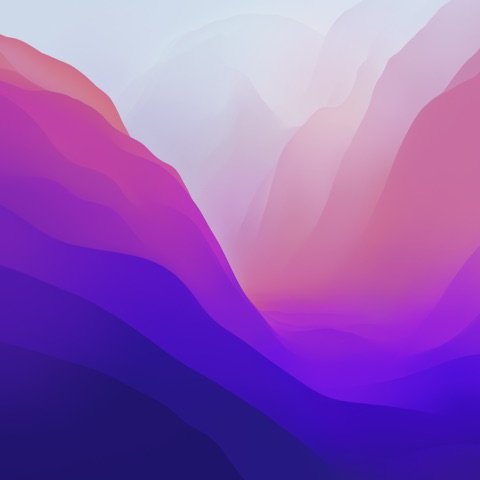 Monterey LightmacOS 12
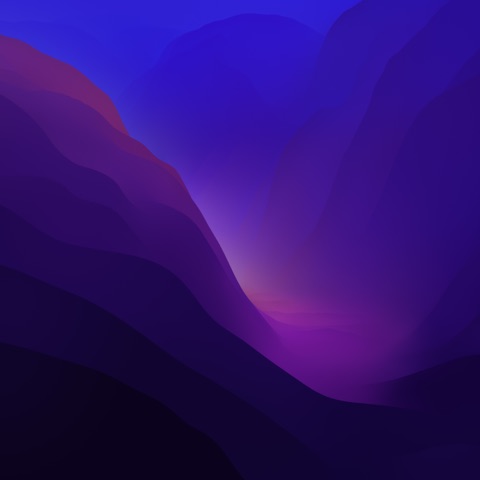 Monterey DarkmacOS 12
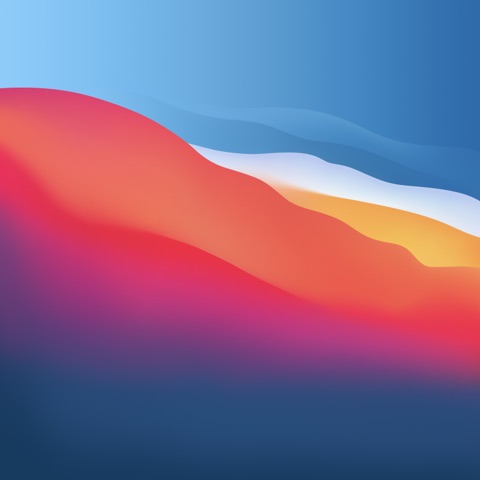 Big SurmacOS 11
macOS wallpapers © Apple. Photos via Unsplash. Bundled locally for instant load, no third-party CDN.
macOS wallpapers + nature photos + gradients + solid colors
macOS, Browser, Minimal, or none
Drag, recolor, resize, no extra tools
No sign-up, no watermark, no quota
A complete free screenshot editor: backgrounds, arrows, text & mockups
The same workflow used by SaaS landing pages, Product Hunt launches, YouTube thumbnails, and Indie Hackers tweets, packed into a single free, in-browser editor with no sign-up and no watermark.
Free forever, no sign-up
100% free, unlimited use, no email gate, no credit card, no watermark on exports, and no paid tier hiding the “good” features. Beautify a thousand screenshots a day if you want, there’s no quota.
22 designer backgrounds
12 default macOS wallpapers from the latest releases (Tahoe, Sequoia, Sonoma, Ventura, Monterey, Big Sur) plus 10 royalty-free nature & abstract photos. Add 18 curated gradients, a 42-color solid palette, a “Surprise me” random picker, or upload your own image.
Arrow annotations
Click to drop an arrow on your screenshot, then drag either endpoint or the body to position it precisely. Pick from 8 colors (or any custom hex) and adjust the thickness, perfect for tutorials, bug reports, onboarding, and walkthroughs.
Text captions & headlines
Add a headline above or below your screenshot for changelogs, product launches, social posts, and YouTube thumbnails. Choose color, size, position, and font (system, mono, or serif) in seconds.
macOS & browser mockups
Pixel-accurate window chrome with traffic-light buttons and a customizable browser URL bar. Or pick the Minimal frame for a subtle dark accent. Skip the frame entirely when you want the screenshot to feel native.
Realistic drop shadows
Soft, configurable shadows with blur, opacity, and color. They follow the rounded corners of your screenshot and the window frame for a single cohesive card that pops on dark or light pages.
Padding, rotation & aspect ratio
Dial in the breathing room with a padding slider, add a slight rotation for dynamic compositions, and snap the output to 16:9, 1:1, 4:5, 9:16, 4:3, 3:2, perfect for landing pages, OG cards, Stories, Reels, and TikTok.
Drag, drop, or paste
Drop files into the canvas, click to browse, or hit ⌘V/Ctrl+V to paste a fresh capture from your clipboard. Copy the final result back to your clipboard with one click and paste straight into Slack, Notion, Figma, Linear, or your tweet draft.
100% private, no upload
Everything runs in your browser using HTML5 Canvas. Your screenshot is loaded into memory, composited locally, and downloaded as a blob, it never touches a server. Safe for internal dashboards, sensitive UI, client work, and unreleased products.
High-resolution PNG & JPG export
Export at the full canvas size, typically 2000–4800px on the long edge, as PNG (lossless) or JPG (smaller files, adjustable quality). Retina-ready for landing pages, App Store screenshots, and print mockups.
How it works
From raw screenshot to share-ready image in under a minute.
- Step 01
Drop your screenshot
Click Upload, drag a file in, or paste from your clipboard with ⌘V. The editor instantly composites it onto the default beautiful background so you can iterate from a polished starting point.
- Step 02
Pick a background
Three modes: Image, Gradient, or Solid Color. The Image gallery starts with the 12 default macOS wallpapers from the latest releases, Tahoe, Sequoia, Sonoma, Ventura, Monterey, and Big Sur, followed by 10 hand-picked nature & abstract photos. Hit “Surprise me” to roll a random background, gradient, or color, or upload your own.
- Step 03
Add a window frame
Wrap your screenshot in a macOS or Browser mockup, or use the Minimal frame for a subtle accent. Browser mode lets you set the URL bar text so the chrome reads as your real product.
- Step 04
Tune padding, shadow & corners
Drag the Padding, Corner radius, and Drop shadow sliders to dial in the exact look. Add a slight rotation for a more dynamic, social-media-friendly composition.
- Step 05
Annotate with arrows
Open the Annotate tab, click “Add arrow”, and drop arrows wherever you want to draw the eye. Drag the endpoints to point at exact UI elements and pick a color and thickness. Add as many as you need, they’re all draggable, recolorable, and editable.
- Step 06
Pick your aspect ratio
Snap to a perfect 16:9, 1:1, 4:5, or 9:16 for the platform you are posting to, or stay on Auto to keep your screenshot's native dimensions.
- Step 07
Add an optional caption
Drop a headline above or below the screenshot for changelogs, social posts, and announcement images. Choose color, size, and font.
- Step 08
Export as PNG or JPG
Click Download to save a high-resolution image at the full canvas size. Or hit Copy to put the image directly on your clipboard, ready to paste into Slack, Notion, Figma, Linear, or your tweet draft.
What you get, free forever
No “lite” version, no hidden paid tier. Every feature below is free for unlimited use, with no sign-up, no email gate, and no watermark on the exported image.
Backgrounds & colors
- 12 default macOS wallpapers (Tahoe Light, Tahoe Dark, Tahoe Beach, Sequoia Light, Sequoia Dark, Sonoma Light, Sonoma Dark, Ventura Light, Ventura Dark, Monterey Light, Monterey Dark, Big Sur)
- 10 royalty-free nature & abstract photos (Indigo, Sage, Ember, Horizon, Frost, Dune, Amber, Marble, Terra, Ivy)
- 18 curated gradient presets with a free-form angle slider and custom hex pickers
- 42-color solid palette plus any custom hex / native color picker
- Upload your own image as a background
- “Surprise me” random picker in every background mode
Annotations & text
- Add arrows by clicking, drag either endpoint or the body to position
- Pick from 8 preset arrow colors or any custom hex
- Adjust arrow thickness from thin pointers to bold call-outs
- Add unlimited arrows per screenshot
- Caption text above or below the screenshot
- Choose color, size, position, and font (system, monospace, serif)
Frames & styling
- macOS window frame with traffic-light buttons
- Browser frame with editable URL bar
- Minimal frame for a subtle dark accent
- Adjustable corner radius and inset border
- Realistic drop shadow with blur, opacity, and color controls
- Padding slider and slight rotation for dynamic compositions
Layout & export
- Aspect-ratio presets: Auto, 16:9, 4:3, 3:2, 1:1, 4:5, 9:16
- PNG export (lossless) and JPG export with adjustable quality
- Full-canvas resolution, typically 2000–4800px on the long edge
- Drag & drop, file picker, or paste-from-clipboard upload
- Copy result back to clipboard with one click
- Reset by tab, wipe just the section you don’t want
What can you use it for?
A polished screenshot is one of the highest-leverage things you can ship. These are the most common use cases.
Landing-page hero images
Turn a flat product screenshot into a striking hero image. Pair a rich photo background with a macOS frame and a long shadow, the same look you see on top SaaS landing pages and Indie Hackers launches.
Twitter / X & LinkedIn posts
Posts with images get measurably more engagement. Drop your screenshot, pick the 16:9 aspect, add a Berry gradient, and you have a polished card ready to ship in under a minute.
App Store & Product Hunt assets
App Store and Product Hunt screenshots demand polish. Use the macOS or browser mockup, large padding, and a clean gradient to make your UI feel premium next to the competition.
YouTube thumbnails & video covers
Use the 16:9 aspect, add a caption above your screenshot, and download as a thumbnail-ready PNG. Pair with our free Video Thumbnail Generator for headline overlays.
Pitch decks & Notion docs
Investor decks, internal RFCs, and Notion pages all read better with framed screenshots instead of raw captures. The browser mockup with a real URL signals exactly what product you are showing.
Marketing emails & changelogs
When announcing new features, a beautified screenshot dramatically lifts click-through. Add a caption, pick a brand color, and export, drop the PNG into Resend, Loops, Customer.io, or your changelog.
Open Graph (OG) social cards
Use the 1:1 or 16:9 aspect to generate OG-ready images for blog posts and product pages. The result looks better than a generic logo card on Twitter, Slack, and LinkedIn previews.
Documentation & tutorials
Replace bare PNG captures with framed screenshots in your docs. Readers parse a Browser-mockup screenshot as “this is the live web app” without needing a caption.
Bug reports & support tickets
Drop arrows on the broken element, add a one-line caption, and ship a screenshot that explains the issue in two seconds. Engineers love it; PMs love it more. No need for a separate annotation app.
Onboarding & user education
Walk new users through a feature with arrow-annotated screenshots in your help center, in-app tooltips, or onboarding emails. The arrows draw the eye exactly where it needs to go, with no extra design work.
Screen Charm vs. shots.so, Screely, Pika & friends
We love the standalone screenshot tools, but we wanted to ship a free, in-browser, watermark-free version that works for sensitive UI too. Here’s how it compares at a glance.
| Feature | This tool | Typical alternatives |
|---|---|---|
| Free, unlimited use | Yes | Mostly free, paid tiers |
| No sign-up | Yes | Often required |
| No watermark on exports | Yes | Watermarks on free tiers |
| Runs locally (no upload) | Yes | Server-side |
| Default macOS wallpapers (Tahoe → Big Sur) | Yes | Rare |
| 22 real photo backgrounds | Yes | Some |
| 18 curated gradient presets | Yes | Limited |
| “Surprise me” random picker | Yes | Rare |
| Arrow annotations (color + thickness) | Yes | Limited |
| Text captions (above & below) | Yes | Limited |
| macOS window mockup | Yes | Yes |
| Browser mockup with URL bar | Yes | Yes |
| Drag & drop + paste from clipboard | Yes | Varies |
| Aspect-ratio presets (16:9, 1:1, 9:16, …) | Yes | Yes |
| Copy result to clipboard | Yes | Rare |
Frequently Asked Questions
What does a screenshot beautifier do?
A screenshot beautifier turns a plain screen capture into a polished marketing-ready image. It places your screenshot on a colored or gradient background, rounds the corners, adds a soft drop shadow, and optionally wraps it in a window-frame mockup such as a macOS or browser chrome. The result looks at home on a landing page, in a tweet, on a slide, or in app-store assets without opening Figma or Photoshop.
Is the screenshot beautifier free? Are there watermarks?
Yes, it is 100% free. No sign-up, no email gate, no credit card, no paid tier, no quota, and no watermark on the exported image. You can beautify as many screenshots as you want, today and tomorrow. The tool runs entirely in your browser using the HTML5 Canvas API, so your screenshot never leaves your device.
Can I add arrows to my screenshot?
Yes. Open the Annotate tab in the editor and click “Add arrow”. Drop the arrow anywhere on the canvas, then drag either endpoint or the body to position it precisely. Pick from a palette of 8 colors (or any custom hex) and adjust the thickness from thin pointers to bold call-outs. Add as many arrows as you want, they all export with the final PNG/JPG.
Can I add text or captions on my screenshot?
Yes. The Text tab lets you drop a headline above or below your screenshot, perfect for changelogs, product announcements, social posts, YouTube thumbnails, and tutorial images. Customize the color, size, and font (system, monospace, or serif) to match your brand.
How many backgrounds are included?
22 hand-picked photo backgrounds in total: 12 default macOS wallpapers from the latest releases (Tahoe Light, Tahoe Dark, Tahoe Beach, Sequoia Light, Sequoia Dark, Sonoma Light, Sonoma Dark, Ventura Light, Ventura Dark, Monterey Light, Monterey Dark, and Big Sur) plus 10 royalty-free nature & abstract photos (Indigo, Sage, Ember, Horizon, Frost, Dune, Amber, Marble, Terra, Ivy). On top of that you get 18 curated linear gradients, a 42-color palette for solid backgrounds, and the option to upload your own image. A “Surprise me” random picker is wired into every background mode.
What does the “Surprise me” button do?
Each background section (Image, Gradient, Solid) has a Surprise me button. One click rolls a random pick from the curated library, a different macOS or nature wallpaper, a different gradient with a slightly randomized angle, or a different solid color. It’s the fastest way to explore styles when you don’t know what you want yet.
Can I use the macOS wallpapers commercially?
macOS wallpapers are © Apple and intended for use with Apple products. We include them so your product screenshots feel native to the Mac ecosystem. For purely commercial work that won’t be associated with Apple’s brand, prefer the nature & abstract photos (royalty-free via Unsplash), the gradients, or the solid colors, those are unrestricted for any project.
How do I upload a screenshot?
You can upload an image in three ways: click the Upload button to pick a file, drag and drop a file from Finder or Explorer onto the editor, or take a screenshot and press ⌘V (Cmd+V) on macOS or Ctrl+V on Windows to paste it directly from the clipboard.
Which screenshot formats are supported?
Any standard web image works, PNG, JPG/JPEG, WebP, AVIF, and GIF (the first frame). PNG is the most common output of macOS Screenshot, Windows Snipping Tool, CleanShot X, and most browser extensions, and it is the recommended input because it keeps full color fidelity with no compression artifacts.
What is a macOS window mockup and when should I use one?
A macOS window mockup is a top bar with the three signature traffic-light buttons (red close, yellow minimize, green zoom). Wrapping a screenshot in this frame makes it instantly readable as a Mac app screenshot and is the standard look for Indie Hackers landing pages, Product Hunt launches, and YouTube tutorials. Use it when you are showcasing a desktop product, a Mac app UI, or a code editor.
What is a browser mockup?
A browser mockup adds a chrome-style top bar with traffic-light buttons and a URL bar to your screenshot. It is the right choice when you are showing a website, web app, dashboard, SaaS UI, or any browser-based product. Customize the URL to reinforce your domain in the image.
What aspect ratios can I export?
Choose from Auto (matches your screenshot), 16:9 (Twitter, YouTube, slide decks), 4:3 (older displays), 3:2 (DSLR-style), 1:1 (Instagram square, app icons, OG images), 4:5 (Instagram portrait), and 9:16 (Stories, Reels, TikTok). The screenshot is automatically centered with your chosen padding.
Will the exported image be high resolution?
Yes. The tool keeps your screenshot at its native resolution (or scales up to 2× for very small inputs) and exports the final image at the full canvas size, typically 2000–4800px on the longest edge. That is more than enough for retina landing pages, App Store screenshots, X/Twitter cards, and print mockups.
Can I use the exported screenshot for commercial projects?
Yes. The gradients, mockup frames, and shadows are all generated by the tool, you do not need a license for them. The screenshot itself is yours. You can use the output in marketing pages, blog posts, social media, ads, app store listings, and pitch decks.
Is this an alternative to shots.so, Screely, or Pika?
Yes. The Screen Charm screenshot beautifier covers the same core workflow as shots.so, Screely, Pika, MockUPhone, and similar tools, backgrounds, mockup frames, padding, shadows, and PNG export, and it is free with no watermark and no sign-up.
Do you upload my screenshot to a server?
No. Everything runs locally in your browser using the HTML5 Canvas API. Your screenshot is loaded into memory, composited on a canvas element, and downloaded as a blob, it never touches a server. That makes the tool safe for sensitive product UI, internal dashboards, and client work.
How do I make a screenshot look professional in seconds?
Open the tool, drop in your screenshot, then: pick a soft photo background or gradient, set padding to 8–12%, choose macOS or Browser as the window frame, set corner radius to ~20, and add a drop shadow with blur 60 and opacity 40. Export as PNG. That is the standard recipe used by most modern SaaS landing pages.
Related guides
More Free Tools
Background Image Generator
Create solid, gradient, and mesh backgrounds. Download as PNG or JPG.
OG Image Generator
Design professional website preview images with custom text, backgrounds, and product screenshots.
HEIC to JPG / PNG Converter
Convert iPhone HEIC photos to JPG or PNG in your browser. Batch conversion, quality control, no upload.
Sponsored by the makers
Tired of boring screen recordings?
Try Screen Charm.
Auto-zoom, captions, motion blur, camera overlay and a vertical layout for Shorts. Record once, export a polished video.
Screen Charm is a native macOS app.