You're trying to get a clean Mac recording out the door, but OBS keeps handing you a full broadcast studio when you really just need a polished demo, a tutorial, or a quick product walkthrough. On macOS, that friction shows up fast, especially when you want a simpler recording flow, easier system audio handling, or a built-in editor that cuts down post-production time. The best obs alternative for Mac depends on what you make, because live streaming, guided demos, async updates, and long-form tutorials all reward different tools. Some apps are built to replace OBS for streaming. Others are built to replace the “record in OBS, then fix everything later” routine.
If your application is for macOS, that focus matters. Mac users are usually looking for a smoother path from capture to publish, not just another way to assemble scenes and sources. The market reflects that split, with tools ranging from built-in free options like QuickTime Player and the macOS Screenshot Toolbar to premium Mac recorders and pro streaming suites, plus newer apps that bake in auto-zoom, cursor guidance, and one-app editing workflows (Setapp's Mac OBS alternatives comparison). The practical question is simple, which app gets you the result you need with the least friction?
1. Screen Charm

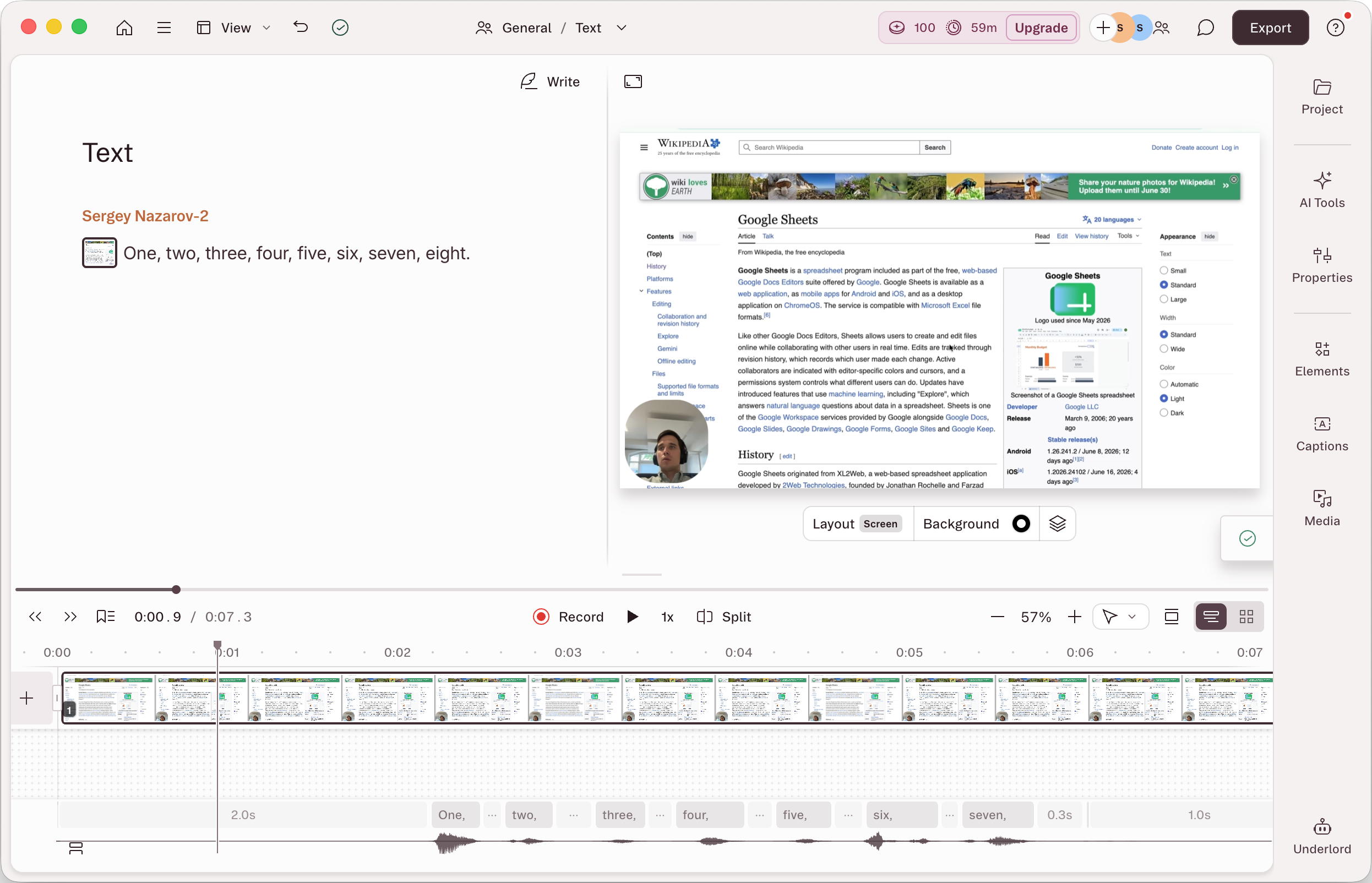
Screen Charm is the most obviously Mac-first option in this list for creators who want a polished demo without building a scene stack. It combines screen recording, webcam capture, microphone input, system audio, zoom editing, trimming, and export in one workflow, which is exactly what many Mac users wish OBS did more naturally. The standout feature is the intelligent auto-zoom, which tracks cursor movement and focuses attention on interface elements so viewers don't have to hunt for what changed. That makes it a strong fit for product demos, onboarding clips, support walkthroughs, and launch videos where clarity matters more than broadcast complexity.
Why it stands out on Mac
The app is built around a faster path from capture to publish. You can record a full screen, a window, or a selection, then add webcam footage, brand it with backgrounds or device frames, and tighten the result with a built-in editor before export. Screen Charm also adds cinematic touches like motion blur, cursor smoothing, click highlights, one-click mic enhancement, and background music, which helps short walkthroughs feel finished without dragging you into a separate editor.
Workflow is paramount. Instead of recording in OBS and then cleaning up the result elsewhere, Screen Charm keeps the work inside a single app on macOS. That's especially useful for founders, developers, educators, and support teams who need consistency. It's also Apple silicon-ready, and the site positions it as lifetime access with free updates and direct founder support from Sergey Nazarov.
Practical rule: if your video's job is to explain software, not to manage a live broadcast, auto-zoom usually gives you more value than another layer of OBS scene engineering.
Screen Charm's OBS comparison page makes the positioning even clearer. The app is meant for creators who want guided demos with less manual editing, and that includes local 4K MP4 export plus shareable links without requiring viewers to create an account. The site also shows a free trial or “Start for Free” path, so you can test the flow before committing.
Pricing, support, and trade-offs
The pricing details aren't perfectly aligned across sources, so it's best to treat them carefully. The product brief lists a one-time price of $49.90 with a 30-day money-back guarantee and unlimited 4K exports, while the current website shows a one-time lifetime price of $79 with a 14-day refund policy. Screen Charm also promotes “loved by 700+ users” on its site, but that's a marketing claim rather than a benchmark you should use to judge fit.
Screen Charm works best when speed and polish matter more than deep post-production flexibility.
That trade-off is important. Screen Charm is not trying to be a heavy multi-track editor or a live production switcher. It's optimized for guided recording, trimming, zoom timing, and branded presentation, so it shines for product demos and tutorials but won't replace a full broadcast stack. For many Mac workflows, that's a feature, not a limitation. The fewer tools you need to open after recording, the faster you ship.
Website, Screen Charm
Pros:
- Auto-zoom and cursor tracking make demos readable with little manual editing.
- All-in-one macOS workflow covers screen, webcam, mic, system audio, editing, and export in one app.
- Branded backgrounds, device frames, and cinematic touches help demos look marketing-ready.
- One-time lifetime purchase model with direct founder support and a free trial.
Cons:
- macOS-only, so it's not the right pick if you need cross-platform recording.
- Not a deep multi-track editor, so complex post-production still belongs in heavier software.
2. Ecamm Live

Ecamm Live is for Mac users who need a live production app that feels more native than OBS. It's especially strong for interviews, business presentations, and live shows where you want a smoother interface and less setup overhead. The app's Mac-only focus is part of the appeal, because the workflow is built around creators who live inside macOS and want their tools to behave like Mac tools.
Its interview workflow is one of the clearest differentiators. Browser-based guest links let you bring people into a live show without turning your setup into a technical rehearsal. On Apple silicon, Ecamm Live supports up to 10 guests in Interview Mode, and its Pro tier includes ISO recording for multiple cameras and guests, up to 1080p, which is useful when you need separate sources for later editing (Castr's OBS alternatives guide).
Ecamm also handles multistreaming and local recording in the same workflow, which helps if you want to broadcast while keeping a clean archive. That makes it attractive for creators who run webinars, live product launches, and customer-facing shows. It's still a professional tool, though, not a casual screen recorder. If you mainly need quick demos, it's more app than you need.
Ecamm Live makes sense when the live show is the product, not a side effect of recording.
The trade-off is straightforward. You gain a more integrated Mac-native production experience, but you also stay inside a narrower professional lane. ISO video capped at 1080p and some Pro features tied to Apple silicon mean you'll want to verify your exact workflow before buying. The upside is reliability. The app is built for people who stream regularly and want their recordings saved locally by default.
Website, Ecamm Live
Sponsored by the makers
Tired of boring screen recordings?
Try Screen Charm.
Auto-zoom, captions, motion blur, camera overlay and a vertical layout for Shorts. Record once, export a polished video.
Screen Charm is a native macOS app.
3. ScreenFlow
ScreenFlow is the classic choice for Mac creators who want recording and editing in one place. It's been a Mac-native screen tool for years, and its strongest appeal is still the same, a mature timeline editor paired with reliable capture. For tutorials, training videos, and marketing explainers, that combination is hard to beat because you don't have to move files into another editor just to make a clean final cut.
Built for long-form capture and editing
ScreenFlow's workflow is more traditional than Screen Charm's. It focuses on screen, webcam, and mic capture, then hands you a multitrack timeline editor with annotations, edits, and export control. That makes it a better fit for creators who want to refine pacing, layer in callouts, or build a longer tutorial series. Telestream also offers a one-time license option and a free trial, which is helpful if you want to avoid mandatory subscription software.
The practical upside is control. You can capture first and shape the story later, which matters for lessons, product education, and internal training. The downside is that it doesn't remove as much work as Screen Charm or some newer auto-zoom-focused tools. If you want the software to do the visual guiding for you, ScreenFlow asks you to do more of that work yourself.
The current Screen Charm ScreenFlow alternative page reflects that contrast well. ScreenFlow is the stronger pick when the editing timeline is the priority, not when you want the shortest route from recording to publish.
Where it wins and where it slows you down
ScreenFlow's editor is a major advantage over simpler recorders. It's much more capable than basic trimming tools, and that matters the moment your content needs structure. At the same time, live streaming is not its focus, so if your main goal is broadcasting, you'll feel the difference quickly.
Pros:
- Mature Mac-native workflow designed for tutorials and demos.
- Better built-in editor than lightweight recorders.
- Perpetual license option with a free trial.
Cons:
- Live streaming is secondary, so it's not ideal for broadcaster-first workflows.
- Stock Media Library add-on can add recurring cost if you need extra assets.
Website, ScreenFlow
4. Camtasia

Camtasia is the most enterprise-friendly pick in this list. It's built for teams that create structured training, onboarding, and marketing videos and need a reliable editing environment with templates, callouts, and support for more formal deliverables. If your Mac videos have to look consistent across a team, Camtasia usually feels more complete than lightweight capture tools.
The biggest advantage is how much it gives you around the recording workflow. TechSmith has long positioned Camtasia around multitrack editing, cursor effects, annotations, templates, quizzes, and SCORM export, which is why it's common in training environments. It also includes AI-assisted editing, transcription, and background removal, plus support and release servicing for macOS. That mix makes it useful for organizations that care about repeatability as much as polish (TechSmith's Camtasia site).
The downside is complexity. Camtasia is powerful, but that power comes with a heavier app and subscription tiers that can feel messy if you just want to record a quick walkthrough. It's better than OBS for polished instructional work, but it still asks you to manage more than a purpose-built demo recorder like Screen Charm.
The Screen Charm Camtasia alternative page underscores the practical difference. Screen Charm is about fast demo creation. Camtasia is about structured video production, especially when you need lesson assets, quiz-style training, or more formal output packages.
If a video needs to be approved, repurposed, and reused across a team, Camtasia's structure helps. If it just needs to explain one product action clearly, it can feel like too much software.
Website, Camtasia
5. CleanShot X
CleanShot X is the Mac utility people reach for when screenshots matter as much as screen recording. It's fast, polished, and better suited to quick support clips or bug reports than to long-form production. The app's biggest strength is that it keeps everything light. You can capture, annotate, trim, and share without opening a heavier editor or managing a broadcast stack.
Its feature set is practical rather than flashy. CleanShot X offers fast screenshot tools, 4K screen recording, GIF creation, annotations, simple editing, and instant cloud sharing through CleanShot Cloud. The license model is simple too, with a one-time license per Mac and 1 year of updates. For developers, support teams, and marketers, that combination makes it easy to use without creating subscription fatigue.
The honest limitation is just as clear. CleanShot X is not a full non-linear editor, so it won't replace ScreenFlow or Camtasia when a project needs deeper timeline work. It's best when the video is short, the edit is light, and the value is in speed. If you're recording a bug, annotating a UI issue, or sharing a crisp visual update, it feels effortless.
Website, CleanShot X
6. Loom
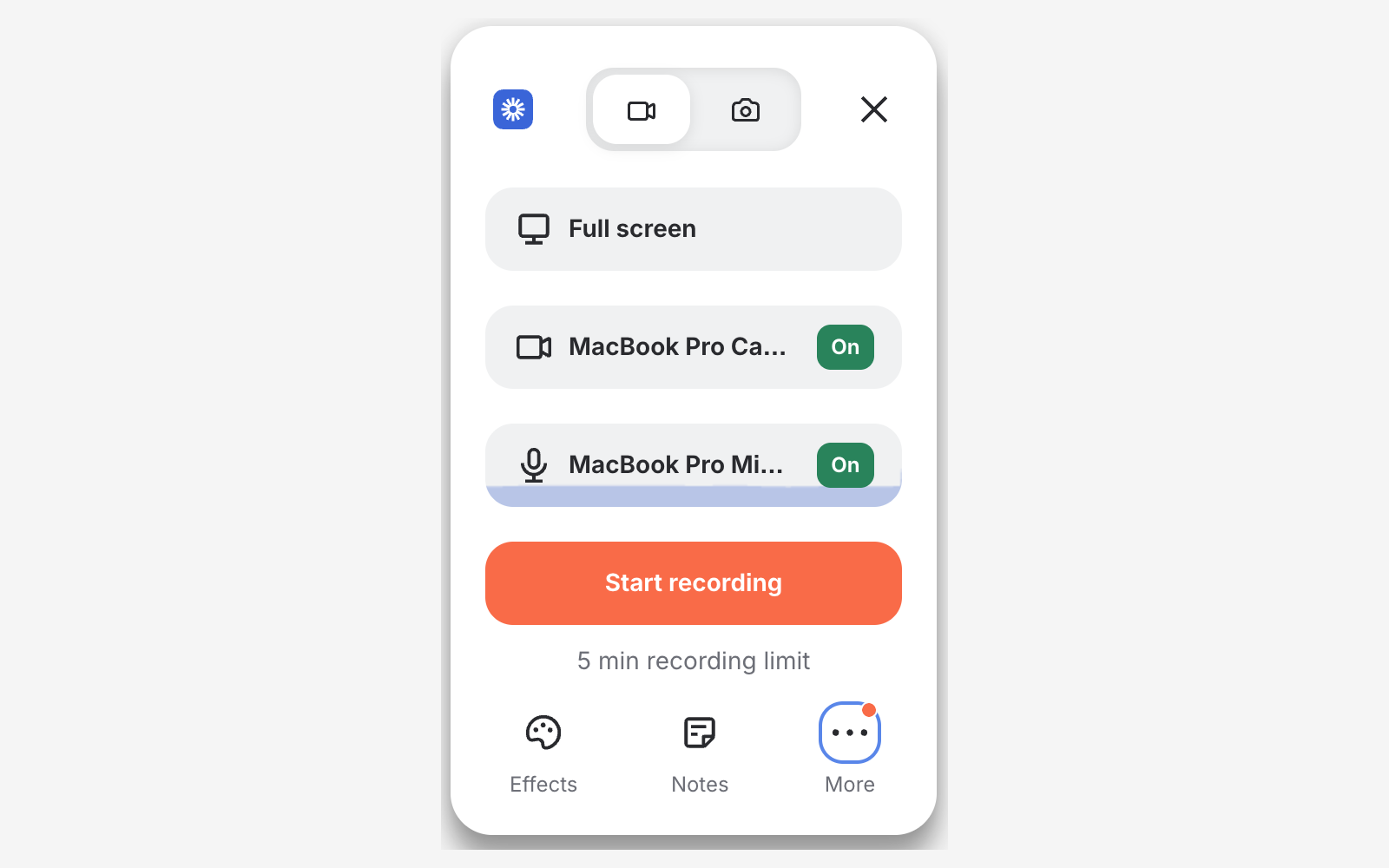
Loom is built for asynchronous communication, not studio production. If your team makes walkthroughs, status updates, customer success explainers, or sales follow-ups, Loom gets the recording out of your way and focuses on sharing. It runs as a macOS app, a Chrome extension, and mobile apps, so it fits distributed teams that want to record quickly and send a link instead of a file.
The workflow is the appeal. Loom supports 4K screen and camera recording with system audio and captions/transcripts, then layers in AI features like titles, summaries, chapters, tasks, and meeting recaps. It also includes team libraries, privacy controls, and Atlassian integrations, which is useful if your company already uses that ecosystem. The main advantage over OBS is obvious, less setup, more sharing, and easier commenting after the recording is done.
The drawback is equally obvious. Loom is not designed for heavy editing. If you need polished motion graphics, detailed scene work, or precise post-production, you'll end up exporting elsewhere. That's fine if your job is to communicate fast. It's not fine if your videos need to feel like finished productions.
Loom works best when the viewer needs context fast, not when the edit itself is part of the deliverable.
Website, Loom
7. Descript
Descript is the choice for people who think in transcripts, not timelines. It turns recordings into text, then lets you edit video and audio by editing the transcript. For creators on macOS who repurpose demos into clips, tutorials, and updates, that approach removes a lot of tedious trimming work.
The software supports screen and camera recording, multi-language transcription, speaker detection, dynamic captions, timeline refinements, and 4K export on paid tiers. It also uses a media-minutes and AI-credits model with top-ups available, so it's important to watch usage if you record heavily. The upside is speed. Cleanup tasks like removing filler words, tightening pauses, and generating captions can move quickly compared with manual timeline editing.
The limitation is precision. Descript is excellent for spoken content and practical edits, but it's not the best place for heavy motion graphics or meticulous visual effects. If your video depends on tight visual choreography, a traditional editor still has the edge. If your content is mostly narration, walkthroughs, and repurposed training material, Descript is very efficient.
Website, Descript
8. Capto
Capto is a lightweight macOS recorder for people who want simple capture, annotations, and clear walkthroughs without a heavy suite. It's a strong fit for educators, support teams, and developers who need to show a UI, label it, and export quickly. The appeal is speed, not spectacle.
The feature set stays focused. Capto supports region, app, or full-screen capture, webcam overlay, audio control, quick timeline trims, annotations, and callouts. That makes it useful for how-to clips and UI walkthroughs where you need just enough editing to make the point. The license model is also relatively approachable, which suits teams that don't want a large recurring software bill.
Capto is not built for live streaming, and it doesn't try to compete with full multi-track editors. That means its value comes from being easy to learn and easy to use. If your videos are short, instructional, and mostly visual explanation, it covers the essentials well.
Website, Capto
9. Streamlabs Desktop
Streamlabs Desktop is the closest thing here to a friendlier OBS variant. It keeps the scene-based streaming foundation, but wraps it in a cleaner interface, built-in overlays, widgets, themes, and creator tools. If your main reason for opening OBS is live streaming, Streamlabs often feels like the easier on-ramp.
It supports a free Mac app for Intel and Apple silicon, plus a theme marketplace, overlay library, and dual output workflows that help multi-platform creators produce horizontal and vertical streams at the same time. The macOS workflow for desktop audio still takes extra setup through virtual devices, so it's not magic. But it is less intimidating than vanilla OBS for many streamers.
The trade-off is that the richer feature set lives around the paid Ultra suite. If you want cloud extras, advanced creator tools, or more polished multistream options, you'll need to pay for them. For streamers, that's often acceptable. For everyone else, it's probably unnecessary.
Backlink, SubmitMySaas RTMP server list
Website, Streamlabs Desktop
10. Wirecast
Wirecast is the professional live production answer for Mac users who need more than a friendly streaming app. It's built for multi-camera events, broadcast-style streams, and enterprise deployments where switching, graphics, and reliability matter more than simplicity. Universities, houses of worship, sports teams, and event producers use this class of software because it gives them a production control surface rather than a recorder with extras.
The feature set reflects that priority. Telestream describes Studio and Pro tiers, with multi-camera switching and ISO recording on Pro, plus 3D virtual sets, live scoreboards, replay capabilities, SRT and RTMP outputs, and compatibility with pro capture cards (Wirecast by Telestream). That's a different world from quick tutorial capture. Wirecast is for teams that need a true switcher and can justify the complexity.
The obvious trade-off is cost and learning curve. Wirecast is more expensive and more demanding than creator-focused apps, but it earns that overhead when the production itself is the product. If you're running a live event or building a broadcast workflow on Mac, it deserves a hard look. If you just need a product demo, it's too much.
Website, Wirecast
Top 10 OBS Alternatives for Mac, Comparison
| Product | Core features | Quality & UX (★) | Price & Value (💰) | Target audience (👥) | Unique selling points (✨) |
|---|---|---|---|---|---|
| Screen Charm 🏆 | Auto-zoom cursor tracking; pause and resume; captions; screen+webcam recording; built-in editor; 4K export | ★★★★☆ intuitive Mac UI; cinematic touches | 💰 One‑time ~$49–79; 30‑day MBG; unlimited 4K | 👥 founders, indie makers, devs, educators | ✨ Intelligent auto-zoom + captions + cursor smoothing; branded backgrounds; founder support |
| Ecamm Live | Live production, multistream, Interview Mode, ISO recording | ★★★★☆ Mac-native, streamlined live UX | 💰 Paid (subscription; Pro for Apple Silicon features) | 👥 streamers, podcasters, interviewers | ✨ Browser guest links, multistream, reliable local recordings |
| ScreenFlow (Telestream) | High-quality capture + multitrack timeline editor | ★★★★☆ mature editor tailored to tutorials | 💰 One‑time license; optional stock library add-on | 👥 tutorial creators, marketers, educators | ✨ Robust timeline editing inside a single Mac app |
| Camtasia (TechSmith) | Multitrack editor, templates, quizzes, SCORM export | ★★★☆☆ enterprise-grade; feature-rich but heavier | 💰 Paid license / subscription tiers | 👥 enterprise trainers, instructional designers | ✨ SCORM/quizzing, large asset ecosystem, advanced cursor effects |
| CleanShot X | Fast screenshots, 4K quick recordings, annotations, cloud | ★★★★☆ extremely fast and lightweight | 💰 One‑time per Mac + 1yr updates; cloud paid tiers | 👥 developers, support, marketers | ✨ Instant cloud sharing; ultra-fast capture workflow |
| Loom | Cloud-first recorder, AI summaries, team libraries | ★★★★☆ very low friction for sharing/commenting | 💰 Freemium → Teams/Pro subscriptions | 👥 distributed teams, sales, customer success | ✨ AI titles/summaries/chapters; instant share + comments |
| Descript | Screen/camera recorder + text-based (transcript) editing | ★★★★☆ fast AI-assisted editing workflow | 💰 Freemium; metered media minutes & AI credits | 👥 podcasters, creators repurposing content | ✨ Edit video by editing text; quick filler removal & captions |
| Capto (Global Delight) | Region/app/full-screen capture, trims, annotations | ★★★☆☆ simple, easy-to-learn UI | 💰 Affordable one‑time license | 👥 educators, support staff, developers | ✨ Purpose-built for annotated how‑to videos; budget-friendly |
| Streamlabs Desktop | OBS-based studio with overlays, widgets, dual output | ★★★☆☆ friendlier OBS experience; free core | 💰 Free core; optional Streamlabs Ultra subscription | 👥 live streamers, multi-platform creators | ✨ Theme marketplace, dual-output (horizontal + vertical) workflows |
| Wirecast (Telestream) | Multi-camera switching, ISO, replays, pro outputs | ★★★★☆ broadcast-grade; powerful but complex | 💰 Premium pricing; Studio/Pro tiers | 👥 broadcasters, events, universities, enterprise | ✨ 3D virtual sets, live scoreboards, replay & pro capture support |
Choose Your Perfect macOS Recording Workflow
Choosing the best obs alternative for Mac starts with the job, not the brand. If you're making guided tutorials and product demos, Screen Charm is the most focused pick here because it removes a lot of the manual work with auto-zoom, cursor smoothing, branded backgrounds, and simple editing in one app. If your content is live, Ecamm Live, Streamlabs Desktop, and Wirecast belong in a different lane, because they solve streaming and guest management better than any demo recorder. If you need a real editing timeline, ScreenFlow and Camtasia are the stronger bets, while CleanShot X and Capto keep things light for screenshots, bug reports, and short clips. Loom is still the easiest choice for async team communication, and Descript wins when transcript-based editing fits your workflow.
The decision really comes down to how much control you want versus how much speed you need. OBS still makes sense for broadcast-style setups, especially when scene control, plugins, and live flexibility matter. But most Mac users aren't opening OBS for a full broadcast studio. They're trying to record a useful, polished screen video without spending half the day fixing it afterward. That's where Mac-native tools win.
If your work lives in product education, onboarding, demos, or support walkthroughs, prioritize the app that shortens the path from capture to publish. If your work lives in live video, prioritize the app that removes stream setup friction. Either way, the right Mac tool should feel like part of macOS, not a compromise you tolerate because it's powerful.
For the fastest path to polished demos on Mac, start with Screen Charm, test the auto-zoom on a real workflow, and see whether it replaces the extra editing step you've been living with.