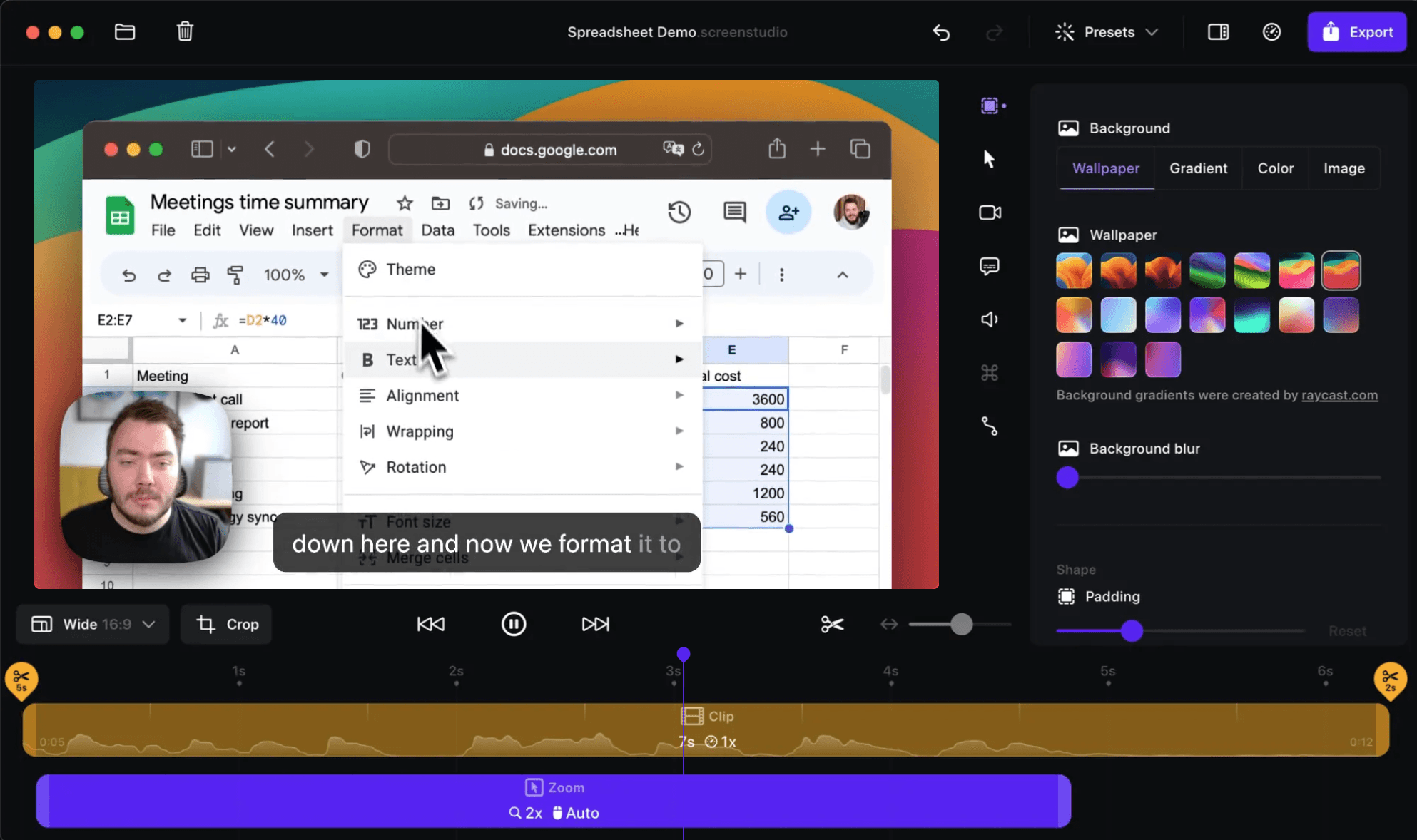
To zoom in on a Mac, press ⌘ Command + + in most apps and browsers, and ⌘ Command + – to zoom out. To magnify the whole screen instead, turn on Zoom in System Settings → Accessibility, then press ⌥ Option + ⌘ Command + 8 to switch it on and off.
Those two cover almost everything. Below are all the ways to zoom on a Mac — keyboard, trackpad, mouse and Accessibility Zoom — plus how to fix a screen that's stuck zoomed in.
Mac Zoom Shortcuts at a Glance
| What you want | Shortcut |
|---|---|
| Zoom in on a page or document | Command + Plus (+) |
| Zoom out | Command + Minus (–) |
| Reset to actual size (browsers) | Command + 0 |
| Zoom with the trackpad | Pinch two fingers apart or together |
| Smart zoom (trackpad) | Double-tap with two fingers |
| Turn whole-screen Zoom on or off | Option + Command + 8 |
| Zoom the whole screen in | Option + Command + Equals (=) |
| Zoom the whole screen out | Option + Command + Minus (–) |
| Zoom the whole screen by scrolling | Hold Control and scroll |
The whole-screen shortcuts only work once Accessibility Zoom is set up, which takes a minute. See below.
Zoom In and Out in Apps with the Keyboard
Command + Plus and Command + Minus zoom the content inside the app you're using:
- Safari, Chrome, Firefox and Arc zoom the web page. Command + 0 resets to 100%.
- Pages, Numbers, Keynote and Preview zoom the document.
- Finder makes icons bigger or smaller in icon view.
- Mail and Messages change the text size.
You don't need to hold Shift for the plus sign: Command + Equals (=) works the same way.
Browsers remember the zoom level per website, so if one site always opens too big or too small, press Command + 0 on that site to reset it.
Sponsored by the makers
Tired of boring screen recordings?
Try Screen Charm.
Auto-zoom, captions, motion blur, camera overlay and a vertical layout for Shorts. Record once, export a polished video.
Screen Charm is a native macOS app.
Zoom with the Trackpad or Mouse
Pinch to zoom
On a MacBook trackpad or Magic Trackpad, pinch two fingers apart to zoom in and pinch them together to zoom out. It works in Safari, Photos, Preview, Maps and most apps that show images or documents.
Smart zoom
Double-tap with two fingers to zoom into the paragraph or image under your pointer, and double-tap again to zoom back out. It's handy for reading a column of text on a web page.
If pinching or smart zoom does nothing, turn them on in System Settings → Trackpad → Scroll & Zoom.
Magic Mouse
On a Magic Mouse, double-tap with one finger for smart zoom. Turn it on in System Settings → Mouse.
Zoom the Whole Screen with Accessibility Zoom
Accessibility Zoom magnifies everything on your display: menus, the Dock, windows, even apps that don't support zooming. It's useful for reading small text, for presentations, and on large monitors.
Turn it on
- Open System Settings → Accessibility → Zoom.
- Turn on Use keyboard shortcuts to zoom.
- Optionally turn on Use scroll gesture with modifier keys to zoom. The default modifier key is Control.
- Optionally turn on Use trackpad gesture to zoom to zoom with a three-finger double-tap.
Use it
- Option + Command + 8 turns Zoom on and off.
- Option + Command + Equals (=) zooms in, and Option + Command + Minus (–) zooms out.
- With the scroll gesture on, hold Control and scroll up (or swipe up with two fingers) to zoom in, and scroll down to zoom out.
- With the trackpad gesture on, double-tap with three fingers to toggle Zoom, or double-tap and drag to change how far it zooms.
The zoomed view follows your pointer as you move it.
Choose a zoom style
In the same settings, Zoom style controls how the magnified view appears:
- Full Screen magnifies the whole display.
- Split Screen shows the magnified area in a separate part of the screen.
- Picture-in-Picture shows a movable magnifying window, like a loupe.
How to Fix a Mac Stuck Zoomed In
If your whole screen is suddenly magnified, Accessibility Zoom was switched on, usually by an accidental shortcut or scroll gesture. To get back to normal:
- Press Option + Command + 8 to turn Zoom off.
- If that does nothing, hold Control and scroll down (or swipe down with two fingers on the trackpad).
- If you use the trackpad gesture, double-tap with three fingers.
- Still stuck? Go to System Settings → Accessibility → Zoom and turn off the options there.
If only one app or web page looks too big, that's app zoom, not Accessibility Zoom. Press Command + 0 in a browser, or Command + Minus until it looks right.
Make everything bigger permanently
If you keep zooming in because text is too small, a permanent change is more comfortable:
- System Settings → Displays: choose a Larger Text option for your display.
- System Settings → Accessibility → Display → Text size: make text bigger in apps that support it.
How to Zoom In on a Screen Recording
Zooming while you work and zooming in a video of your screen are different jobs. If you're recording a tutorial or demo, viewers watching on a laptop or phone can't read small buttons in a full-screen recording, so you want the video itself to zoom in on what matters.
You can try to zoom live with Accessibility Zoom while recording, but it's hard to do smoothly while also talking and clicking. The easier options are:
- Add zoom after recording in an editor. Our guide on how to zoom in on a video covers the ways to do it on Mac.
- Let the recorder zoom for you. A Mac screen recorder with automatic zoom like Screen Charm follows your cursor and zooms in on each click as you record, so the video comes out zoomed in where it matters with no editing.
FAQ: Zooming on a Mac
What is the shortcut to zoom in on a Mac?
Command + Plus (+) zooms in inside most apps and browsers, and Command + Minus (–) zooms out. To magnify the whole screen, turn on Accessibility Zoom and press Option + Command + Equals (=).
How do I zoom out on a Mac?
Press Command + Minus (–), or pinch two fingers together on the trackpad. In a browser, Command + 0 resets to the normal size. If the whole screen is magnified, press Option + Command + 8.
How do I zoom in on a MacBook with the trackpad?
Pinch two fingers apart on the trackpad. Double-tapping with two fingers zooms into the area under the pointer. Both can be turned on in System Settings → Trackpad → Scroll & Zoom.
Why is my Mac screen zoomed in and how do I fix it?
Accessibility Zoom was turned on. Press Option + Command + 8, or hold Control and scroll down. If neither works, turn Zoom off in System Settings → Accessibility → Zoom.
How do I zoom in on just part of the screen?
Turn on Accessibility Zoom and set Zoom style to Picture-in-Picture. You get a movable magnifying window instead of a full-screen zoom.
Can I zoom in while screen recording on Mac?
You can try it with Accessibility Zoom, but it's hard to control smoothly while you record. A screen recorder with auto-zoom, such as Screen Charm, zooms in on your clicks automatically instead.