You're probably in the middle of a real job right now. Maybe a teammate sent a Loom you need to drop into Notion, maybe you recorded a walkthrough and now want the file for editing, or maybe you just need an offline copy before a link disappears. On Mac, the annoying part is that Loom doesn't always make the download path obvious, and the right move changes depending on whether you own the video, where it was shared, and what device you're on.
The good news is that download Loom video on macOS is usually straightforward once you know where Loom hides the control. The bad news is that the obvious path isn't always available, captions can be missing from the file you get, and some share links won't let you save anything locally. This guide separates the clean Mac workflow from the cases that break, so you can stop guessing and get the file you need.
Why Saving Loom Videos on Mac Is Trickier Than It Looks
A developer finishes a code walkthrough and needs the clip in Notion before the sprint review. An instructor wants the same Loom stored offline for a course edit. A marketer needs the MP4 for a cutdown in Final Cut. All three people start the same way on a Mac, by opening Loom and hunting for a big obvious download button that may or may not be there.
That's where the confusion starts. Loom's download path changes depending on whether you're in My Library, looking at a share page, or opening a recording from an iPhone or iPad. Permission matters too, because a viewer can often watch a recording without being allowed to save it. On top of that, macOS adds its own small annoyances, like files landing in Downloads with generic names that are hard to sort later.
Practical rule: if the video is yours, start in the Library. If it's someone else's, check the share permissions first instead of assuming the button is broken.
Loom's own support pages make the file format clear, the built-in download is MP4, and the saved file reflects the original recording specs, which is why it drops cleanly into QuickTime, iMovie, and Final Cut without conversion (Loom manage videos you created). The broader workflow also sits inside Loom's async-video model, where admin insights tie usage to “meetings saved,” which is one reason teams care about preserving recordings locally for reuse (Loom download your video).
For a plain-English primer on what Loom is before you start saving clips, the overview at what is a Loom video is a useful refresher.
Downloading Loom Videos Through the macOS Web App

Start in the Library, not the share sheet
On Mac, the cleanest path is the one Loom expects for recordings you own. Open loom.com/library, click the clip, and let the preview pane load fully. The download command sits inside the three vertical dots menu, so you have to open the overflow menu first. Loom does not present it as a large button, which is why people often assume the option is missing.
That placement matters. The share dialog and the video action menu are different controls, and the download command belongs to the latter. After you choose it, Safari or Chrome should pass an MP4 into the browser's normal download flow, which usually sends the file to your Downloads folder unless you changed that setting.
Open the file from Finder right away and check that it launches in QuickTime Player. Loom saves a standard MP4, so common Mac editing tools can use it without conversion. If the file still has the default name, rename it while the recording is fresh in your head, especially if you export several walkthroughs in one day.
Safari and Chrome behave the same way here
Safari and Chrome both work fine for the Library path on macOS. The variable is your download settings, not the browser. Safari may show the file in the download popover first, while Chrome usually places it straight into Downloads and then lets you open it from Finder.
A small habit saves time later. Use a naming pattern that tells you what the video contains, such as a project tag, a date, and a short descriptor. That keeps multiple Loom exports searchable when they pile up in the same folder.
Creators who also need a way to save short-form clips for reuse can pair this with safe video saving for creators, especially if they are building an archive of tutorials or internal demos.
Sponsored by the makers
Tired of boring screen recordings?
Try Screen Charm.
Auto-zoom, captions, motion blur, camera overlay and a vertical layout for Shorts. Record once, export a polished video.
Screen Charm is a native macOS app.
Saving Loom Videos Through Share Pages and Collaborator Access

Shared videos still use the same hidden menu
A Loom share page on macOS usually looks the same whether the video came from a teammate, a client, or a teacher. Open the link in Safari or Chrome, sign in with the account that has access, then check the overflow menu on the player. If the owner allowed downloads, the MP4 download command normally appears there.
Permission is the part that changes the outcome. Some recordings are locked by the creator, and some workspaces disable downloads at the admin level. In those cases, the save option may never appear, even though playback works normally. The missing download option reflects Loom's access rules, not a browser issue.
If the video plays but the download option is missing, start with permission and access settings before you troubleshoot the browser.
A direct request usually gets the file moving
If you hit that wall at work, ask the owner to turn on downloads for the recording or send the MP4 directly. Keep the message short and specific, for example: “Could you enable download on this Loom or share the MP4? I need it for a local edit and documentation.” That gives the owner a clear action and avoids a long exchange about whether the link is faulty.
Some people read the share page as a separate preview mode, but it is still the same Loom player with the permissions attached to that recording. If the download option is visible, the file you receive is still a standard MP4. For transcript-heavy edits, the sample transcript formatting guide is a useful reference once the video is saved.
Downloading Loom Recordings From iPhone and iPad to Your Mac
Mobile is where Loom gets a little less tidy. On iPhone or iPad, the app may offer a download or share action, but the result depends on where you send the file. If the goal is a clean transfer to a Mac for editing, Files is usually the better landing spot.
Photos is the easy path for quick viewing, and that is also its limit. It can compress the video and leave you with a weaker source for later edits. Files keeps the recording closer to a usable source file, and from there you can move it to your Mac with AirDrop, iCloud Drive, or a USB cable.
The Mac transfer path that wastes the least time
For editing, start with Files and then use AirDrop. That keeps the recording closer to the original and skips the extra reshuffling that happens when you route it through the camera roll. On the Mac side, AirDrop places the file in Downloads or in the folder you choose, so you can check it in Finder and open it in QuickTime right away.
Permissions can still change the result on mobile. A teammate who can save a Loom on Mac may only be able to view it on iPhone. In that case, the restriction usually comes from the access level attached to the recording, not from the device itself.
A quick checklist keeps the handoff cleaner:
- Save to Files first: Use this when you want the original recording preserved as a working file.
- AirDrop to Mac: Best for moving a single clip quickly without extra sync steps.
- Avoid Photos for edits: Fine for viewing, weaker for source material you plan to cut later.
- Check permissions early: If the save option is missing on mobile, the owner may need to grant access.
- Use a converter only if needed: If your export lands in a format your Mac app dislikes, a tool like this MOV to MP4 converter can help you normalize it before editing.
That route keeps mobile Loom clips usable on macOS without forcing you to re-encode the file before the edit starts.
Quality, Captions and Format Trade-Offs Worth Knowing
The file you get is not always the whole story
The built-in download is convenient, but it doesn't solve every export question. Loom's own docs make the file format simple, the download is MP4, and admin analytics can be exported with totals and month-over-month changes for recorded Looms, total video views, and estimated meetings saved (Loom understand your videos, views and analytics). That's useful for operations, but it doesn't tell you whether the download includes the captions you want or whether the shared copy is the highest-quality version available.
Captions are where people get surprised. In some workflows, the transcript exists in Loom but doesn't travel with the downloaded file as a neatly packaged subtitle track. If you care about captions for an edit, treat them as a separate asset unless you've confirmed otherwise in the specific recording.
When advanced retrieval is worth the trouble
Power users sometimes open DevTools, switch to the Network tab before playback, and filter for cdn.loom.com requests. One technical guide says the target MP4 request usually appears within 1–2 seconds after pressing play, then you can copy the URL and save it with a tool like curl -L -o loom-video.mp4 (GetVidora Loom download guide). The same workflow is often paired with yt-dlp -F to inspect formats before choosing one.
That route gives you more control, but it's not the first thing I'd reach for on a normal Mac day. A community gist on Loom retrieval shows why. It discusses multiple stream types, separate audio and video tracks, subtitle files, and the fact that yt-dlp is expected to succeed in roughly 90% of cases, which is a useful reminder that edge cases still happen (advanced Loom format walkthrough). If you just need a clean clip for QuickTime or Final Cut, the official download is usually enough.
| Method | Output | Typical Quality | Captions | Difficulty |
|---|---|---|---|---|
| Official Loom download | MP4 | Original recording specs | May be separate | Low |
| DevTools Network capture | Direct MP4 from CDN | Depends on stream delivery | Usually separate | Medium |
yt-dlp format selection | MP4, WebM, or mixed streams | Can improve choice when formats vary | Can save subtitle tracks | Higher |
For users who often convert footage after the fact, the basics of moving files between containers are easier if you already think in terms of standard formats, which is why a quick reference like MOV to MP4 conversion notes can help when the recording you want isn't already in the shape your editor expects.
Troubleshooting the Most Common Loom Download Failures on Mac

The symptom usually points to the cause
If the download button is missing, the usual cause is simple. The workspace admin may have disabled downloads, or the owner may not have granted save rights. On a Mac, the quickest fix is still the boring one. Ask for permission or request a direct file share instead of chasing browser settings that cannot override Loom's access rules.
If the file comes down as a small WebM or MOV wrapper instead of the MP4 you expected, the share settings or the delivery path are usually the reason. Start with the official menu, then check the file type if you need a specific container for editing. If the download begins and then stops partway through, Safari extensions or security software may be blocking the cdn.loom.com request. Chrome often settles the question fast, and so does temporarily turning off the extension to see whether Loom itself is at fault.
QuickTime refusing to play the file is less common, but it does happen when the recording arrives in an odd codec or the file was only partly downloaded. Re-download through Loom's built-in route if you still have access, because the official MP4 is usually the safest version for Mac playback and editing. If the MP4 plays but there's no audio, the recording probably never captured system audio in the first place. That is a capture problem, not a download problem.
A clean transcript handoff is easier when the file is already organized in a way your next tool can read. For that step, a sample transcript formatting guide is useful if you are turning the video into documentation instead of just archiving it.
If Loom keeps blocking the path you need, a purpose-built recorder can save time. A Mac tool such as Screen Charm avoids the permission chase entirely because the file starts local, which also means fewer surprises when you go back to trim, caption, or reuse the clip later.
Older DevTools recipes break when Loom changes its delivery path. The official download flow usually survives those changes better than the browser workaround.
When Recording With Screen Charm Beats Downloading Loom
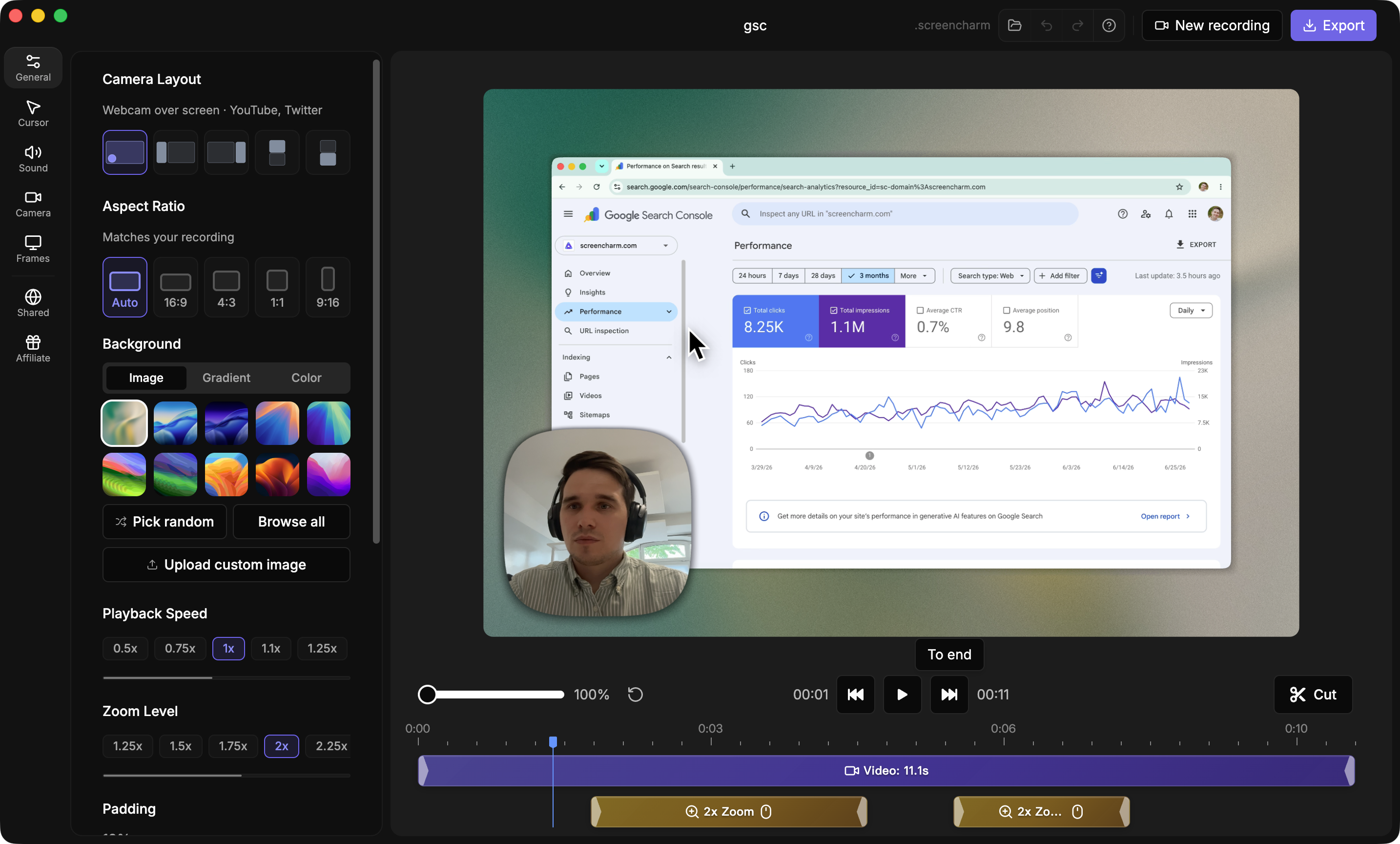
The cleanest download is the one you never have to chase. If you are the creator on a Mac and you already know the clip will need trimming, polish, or reuse in another workflow, recording locally is usually less frustrating than exporting from Loom later. A dedicated Mac recorder gives you the file from the start, which means no permission gates, no share-link oddities, and no guessing where the export landed.
Why local recording changes the workflow
Screen Charm is built around the Mac recording flow itself, not around recovering a file after the fact. Its auto-zoom follows cursor movement so viewers stay on the interface element you are demonstrating, which is useful for product tours, onboarding clips, and software tutorials. The cursor icon, size, and movement speed are customizable, so you can make a technical demo easier to follow without leaning on extra narration tricks.
The key difference is that the recording starts as a local file. There is no hidden save permission to request from a teammate, no mobile-only limitation to work around, and no share page to inspect for a missing download menu. For people who record weekly, that can save more time than any export workaround. Screen Charm is purpose-built for the Mac recording flow, and you can learn more about what it does at the Screen Charm overview.
Match the tool to the job
Use Loom when a teammate already sent the recording and you just need the file. Use the Library menu when you own the clip. If the share permissions are locked down, ask for the file directly. If the quality still is not good enough or the workflow keeps bouncing between devices, re-record the demo locally instead of wrestling with the same download problem again.
Screen Charm also fits the cases where the recording itself matters. It supports webcam overlay, 4K UHD export without a watermark, and an integrated editor for trimming and zoom adjustments, which makes it more practical for polished walkthroughs than a round trip through browser downloads. That is especially helpful for developers showing a feature, instructors recording a lesson, or support teams making repeatable onboarding videos.
A simple decision framework usually holds up:
- You recorded the Loom yourself, use the Library and the overflow menu.
- Someone else shared it, verify download permission first, then ask politely if needed.
- You cannot get an acceptable download, record the workflow locally with a dedicated Mac tool and keep the file under your control.
Keep the MP4 name readable as soon as it lands in Downloads, leave the original in place until you have checked the edit, and export captions separately if you are sharing externally. Loom's behavior can change with product updates, so bookmarking a reliable guide saves future re-search, and mastering one local recorder removes the Loom download question from your weekly workflow. If you want a Mac-native way to create clean demos without chasing export permissions later, visit Screen Charm and see how it handles recording, zooming, and local export in one place.