Short answer: The best open source screen recorder for Mac is OBS Studio if you want a mature, free recorder for long sessions and streaming, and Cap if you want quick shareable links plus a polished Studio Mode. For a free Screen Studio-style look with auto-zoom, try OpenScreen or Recordly. For tiny clips and GIFs, Kap still works, though it hasn't had a release since 2022.
All five are free to download and their source code is public. They differ a lot in what they're good at, how actively they're maintained, and how much work it takes to get a finished video. This guide compares them honestly, mentions the free recorder that's already on your Mac, and explains where a paid app like Screen Charm fits (it is not open source). Facts and prices were checked in November 2026.
Open-Source Mac Screen Recorders at a Glance
| Recorder | License | Platforms | Auto-zoom | Webcam | System audio | Best for |
|---|---|---|---|---|---|---|
| OBS Studio | GPL-2.0 | Mac, Windows, Linux | No | Yes | Yes (macOS 13+, OBS 30+) | Long recordings, streaming, full control |
| Cap | AGPLv3 (some parts MIT) | Mac, Windows, Linux | Yes (Studio Mode) | Yes | Yes | Instant share links, Loom-style videos |
| OpenScreen | MIT | Mac, Windows, Linux | Yes | Yes | Yes | Free Screen Studio-style demos |
| Recordly | AGPL-3.0 | macOS 14+, Windows, Linux | Yes | Yes | Yes | Free polished demos with a timeline |
| Kap | MIT | Mac only | No | No | Needs a virtual driver | Short clips and GIFs |
| QuickTime / Cmd+Shift+5 | Not open source (built in) | Mac only | No | No | No | Quick captures with nothing to install |
| Screen Charm | Not open source (paid, $19/month or $89/year) | Mac only | Yes | Yes | Yes, native | Polished demos with less setup |
"Free" here means free to download. Cap's free plan is for personal use; commercial use needs a paid license (details below).
1. OBS Studio: Best Free Open-Source Recorder for Power Users
OBS Studio is the most established open-source recorder on any platform. It's built for live streaming, but it records to a file just as well, with no watermark and no time limit.
You build a "scene" from sources: a display or window capture, a webcam, a microphone, images, text. On macOS 13 or later with OBS 30 or newer, the macOS Audio Capture source records desktop or per-app audio without a virtual driver. Older setups still need something like BlackHole.
Good at:
- Free with no limits, no account and no watermark
- Multi-source layouts, filters, and plugins
- Native Apple silicon build
- Live streaming to YouTube, Twitch and others
Weak spots:
- No editor: trimming, zooms and captions happen in another app
- Setup takes time (scenes, sources, encoder and output settings)
- Raw recordings have no cursor effects or automatic zoom
Pick it if you record long sessions, stream, or want full control and don't mind editing elsewhere. Our OBS screen recording guide walks through the setup, and Screen Charm vs OBS covers the trade-offs against a paid recorder.
Sponsored by the makers
Tired of boring screen recordings?
Try Screen Charm.
Auto-zoom, captions, motion blur, camera overlay and a vertical layout for Shorts. Record once, export a polished video.
Screen Charm is a native macOS app.
2. Cap: Best Open-Source Loom Alternative
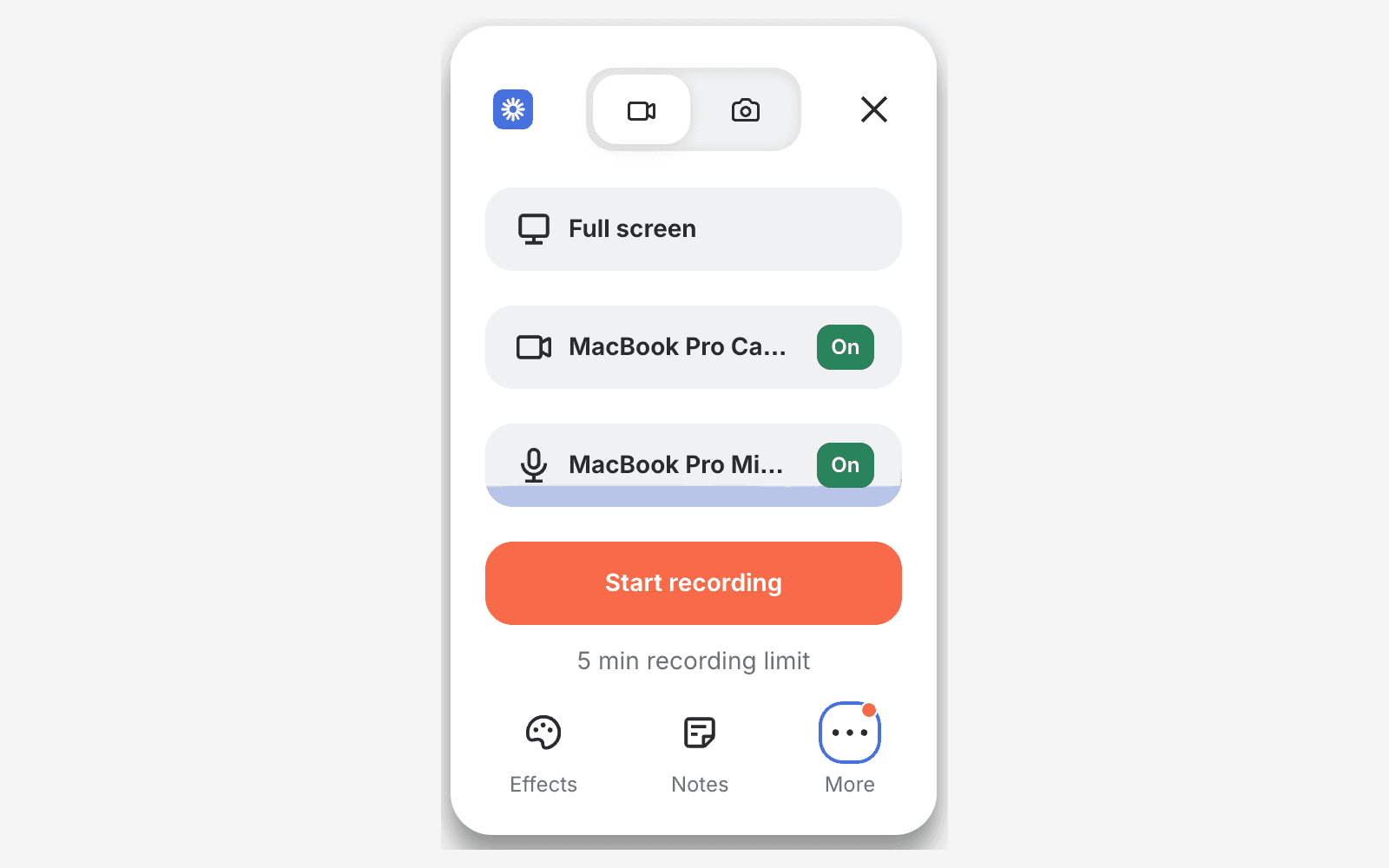
Cap describes itself as an open-source alternative to Loom. It has two modes: Instant Mode uploads as you record and gives you a share link the moment you stop, and Studio Mode records screen and webcam as separate tracks at up to 4K for editing, with automatic zoom, cursor effects and backgrounds.
Cap's code is on GitHub, mostly under AGPLv3, and you can connect your own S3-compatible storage or self-host it.
Pricing (as of November 2026):
- Free: personal use only; Studio Mode, 4K export, and 25 share links a month up to 5 minutes each
- Desktop License: $29/year or $58 once, for commercial use
- Cap Pro: $12 per user per month, or about $8.16 billed annually, for the cloud features
Good at:
- Fast share links, comments, and AI-generated captions
- Self-hosting and custom storage
- Cross-platform
Weak spots:
- Commercial use isn't free, so "open source" doesn't mean "free for your business"
- The full sharing workflow runs through Cap's cloud or your own server
Pick it if you want Loom-style async videos with the option to own your storage. See Screen Charm vs Cap or our Cap alternative page for a direct comparison.
3. OpenScreen: Free Screen Studio-Style Demos
OpenScreen is a free, MIT-licensed recorder and editor aimed at the polished product-demo look: automatic zooms from your clicks, cursor smoothing, motion blur, backgrounds, device frames, webcam layouts, and local transcription for captions. It exports MP4 or GIF and runs on macOS, Windows and Linux, with no watermark and no account.
One thing to know: the original OpenScreen repository was archived by its creator, and development continues as a community-maintained project. That's normal in open source, but check the GitHub releases before you build a workflow on it.
Good at:
- Most of the "Screen Studio look" for free
- Everything (recording, transcription, rendering) runs on your Mac
- Cross-platform
Weak spots:
- Community-maintained, so update pace depends on volunteers
- No cloud share links; you export a file and share it yourself
Pick it if you want auto-zoomed demos and your budget is zero. Compare it in detail on Screen Charm vs OpenScreen.
4. Recordly: Open-Source Recorder With a Timeline Editor
Recordly is another free, open-source Screen Studio alternative, under AGPL-3.0. It records screen, microphone and system audio, suggests zooms from your cursor activity, smooths cursor movement with motion blur, and puts the recording in a styled frame. Its timeline handles trimming, speed regions, annotations and zooms, and it exports MP4 or GIF.
It runs on macOS 14 or later, Windows and Linux.
Good at:
- Auto-zoom plus a real timeline for adjustments
- Webcam bubble that can grow and shrink
- Free, with no paid tier
Weak spots:
- A newer project, so expect some rough edges
- Needs macOS 14 (Sonoma) or newer
Pick it if you want auto-zoom and more hands-on timeline control without paying. See Screen Charm vs Recordly.
5. Kap: Lightweight Clips and GIFs
Kap is a small, MIT-licensed menu bar recorder for macOS. You pick an area, record, trim, and export to MP4, GIF, WebM or APNG. Plugins add sharing to services like Giphy or Dropbox.
It's pleasant for quick clips, but it's no longer moving: the latest release, v3.6.0, came out in October 2022. It runs natively on Apple silicon, and it still installs and works on many Macs, but don't expect fixes for new macOS versions.
Good at:
- Fast, simple, very light
- GIF export for docs, READMEs and pull requests
Weak spots:
- No webcam, no editor beyond trimming
- No releases since 2022
- System audio needs a virtual audio driver such as BlackHole
Pick it if you mostly make short GIFs and silent clips. It also appears in our list of free screen capture tools for Mac.
Built In: QuickTime and the Screenshot Toolbar (Not Open Source)
Every Mac already has a free recorder. Press Shift + Command + 5, choose the whole screen or an area, and click Record; QuickTime Player's File → New Screen Recording opens the same toolbar. It isn't open source, but if all you want is free and simple, it's the first thing to try.
Its limits: no system audio without a virtual driver, no webcam overlay, and only basic trimming. Our guide on how to screen record on a Mac covers the details, and Screen Charm vs QuickTime explains when it's worth upgrading.
The Paid Option: Screen Charm (Not Open Source)
Screen Charm is a paid, closed-source Mac screen recorder, so it doesn't belong on an open-source list. It's here because many people searching for one really want "a polished recorder that doesn't take an afternoon to set up", and it's fair to show what paying gets you.
Screen Charm records screen, webcam, microphone and system audio natively (no driver), zooms in automatically on your clicks, and gives you cursor smoothing, size, motion blur, click highlights and ripples. It also generates captions, adds background music, offers camera layouts, and creates share links that don't expire. It costs $19/month or $89/year.
What you give up compared with the tools above:
- It's not open source, and you can't self-host it
- It's Mac only, with no Windows or Linux version
- It isn't free beyond the trial
What you get: a native Mac app where the polish happens automatically, and support from the people who build it. If OpenScreen or Recordly does what you need, use them. If you'd rather pay to skip the setup, try Screen Charm.
How to Choose an Open-Source Screen Recorder for Mac
- Long recordings, streaming or complex layouts: OBS Studio
- Share a link the moment you stop recording: Cap
- Free product demos with auto-zoom: OpenScreen or Recordly
- Short GIFs for docs or pull requests: Kap
- One quick capture, nothing to install: Shift + Command + 5
- Polished demos with minimal setup, and you're fine paying: Screen Charm
Two things matter more with open-source tools than with paid ones: the license (AGPL and GPL require you to share changes if you distribute a modified version; MIT doesn't) and maintenance (check the date of the latest release before you commit). For paid and free recorders ranked together, see our guide to the best screen recorder for Mac.
Open-Source Screen Recorder FAQ
What is the best open source screen recorder for Mac?
OBS Studio is the most capable and best maintained. Cap is the best open-source choice for quick share links, and OpenScreen or Recordly are the best free options for auto-zoomed product demos.
Is there an open-source alternative to Screen Studio?
Yes. OpenScreen and Recordly both describe themselves as free, open-source Screen Studio alternatives, with automatic zoom, cursor smoothing, motion blur and backgrounds. Cap's Studio Mode covers some of the same ground.
Is Cap really free?
Cap is open source and has a free plan for personal use. Commercial use needs a Desktop License ($29/year or $58 once as of November 2026), and the cloud features are part of Cap Pro.
Can open-source recorders capture system audio on Mac?
OBS, Cap, OpenScreen and Recordly can. With OBS you need macOS 13 or later and OBS 30 or newer to do it without a virtual driver. Kap and the built-in recorder need a virtual audio driver such as BlackHole.
Is Kap still maintained?
Its latest release, v3.6.0, came out in October 2022. It still works on many Macs, but there haven't been updates since.
Is QuickTime open source?
No. QuickTime Player is free and comes with macOS, but its source code isn't public.
Is Screen Charm open source?
No. Screen Charm is a paid, closed-source Mac app ($19/month or $89/year). It's an option if you want a polished recorder and don't need open-source code.