Short answer: Choose Loom if you want to record a quick video and share a link in seconds, with comments, viewer insights, and AI summaries for your team. Choose OBS Studio if you want a free, open-source recorder with full control over scenes, sources, and live streaming.
Loom is a communication tool. OBS is a production tool. They overlap on "record my screen", and almost nowhere else.
Loom vs OBS at a Glance
| Loom | OBS Studio | |
|---|---|---|
| Pricing | Free Starter; Business $15/mo per creator billed annually ($18 monthly); Business + AI $20/mo annually ($24 monthly) | Free and open source |
| Platform | macOS, Windows, Chrome extension, iOS, Android | macOS, Windows, Linux |
| Setup time | Minutes | 30 to 60 minutes for a good setup |
| Instant share link | Yes | No, you upload the file yourself |
| Recording limits | Free: 25 videos per person, 5 minutes each, 720p | None |
| Live streaming | No | Yes |
| Scenes and multiple sources | No | Yes |
| Editing | Trim and stitch on paid plans | None built in |
| Best for | Async updates, bug reports, sales videos | Streaming, tutorials, complex multi-source recordings |
Where Loom Wins: Record and Share in Seconds
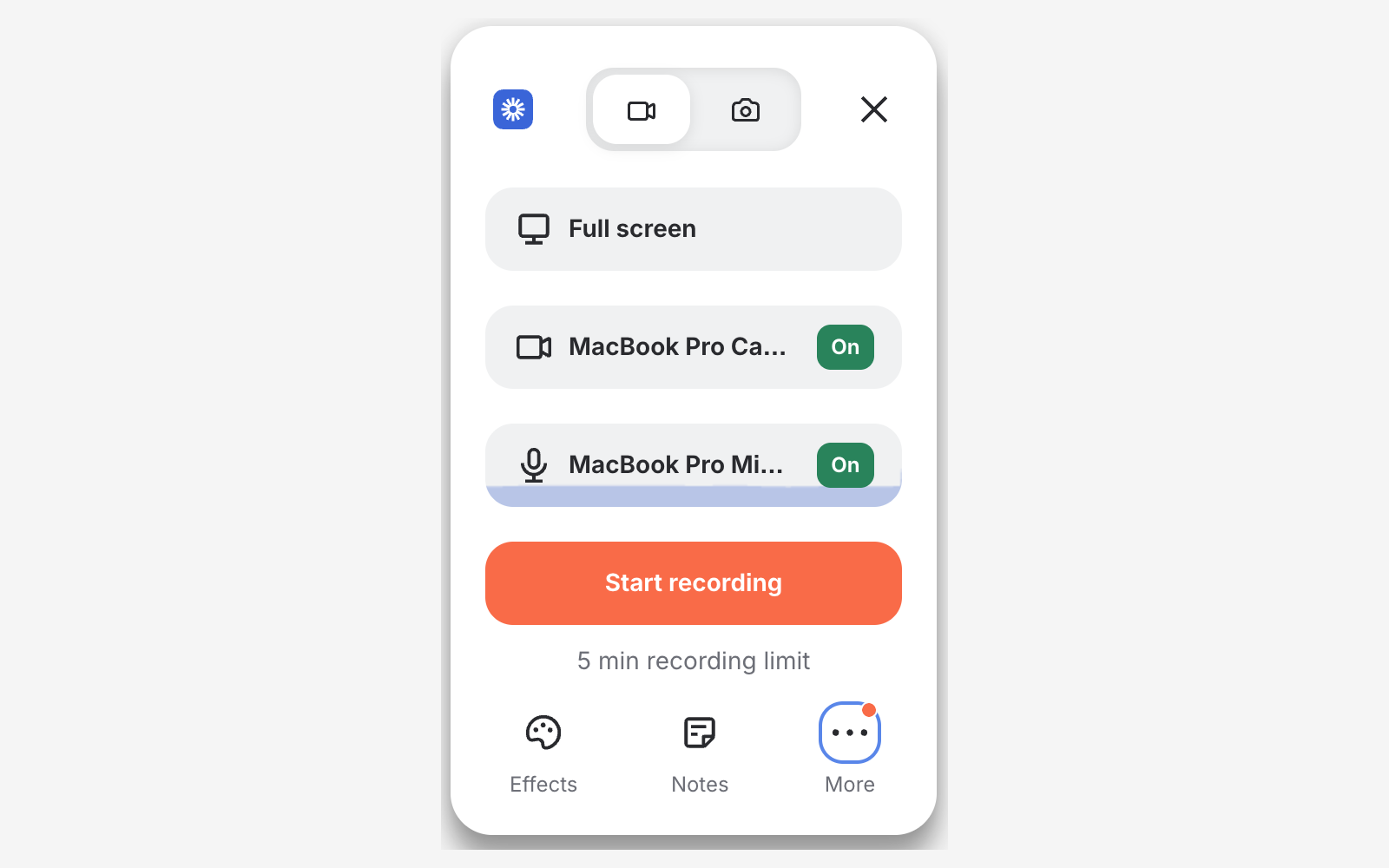
Loom removes almost every step between "I need to explain this" and "here's the link." You click record, choose screen and camera, talk, and stop. The video uploads while you record, and a shareable link is ready the moment you finish.
Around that link, Loom adds the things teams need:
- Time-stamped comments and emoji reactions
- Viewer insights showing who watched
- Transcripts and captions
- AI titles, summaries, chapters, and filler-word removal on Business + AI
- Integrations with Slack, Jira, Confluence, Notion, and GitHub
The limits are on the free plan and on editing. Starter caps you at 25 videos per person, 5 minutes per recording, and 720p. Paid plans remove the caps and add up to 4K, but editing stays basic: waveform editing on Business, with advanced editing and auto-enhancement on Business + AI.
Sponsored by the makers
Tired of boring screen recordings?
Try Screen Charm.
Auto-zoom, captions, motion blur, camera overlay and a vertical layout for Shorts. Record once, export a polished video.
Screen Charm is a native macOS app.
Where OBS Wins: Free, Unlimited, Total Control
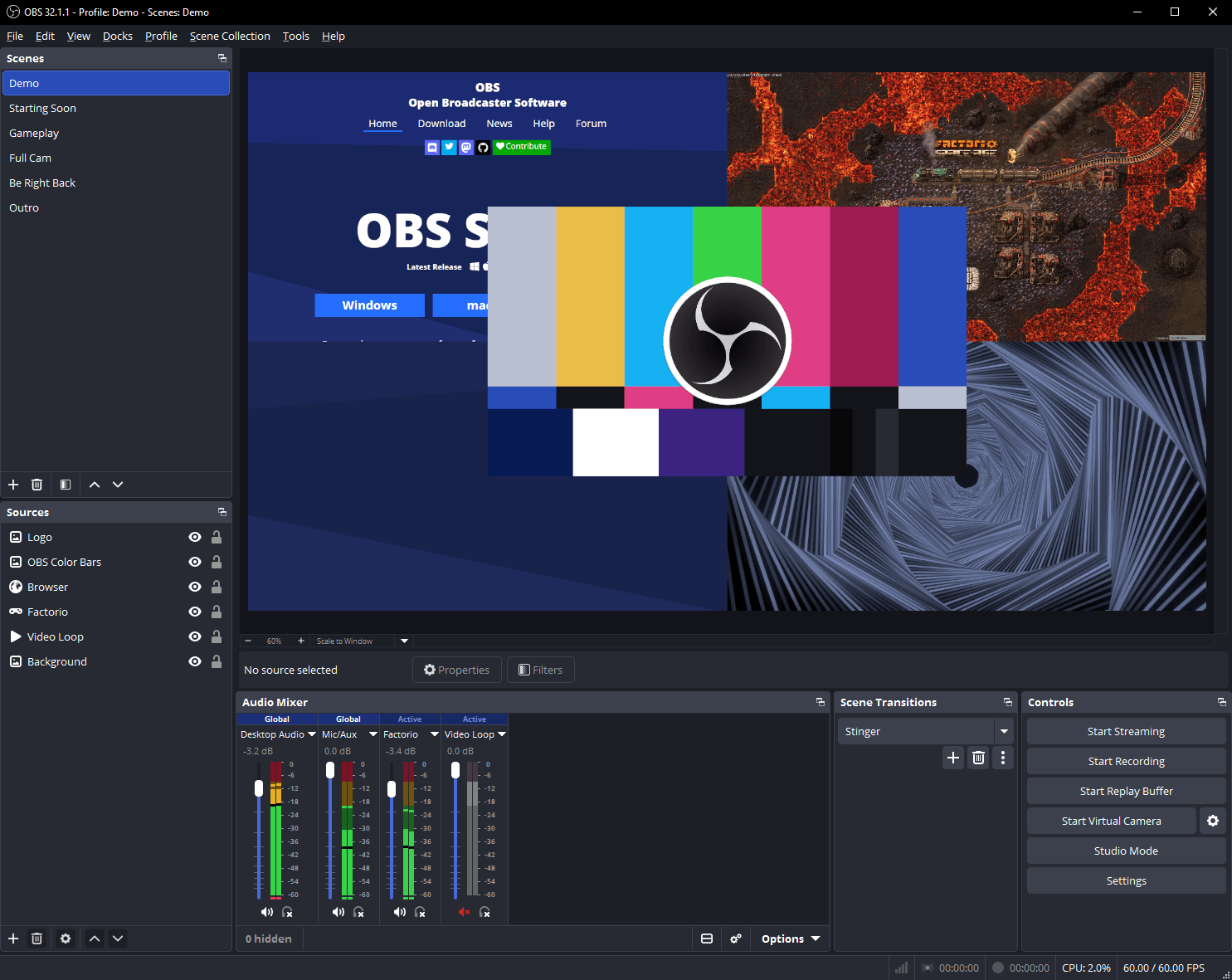
OBS Studio is free, open-source software for recording and live streaming. There are no watermarks, no time limits, and no accounts. You build scenes from sources such as displays, windows, webcams, images, browser pages, and audio inputs, then switch between them while you record or stream.
OBS is the right choice when you need:
- Live streaming to YouTube, Twitch, or other platforms
- Several cameras or screens in one layout
- Precise control over bitrate, encoders, and audio routing
- A virtual camera to send your OBS layout into Zoom or Meet
The cost is setup time and the missing editor. OBS only records, so trims, zooms, and titles happen in a separate app. On a Mac, system audio setup depends on your macOS version; newer versions of macOS and OBS can capture app audio directly, while older setups need a virtual audio driver like BlackHole.
Which One Should You Choose?
Choose Loom if:
- You send async updates, feedback, or bug reports to a team
- You want a share link with comments the moment you stop recording
- You care about viewer insights and AI summaries
- Your videos are short and don't need editing
Choose OBS Studio if:
- You live stream or record with several sources
- You want free, unlimited recording with no watermark
- You are comfortable configuring scenes and settings
- You plan to edit recordings in a separate editor
A Third Option: Polished Mac Demos Without the Setup
Loom is fast but plain, and OBS is powerful but raw. If you record product demos or tutorials on a Mac and want them to look edited, Screen Charm adds automatic zoom on clicks, cursor effects, motion blur, background music, captions, webcam overlay, system audio, and 4K export. It costs $79 once and can export a local MP4 or share a link.
See Screen Charm vs Loom and Screen Charm vs OBS for the full comparisons, or the list of best Loom alternatives.
Frequently Asked Questions
Is OBS better than Loom?
For live streaming, multi-source recordings, and free unlimited recording, yes. For quick async videos that need a share link, comments, and viewer insights, Loom is better. They are built for different jobs.
Is OBS completely free?
Yes. OBS Studio is free and open source, with no watermark, no time limit, and no paid tiers.
Does Loom have a time limit?
On the free Starter plan, recordings are limited to 5 minutes and 25 videos per person. Paid Business plans remove both limits.
Can OBS share a link like Loom?
No. OBS saves a video file to your computer. You then upload it to YouTube, Google Drive, or another host to share it.
Which is easier to use, Loom or OBS?
Loom. You can record and share your first video in a couple of minutes. OBS usually takes 30 to 60 minutes to set up scenes, sources, and audio correctly.