In a digital world where showing is often better than telling, a reliable screen recorder is an essential tool. Whether you're a developer creating a product demo, an educator producing tutorial content, or a marketer crafting a promotional video, the right software makes all the difference. The good news is you don't need to spend a fortune to achieve professional-quality results on your Mac. This comprehensive guide dives deep into the 12 best free screen recorder for macOS options available today, helping you find the perfect tool for any task.
We'll move beyond simple feature lists to provide a clear, practical analysis of each recorder's strengths, weaknesses, and ideal use cases. You'll find detailed comparisons covering crucial aspects like capture quality, audio and webcam support, editing capabilities, and performance impact. Understanding the different output options is crucial for your screen recordings. You can also learn more about video file formats to ensure your final video is perfectly optimized for its intended platform.
As my application is for macOS, this guide focuses entirely on the macOS ecosystem, offering a curated selection for every need. Each recommendation includes direct links and screenshots to help you quickly evaluate and get started. From powerful open-source suites like OBS Studio to convenient built-in utilities like QuickTime Player, we'll help you find the perfect match for your recording needs without spending a dime. Let's find the tool that will help you capture your screen flawlessly.
1. OBS Studio
OBS (Open Broadcaster Software) Studio is widely regarded as the most powerful and flexible best free screen recorder for macOS, and its official website is the central hub for accessing this incredible open-source tool. Unlike simpler applications, OBS is a complete production suite, allowing users to create complex "scenes" by mixing various sources, including screen captures, webcams, images, and application windows. This makes it an unparalleled choice for professional-grade tutorials, high-fidelity gameplay recording, and live streaming productions where multiple inputs are necessary.
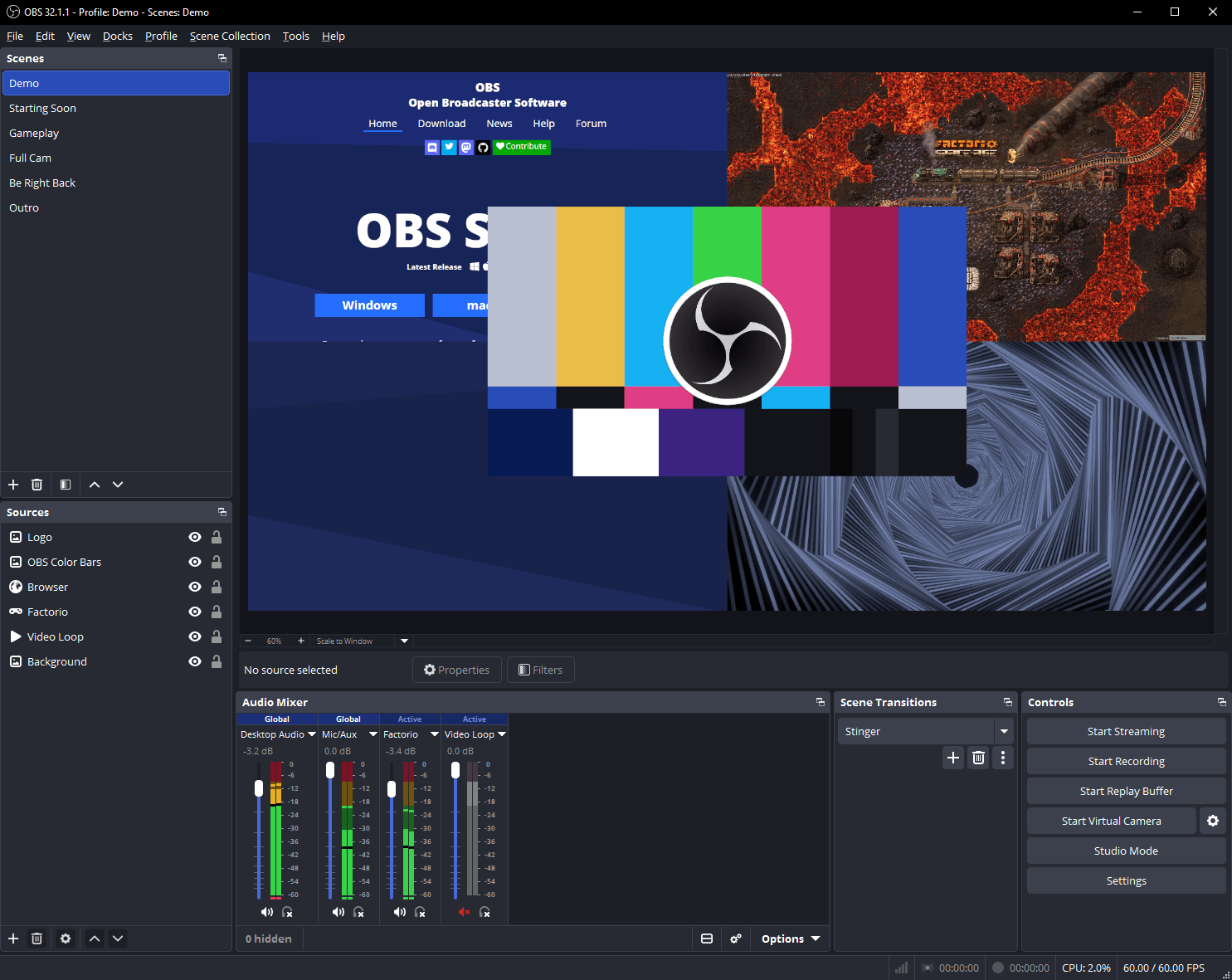
The obsproject.com website provides direct, safe downloads for macOS, Windows, and Linux, ensuring you get the latest stable version without any bundled adware. It also hosts extensive documentation, forums, and a vast library of community-created plugins that extend its functionality even further. While the interface presents a steeper learning curve than basic recorders, its modular design is what gives it such deep capabilities. For users looking to master its features, you can explore in-depth guides that break down the process of setting up your first recording; you can find more information about capturing your screen with OBS Studio here.
Why It's a Top Pick
OBS Studio’s primary strength is its professional-grade feature set, offered completely free without watermarks or time limits. It leverages hardware encoders (including Apple's VT H264/HEVC on supported Macs) for high-performance recording at up to 4K resolution with minimal system impact. Its built-in audio mixer and support for VST plugins provide granular control over sound, a critical feature for developers and educators creating polished content.
- Best For: Developers, streamers, and educators needing multi-source recording and professional production quality on macOS.
- Pros: No cost, no watermarks, immense customization, powerful streaming integration, strong community support.
- Cons: Overkill for simple captures; the initial setup can be intimidating for beginners.
- Website: https://obsproject.com/download
2. ShareX
ShareX stands out as the ultimate productivity tool, positioning itself as more than just a simple screen recorder. Its official website, getsharex.com, is the safe harbor for downloading this powerful, open-source utility that combines screen capture, recording, file sharing, and automation into a single lightweight package. While many tools focus solely on video, ShareX excels at creating quick MP4 recordings or animated GIFs, making it an incredibly efficient tool for developers and support teams who need to share bug reports or quick feature demonstrations instantly.
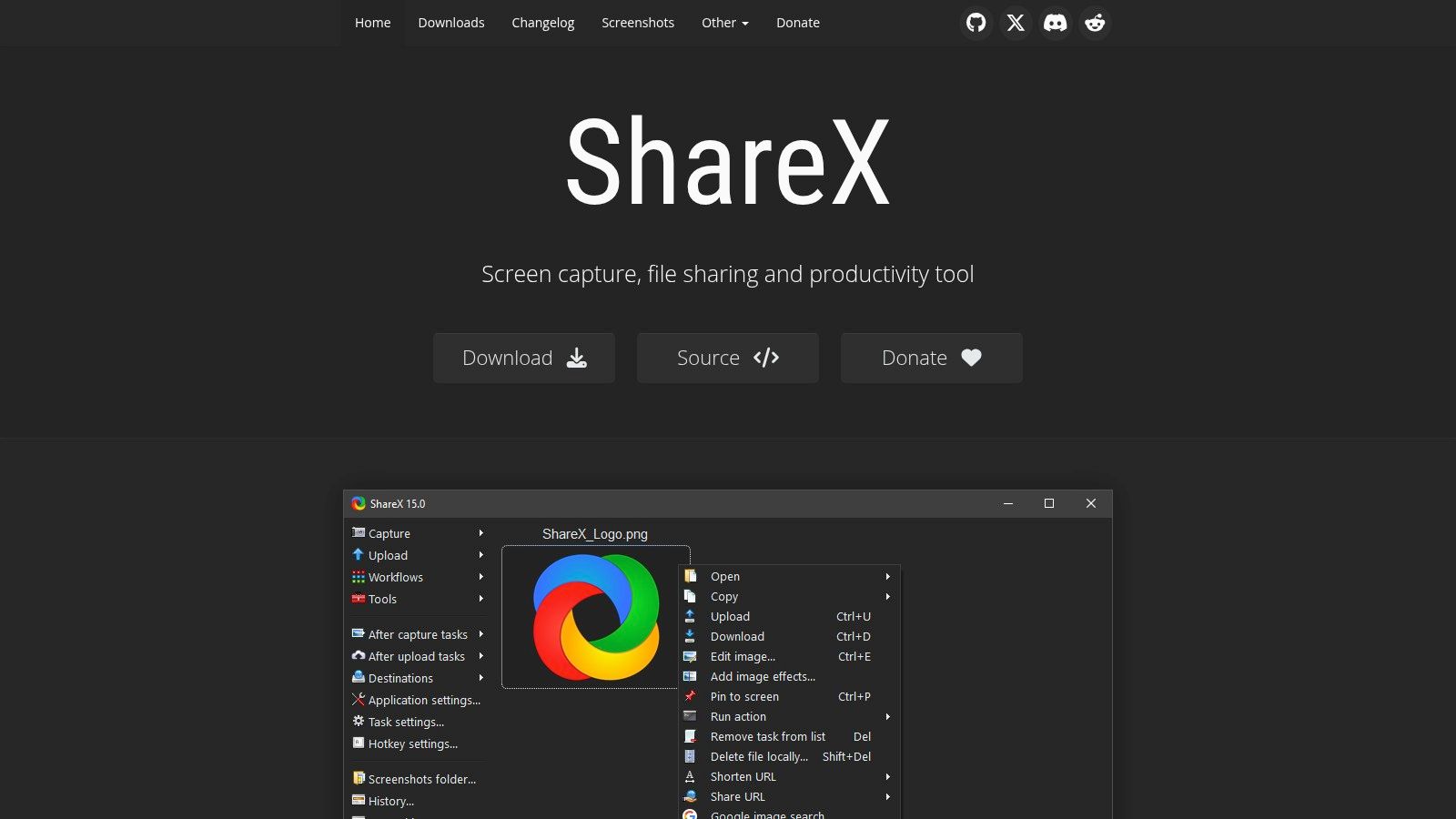
The website provides the direct download and a clear overview of its immense feature set. What truly sets ShareX apart is its powerful "after-capture" workflow system. Users can configure a sequence of automated tasks that run immediately after a recording, such as adding a watermark, uploading the file to a cloud service like Imgur or Google Drive, and copying the shareable link to the clipboard. While it's a Windows-exclusive tool, its focus on productivity makes it a benchmark for users seeking efficiency; macOS users looking for similar functionality can find great alternatives if you'd like to learn more about other top-tier screen capture tools.
Why It's a Top Pick
ShareX is the champion of workflow automation, offered completely free with no ads or limitations. Its strength lies in its deep customizability, allowing power users to tailor capture and sharing processes to their exact needs. It supports numerous upload destinations and URL shorteners out of the box, with the option to add custom uploaders for ultimate flexibility. This makes it an indispensable tool for anyone who frequently shares screen captures and recordings as part of their daily work.
- Best For: macOS users looking for a powerful, automation-focused alternative for screen capture and sharing workflows.
- Pros: Completely free and open-source, powerful post-capture automation, lightweight, supports GIF and video recording.
- Cons: Not available for macOS; macOS users will need to find alternative apps with similar features.
- Website: https://getsharex.com/
Sponsored by the makers
Tired of boring screen recordings?
Try Screen Charm.
Auto-zoom, captions, motion blur, camera overlay and a vertical layout for Shorts. Record once, export a polished video.
Screen Charm is a native macOS app.
3. Xbox Game Bar (Microsoft)
For users seeking the most accessible best free screen recorder for macOS without any downloads, a built-in tool is the undeniable champion. On Windows, this role is filled by the Xbox Game Bar, integrated directly into the OS for zero-installation recording. While originally for gameplay, its functionality extends to recording most applications, making it a perfect tool for creating quick, spontaneous clips, software bug reports, or simple how-to guides.
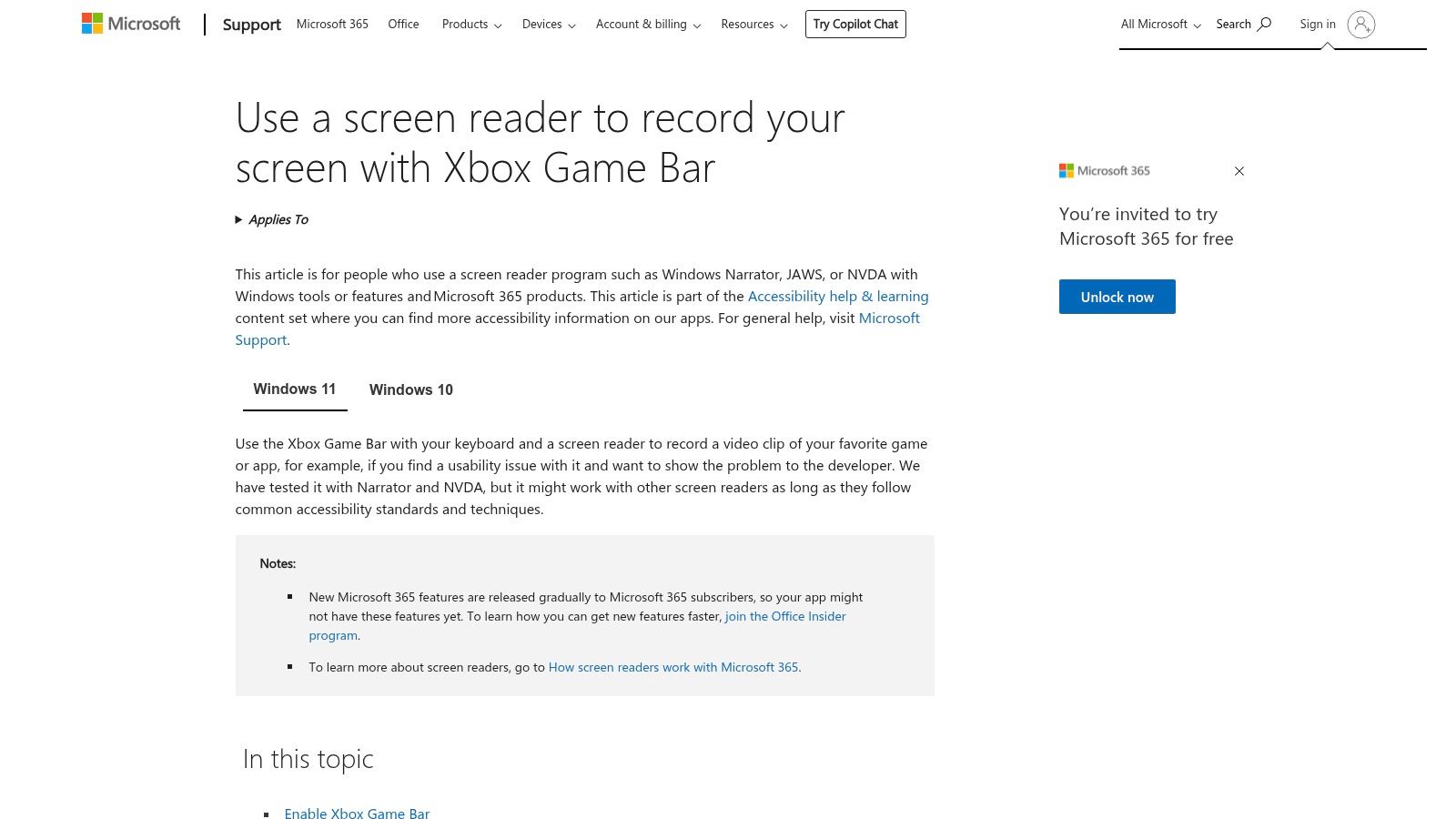
The official Microsoft Support website serves as the primary resource hub, providing clear instructions on using hotkeys (like Win+Alt+R to start/stop recording) and navigating the interface. This makes getting started incredibly simple. Recordings are automatically saved as MP4 files, streamlining the process from capture to use. The modern widget-based UI is clean and unobtrusive, offering essential controls without overwhelming the user. While macOS users won't find this feature, its convenience on Windows makes it a noteworthy comparison point to macOS native tools like QuickTime and the Screenshot toolbar.
Why It's a Top Pick
The Xbox Game Bar's greatest advantage is its complete integration into the Windows operating system, offering instant, no-cost recording capabilities. There are no watermarks, no time limits, and no need to vet third-party software for safety. It's the path of least resistance for capturing an active application window. For quick, uncomplicated recordings where advanced editing and multi-source scenes are not required, its simplicity is a powerful feature, not a limitation.
- Best For: macOS users seeking a Windows-native comparison for quick app recordings, short tutorials, or gameplay clips without installing new software.
- Pros: Preinstalled on Windows and completely free, incredibly easy to use with hotkeys, no downloads or setup needed.
- Cons: Not available on macOS, cannot record the full desktop or File Explorer, limited editing features.
- Website: https://support.microsoft.com/en-us/windows/use-a-screen-reader-to-record-your-screen-with-xbox-game-bar-5328cd25-9046-4472-8a14-c485f138802c?utm_source=openai
4. Windows Snipping Tool (Video Recording)
Microsoft's native Snipping Tool has evolved from a simple screen capture utility into a surprisingly capable screen recorder built directly into Windows 11. The official Microsoft learning center page guides users on how to access and leverage its new video capabilities. Rather than installing third-party software for a quick recording, users can now press a simple keyboard shortcut to capture any selected area of their screen and instantly save it as an MP4 file. This makes it a go-to choice for creating spontaneous how-to guides or capturing bug reports without any setup.
While the Windows Snipping Tool is well-known for its video recording capabilities, it fundamentally excels at capturing static screenshots. For a guide on screen capture, you can explore methods for taking screenshots on Windows tablets to master its core function. Once a recording is complete, the tool provides a one-click pathway to save the file or open it directly in Clipchamp for basic editing, creating a seamless workflow from capture to production for simple projects. This integrated approach is something macOS users can appreciate in their own native tools.
Why It's a Top Pick
The Snipping Tool's primary advantage is its native integration and convenience on Windows. There are no downloads, no sign-ups, and no watermarks; it is immediately available on any updated Windows 11 machine. This makes it an incredibly efficient solution for users who need to record a quick screen segment without the overhead of a more complex application. Its direct integration with Clipchamp also adds a layer of post-production capability that is often missing from other basic, built-in recorders, offering a point of comparison for the macOS ecosystem.
- Best For: macOS users comparing the functionality of their native tools to the quick, no-install solutions on Windows for simple screen recordings and edits.
- Pros: Built directly into Windows 11, completely free, zero-effort setup, integrates with Clipchamp for editing.
- Cons: Windows-exclusive; limited to basic screen area recording.
- Website: https://www.microsoft.com/en-us/windows/learning-center/how-to-record-screen-windows-11?utm_source=openai
5. NVIDIA ShadowPlay (NVIDIA App / GeForce Experience)
For gamers with compatible NVIDIA hardware on Windows, the official NVIDIA website is the gateway to one of the most efficient screen capture tools available: NVIDIA ShadowPlay. Now integrated within the newer NVIDIA App, this isn't a standalone application but a hardware-accelerated feature that makes it an exceptional best free screen recorder for macOS users to be aware of in the PC gaming world. It operates directly through the GPU, resulting in a negligible performance impact compared to many software-based recorders, allowing for smooth, high-fidelity recordings without sacrificing frame rates.
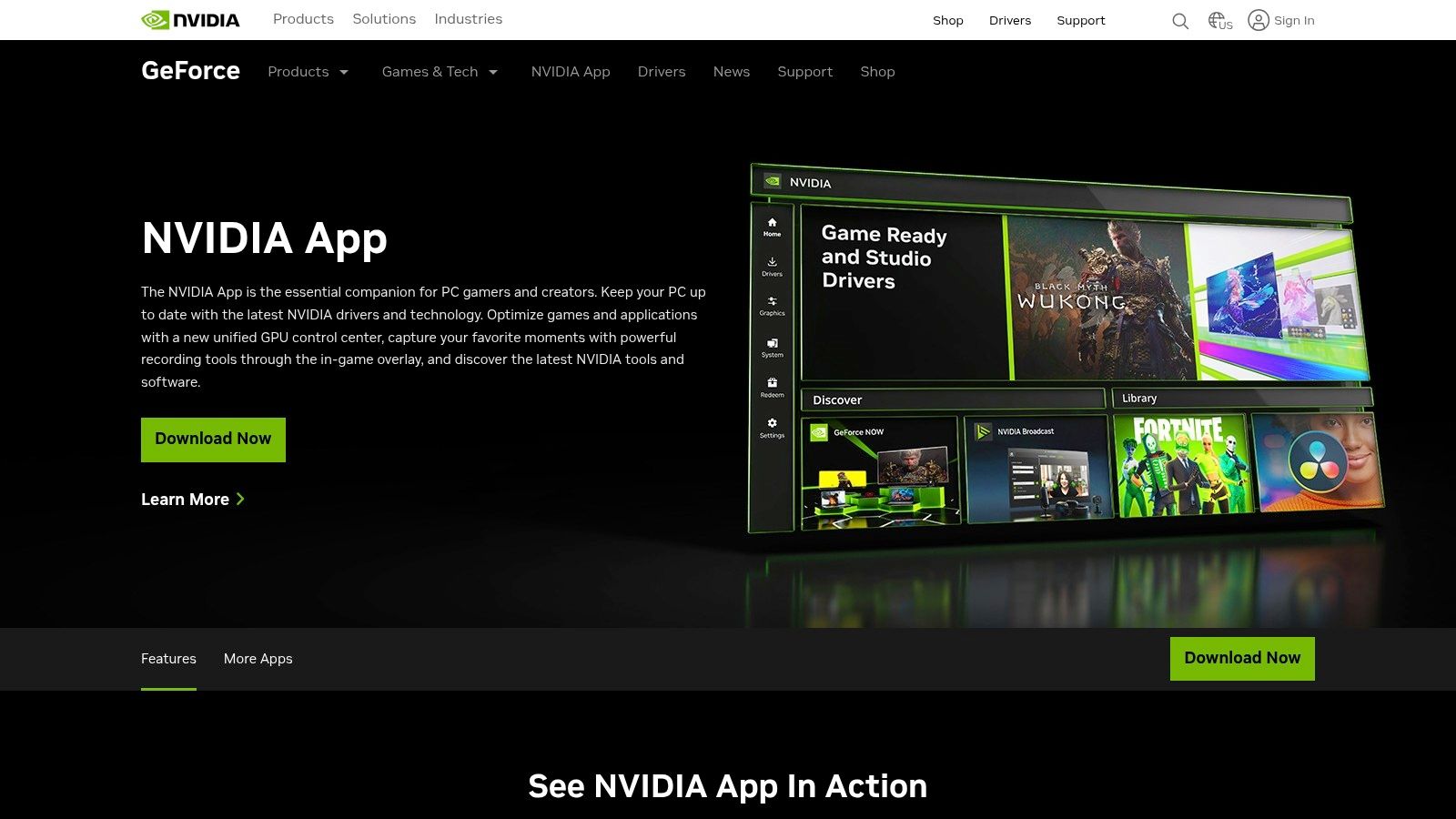
The NVIDIA website provides direct downloads for the necessary drivers and the NVIDIA App, along with detailed guides on how to use its features. The standout function is "Instant Replay," which continuously records gameplay in the background, allowing you to save the last few minutes of action with a single hotkey press. This is perfect for capturing unexpected moments without having to record entire gaming sessions. While its core design is for gaming, its low-overhead nature also makes it suitable for recording high-resolution desktop tutorials, provided you have the required hardware.
Why It's a Top Pick
NVIDIA ShadowPlay’s key advantage is its deep hardware integration, offering high-quality capture (up to 4K at 60 FPS) with minimal system strain, a feat that software-only solutions struggle to match. It’s an effortless solution for NVIDIA users, as the recording overlay is easily accessible in any game or application. While its functionality is tied to the NVIDIA ecosystem, it provides a simple, high-performance recording experience completely free of charge. However, macOS users will need to look elsewhere, as this powerful tool is exclusive to Windows systems with compatible NVIDIA GPUs.
- Best For: Gamers and macOS users with NVIDIA GPUs seeking high-performance, low-impact screen recording, primarily via Boot Camp on older Intel-based Macs.
- Pros: Extremely low performance overhead, Instant Replay is a game-changer, completely free for NVIDIA GPU owners.
- Cons: Requires a compatible NVIDIA GPU, not available on macOS, less feature-rich than dedicated production software.
- Website: https://www.nvidia.com/en-us/geforce/geforce-experience/shadowplay/?utm_source=openai
6. AMD Radeon Software (ReLive / Record & Stream)
For users with AMD graphics cards on Windows, one of the best free screen recorder options is already built directly into their driver software. AMD Software: Adrenalin Edition includes a powerful feature set, historically known as ReLive, now integrated under "Record & Stream." This tool leverages the dedicated media engine on AMD GPUs to capture gameplay and desktop activity with a negligible performance impact, making it an ideal choice for gamers and creators who want a seamless, integrated solution without installing third-party applications.
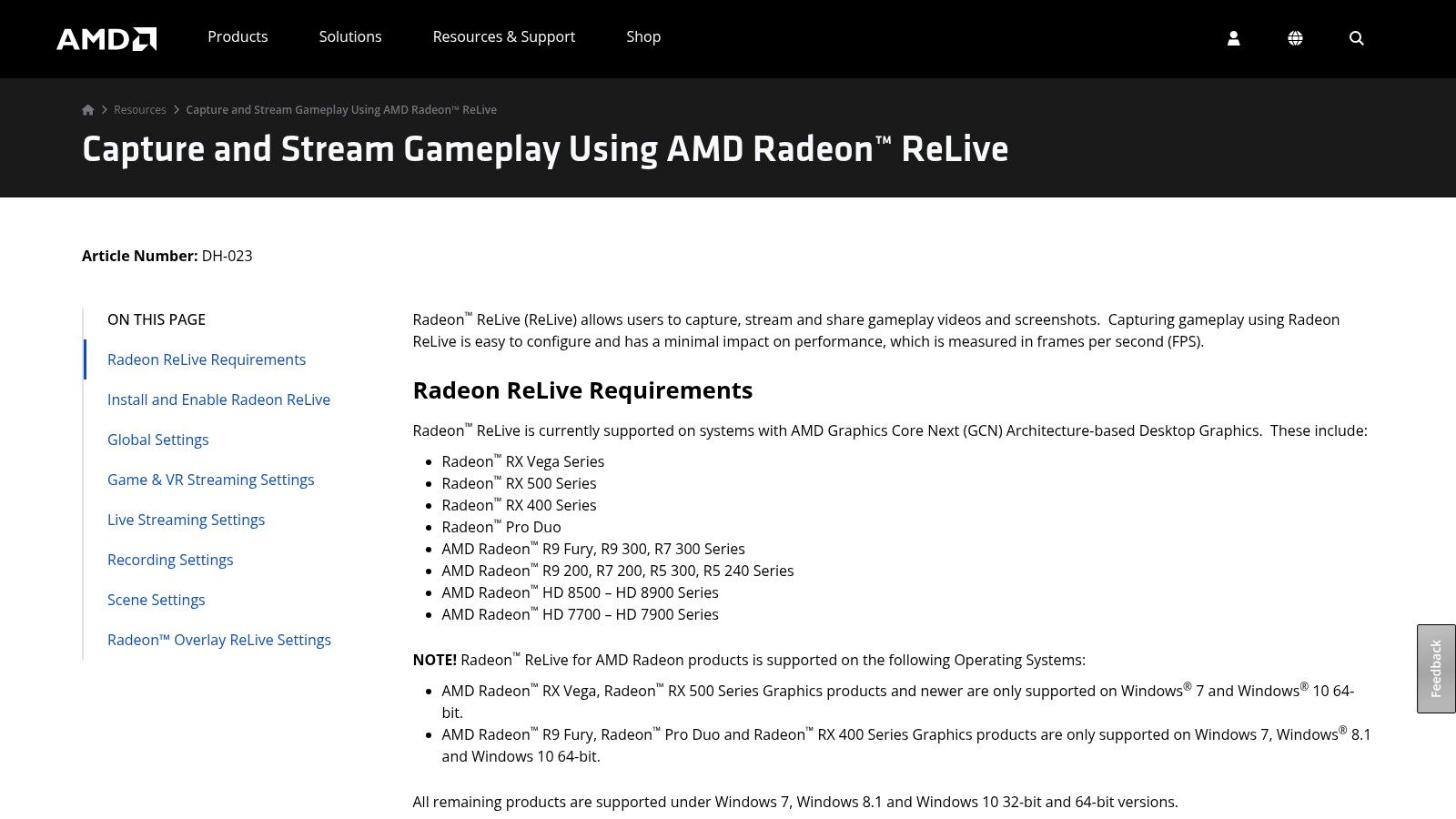
The AMD support website serves as the official source for understanding the requirements, setup, and features of this tool. It details how to enable recording, configure hotkeys for instant replay, and set up streaming directly from the AMD Software overlay. While it doesn't offer the multi-source complexity of OBS, it provides essential features like webcam overlays and microphone capture. This makes it perfect for capturing high-quality product demos without system slowdowns. Despite this article's focus on macOS, it's worth noting that AMD's hardware is found in many Mac systems, though this specific software suite is Windows-exclusive.
Why It's a Top Pick
AMD’s integrated recorder excels in performance and convenience for users already in its ecosystem. By using the GPU's dedicated hardware encoder, it minimizes the CPU load, ensuring smooth recording even during resource-intensive tasks. The instant replay feature is a standout, allowing users to save the last few minutes of screen activity with a simple hotkey press, which is invaluable for capturing unexpected bugs or fleeting moments without recording constantly.
- Best For: macOS users with AMD-powered Macs (especially via Boot Camp) who need a high-performance, low-overhead recorder without extra software.
- Pros: Completely free and integrated on Windows, excellent performance on supported hardware, simple to enable and use via an overlay.
- Cons: Windows-exclusive; feature set is less advanced than dedicated suites.
- Website: https://www.amd.com/en/resources/support-articles/faqs/DH-023.html
7. Loom
Loom excels as a solution for rapid communication and asynchronous collaboration, offering one of the best free screen recorder for macOS experiences focused on speed and simplicity. With its native macOS app, web interface, and Chrome extension, it is highly accessible across platforms. The platform is designed to replace lengthy emails and meetings by allowing users to quickly record their screen and camera, then instantly share the video with a simple link. Its core strength lies in this streamlined workflow, making it ideal for creating quick work walkthroughs, providing feedback, or sending team updates without the friction of traditional recording and uploading processes.
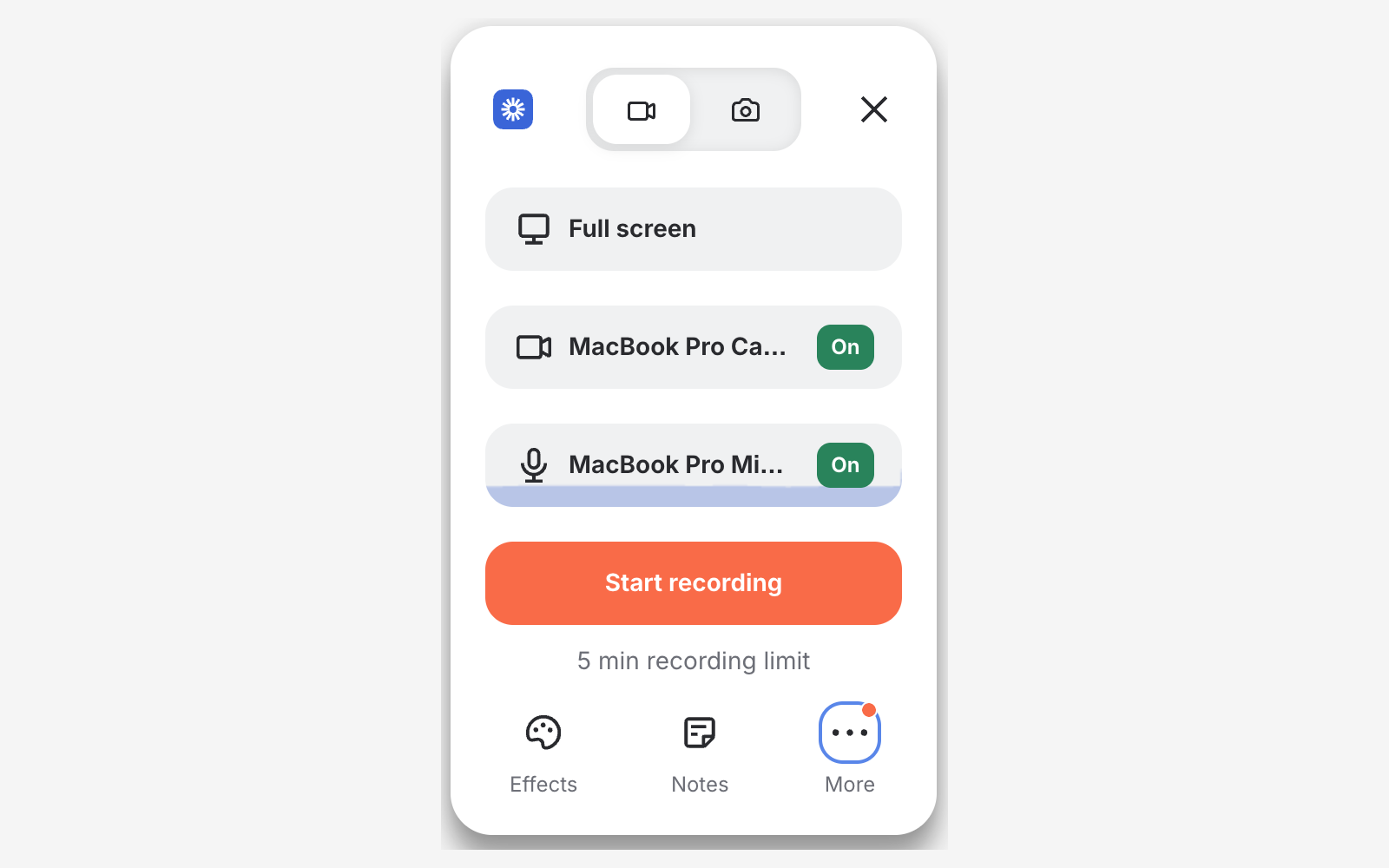
The Loom website is where you sign up for its free 'Starter' plan, which provides core functionalities like screen and camera recording, instant sharing, and viewer insights. Unique features like automatic transcription and closed captions are included even in the free tier, adding significant value for clarity and accessibility. While the free plan is generous, it's important to note its limitations: recordings are capped at five minutes, and your workspace is limited to 25 total videos. For those who find these constraints too restrictive, you can find more information about great alternatives to Loom here.
Why It's a Top Pick
Loom’s standout feature is its effortless sharing and collaboration ecosystem. After a recording is finished, it is automatically uploaded to your Loom workspace, and a shareable link is copied to your clipboard. This eliminates several steps compared to conventional recorders, making it incredibly efficient. The platform also fosters interaction with emoji reactions and time-stamped comments, turning a simple video into a collaborative space. Integrations with tools like Slack, Jira, and GitHub further embed it into professional workflows, especially for developers and project managers on macOS.
- Best For: Teams, educators, and support professionals on macOS needing to create and share quick, collaborative video messages and tutorials.
- Pros: Extremely fast and easy to use, instant cloud-based sharing, great for team communication, excellent native macOS app.
- Cons: Free plan has a 5-minute recording limit and a 25-video cap; higher resolution and advanced features are behind a paywall.
- Website: https://www.loom.com
8. ScreenPal (formerly Screencast-O-Matic)
ScreenPal, widely known by its former name Screencast-O-Matic, is a veteran in the screen recording space, offering a streamlined web-based launcher and a robust ecosystem for content creation. Its official website serves as the gateway to its free screen recorder for macOS, which is particularly popular in educational and corporate training environments. The platform is designed for users who need a reliable tool for creating quick instructional videos, complete with webcam overlays and on-screen drawing tools, without the complexity of a professional production suite.
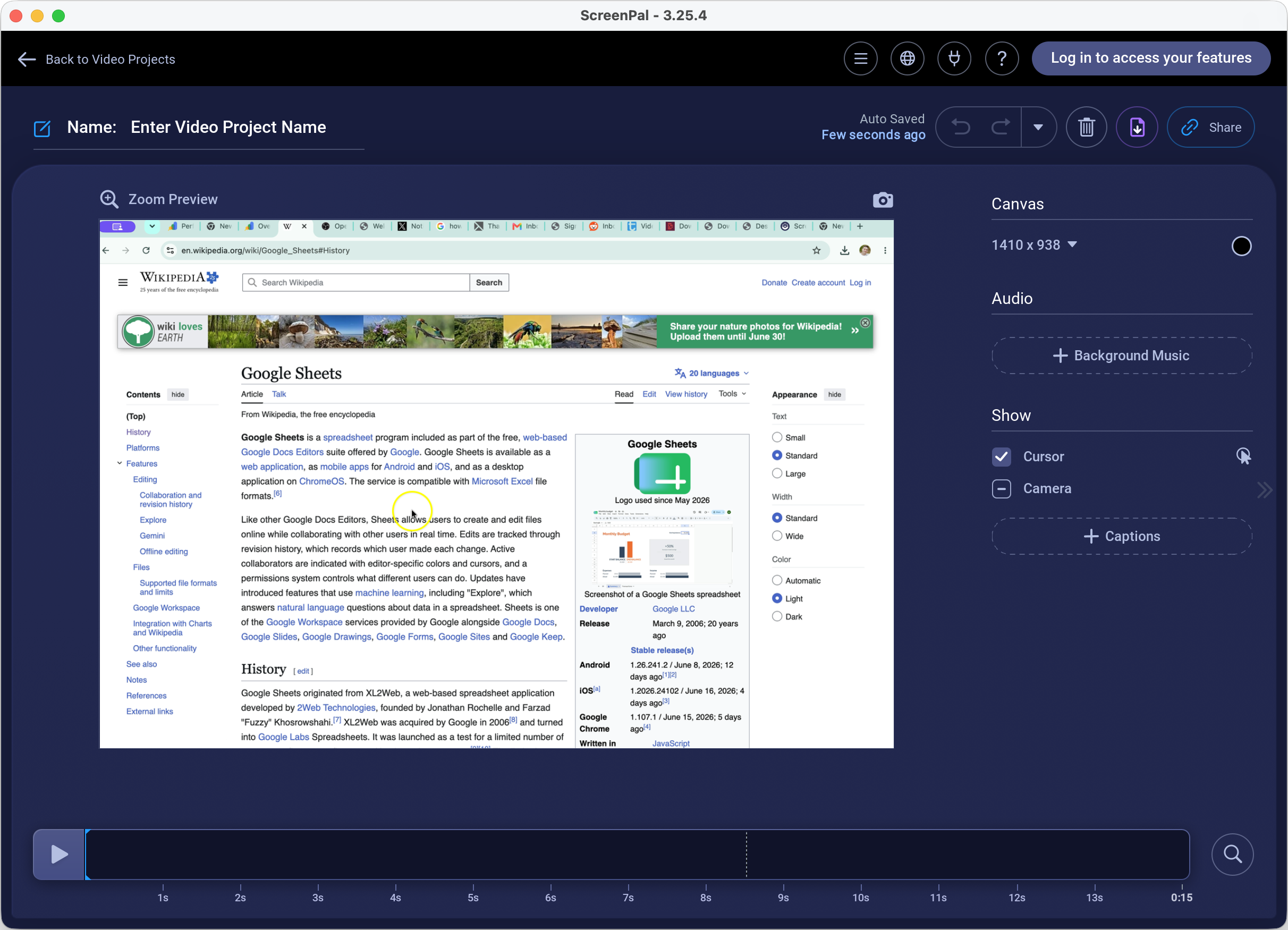
The screenpal.com website clearly outlines its tiered plans, allowing users to start with the free recorder and understand the upgrade paths for more advanced features. The free version is instantly accessible after a small launcher download, making the startup process incredibly simple. ScreenPal offers a native macOS version, making its Windows application a solid point of comparison. The built-in editing tools and cloud hosting options create an integrated workflow from capture to distribution, a significant advantage for creators who frequently share their content.
Why It's a Top Pick
ScreenPal's main appeal is its user-friendly interface and integrated feature set, making it one of the most accessible options for educators and professionals on a Mac. The free plan provides core functionalities like screen and webcam recording, narration, and basic trimming. This makes it an excellent best free screen recorder for macOS for users who need to produce short, polished tutorials without a steep learning curve. The integrated hosting platform simplifies sharing and content management, a feature not commonly found in other free tools.
- Best For: Educators, trainers, and customer support teams on macOS needing a simple, reliable recorder with integrated editing and hosting.
- Pros: Very easy to use, well-established and reliable platform, includes cloud hosting and sharing features, native macOS app.
- Cons: Free recordings are limited to 15 minutes and include a watermark; advanced editing requires a subscription.
- Website: https://screenpal.com/plans?utm_source=openai
9. FlashBack Express (Blueberry Software)
FlashBack Express positions itself as one of the best free screen recorders by balancing a straightforward user interface with powerful features essential for creating training materials and tutorials. The official website from Blueberry Software is the direct source for the Express version, which notably lacks time limits and intrusive watermarks on its recordings. Unlike some overly simplistic tools, it allows users to simultaneously capture their screen, webcam, and microphone audio, making it easy to create professional-looking picture-in-picture videos without complex setup.
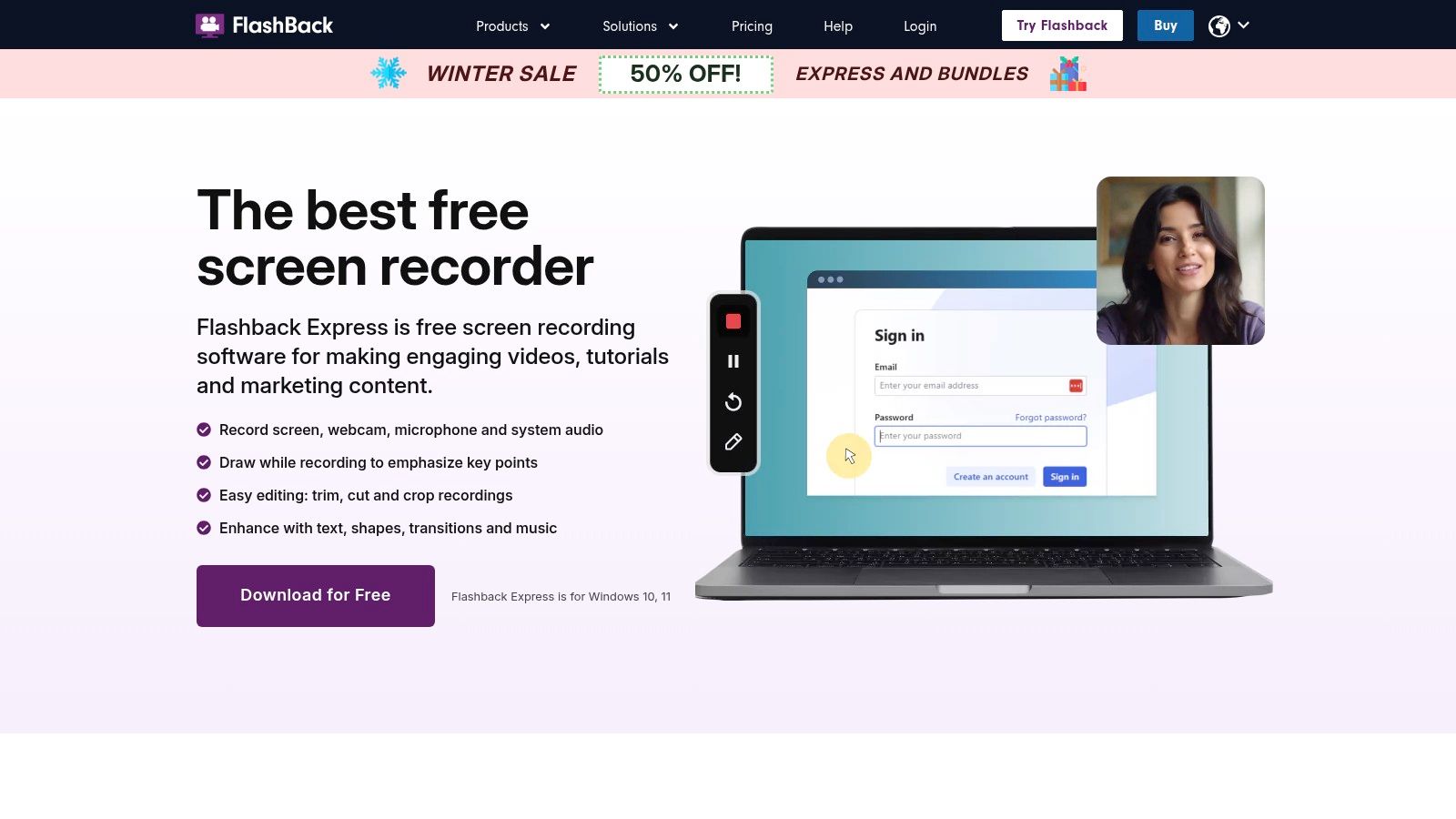
The website clearly outlines the differences between the free Express and paid Pro versions, giving users a transparent upgrade path if they need advanced editing capabilities like adding text, images, or effects. The free version still includes basic but crucial features, such as recording scheduling and simple trimming to remove unwanted sections. A significant point to note is that FlashBack Express is a Windows-only application; therefore, while it's a fantastic option for PC users, those seeking a comparable experience for macOS will need to look at alternatives.
Why It's a Top Pick
FlashBack Express excels by offering a generous free package that feels more premium than many competitors. The ability to export directly to MP4, AVI, or WMV without a watermark is a major advantage for creators who need clean, shareable video files. AVI and WMV are showing their age, though, so if you end up with one, an AVI to MP4 converter will get it back to something every platform accepts. Its simple, intuitive interface makes it an excellent starting point for individuals who find tools like OBS Studio intimidating but require more functionality than a basic screen clipper. For macOS users, it serves as an excellent benchmark for what a high-quality free recorder should offer.
- Best For: macOS users looking for a powerful, watermark-free recording alternative for Windows platforms.
- Pros: No watermarks or recording limits on Windows, simple and clean interface, webcam and audio recording included.
- Cons: Advanced editing features are behind a paywall; it is not available for macOS.
- Website: https://www.flashbackrecorder.com/express/
10. Bandicam
Bandicam is a popular and lightweight screen recording tool whose website clearly outlines what its powerful free trial version offers. It distinguishes itself with dedicated modes for screen recording, game capture, and device recording (like webcams or HDMI sources). This makes it a strong contender for users who want high-performance game capture or simple desktop recording without the complexity of a full production suite like OBS. The website provides a direct download and a helpful FAQ that transparently explains the limitations of the free version compared to the paid one.
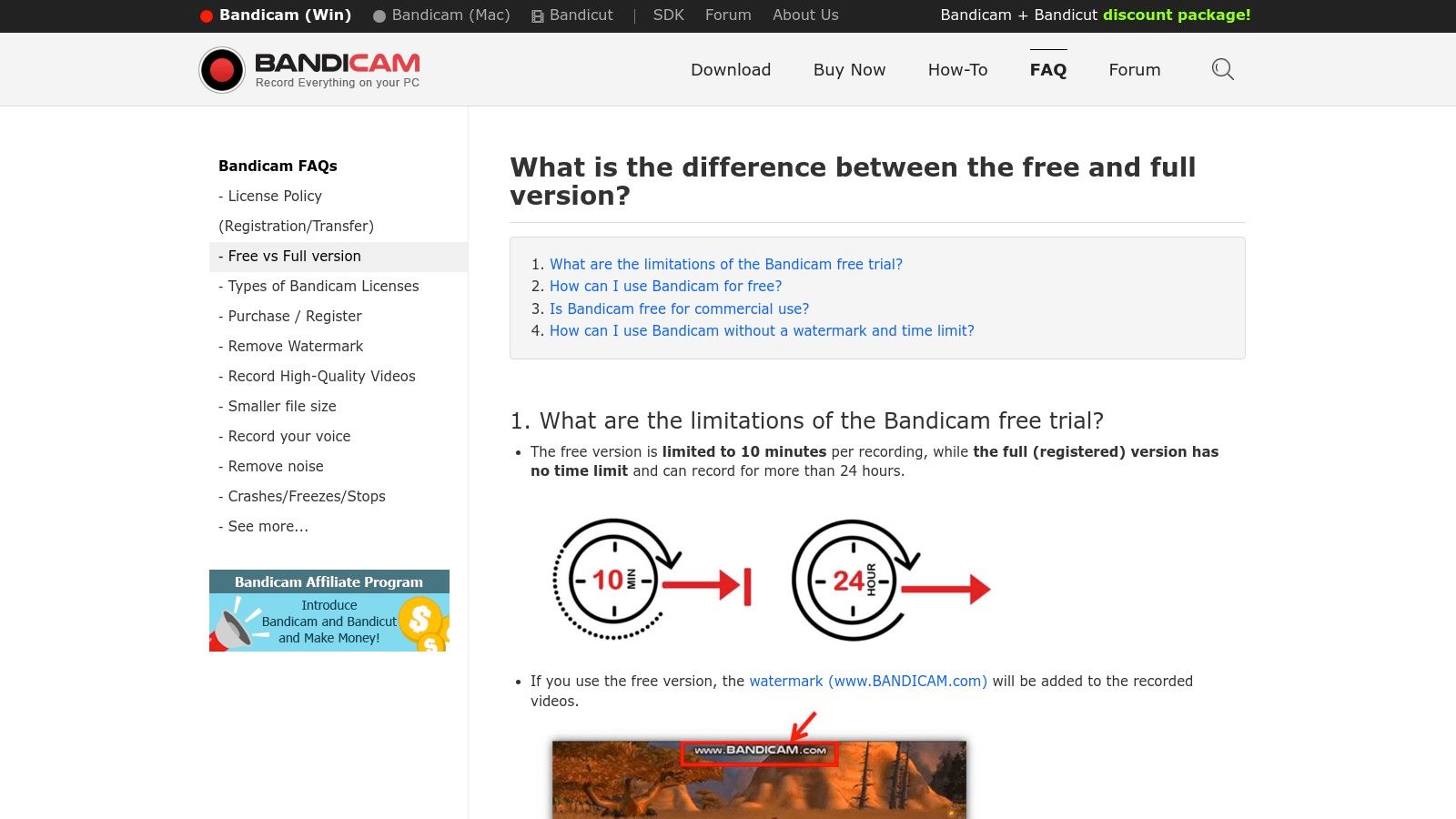
While the free version is a trial, it's fully functional for testing the software's capabilities. It allows users to experience the high-performance recording powered by hardware acceleration (NVIDIA, Intel, AMD), which is a key feature for gamers who need to capture gameplay without impacting frame rates. Though it's a prominent recorder for Windows, Mac users should note that Bandicam is a Windows-only application and would need to look at alternatives like Screen Charm for macOS to get similar functionality on that platform.
Why It's a Top Pick
Bandicam’s main appeal is its simplicity and excellent performance, especially in its specialized game recording mode, which includes an FPS overlay. The interface is intuitive, allowing new users to start recording high-quality video in minutes. The free version serves as a generous trial, giving you access to all core features to see if it fits your workflow before committing to a purchase. It's an excellent "try-before-you-buy" option for those who may eventually need premium features on a PC.
- Best For: macOS users needing a simple, high-performance recorder for short clips and software testing when working on a Windows machine.
- Pros: Very easy to use with minimal setup, excellent performance with hardware acceleration, dedicated modes for different capture types.
- Cons: The free version places a watermark on all recordings and has a 10-minute recording limit. Not available for macOS.
- Website: https://www.bandicam.com/faqs/free-full-version/
11. Apowersoft Free Online Screen Recorder
Apowersoft offers one of the most accessible solutions for quick, one-off recordings with its Free Online Screen Recorder. This tool is unique because it operates primarily from your web browser, minimizing the need for hefty installations. From the website, you can launch the recorder, select your capture area (full screen, a specific window, or a custom region), and start recording with just a few clicks. It's an excellent best free screen recorder for macOS when you need to capture something immediately without committing to a full software download.
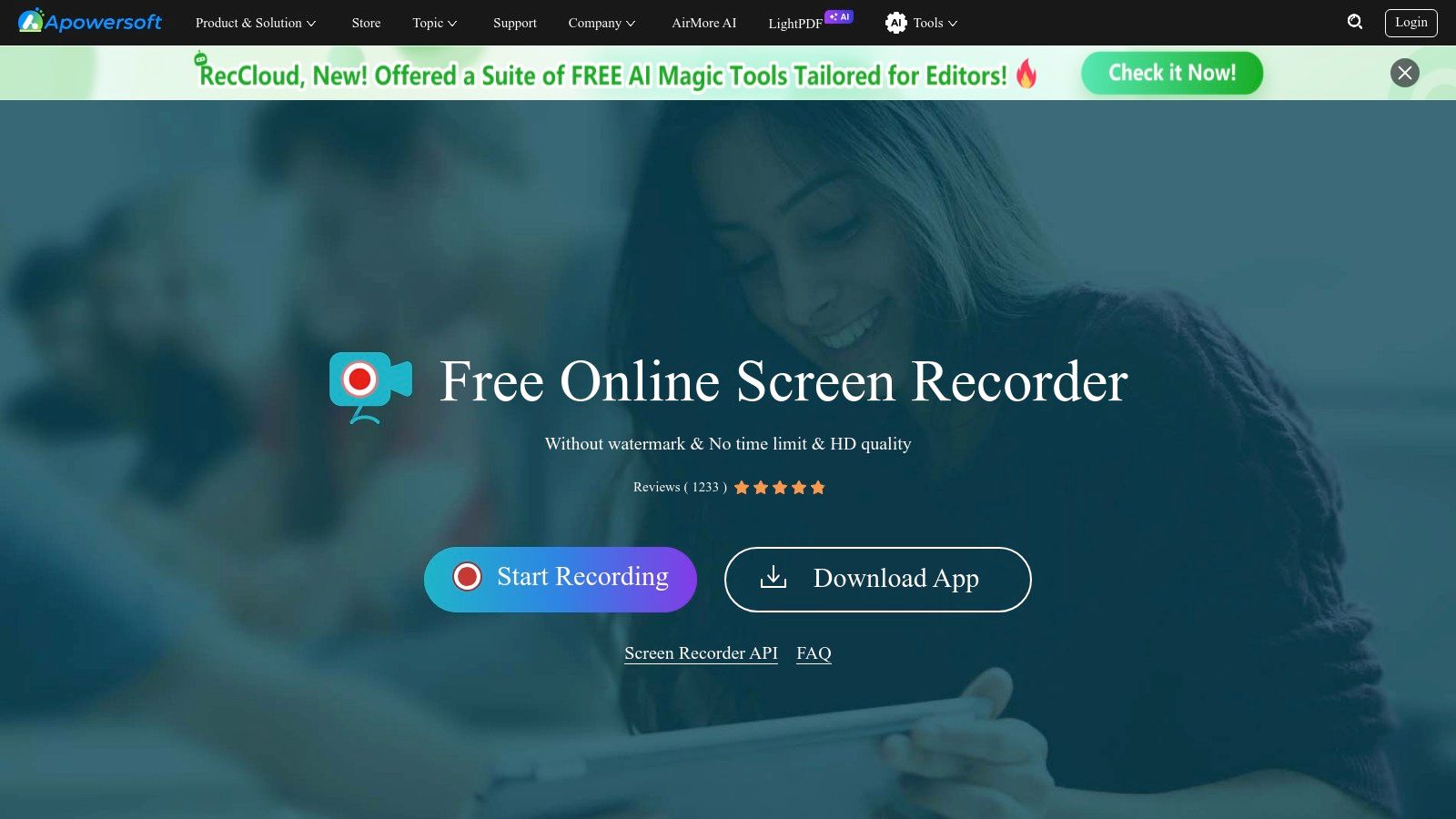
The platform's website serves as the control panel for the entire recording process. It allows you to simultaneously capture your screen, webcam, system audio, and microphone, making it surprisingly capable for a web-based tool. Once your recording is finished, Apowersoft provides flexible output options; you can save the file directly to your local drive or upload it to their cloud service for easy sharing via a link. As a browser-based tool, it provides a cross-platform alternative that requires no native software, working seamlessly on macOS.
Why It's a Top Pick
Apowersoft's main advantage is its convenience and speed. It eliminates the friction of downloading, installing, and configuring a desktop application, making it ideal for users who only record occasionally. The integrated cloud storage is a standout feature for quickly sharing tutorials or bug reports with colleagues or support teams. The interface is clean and straightforward, ensuring even first-time users can start a recording session in under a minute without any guidance.
- Best For: macOS users needing a fast, no-install solution for occasional screen captures and easy cloud sharing.
- Pros: No installation required, simple and intuitive interface, free cloud storage and sharing options, no watermarks or time limits.
- Cons: Requires a stable internet connection to launch; less reliable for very long or high-FPS recordings compared to desktop apps.
- Website: https://www.apowersoft.com/free-online-screen-recorder
12. Icecream Screen Recorder
Icecream Screen Recorder strikes a balance between simplicity and functionality, making it a great choice for users who find professional suites like OBS intimidating. Its official website is the gateway to a tool designed for quick, straightforward captures without a steep learning curve. The application excels at letting users select a specific area, record app windows, or capture the full screen with just a few clicks. It's particularly well-suited for creating quick tutorials or bug reports, especially with its built-in annotation tools that allow you to draw, add text, and place arrows on your recording in real-time.
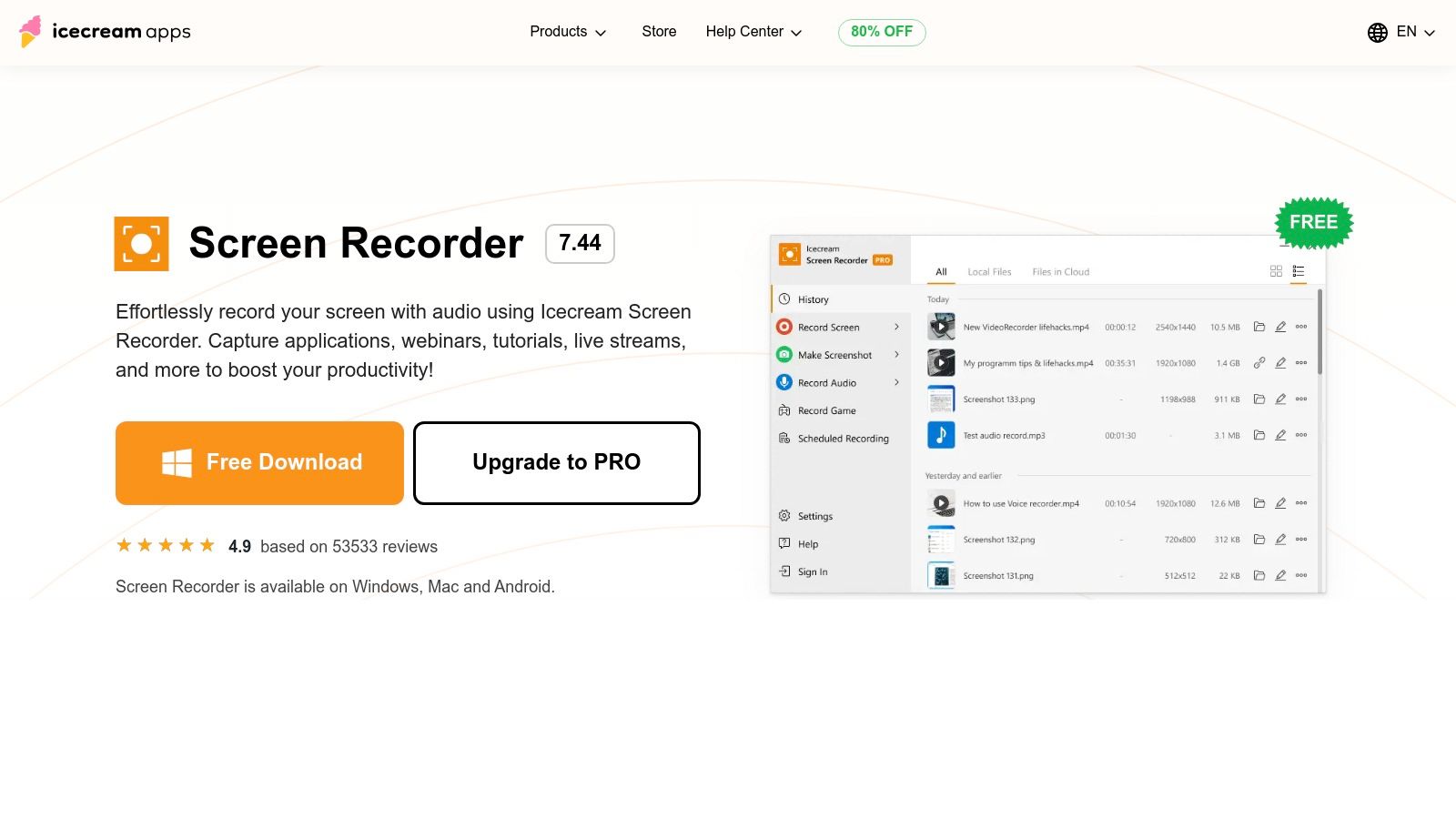
The icecreamapps.com website provides the freemium download for both macOS and Windows, clearly outlining the differences between its free and "PRO" tiers. The free version is an excellent best free screen recorder for macOS for basic tasks, but it has limitations, including a five-minute recording cap and a watermark on the output video. However, its clean interface, webcam overlay feature, and ability to capture system audio and microphone input make it highly accessible for beginners. The tool also includes a simple trimming feature for quick edits post-recording.
Why It's a Top Pick
Icecream Screen Recorder's main advantage is its exceptional ease of use, making screen recording accessible to everyone, regardless of technical skill. The intuitive control panel and helpful hotkeys allow for a smooth workflow, from capture to sharing. Its built-in annotation panel is a standout feature for a free tool, enabling users to create more engaging and informative videos without needing a separate editor. The direct upload option to services like YouTube, Dropbox, and Google Drive is another convenience for users needing to share content quickly.
- Best For: Beginners, educators, and support teams on macOS needing a simple tool for quick, annotated screen captures.
- Pros: Extremely user-friendly interface, real-time annotation tools, webcam overlay, available for macOS.
- Cons: Free version has a 5-minute limit and adds a watermark; advanced editing features require the paid upgrade.
- Website: https://icecreamapps.com/Screen-Recorder/
Top 12 Free macOS Screen Recorders — Feature Comparison
| Tool | Core features | Ease (★) | Price (💰) | Audience (👥) | Standout (✨/🏆) |
|---|---|---|---|---|---|
| OBS Studio | Multi-source & scene capture, plugins, 4K + HW encoders | ★★★ | Free 💰 | Streamers & power users 👥 | Extremely flexible, plugin ecosystem 🏆✨ |
| ShareX | Screenshots, MP4/GIF recording, upload automation & workflows | ★★★ | Free 💰 | Power users & automation fans 👥 | Deep post-capture automation (Windows) ✨ |
| Xbox Game Bar | Built-in hotkey recorder, mic toggle, MP4 saves | ★★★★★ | Free 💰 | Casual users & gamers on Windows 👥 | Instant no‑install recording (Windows) 🏆 |
| Windows Snipping Tool (Video) | Region recording, quick save/share, Clipchamp link | ★★★★★ | Free 💰 | Quick how‑tos & Windows 11 users 👥 | Native, fast capture & edit handoff (Windows) ✨ |
| NVIDIA ShadowPlay | HW‑accelerated capture, Instant Replay, 4K/60 support | ★★★★ | Free for NVIDIA GPU owners 💰 | Gamers with NVIDIA GPUs (Windows) 👥 | Low perf impact & Instant Replay 🏆 |
| AMD Radeon Software | Desktop/game capture, ReLive features, HW encoder | ★★★★ | Free for AMD GPU owners 💰 | Gamers with AMD GPUs (Windows) 👥 | Integrated driver capture, low overhead ✨ |
| Loom | Screen + camera bubble, auto captions, instant share links | ★★★★★ | Freemium (limits) 💰 | Teams & async communicators 👥 | Fast sharing + transcripts 🏆 |
| ScreenPal (S‑O‑M) | Screen/webcam, drawing tools, cloud hosting & editor | ★★★★ | Freemium (paid tiers) 💰 | Education & training creators 👥 | Reliable classroom/training toolkit ✨ |
| FlashBack Express | Screen/webcam/system audio, simple trims, annotations | ★★★★ | Free (Pro upgrade) 💰 | Tutorial makers & trainers 👥 | No watermark on Express; easy UI (Windows) ✨ |
| Bandicam | Screen/game/device/HDMI modes, HW encoding, FPS overlay | ★★★★ | Trial → Paid license 💰 | Gamers & demo creators 👥 | Game/device recording modes (Windows) ✨ |
| Apowersoft Free Online Recorder | Browser-based screen & audio recording, cloud upload | ★★★★ | Free / optional desktop 💰 | Occasional users needing no install 👥 | No-install browser recorder ✨ |
| Icecream Screen Recorder | Region/fullscreen, webcam overlay, annotations & trims | ★★★★ | Freemium (upgrade) 💰 | Non-technical users & small teams 👥 | Clean, beginner-friendly UI ✨ |
Conclusion: Mastering Screen Recording on macOS
Navigating the landscape of screen recording software can feel overwhelming, but this guide has equipped you with a comprehensive understanding of the top-tier free options available. We've journeyed through the powerhouse capabilities of OBS Studio for professional streamers, the unparalleled efficiency of Loom for teams, and the built-in convenience of native macOS tools for quick, accessible captures. You now have the knowledge to select the best free screen recorder for macOS that perfectly aligns with your specific projects, whether you're creating detailed tutorials, engaging product demos, or capturing important moments.
The key takeaway is that the "best" tool is entirely subjective; it’s defined by your unique needs. A developer capturing a bug report has vastly different requirements than a content creator producing a polished YouTube video. By understanding the nuanced strengths and limitations of each application, from Apowersoft's web-based ease to Icecream Screen Recorder's user-friendly design, you can make an informed choice that saves time and elevates the quality of your work.
Your Path Forward: Choosing the Right Tool
To put this knowledge into action, consider your primary use case.
- For quick, simple clips and tutorials: Start with the native tools. The Screenshot toolbar (Cmd+Shift+5) is perfect for short, narrated explanations, while QuickTime Player offers a no-fuss solution for capturing application windows.
- For advanced production and streaming: OBS Studio remains the undisputed champion. Its steep learning curve is a worthwhile investment for anyone serious about creating professional-grade live or recorded content with multiple scenes and sources.
- For team collaboration and async communication: Loom is a must-have. Its ability to instantly share recordings with a link and facilitate feedback with comments is a game-changer for efficient communication.
Remember to evaluate each tool based on the criteria we discussed: performance impact, watermarking policies, available output formats, and built-in editing features. Your initial choice doesn't have to be permanent. As your projects evolve and your skills grow, you may find yourself graduating from a simple tool to a more complex one, or even using a combination of applications for different tasks.
Evolving Your Workflow to a macOS Environment
For those creating polished software demos, tutorials, or marketing videos on a Mac, a specialized tool built for the environment is essential. This is where a dedicated solution like Screen Charm excels. It's a macOS-native application crafted to simplify the creation of high-quality videos without the complexity of traditional video editors. Its signature feature, auto-zoom, intelligently follows your cursor to guide the viewer's attention, a function that can eliminate hours of tedious manual editing. With elegant features like customizable backgrounds, dynamic cursor effects, and an integrated editor, Screen Charm provides a streamlined workflow from initial capture to final export. It's specifically designed for creators who need professional results without a steep learning curve. As you explore the options for screen recording, keep in mind that powerful, specialized tools like Screen Charm are available to elevate your video creation on macOS.
If your work is on a Mac and you need to create stunning, professional-quality product demos and tutorials effortlessly, Screen Charm is the tool you've been looking for. It streamlines the entire process, from intelligent recording to polished export, saving you countless hours in post-production. Discover a smarter way to create on macOS by visiting Screen Charm.