QuickTime Is Familiar, but It Isn't a Complete Creator Workflow
The most popular advice about QuickTime alternatives is usually too simple: install another player and move on. That misses the key decision. QuickTime still works well for basic Mac playback, trimming, and straightforward screen recording, but it doesn't cover every modern creator workflow. A product demo, onboarding tutorial, bug report, live presentation, and format-checking task each need different capabilities.
QuickTime's long history explains why it remains familiar. Apple first released it publicly on December 2, 1991, after demonstrating it earlier that year at Apple's Worldwide Developers Conference. The Windows version arrived in 1992, and Apple discontinued it with QuickTime 7.7.9 on January 7, 2016, as documented in the QuickTime historical timeline. Apple later introduced AV Foundation in 2011, and macOS Catalina removed QuickTime support from the Mac in October 2019, according to this history of QuickTime's replacement path.
This list prioritizes macOS-first tools, while including cross-platform options when they solve a real team or compatibility problem. I'm comparing recording quality, editing depth, cursor and webcam controls, export and sharing, pricing model, and ease of migration. The recommendations are organized around what you need next: polished demos, fast documentation, advanced editing, cloud feedback, or reliable playback.
1. Screen Charm
Best for polished macOS product demos, tutorials, and launch videos.
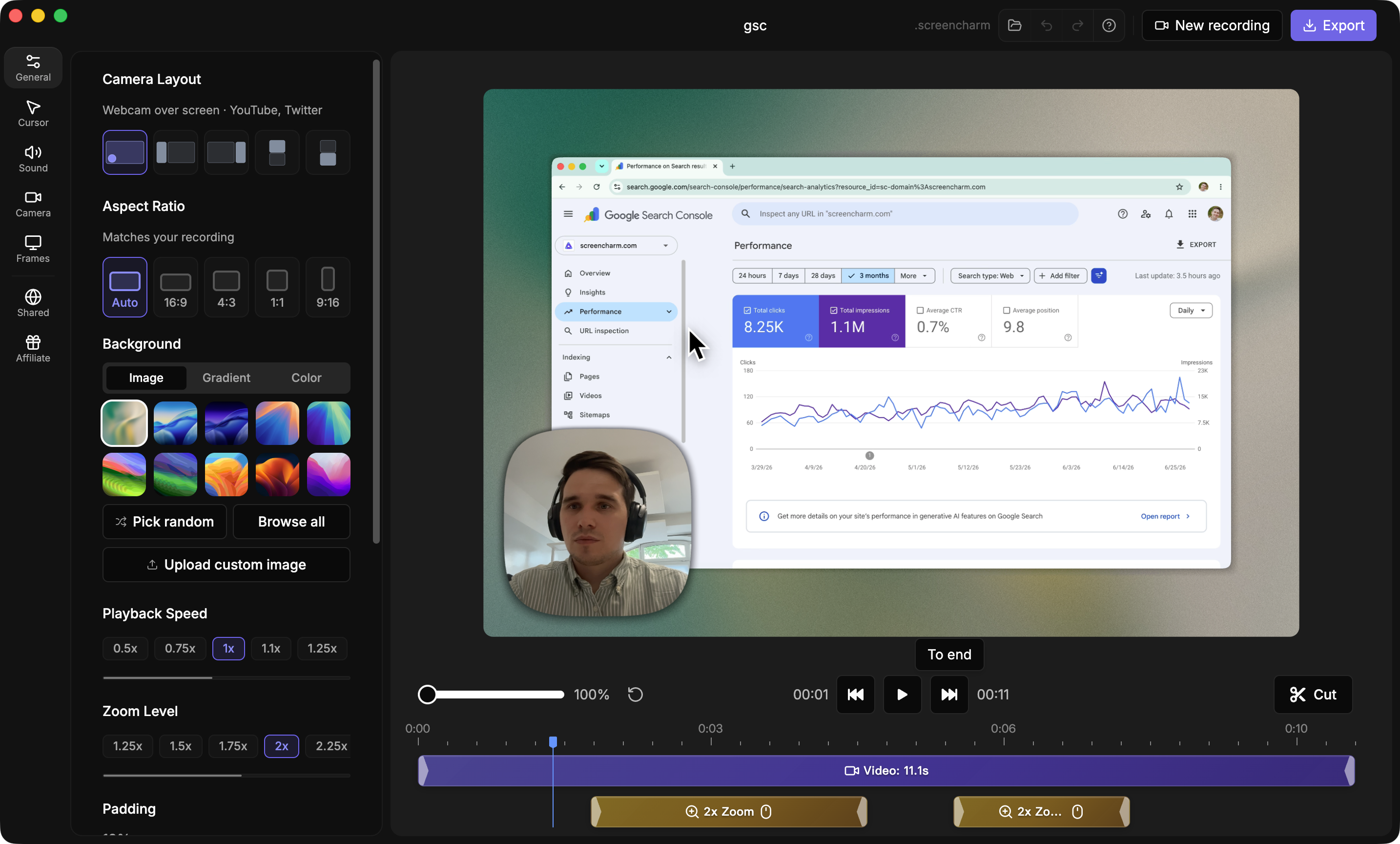
Screen Charm is the strongest direct replacement for QuickTime when recording is only the first step. It's built around a Mac-first workflow that takes you from screen capture to polished export or sharing without forcing you into a traditional video editor.
Its standout feature is automatic cursor-aware zooming. Screen Charm tracks cursor movement and applies cinematic zooms around the interface area you're demonstrating. You can keep the effect, adjust it, or remove it after recording. That makes a significant practical difference for software demos, because the viewer's attention follows the action instead of getting lost across a full desktop view.
Record everything in one macOS workflow
Screen Charm records your screen, webcam, microphone, and system audio in one session. You can smooth cursor movement, customize the cursor icon, add branded backgrounds or device frames, and then edit the result without changing applications.
The integrated editor includes:
- Focused editing: Trim and cut clips, control speed, and edit zoom effects.
- Audio refinement: Apply microphone enhancement and add background music.
- Presentation polish: Use motion blur, custom backgrounds, and device frames.
- Flexible delivery: Export a local MP4 up to 4K UHD or upload directly to a shareable cloud link.
- Safer iteration: Use undo and redo, plus save and resume, while refining a recording.
Practical rule: Choose Screen Charm when the finished video matters more than raw capture speed, but you don't want to learn a complex editor.
Screen Charm is especially well suited to developers, indie makers, course creators, marketing teams, and support teams. Its one-time lifetime-purchase positioning, founder-backed support, Apple Silicon readiness, and free starting option make it a practical choice for creators who record often and want to avoid a recurring subscription. The supplied product details list a $49.90 lifetime offer with a 30-day money-back guarantee, while the live Screen Charm website currently lists a $79 one-time price, a 14-day refund policy, and direct founder support from Sergey Nazarov. Check the current offer before buying.
The trade-off is clear. Screen Charm is macOS only, and it isn't a full multi-track NLE with the extensive plugins, collaboration controls, and advanced compositing found in professional editors. For fast, attractive, share-ready demos, that focus is an advantage. For complex productions, use ScreenFlow or Camtasia instead.
2. OBS Studio
Best for flexible live production, webinars, and layered presentations.
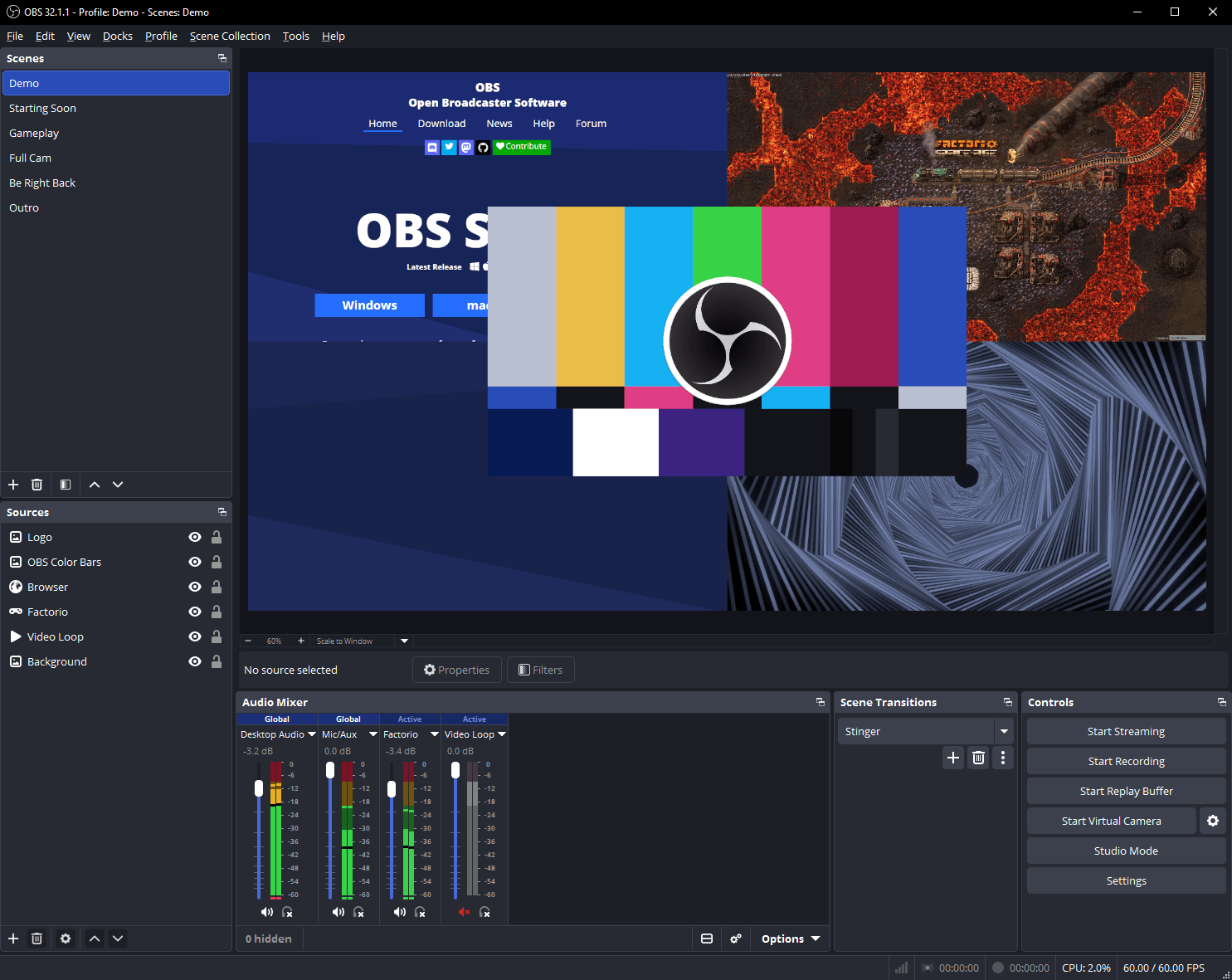
OBS Studio is the right QuickTime alternative when you need control over the entire production layout. It's free, open source, and built around scenes. Each scene can combine a display, application window, webcam, media file, browser source, audio input, and other layers.
That makes OBS more powerful than a one-click recorder, but also less immediate. You'll need to configure scenes, sources, audio routing, transitions, and recording settings before the workflow feels natural. The payoff is repeatable production control for live demos, webinars, product launches, and presentations.
Why Mac teams choose OBS
OBS includes a macOS virtual camera, supports Apple VideoToolbox hardware encoding for H.264, HEVC, and ProRes, and has a broad plugin ecosystem for filters, effects, and automation. It's a strong choice when a presenter needs to switch between layouts during a live session or show several sources at once.
Its limitations matter for everyday recording:
- Learning curve: Setup takes longer than Screen Charm, CleanShot X, or QuickTime.
- Editing gap: OBS records and streams, but it isn't a polished post-production editor.
- Sharing gap: It doesn't provide built-in cloud hosting or collaborative review.
- Workflow burden: You'll usually move the recording into another editor or upload service afterward.
For a mixed operating-system team, OBS is easier to standardize than a Mac-only application. It also gives technical users room to build reusable production templates. If your priority is a polished demo with automatic zooms and minimal editing, the Screen Charm comparison with OBS explains the workflow difference directly.
Choose OBS when flexibility beats convenience. Don't choose it merely because it's free. A free tool that requires extensive setup can cost more of your attention than a focused recorder.
Sponsored by the makers
Tired of boring screen recordings?
Try Screen Charm.
Auto-zoom, captions, motion blur, camera overlay and a vertical layout for Shorts. Record once, export a polished video.
Screen Charm is a native macOS app.
3. ScreenFlow

Best for Mac tutorial creators who want an integrated timeline editor.
ScreenFlow is a Mac-only recorder and editor designed specifically for screencasts, app tutorials, and instructional videos. It offers a more conventional timeline workflow than Screen Charm or Screen Studio, while remaining more focused than a general-purpose professional editor.
The application combines high-quality screen capture with cursor effects, annotations, titles, callouts, and direct iOS device capture. That combination suits educators and indie developers who want to record an application, refine the sequence, add explanatory graphics, and export from the same project.
A better fit for structured tutorials
ScreenFlow works well when your video needs deliberate chapter-like construction. You can record several elements, arrange them on a timeline, add titles and callouts, and use cursor effects to clarify interactions. Direct iOS capture is useful for developers documenting mobile applications or creating tutorials that move between Mac and iPhone workflows.
The tool's advantages are practical:
- Integrated production: Record, edit, annotate, and export in one Mac application.
- Instructional focus: Cursor effects, titles, and callouts help explain software clearly.
- Device coverage: Direct iOS capture supports mobile demonstrations without a separate recording path.
- Optional media expansion: A Stock Media Library add-on can provide additional production assets.
ScreenFlow doesn't include built-in team collaboration or cloud review, so feedback usually happens through an external service or shared file. The Stock Media Library is also a recurring add-on rather than a simple part of the base workflow. Those costs and the Mac-only limitation make it less attractive for distributed teams that need a common Windows and macOS tool.
For a Mac creator comparing focused editors, see this ScreenFlow alternative for streamlined product videos. Choose ScreenFlow when you want more timeline control than a lightweight recorder and don't need built-in cloud collaboration.
4. Camtasia
Best for long-form tutorials, training, onboarding, and courseware.
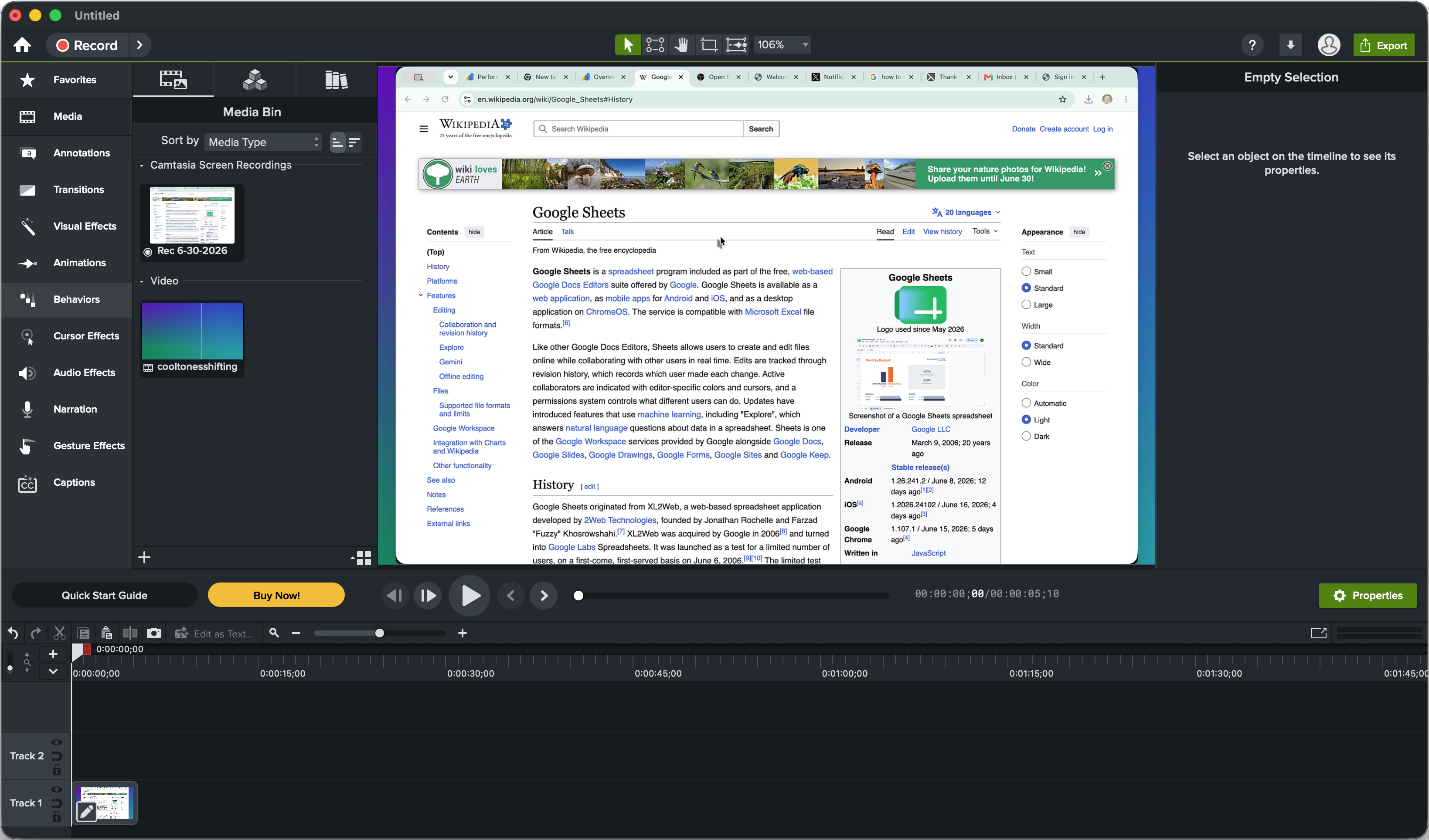
Camtasia is the most mature all-in-one production suite in this list. It pairs screen recording with a beginner-friendly editor that includes a multi-track timeline, animations, interactions, templates, an asset library, and captioning tools.
QuickTime can record a screen and perform basic edits. Camtasia is designed for a complete instructional production process. You can capture your screen, camera, and narration, then build a structured tutorial with cursor effects, transitions, callouts, templates, and supporting assets.
Choose Camtasia for depth
Camtasia makes sense when videos need to stay useful beyond a quick product update. Training teams can create repeatable lesson formats. Support teams can produce detailed walkthroughs. Educators can build longer lessons that need narration, captions, visual emphasis, and a consistent presentation style.
It also connects with TechSmith's asset and Screencast ecosystem. That creates a clearer path for organizations that already use TechSmith products or need formal support and volume options.
The main disadvantage is the cost and weight of the workflow. Camtasia switched to a subscription model in 2025, so it's a less attractive replacement for users who want a lightweight, one-time purchase. Its editor also requires more time to learn than Screen Charm, CleanShot X, or Loom.
Camtasia is the right choice when the video itself is a reusable training asset, not just a quick message.
Choose Camtasia for deep instructional editing and organizational support. Skip it for short bug reports, casual screen shares, or simple product clips where a heavier editor creates unnecessary work. Visit the Camtasia product page to review the current plans and supported workflow.
5. CleanShot X

Best for fast Mac documentation, screenshots, bug reports, and short clips.
CleanShot X is a capture toolkit rather than a full video editor. It combines screenshots, scrolling capture, GIF and video recording, OCR, annotations, and quick actions in a compact Mac-native interface.
That focus makes it faster than QuickTime for documentation work. A support specialist can capture a bug, hide the desktop, add an arrow or annotation, and send the result without opening a larger editing application. A developer can record a short reproduction clip or create an annotated screenshot for an issue tracker.
Capture first, polish lightly
CleanShot X supports video recording with GIF and MP4 output, webcam and microphone capture, keystroke overlays, scrolling screenshots, redaction, custom backgrounds, and OCR. Optional CleanShot Cloud sharing adds a quick route from capture to link.
Its strengths are easy to understand:
- Fast capture: The interface gets out of the way when you need a quick result.
- Documentation controls: Markup, blur, redaction, and scrolling capture support practical how-to work.
- Compact editing: You can make focused corrections without managing a large timeline.
- Flexible licensing: The base tool uses a one-time license model, with optional paid updates.
CleanShot X isn't designed for complex post-production. It lacks the full timeline depth needed for multi-part tutorials, elaborate animations, or carefully mixed narration. It's also Mac-only, so mixed-platform teams may need a second standard.
Choose CleanShot X when your output is a short, clear explanation, not a finished marketing film. For product teams and support staff, it's one of the most efficient QuickTime replacements because it handles screenshots and video in the same capture environment. Get the current details from the CleanShot X website.
6. Snagit
Best for annotated procedures, SOPs, and cross-platform documentation.
Snagit is the practical documentation specialist. It combines fast screen capture with scrolling capture, annotations, redaction, blur, and lightweight video recording. It's available on macOS and Windows, which makes it a better standard than Mac-only tools for teams with mixed hardware.
The most useful feature for documentation teams is its ability to turn clicks into step-by-step content. Instead of manually creating every screenshot for an SOP, you can capture a process and use Snagit's markup tools to explain what the viewer should do.
Where Snagit stops
Snagit records video with webcam and microphone support, but its video editing is intentionally limited. You can trim and clean up a short clip, but you won't get the deep multi-track workflow offered by Camtasia or ScreenFlow.
That limitation is a feature for the right user. Documentation teams usually need clarity, redaction, and repeatable capture more than cinematic transitions. Snagit keeps those tasks close at hand and can connect with the wider TechSmith ecosystem if you later move to Camtasia.
The trade-offs are equally direct:
- Documentation strength: Scrolling capture, markup, blur, and redaction support detailed procedures.
- Cross-platform access: Teams can use it across macOS and Windows.
- Upgrade path: Camtasia provides a natural next step for users who outgrow lightweight video editing.
- License change: Current licensing is subscription-based rather than perpetual.
Use Snagit for how-to material and internal process documentation. Choose CleanShot X if your team is entirely on Mac and values a lightweight native toolkit. Choose Camtasia if the documentation must become a polished training course. Review the current offer on the Snagit website.
7. Loom
Best for cloud-based asynchronous feedback and team communication.
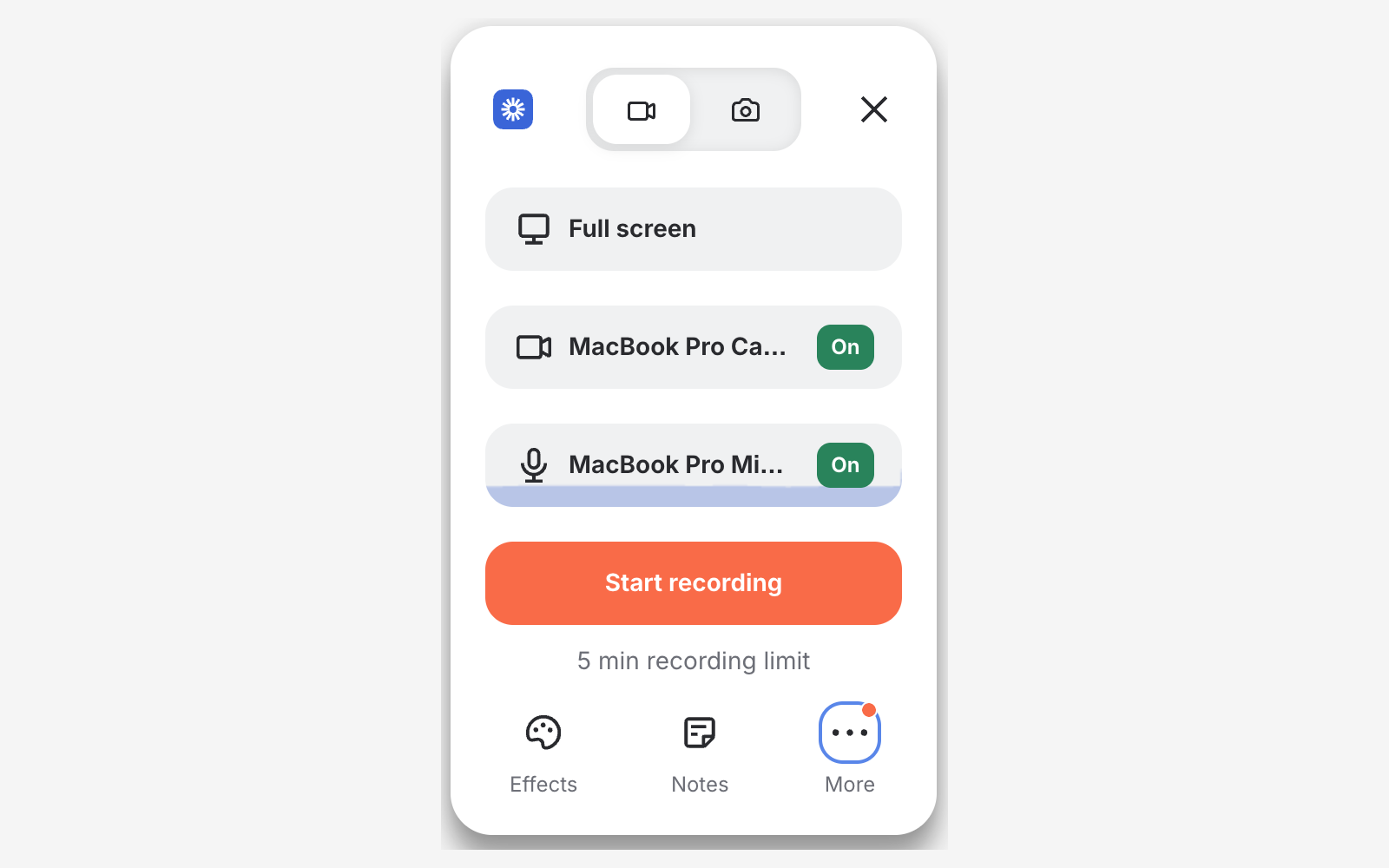
Loom changes the definition of a QuickTime replacement. It isn't primarily a local recorder. It's a record, send, comment, and review system built around shareable links.
That makes Loom particularly effective for product updates, support replies, sales explanations, and internal messages. Record your screen and camera, finish the take, and send a link instead of exporting a file, attaching it, and waiting for a recipient to open it.
Choose the workflow, not the codec
Loom includes viewer analytics, comments, transcripts, AI captions and summaries on paid tiers, team libraries, and integrations with tools such as Slack, Jira, Confluence, GitHub, Gmail, and Notion. Those features matter when the viewer needs to respond, ask a question, or confirm that they watched the explanation.
The cloud-first model also creates limits:
- Local control: Offline editing and local export are more limited than in a full NLE.
- Plan restrictions: The free tier limits video quantity and duration.
- Production depth: Loom is optimized for communication, not elaborate visual editing.
- Data dependence: Your workflow depends more heavily on upload, hosting, and workspace access.
Use Loom when the recipient needs a conversation, not just a video file.
For a product manager sending a feature explanation to engineering, Loom is often faster than exporting from QuickTime. For a marketing team producing a branded launch video, it's less suitable than Screen Charm or Screen Studio. Compare the workflow directly in this Loom alternative for Mac creators, then visit the Loom website for current plan details.
8. Movavi Screen Recorder
Best for straightforward cross-platform recording without a heavy setup.
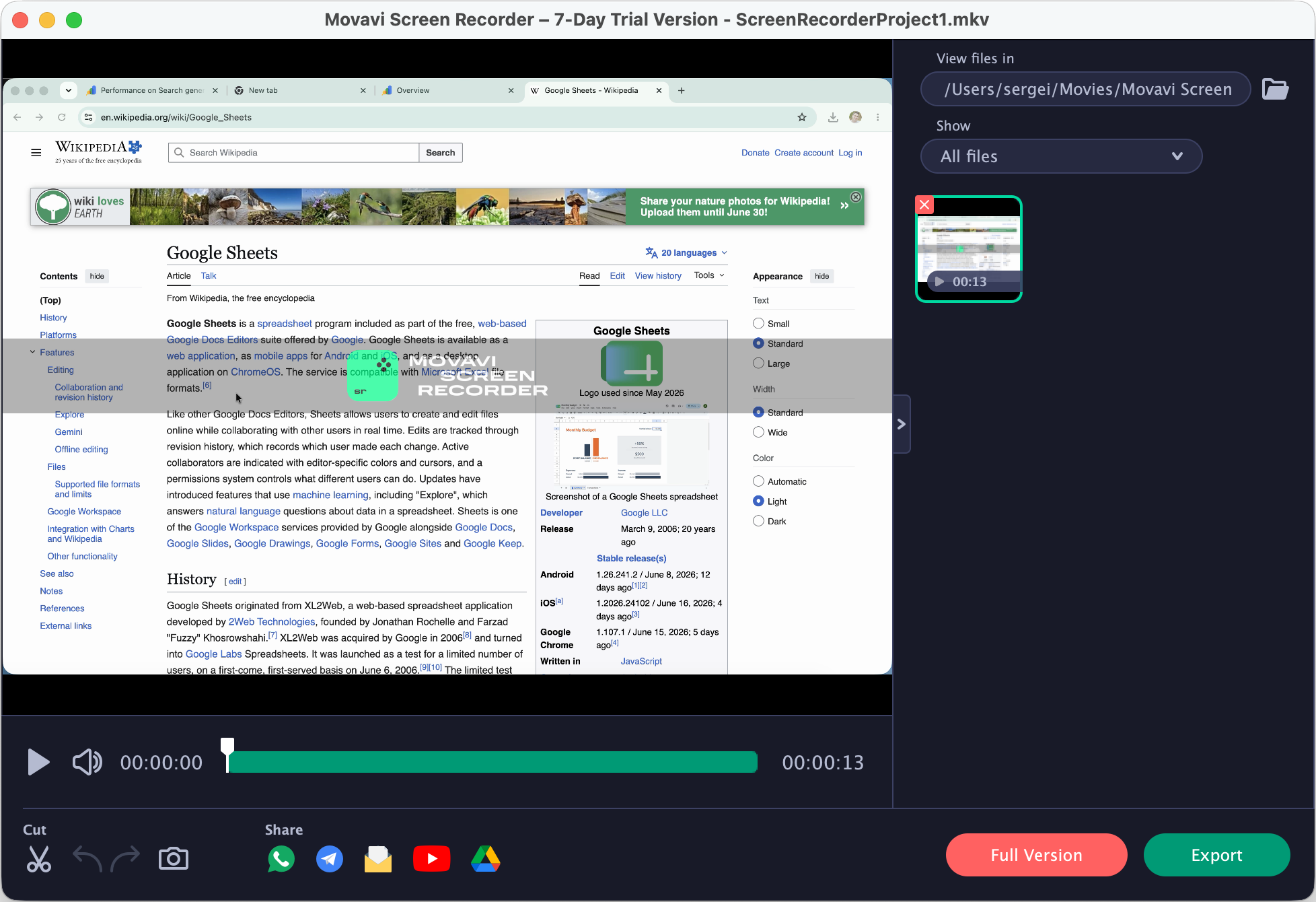
Movavi Screen Recorder offers a pragmatic replacement for QuickTime on macOS and Windows. It records the screen, system audio, microphone, and webcam overlay, while also supporting annotations during recording, scheduled captures, and quick exports.
It's a good fit for users who want more input control than QuickTime but don't need a production suite. A trainer can schedule a webinar capture. A developer can record a walkthrough with system audio and narration. A support agent can annotate the screen during a demonstration.
Keep the purchase simple
Movavi is easy to learn and offers bundle options with Movavi Video Editor. That provides a path to deeper editing, but it also means the product lineup can become confusing. Advanced editing requires the separate Video Editor, so the recorder alone won't replace Camtasia or ScreenFlow for complex tutorials.
The trial adds a watermark and includes limitations, which can affect evaluation. Annual subscription upsells and bundle options also require careful attention at checkout.
Choose Movavi when you need:
- Simple capture: Screen, system audio, microphone, and webcam recording in one session.
- Scheduled recording: Useful for webinars and recurring events.
- Basic live markup: Annotate while recording rather than editing every explanation later.
- Cross-platform access: Use a similar workflow on Mac and Windows.
- A modest learning curve: Start recording without configuring a production studio.
For Mac-only creators who care about branded polish and automatic attention guidance, Screen Charm is more focused. For users who need a straightforward recorder across operating systems, Movavi is the clearer fit. Check the current packages on the Movavi Screen Recorder website.
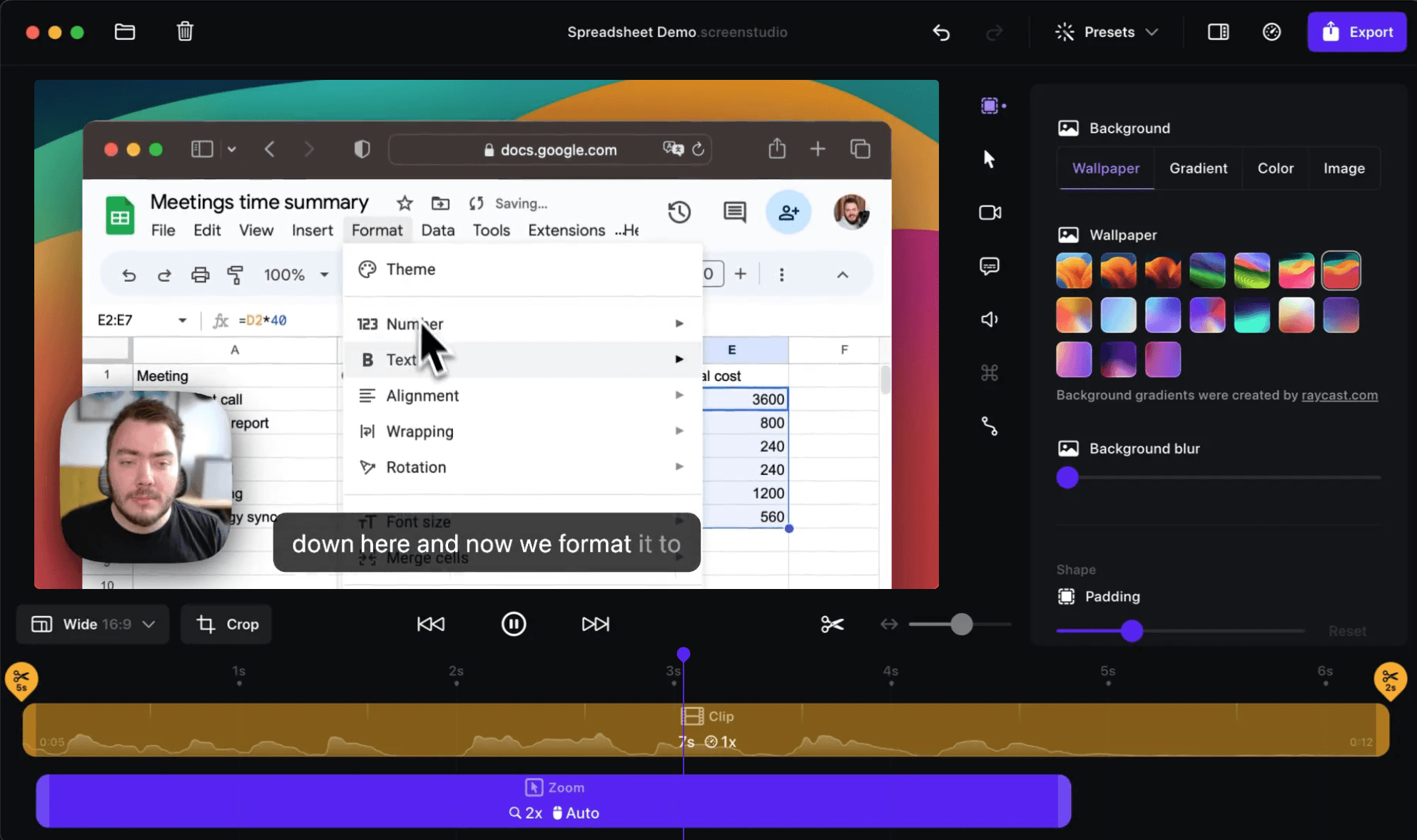
9. Screen Studio
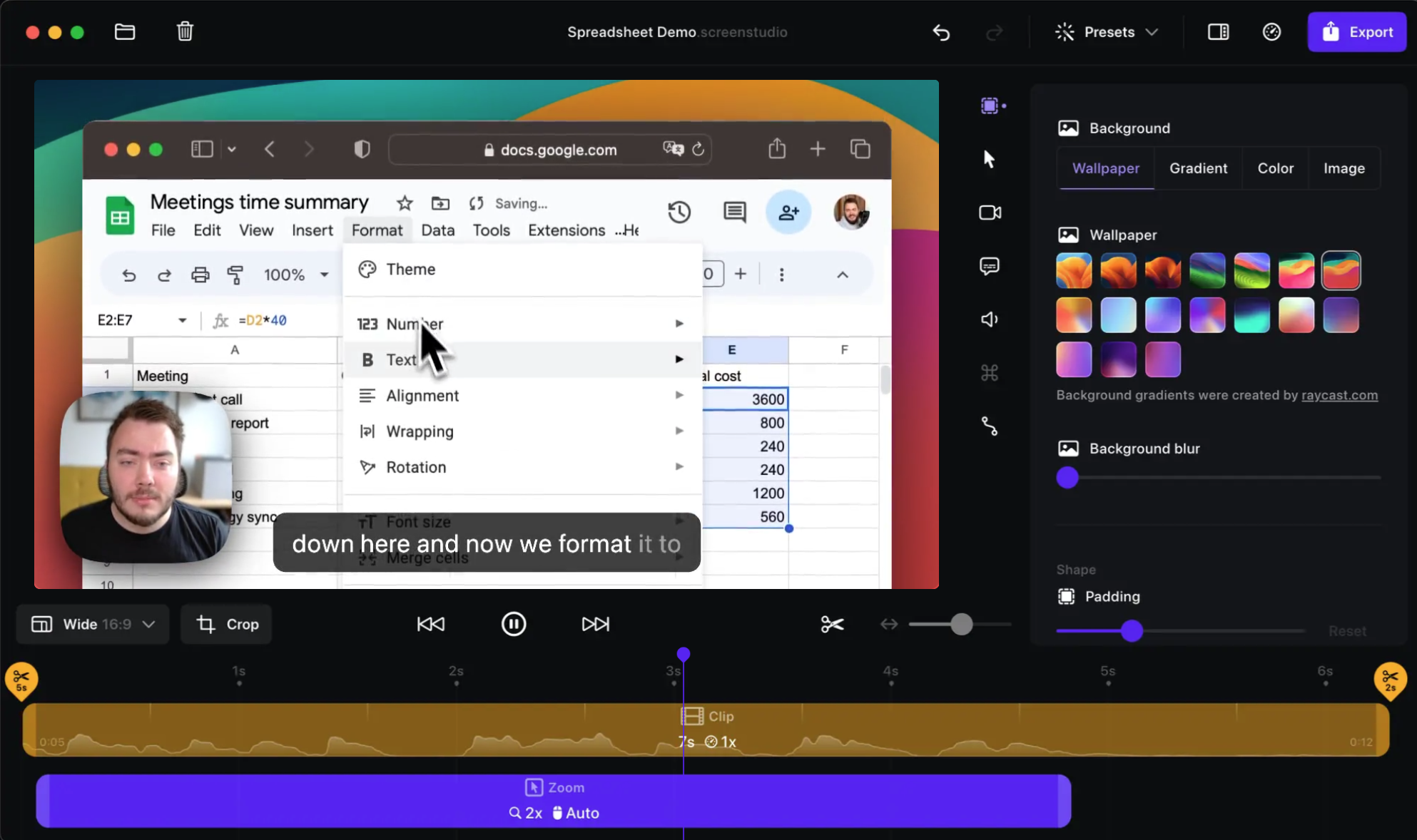
Best for fast marketing-ready Mac demos with minimal manual editing.
Screen Studio focuses on presentation quality from the start. It automatically applies zoom and pan effects, smooths cursor movement, offers preset backgrounds and framing, and supports 4K exports. Built-in iPhone and iPad capture also helps developers show mobile products from a Mac.
The appeal is speed. You can record an interface, let the application create a more deliberate visual rhythm, and export without building every movement manually on a timeline. That makes Screen Studio a strong choice for launch clips, feature announcements, and short promotional walkthroughs.
Screen Studio versus a deeper editor
Screen Studio doesn't try to replace a full NLE. It offers fewer deep editing tools than Camtasia or ScreenFlow, and its subscription pricing model may frustrate creators who prefer a one-time license.
It also differs from Screen Charm in emphasis. Both serve polished Mac demos, but Screen Charm combines automatic attention-guiding zooms with cursor customization, integrated editing, branded backgrounds, system audio, webcam recording, and cloud sharing. Screen Studio is a strong choice when automatic motion and a clean presentation frame are the main priorities.
Select Screen Studio if you want:
- Automatic motion: Zooms and cursor smoothing reduce manual editing.
- Clean framing: Preset backgrounds make demos look presentation-ready.
- Mobile capture: Mac-based iPhone and iPad recording supports app demonstrations.
- Fast export: 4K output suits launch videos and product pages.
Choose Screen Studio for a minimal-edit marketing aesthetic. Choose Screen Charm if you also want a broader record, edit, export, and share workflow with a lifetime-purchase option. Visit the Screen Studio website to evaluate its current plans.
10. VLC Media Player

Best for reliable playback, format checking, and export verification.
VLC is the clearest QuickTime replacement when your real problem is playback rather than recording. It's free, open source, and built to handle a broad range of video, audio, subtitle, and container formats. That makes it useful for reviewing files that QuickTime won't open cleanly and for checking exports before sending them to a client or publishing them.
VLC supports playback controls, audio and video filters, subtitle synchronization, and network streams. Its macOS builds remain actively maintained, and its interface favors function over visual polish.
Use VLC as a verification tool
VLC isn't a screen recorder or video editor. It won't give you Screen Charm's automatic zooms, ScreenFlow's timeline, Loom's comments, or Camtasia's training workflow. It's a player.
That narrow role is valuable. Keep VLC installed if you receive media from different sources, review multiple codecs, or need to confirm that an exported file plays outside Apple's native environment. VideoLAN reported more than 6 billion cumulative downloads as of January 2025, including roughly 4.8 billion on Windows and 380 million on macOS, in coverage of VLC's download milestone at Winaero. That broad adoption supports its role as a practical cross-platform playback baseline.
Apple's own documentation lists QuickTime formats such as QuickTime .mov and .qt, alongside MPEG-4, H.264, and 3GPP in its macOS media format documentation. VLC is the better fallback when your files extend beyond that comfortable native range.
Choose VLC for playback and compatibility checking, not content creation. Download it from the official VLC website.
Top 10 QuickTime Alternatives Comparison
| Product | Core features | UX (Quality) | Price & Value | Target audience | Unique selling points |
|---|---|---|---|---|---|
| Screen Charm 🏆 | ✨ Auto-zoom cursor-tracking; screen+webcam+audio; in-app editor; 4K export | ★★★★★; cinematic-by-default; macOS native | 💰 $49.90 one-time; 30‑day money‑back; lifetime exports | 👥 founders, indie makers, course creators, devs | ✨ Auto-zoom focus; founder support; fast branded demo workflow |
| OBS Studio | ✨ Unlimited scenes/sources; plugins; macOS virtual camera; hardware encoding | ★★★★☆; pro-level control, steeper learning curve | 💰 Free & open-source | 👥 streamers, advanced users, live presenters | ✨ Extremely flexible scene/layout control; extensible plugins |
| ScreenFlow | ✨ Recording + timeline editor; cursor effects; iOS device capture | ★★★★☆; streamlined Mac screencasts | 💰 Paid one-time license; optional stock add-on | 👥 educators, indie devs, tutorial creators | ✨ Integrated editor + iOS capture; polished annotations |
| Camtasia (TechSmith) | ✨ Multi-track editor; templates; captioning; asset library | ★★★★☆; feature-rich, heavier editor | 💰 Subscription (enterprise options), higher cost | 👥 enterprise trainers, course creators, long‑form content | ✨ Robust NLE features + enterprise support & assets |
| CleanShot X | ✨ Screenshots, GIF/MP4 recording, OCR, mini-editor | ★★★★☆; extremely fast capture-to-share | 💰 One-time license; optional CleanShot Cloud | 👥 designers, bug reporters, quick social clips | ✨ Very fast, compact toolkit for polished micro-demos |
| Snagit (TechSmith) | ✨ Scrolling capture, annotation, simple video trimming | ★★★★☆; very low friction for docs | 💰 Paid (subscription); integrates with TechSmith ecosystem | 👥 technical writers, support, ops, docs teams | ✨ Annotation/redaction, step-by-step creation |
| Loom | ✨ Instant link sharing; analytics; AI transcripts & summaries | ★★★★☆; fastest async record→share→feedback loop | 💰 Freemium; paid tiers add analytics/AI | 👥 product, support, sales, remote teams | ✨ Link-based sharing + viewer analytics & AI summaries |
| Movavi Screen Recorder | ✨ Screen+system/mic audio, webcam overlay, scheduled capture | ★★★☆☆; easy to learn, limited editor | 💰 Affordable (often discounted); trial watermark | 👥 casual creators, webinar hosts, pragmatic users | ✨ Simple scheduling and quick export workflow |
| Screen Studio | ✨ Automatic zoom/pan, preset backgrounds, 4K export, iOS capture | ★★★★☆; marketing-ready demos with minimal setup | 💰 Subscription | 👥 marketers, product teams, launch videos | ✨ Out-of-box polished demo aesthetic, very fast setup |
| VLC media player | ✨ Broad codec/container support; playback & streaming tools | ★★★☆☆; utilitarian but reliable playback | 💰 Free & open-source | 👥 anyone needing playback/codec testing | ✨ Plays formats QuickTime may not; export verification tool |
Choose the QuickTime Replacement That Fits Your Workflow
Start by identifying what QuickTime currently does for you. Playback, recording, editing, and sharing are separate jobs, and the best replacement depends on which one creates the most friction.
For playback and format checking, choose VLC. It handles a broad range of codecs, containers, subtitle formats, and network streams, making it the practical companion for reviewing exports across different environments. For flexible live production, choose OBS Studio. Its scenes, layered sources, audio mixing, virtual camera, hardware encoding, and plugin ecosystem give technical users the control needed for webinars and complex demonstrations.
Choose CleanShot X or Snagit for fast documentation. CleanShot X is the better Mac-native choice for screenshots, short clips, OCR, redaction, and quick sharing. Snagit is the better choice when your team needs cross-platform access, scrolling capture, step-by-step documentation, and a path into the TechSmith ecosystem.
Choose Loom when cloud sharing, comments, analytics, transcripts, and asynchronous feedback matter more than local editing. It's ideal for product updates, support messages, and internal explanations. Choose ScreenFlow or Camtasia when the video needs deeper editing. ScreenFlow is efficient for Mac tutorials and iOS capture. Camtasia is better for long-form training, courseware, templates, captions, and organizational support.
Choose Movavi Screen Recorder for straightforward cross-platform recording with system audio, microphone, webcam overlay, scheduled captures, and quick exports. It's a sensible choice when you want a conventional recorder without building a full OBS setup.
For polished Mac product demos, choose Screen Studio or Screen Charm. Screen Studio is excellent for automatic zoom, cursor smoothing, clean framing, and quick marketing-ready clips. Screen Charm is the more focused choice when you want automatic attention-guiding zooms, branded backgrounds, cursor customization, webcam and system-audio capture, integrated editing, cloud links, and local 4K exports without a complex editor.
Migrate from QuickTime without breaking your workflow
Use a controlled migration rather than replacing everything at once:
- Classify the current task. Decide whether you're using QuickTime for recording, playback, editing, or sharing.
- Test the inputs. Confirm microphone capture, system audio, webcam behavior, screen resolution, and cursor visibility.
- Check the output. Review export format, resolution, audio presence, file size, and playback in a second player.
- Recreate one real project. Use a representative demo, tutorial, or support recording instead of an artificial test.
- Verify the delivery path. Open the resulting file or link on the device and account your audience will use.
- Keep the old workflow available. Don't remove QuickTime or archive the original process until the replacement has worked reliably.
Apple provides two built-in macOS screen-recording paths, Screenshot and QuickTime Player. In QuickTime Player, you can use File > New Screen Recording or Control-Command-N, then record the entire screen or a selected portion, as explained in Apple's screen-recording guidance. macOS also requires permission for screen and system-audio recording under System Settings > Privacy & Security > Screen & System Audio Recording, with access controlled per app in Apple's privacy instructions.
For developers, indie makers, educators, marketing teams, and support creators, Screen Charm is the decisive Mac choice when the goal is to ship polished demos quickly. It replaces the basic capture step with a focused workflow that guides attention automatically, improves the cursor, supports branded presentation, edits inside the same application, and exports or shares the finished result without demanding full video-editor expertise.
Screen Charm gives Mac creators a focused QuickTime alternative for recording screen, webcam, microphone, and system audio, then turning the take into a branded demo with automatic cursor-aware zooms and integrated editing. If you're creating product videos, tutorials, onboarding walkthroughs, or launch content, visit Screen Charm and start building ...