Screen recordings on a Mac save to your Desktop by default, as .mov files named like Screen Recording 2026-10-26 at 10.15.32.mov. If one isn't there, you (or a past setting) picked another folder in the screenshot toolbar's Options → Save to menu, or the recording was interrupted before it finished saving.
This guide shows how to check where your Mac saves recordings, how to change it, and how to track down a recording that seems to have disappeared.
Where Mac Screen Recordings Are Saved
| How you recorded | Where the file goes |
|---|---|
| Command + Shift + 5 toolbar | Desktop, unless changed in Options → Save to |
| QuickTime Player → File → New Screen Recording | Same as above: QuickTime uses the same toolbar and Options |
| Save to set to QuickTime Player | Opens in QuickTime unsaved — you choose the folder with File → Save |
| Save to set to Mail | Attached to a new email, not saved as a file |
| Third-party recorders (OBS, Loom, Screen Charm…) | The app's own location — check its settings |
If your Desktop syncs with iCloud
If Desktop & Documents Folders is turned on in iCloud Drive, your Desktop lives in iCloud. Recordings still appear on the Desktop, and also under iCloud Drive → Desktop in Finder. With Optimize Mac Storage on, older files can be moved to iCloud to free space. They show a cloud icon; double-click to download them again.
How to Check or Change Where Recordings Save
- Press Command + Shift + 5 to open the toolbar.
- Click Options.
- Under Save to, the folder with a checkmark is where your recordings go.
- Pick Desktop, Documents, QuickTime Player or Other Location… to choose any folder.
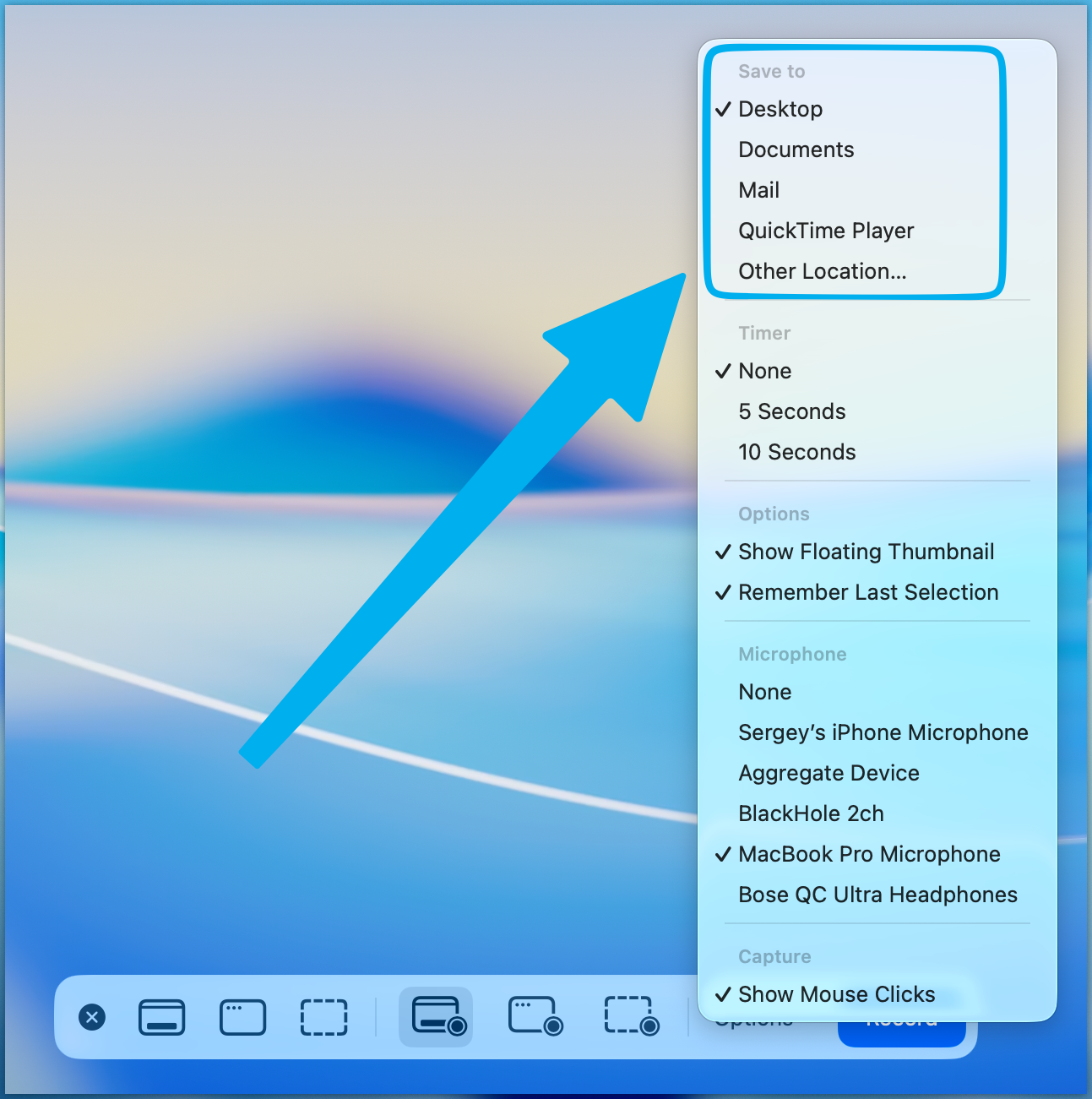
The choice sticks, so new recordings keep going to that folder until you change it. A dedicated folder such as ~/Movies/Screen Recordings keeps your Desktop from filling up.
Change it with Terminal
If you prefer Terminal, this sets the location for both screenshots and recordings. Create the folder first:
mkdir -p ~/Movies/Screen\ Recordings
defaults write com.apple.screencapture location ~/Movies/Screen\ Recordings
killall SystemUIServer
To see the current location, run defaults read com.apple.screencapture location. If it prints an error, no custom location is set and recordings go to the Desktop.
Sponsored by the makers
Tired of boring screen recordings?
Try Screen Charm.
Auto-zoom, captions, motion blur, camera overlay and a vertical layout for Shorts. Record once, export a polished video.
Screen Charm is a native macOS app.
Can't Find a Screen Recording? Check These
1. Search for it with Spotlight
Press Command + Space and type Screen Recording. Every recording macOS saves starts with that name, so this finds it wherever it is. In Finder, Recents in the sidebar also lists files by date.
2. Check the Save to setting
A custom folder picked months ago is the most common reason recordings "vanish". Open Command + Shift + 5 → Options and look for the checkmark under Save to.
3. Wait for the floating thumbnail
After you stop a recording, a thumbnail appears in the corner of the screen. The file is written when it slides away, a few seconds later. If you dragged the thumbnail into another app or folder, the file went there. If you chose Delete from its menu, it went straight to the Trash.
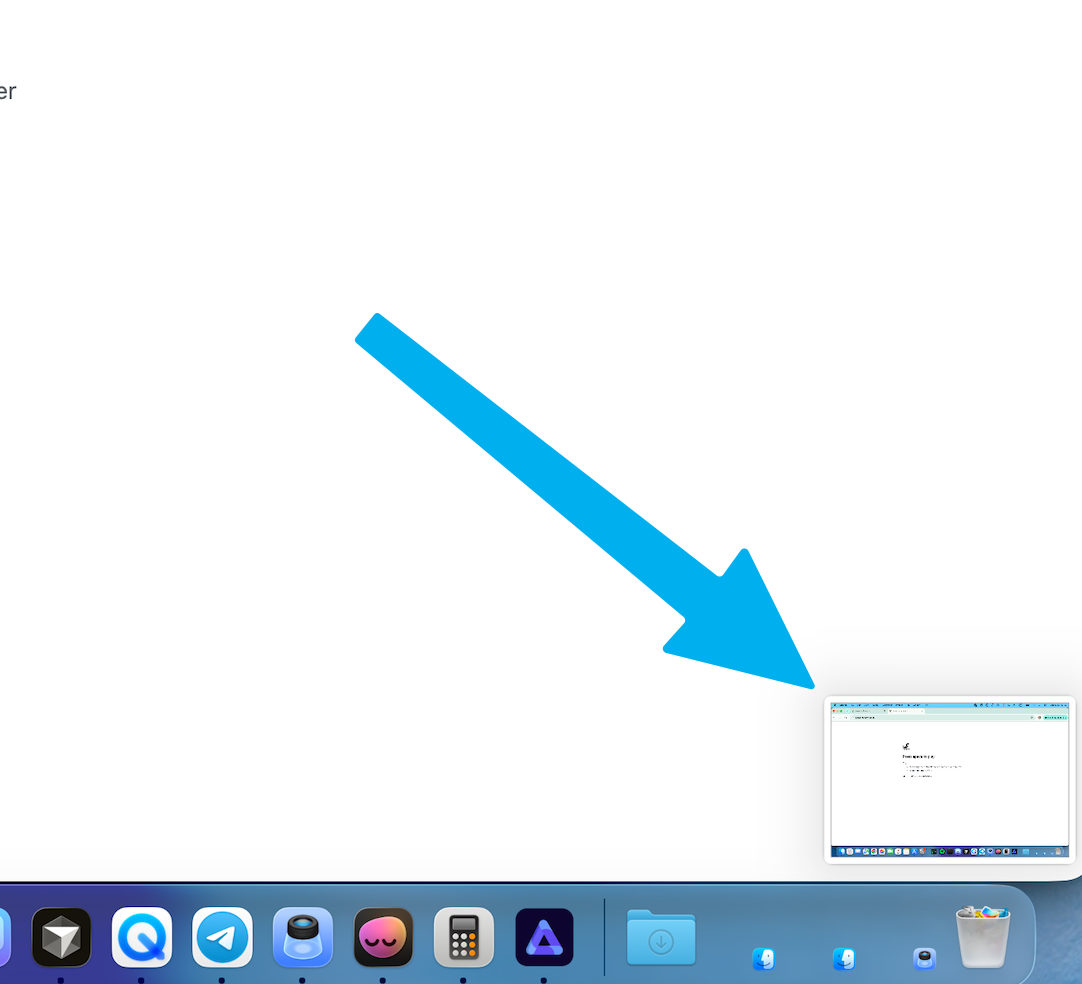
To skip the wait entirely, turn off Show Floating Thumbnail in Options.
4. Look in QuickTime Player
If Save to is set to QuickTime Player, the recording opens there and isn't saved until you choose File → Save. Check for an open, untitled QuickTime window.
5. Check the Trash
Recordings deleted from the thumbnail or Finder sit in the Trash until you empty it. Right-click the file and choose Put Back.
Why a Recording Is Missing or Zero Bytes
macOS writes the video file when the recording ends. If the recording never ends cleanly, the file can be missing, or show up as Zero bytes and refuse to play. Common causes:
- The disk filled up. Screen recordings are large — roughly 1–2 GB per 10 minutes at Retina resolution. When space runs out, the recording stops and may not save.
- The Mac went to sleep or the battery died in the middle of a recording, or you closed the lid.
- The recording was force-quit — for example by ending the
screencaptureprocess in Activity Monitor. - The save folder was deleted or renamed after you picked it in Options, so there was nowhere to write the file.
A zero-byte file has no video data, so there's nothing to recover from it. If you use Time Machine, check whether an earlier backup has the folder you saved to. Otherwise, the fix is preventing it next time:
- Check free space before long recordings (Apple menu → System Settings → General → Storage).
- Keep laptops plugged in, and turn off sleep for long sessions.
- Record long sessions in shorter parts.
- Make sure the Save to folder exists.
If recordings are failing in other ways — a black screen, no sound, or the shortcut doing nothing — see Mac screen recording not working.
Where Screen Recording Apps Save Their Files
Third-party recorders don't use the screenshot toolbar's setting:
- QuickTime Player follows the Options menu above.
- OBS Studio saves to the Recording Path in Settings → Output.
- Loom uploads recordings to your Loom library in the cloud; local copies are optional.
- Screen Charm keeps each recording as a project you can edit, and saves the finished video wherever you choose when you export. Exports are MP4, so there's no MOV conversion step.
If you record often and want the file to come out ready to share — zoomed in on the important clicks, with your webcam and system audio — a dedicated Mac screen recorder saves the editing step.
FAQ: Where Do Screen Recordings Go on Mac?
Where do screen recordings go on a MacBook?
The same place as on any Mac: the Desktop, unless you picked another folder in Command + Shift + 5 → Options → Save to. MacBook Air, MacBook Pro and desktop Macs all behave the same way.
How do I change where my screen recordings are saved?
Press Command + Shift + 5, click Options, and choose a folder under Save to. Pick Other Location for any folder you like. The setting is remembered for future recordings.
Why can't I find my screen recording on my Desktop?
Either a different folder is selected in Options → Save to, your Desktop syncs with iCloud and the file was moved to iCloud, or the recording didn't finish saving. Search for "Screen Recording" in Spotlight to find it wherever it is.
Where does QuickTime save screen recordings?
On macOS Mojave and later, QuickTime's New Screen Recording uses the same toolbar, so the file goes wherever Options → Save to points — the Desktop by default. If Save to is set to QuickTime Player, the recording opens in QuickTime and you choose where to save it.
Can screen recordings go to the clipboard?
No. The clipboard option in Options applies to screenshots only. Recordings are always saved as a file, or attached to a new email if Save to is set to Mail.
What format are Mac screen recordings saved in?
.mov. On macOS Tahoe 26 and later you can choose SDR (H.264) or, on supported Macs, HDR (HEVC) in Options. To get an MP4, use our free MOV to MP4 converter.