Recording your screen and webcam at the same time on a Mac gives tutorials, demos, and walkthroughs a personal connection that a screencast alone can't match. This guide covers every method — from free built-in tools to dedicated recorders — and the practical setup steps for lighting, framing, and audio that make the difference between amateur and polished.
Quick Answer
- Free + built-in (webcam only, no screen overlay): QuickTime Player or Photo Booth
- Easiest screen + webcam + no editing needed: Screen Charm ($79 one-time)
- Free + screen + webcam together: OBS Studio (requires setup)
For a full software comparison, see our best webcam recording software for Mac guide. For audio troubleshooting, see screen recording no sound fix.
Related Mac Recording Guides
- How to screen record on a Mac
- Record system audio on Mac
- Fix Mac screen recording no sound
- Mac screen recording shortcut guide
- Best screen recording software for Mac
Can You Record Screen and Webcam at the Same Time on Mac?
Yes — but the built-in macOS tools don't do it natively as a picture-in-picture overlay. Here's what each option actually supports:
| Method | Records Screen | Webcam Overlay | System Audio | Free |
|---|---|---|---|---|
| QuickTime Player | Yes | No | No | Yes |
| Photo Booth | No | Yes | No | Yes |
| Screen Charm | Yes | Yes | Yes | No ($79) |
| OBS Studio | Yes | Yes | Needs setup | Yes |
| ScreenFlow / Camtasia | Yes | Yes | Yes | No |
Sponsored by the makers
Tired of boring screen recordings?
Try Screen Charm.
Auto-zoom, captions, motion blur, camera overlay and a vertical layout for Shorts. Record once, export a polished video.
Screen Charm is a native macOS app.
Best Screen Recorder With Webcam on Mac
The short answer depends on what matters most to you:
- Best free: OBS Studio — records screen and webcam simultaneously, no watermark, no limits. Requires a 30–60 minute setup.
- Easiest: Screen Charm — webcam overlay, auto-zoom, and system audio work out of the box. $79 one-time.
- Built-in macOS tools: Limited — QuickTime records webcam or screen, but not both together as picture-in-picture.
The sections below walk through each option step by step.
Option 1: Built-In Mac Tools (Webcam or Screen, Not Both)
QuickTime Player — Webcam Recording
QuickTime can record your webcam as a standalone video (not overlaid on screen):
- Open QuickTime Player
- Go to File → New Movie Recording
- Click the dropdown arrow next to the record button and select your camera and microphone
- Press the red button to record
QuickTime records at native resolution with no time limit or watermark. It cannot record system audio and cannot overlay your webcam on a screen recording simultaneously.
Photo Booth — Quick Webcam Capture
Photo Booth is simpler — open it, click Effects if you want a background, and hit record. It's best for casual, short clips. Not suitable for tutorials or demos.
The Built-In Limitation
Neither QuickTime nor the Shift + Command + 5 Screenshot toolbar can combine a screen recording with a live webcam overlay in picture-in-picture. For that, you need OBS or a dedicated recorder.
Option 2: Screen Charm — Easiest Screen + Webcam + Auto-Zoom
Screen Charm is a Mac screen recorder built for polished screen + webcam videos in a single click with no scene setup required.
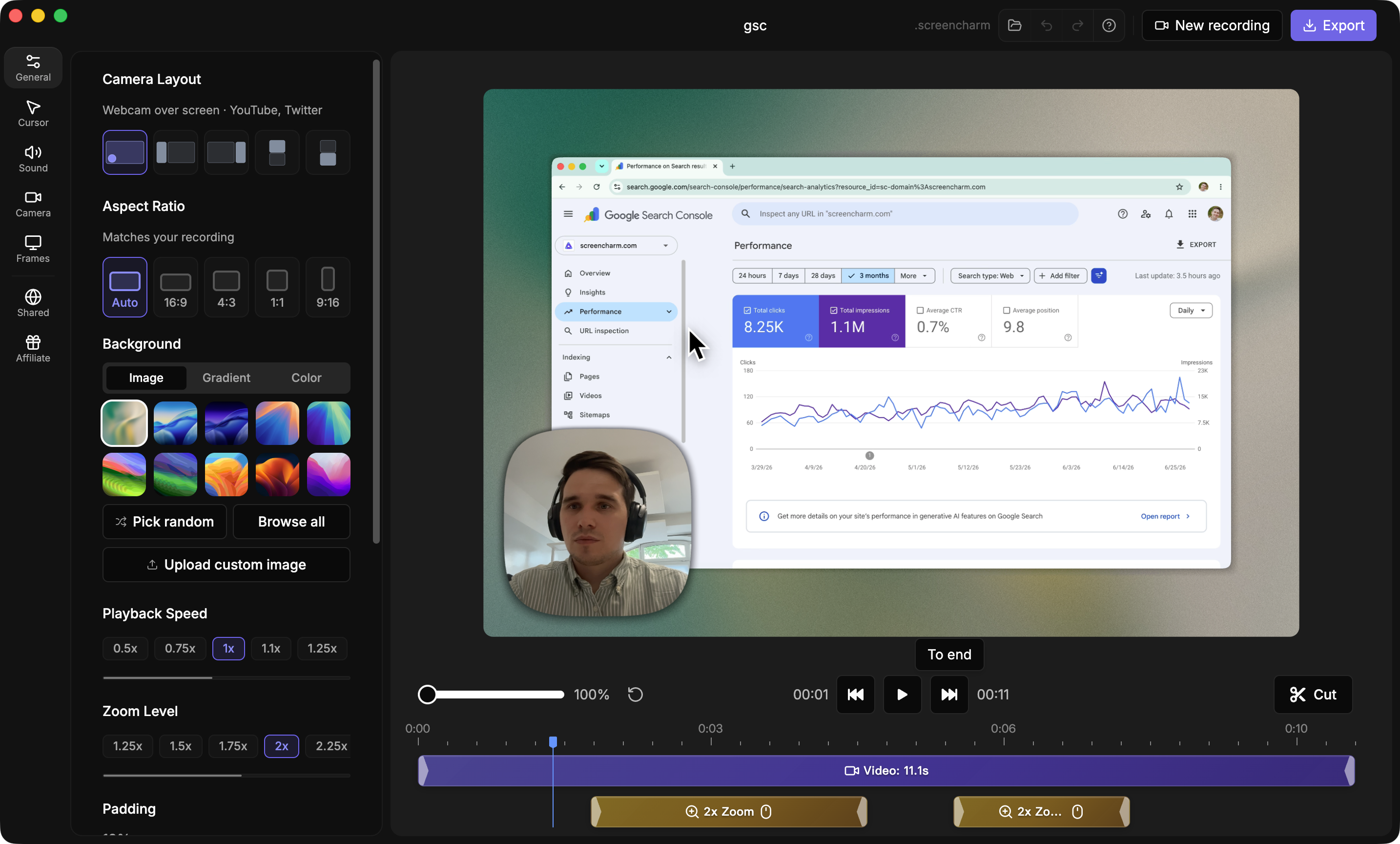
How it works:
- Open Screen Charm and choose your recording area
- Enable the webcam toggle — the overlay appears instantly, no scene setup
- Choose webcam shape (circle or square), position, and background
- Press record — screen, webcam, mic, and system audio all captured together
- In the built-in editor: trim, reposition the webcam bubble, fine-tune auto-zoom points, then export as MP4 at 1080p or 4K
The standout feature is intelligent auto-zoom: it tracks your cursor and zooms in on interface elements automatically, so your recordings look edited without manual keyframing.
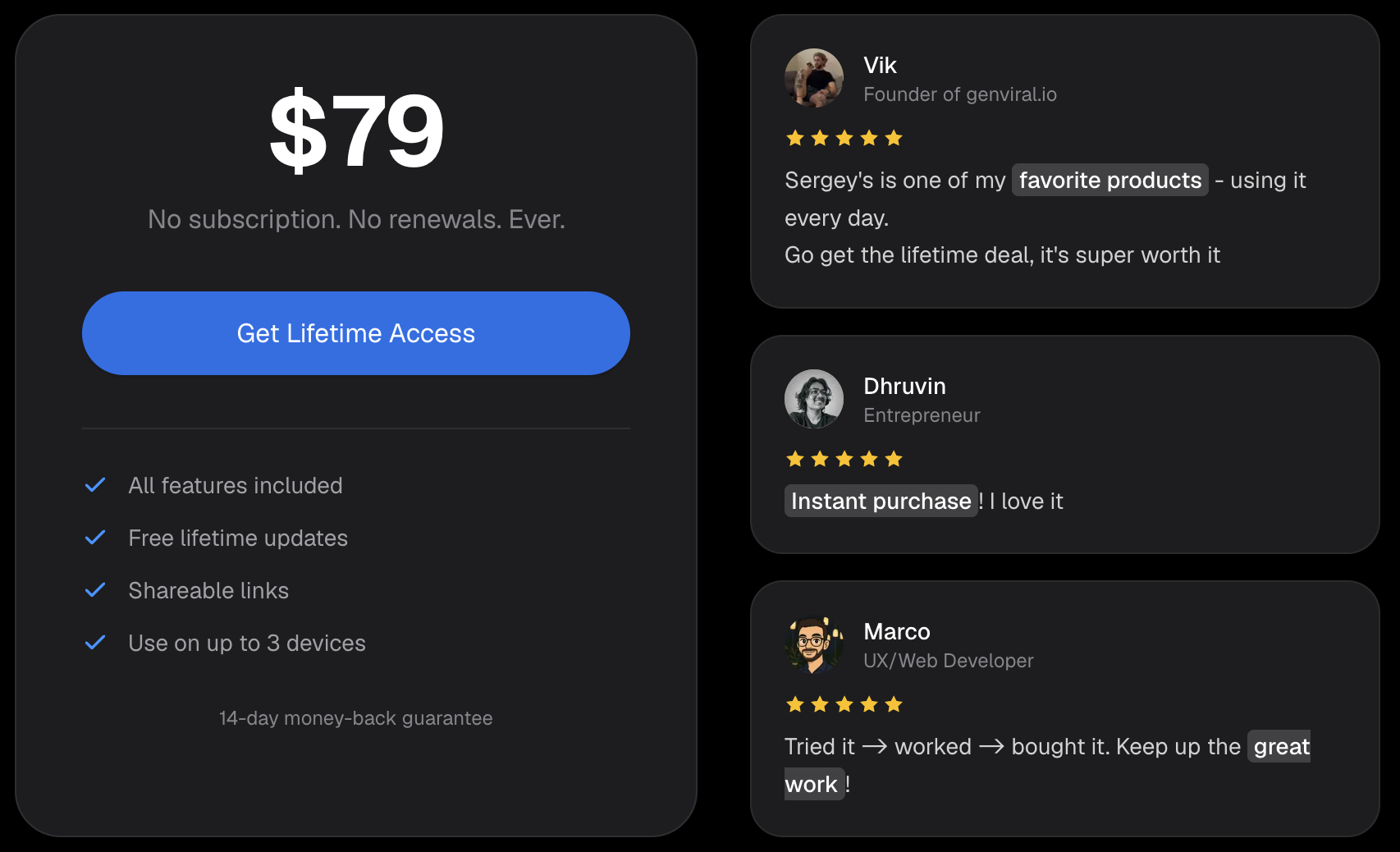
Pricing: $79 one-time, lifetime updates, 14-day money-back guarantee — screencharm.com
Option 3: OBS Studio — Free Screen + Webcam Together
OBS Studio is free, has no watermark, and fully supports simultaneous screen + webcam recording on Mac.
How to set up screen + webcam in OBS:
- Download and open OBS Studio
- In the Sources panel, click + → Display Capture to add your screen
- Click + again → Video Capture Device to add your webcam
- Resize and position the webcam source in the preview — drag it to a corner
- Set your microphone under Settings → Audio
- For system audio (app sounds), install BlackHole and select it as a desktop audio source
- Press Start Recording
OBS outputs to your chosen folder in MP4 or MKV. The learning curve is real — expect 30–60 minutes to get comfortable — but once configured it's reliable and free indefinitely.
How to Record Screen, Webcam, and System Audio Together
Recording all three simultaneously — screen content, your face, and the audio playing inside apps — requires a tool that supports system audio capture. macOS blocks apps from recording internal audio by default.
| Tool | System Audio | How |
|---|---|---|
| Screen Charm | Yes (built-in) | Enabled by default |
| OBS Studio | Needs setup | Install BlackHole virtual audio driver |
| QuickTime | No | Not supported |
| ScreenFlow / Camtasia | Yes | Built-in |
For a full walkthrough of enabling internal audio on Mac, see our record internal audio on Mac guide. If your recording has no audio at all, see the screen recording no sound fix.
Facecam Placement and Shape
Where you put your webcam overlay matters. These combinations work well for different content types:
| Content Type | Facecam Shape | Position | Background |
|---|---|---|---|
| Software demo | Circle | Bottom-right | Transparent |
| Marketing video | Circle | Bottom-right | Branded image |
| Internal training | Square | Bottom-left | Stock office or blur |
| Casual tutorial | Circle | Bottom-right | Transparent or blur |
Tip: If your webcam covers an important UI element, in Screen Charm you can drag it to a new position after recording in the editor — no re-recording needed.
Pre-Flight Check Before Recording
Run this before every session:
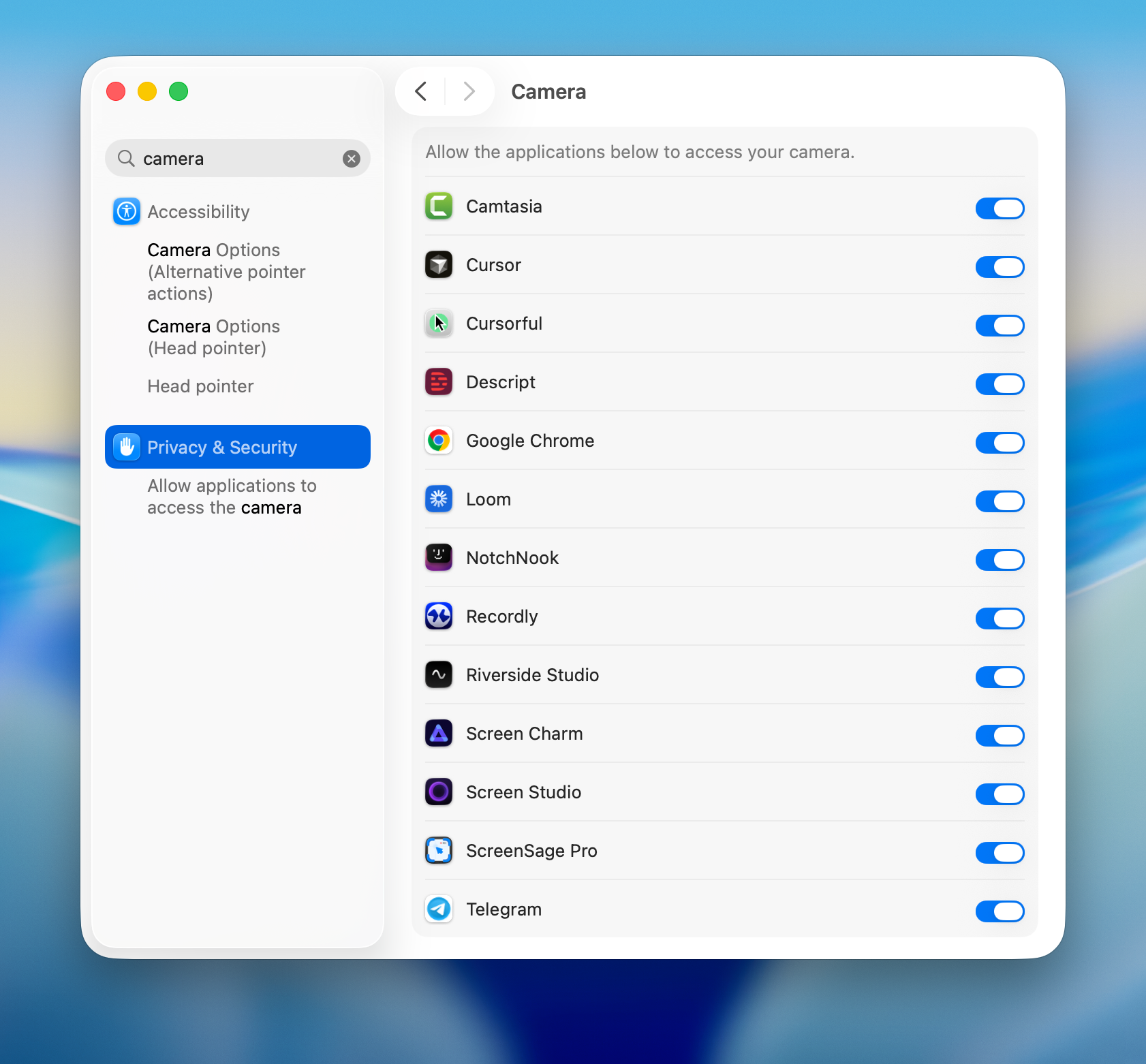
- Camera is connected and recognised — check System Settings → Privacy & Security → Camera and toggle your app on
- Microphone is working — open System Settings → Sound → Input and speak; confirm the level meter responds
- Webcam is at eye level (prop your Mac up if needed — a stack of books works)
- Background is tidy, or a virtual background is set
- Do a 10-second test recording and play it back — check framing, audio, and that the webcam overlay is visible
Lighting, Framing, and Audio
Lighting
Natural window light facing you is free and looks great. If you record at night or in a dark room, a budget ring light behind your monitor makes an immediate difference — position it at eye level, pointing at your face.
Avoid light sources behind you (windows, lamps) — they turn you into a silhouette.
Framing
- Camera at eye level — never below (unflattering) or far above (makes you look small)
- Eyes roughly on the upper third of the frame
- A small gap above your head, not a large empty space
- Face slightly off-centre looks more natural than dead-centre
Audio
Bad audio kills a video faster than bad visuals. The Mac's built-in microphone is acceptable for FaceTime; for recordings people watch, an external USB microphone is a meaningful upgrade.
Before recording: close other apps, silence notifications, and close doors to reduce echo. Speak at your normal conversational volume — the input level meter should stay in the green zone, not hitting red.
Does Your Webcam Matter? (Built-In vs External)
The FaceTime camera on modern MacBooks (1080p on M2 and later models) is genuinely usable for a small corner overlay. Because the facecam bubble typically occupies less than 15% of the frame, webcam resolution matters less than lighting.
When an external webcam is worth it:
- Your face fills a large portion of the frame — intro segments, talking-head sections, or a large side-by-side layout
- You record in low light — external webcams with larger sensors handle dim rooms far better than the built-in camera
- Your MacBook lid is closed (clamshell mode with an external display) — the built-in camera is unusable, so an external one is mandatory
- You want background blur or auto-framing in hardware — many external webcams handle this without using CPU
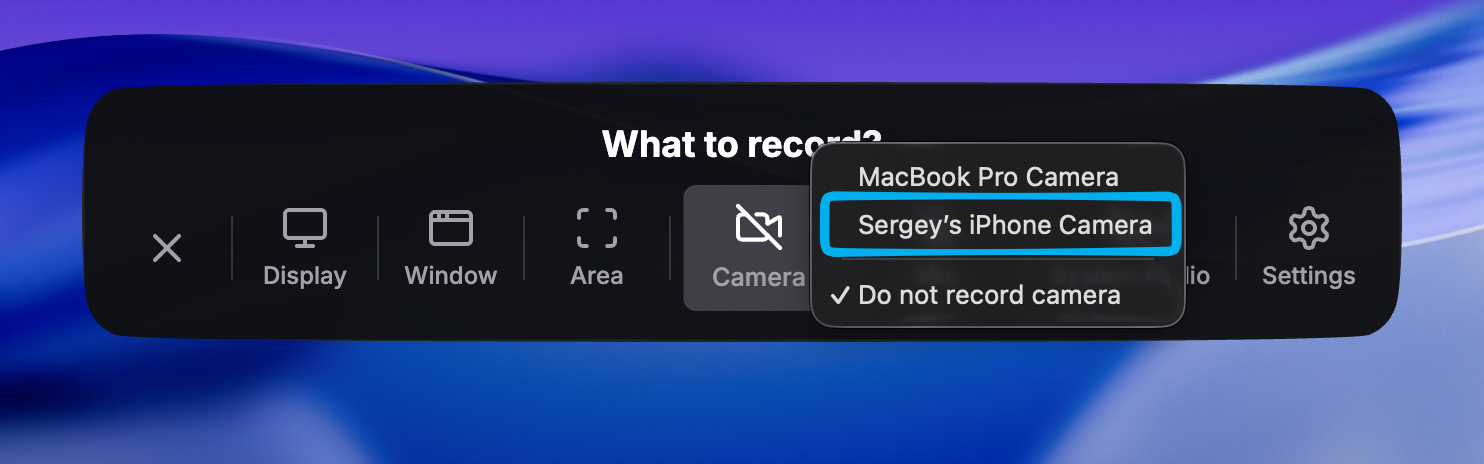
If you use an iPhone, Continuity Camera turns it into a high-quality Mac webcam wirelessly: mount the iPhone near your display, and it appears as a camera in any recorder — Screen Charm, OBS, or QuickTime. Image quality beats almost every dedicated webcam under $200.
Troubleshooting: Webcam Recording Problems on Mac
Webcam not detected
- Check System Settings → Privacy & Security → Camera and confirm your recording app is toggled on
- Quit any other app that might be holding the camera (Zoom, Teams, FaceTime, a browser tab with camera access)
- Unplug and replug an external webcam, ideally into a different USB port — avoid unpowered hubs
- Restart the app; if that fails, restart the Mac. macOS occasionally leaves the camera process in a stuck state that only a reboot clears
Webcam feed is laggy or choppy
- Close background apps that use CPU heavily — browser tabs with video, Slack huddles, virtual machines
- Lower the recording resolution from 4K to 1080p; the webcam overlay won't look different at typical bubble sizes
- On Intel Macs, plug into power — thermal throttling on battery causes dropped frames during long recordings
Webcam and screen are out of sync
Audio/video drift usually comes from the webcam running at a different frame rate than the screen capture. Set both to 30 fps. In OBS: Settings → Video → Common FPS Values → 30. Dedicated recorders like Screen Charm handle this automatically.
Webcam looks grainy or dark
This is a lighting problem, not a camera problem, in 9 out of 10 cases. Add a light source in front of you (window or lamp behind your monitor). Graininess is the camera compensating for darkness by raising ISO — more light fixes it instantly.
Recording has a black screen instead of the display
Grant Screen Recording permission: System Settings → Privacy & Security → Screen & System Audio Recording, toggle your app on, then restart the app. macOS requires the app to restart before the permission takes effect. For more fixes, see Mac screen recording not working.
5 Common Facecam Mistakes That Make Videos Look Amateur
- Webcam bubble covering the action. Place the overlay in a corner that stays empty in your app — usually bottom-right, but check your specific UI. If you use Screen Charm, you can move it in the editor after recording.
- Camera below eye level. Recording with the MacBook flat on a desk points the camera up your chin. Raise the laptop so the camera sits at eye level.
- Backlit face. A window behind you turns you into a silhouette. Face the window instead.
- Recording the first take with no test. A 10-second test recording catches muted mics, wrong cameras, and bad framing before you waste a full take.
- Facecam that never changes. For longer videos, hide the bubble during dense UI sections and bring it back for explanations. Presence when it matters is more engaging than constant presence.
Editing and Exporting
If using OBS: OBS outputs raw footage that needs editing in a separate app (iMovie, Final Cut Pro, DaVinci Resolve).
If using Screen Charm: The built-in editor handles the essentials:
- Trim the beginning and end
- Reposition the webcam bubble if it covers something important
- Adjust auto-zoom intensity or add manual zooms for specific moments
- Export as MP4 at 1080p or 4K
Export settings to use:
- Format: MP4 (works everywhere — YouTube, Notion, email, Slack)
- Resolution: 1080p for most purposes; 4K if the detail of your UI matters (e.g. showing fine typography or dense code)
Best Screen and Webcam Recorder for YouTube
YouTube creators need a screen + webcam recorder that handles the full workflow — clean footage, reliable audio, and easy export in the right format.
- OBS Studio — best for full creative control. Set up multiple scenes, switch between layouts, record in any resolution. Ideal if you already know OBS or want to stream and record simultaneously.
- Screen Charm — best for polished tutorials fast. Auto-zoom means your recordings look professionally edited without a timeline editor. Export directly to MP4 at 4K.
- ScreenFlow — best if you need a proper timeline editor. Suits longer videos that require cuts, B-roll, titles, and annotations before uploading.
For most tutorial and demo creators uploading to YouTube, Screen Charm or OBS covers everything needed without a separate editing step.
Frequently Asked Questions
How do I record my screen and webcam at the same time on Mac?
Use OBS Studio (free) or Screen Charm ($79). QuickTime Player cannot overlay a webcam on a screen recording — it only records one at a time. In OBS, add a Display Capture source and a Video Capture Device source. In Screen Charm, enable the webcam toggle before recording.
Can I record my webcam without screen recording on Mac?
Yes. Open QuickTime Player → File → New Movie Recording, select your camera, and press record. Photo Booth also records webcam-only video.
What is the best free screen recorder with webcam for Mac?
OBS Studio — completely free, no watermark, no recording limit. It records screen and webcam simultaneously with full audio support. The trade-off is a steeper setup compared to paid tools.
Does Screen Charm work with an external webcam?
Yes. Any USB or Thunderbolt webcam recognised by macOS will appear in Screen Charm's camera dropdown. An external webcam improves image quality noticeably over the built-in FaceTime camera on most Macs.
Can I move the webcam overlay after recording?
In Screen Charm, yes — the facecam bubble is repositionable in the editor after recording. In OBS, you set the position before recording; changing it requires re-recording or using a separate video editor.
Will recording in 4K slow down my Mac?
On Apple silicon Macs (M1/M2/M3/M4), 4K recording is smooth. On older Intel Macs, 1080p is more reliable for long sessions. Screen Charm is optimised for both.
Can I use my iPhone as a webcam for screen recordings?
Yes — Continuity Camera works with any Mac recorder. Bring your iPhone near your Mac (signed into the same Apple ID, Wi-Fi and Bluetooth on) and it appears as a camera option in Screen Charm, OBS, QuickTime, and browser-based tools. The image quality is significantly better than most standalone webcams.
How do I record screen and webcam for a YouTube video?
Record at 1080p or 4K in 16:9, keep the facecam in the bottom-right corner, and export as MP4 (H.264). YouTube re-encodes everything, so start from the highest quality source you can. See our screen recording software for YouTube guide for a full workflow.
Can Zoom or Teams record my screen and webcam together?
Technically yes — start a meeting with yourself and record it. But the output quality is poor: compressed video, compressed audio, and a layout you can't control. Meeting tools optimise for live bandwidth, not recording quality. Use a dedicated recorder for anything you plan to publish.
How much disk space does a screen + webcam recording use?
At 1080p/30fps, expect roughly 20–40 MB per minute depending on how much moves on screen. 4K recordings run 3–4× larger. A 10-minute tutorial usually lands between 200 MB and 1.5 GB before export compression.
Ready to record your screen and face together with zero setup? Screen Charm handles webcam overlay, auto-zoom, and system audio in one click. For a full comparison of webcam recording apps, see our best webcam recording software for Mac guide.