Recording your Mac screen with audio sounds simple — but as you quickly discover, macOS doesn't let apps capture internal sound by default. This guide covers every method: the built-in Screenshot Toolbar, QuickTime + BlackHole, and all-in-one apps like Screen Charm.
Quick Answer
| What you need | Best method |
|---|---|
| Mic only (voice narration) | Screenshot Toolbar (Cmd + Shift + 5) or QuickTime |
| System audio + mic | Screen Charm (built-in driver) or QuickTime + BlackHole |
| Complex multi-source audio | Loopback (pro-grade routing) |
| Free + full control | OBS Studio |
Related guides: How to record internal audio on Mac — Screen recording no sound fix — Record screen and webcam together
Why Recording Audio on Mac Is Tricky
By design, macOS isolates the audio streams from different applications — a security feature that prevents apps from eavesdropping on each other. This means your screen recorder can't "hear" sound playing from another app. To record system audio, you need a virtual audio driver that acts as a bridge, funnelling app sounds into a source your recorder can capture.
You've got two paths:
- All-in-one app (Screen Charm, etc.): Ships with its own audio driver. Install it, grant permissions, record. No configuration.
- QuickTime + BlackHole: Free, built-in tools plus a free virtual driver. Takes 10 minutes to configure once, then just works.
Methods at a Glance
| Method | Mic | System Audio | Ease of Use | Cost |
|---|---|---|---|---|
| Screenshot Toolbar / QuickTime | ✅ | ❌ | Very Easy | Free |
| Screen Charm | ✅ | ✅ | Very Easy | $99 one-time |
| QuickTime + BlackHole | ✅ | ✅ | Moderate | Free |
| OBS Studio | ✅ | ✅ (needs setup) | Difficult | Free |
| Loopback | ✅ | ✅ | Moderate | Paid |
Method 1: Screenshot Toolbar — Mic Narration Only
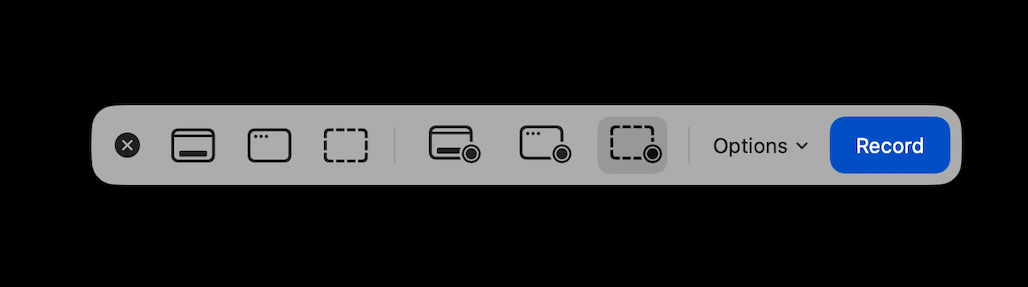
The fastest way to start is built into macOS. Press Command + Shift + 5 to open the Screenshot Toolbar — a small control panel that pops up at the bottom of your screen.
How to use it:
- Press
Cmd + Shift + 5 - Click the screen recording icon (full screen or selected area)
- Open Options and select your microphone from the dropdown
- Set a timer (5 or 10 seconds) if you need time to set up
- Click Record
The key limitation: The Screenshot Toolbar and QuickTime Player cannot capture system audio (sounds from apps). You'll get your voice but none of the app sounds. For mic-only narration over a silent demo, it's perfect. For anything that needs app audio, use one of the methods below.
Sponsored by the makers
Tired of boring screen recordings?
Try Screen Charm.
Auto-zoom, captions, motion blur, camera overlay and a vertical layout for Shorts. Record once, export a polished video.
Screen Charm is a native macOS app.
Method 2: Screen Charm — System Audio + Mic in One Click
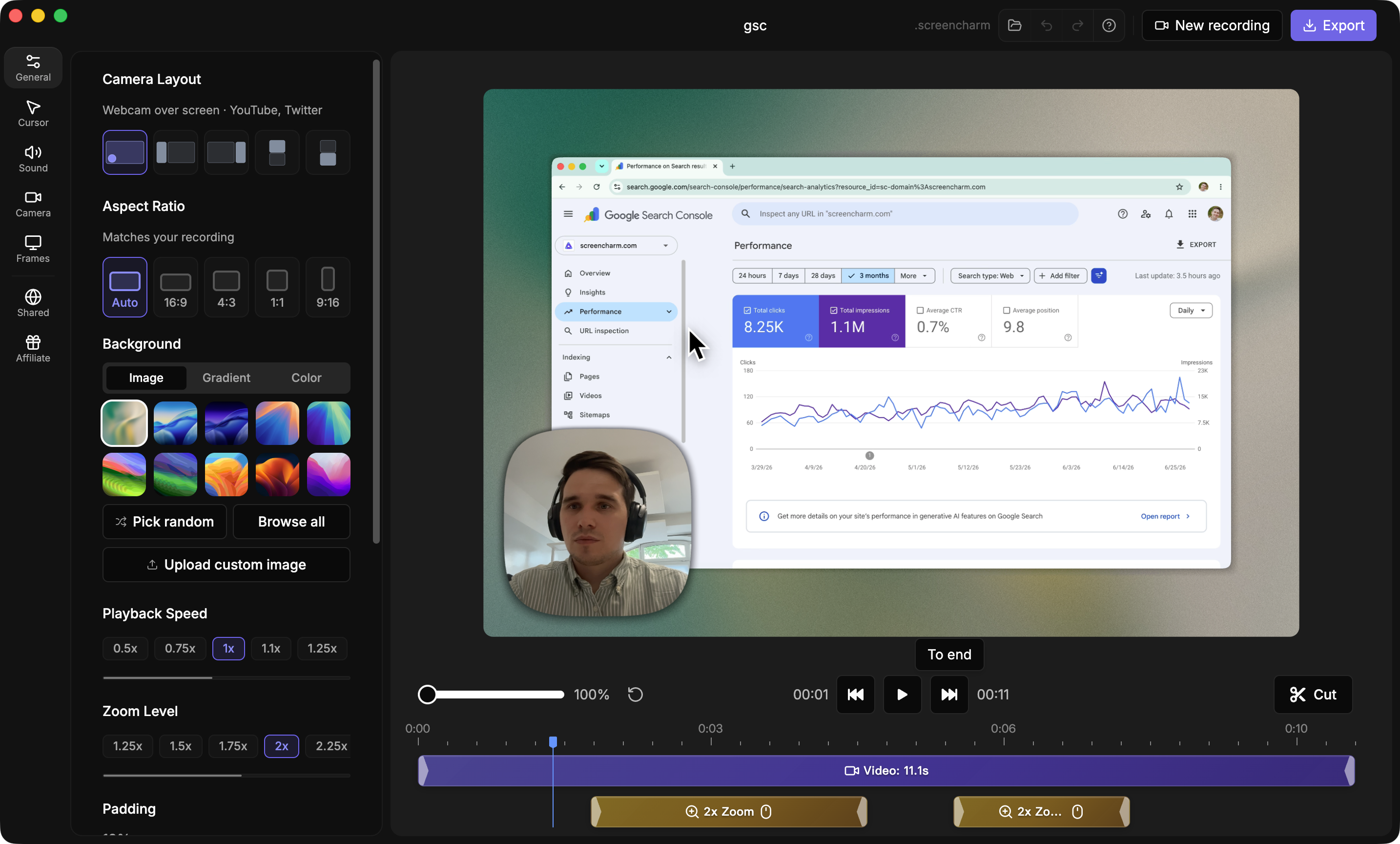
Screen Charm is a Mac screen recorder that ships with its own audio driver, so it handles all the routing automatically — no Audio MIDI Setup, no virtual device configuration.
Setup (one-time):
- Download and install Screen Charm
- Grant: Screen Recording, Microphone, and Audio Driver permissions in System Settings
- That's it — no additional configuration
Recording:
- Choose: full screen, app window, or selected area
- Select your microphone from the dropdown
- Enable system audio with one toggle
- Add webcam overlay if needed
- Press record
What makes it different:
- Auto-zoom: Automatically follows your cursor and zooms into interface elements — no manual keyframes
- Webcam overlay: Circular or square facecam, repositionable after recording
- Built-in editor: Trim, adjust zoom intensity, reposition webcam bubble, export in 4K
- No watermark, no recording limits
Screen Charm Keyboard Shortcuts
| Action | Shortcut | When to use |
|---|---|---|
| Start / Stop recording | Cmd + Shift + R | Begin or end without clicking |
| Pause / Resume | Cmd + Shift + P | Collect your thoughts mid-demo |
| Mute / Unmute mic | Cmd + Shift + M | Silence yourself briefly without stopping |
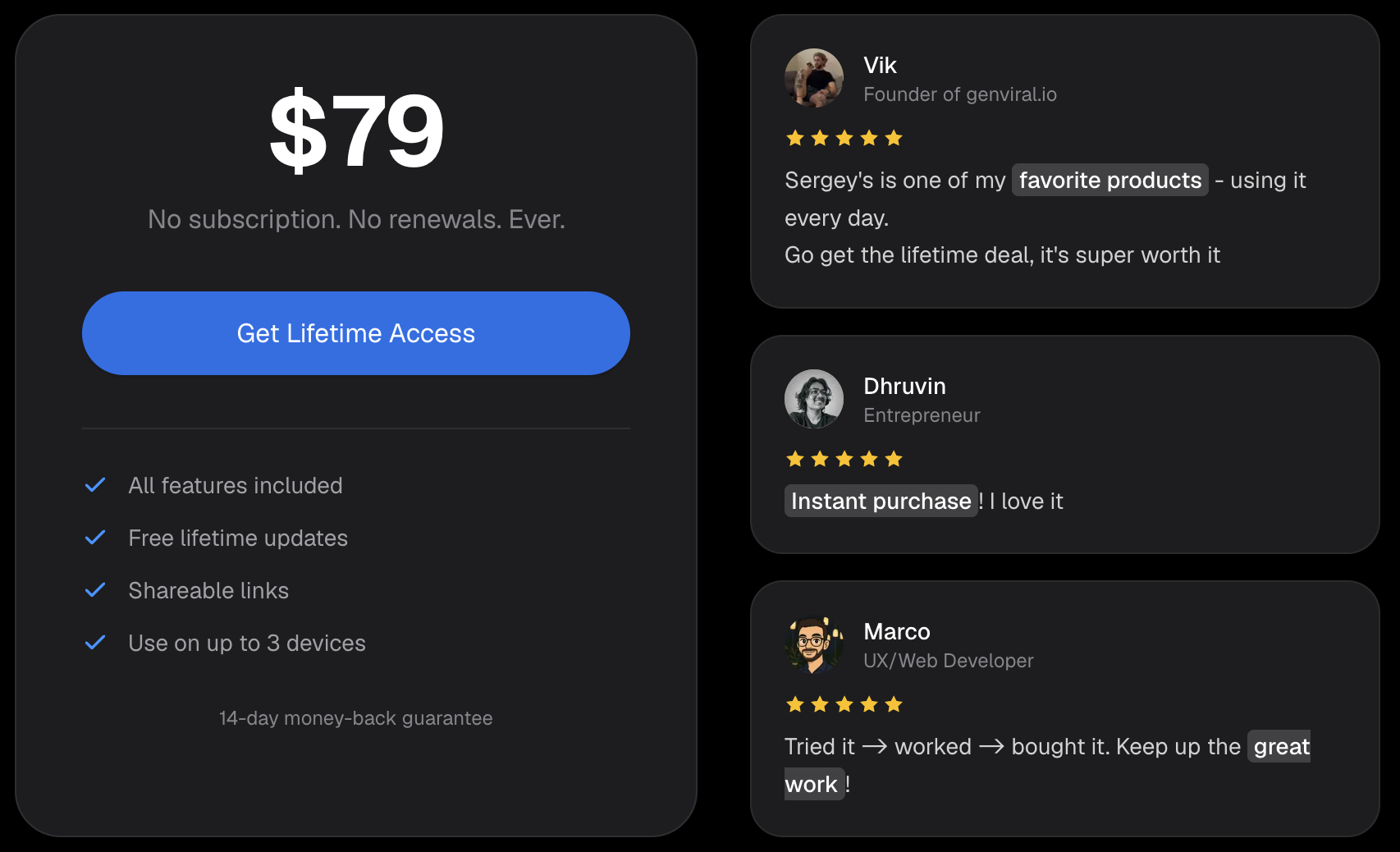
Pricing: $99 one-time, lifetime updates, 14-day money-back guarantee — screencharm.com
Method 3: QuickTime + BlackHole — Free System Audio
QuickTime Player is already on your Mac. The only missing piece is BlackHole, a free open-source virtual audio driver that creates a digital "cable" between your Mac's output and QuickTime's input.
Step 1 — Install BlackHole:
Download from existential.audio/blackhole or install via Homebrew: brew install blackhole-2ch
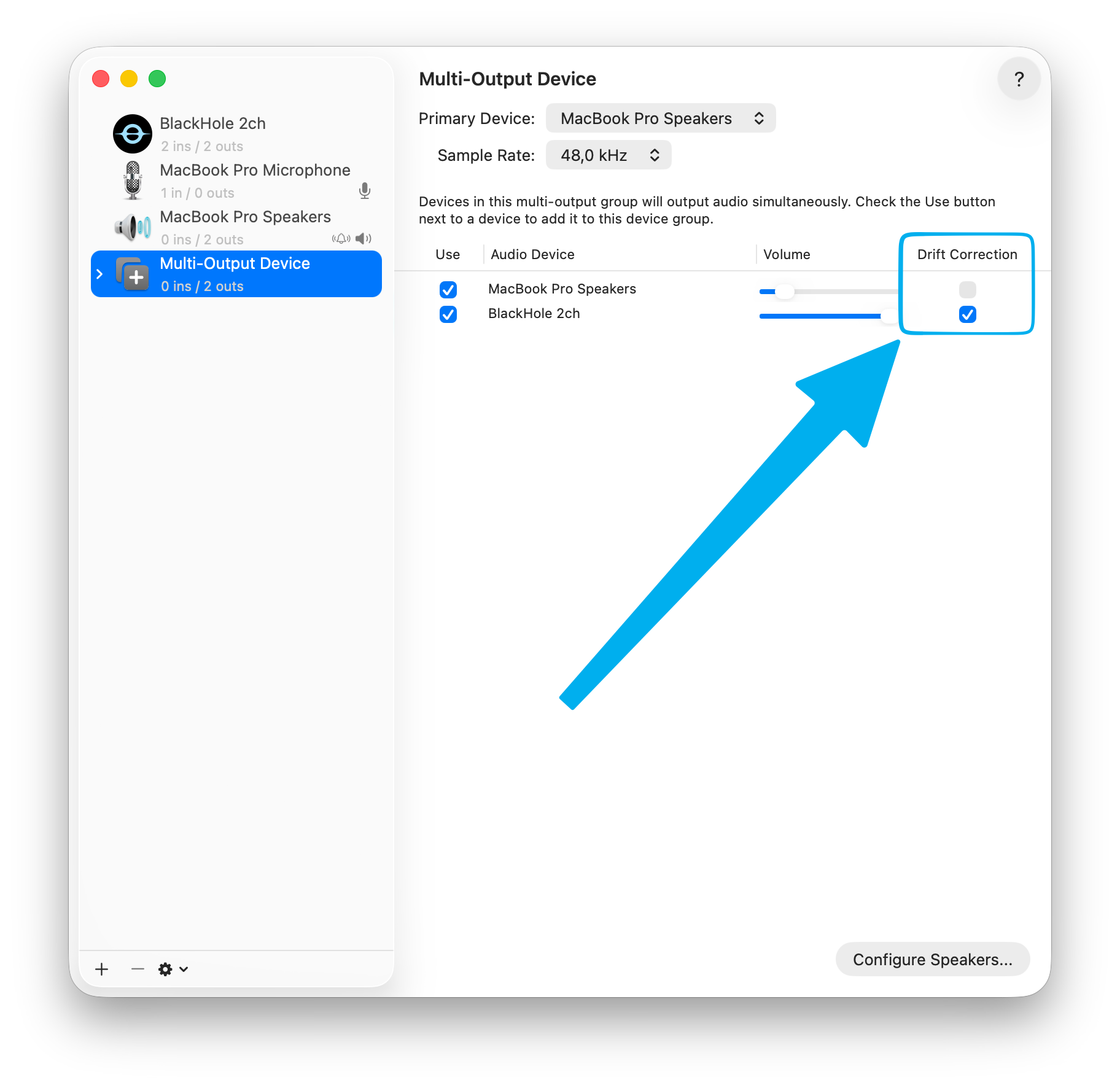
Step 2 — Create a Multi-Output Device in Audio MIDI Setup:
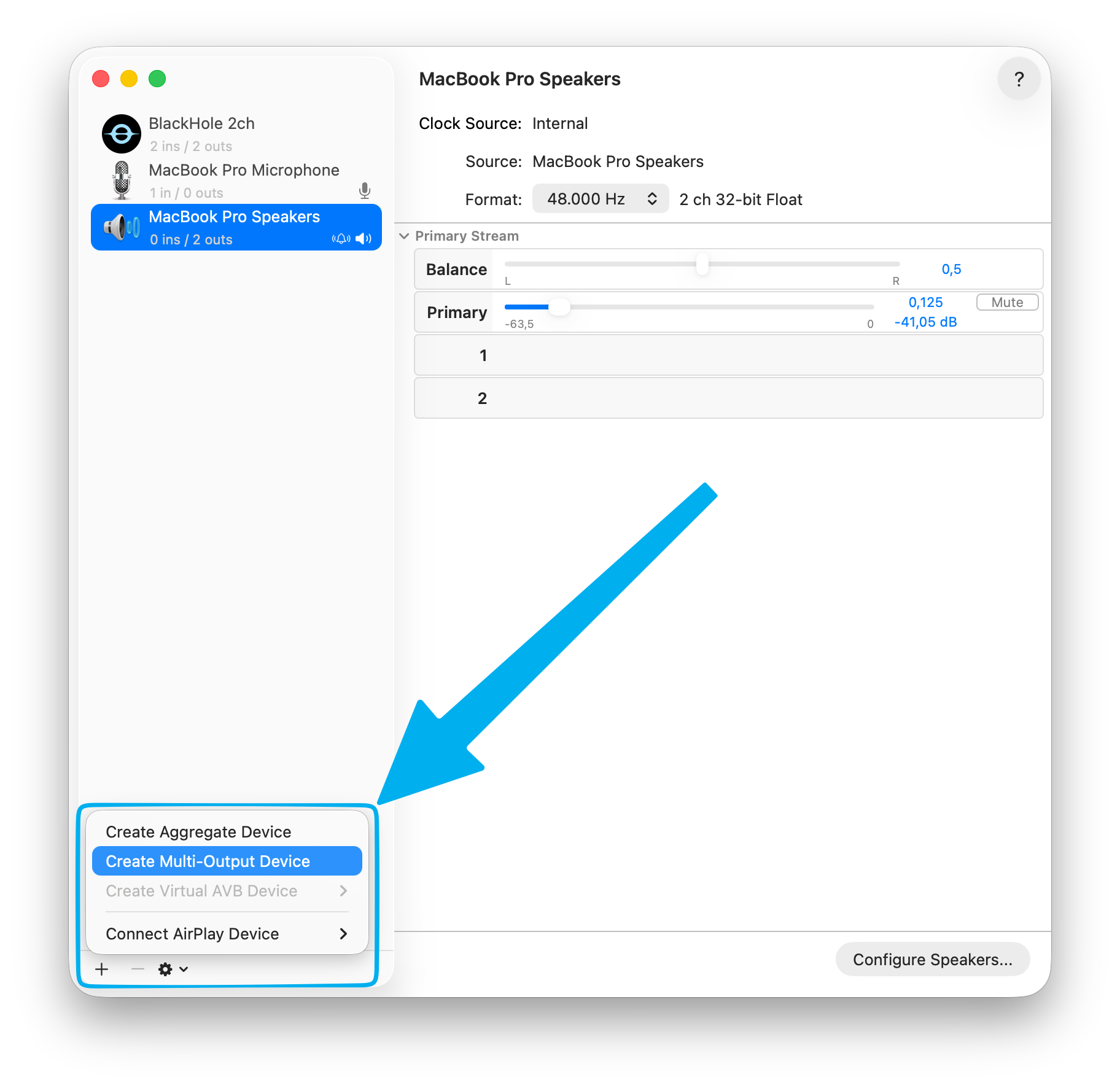
- Open Audio MIDI Setup (Applications → Utilities)
- Click + in the bottom-left → Create Multi-Output Device
- Check both your speakers/headphones and BlackHole 2ch
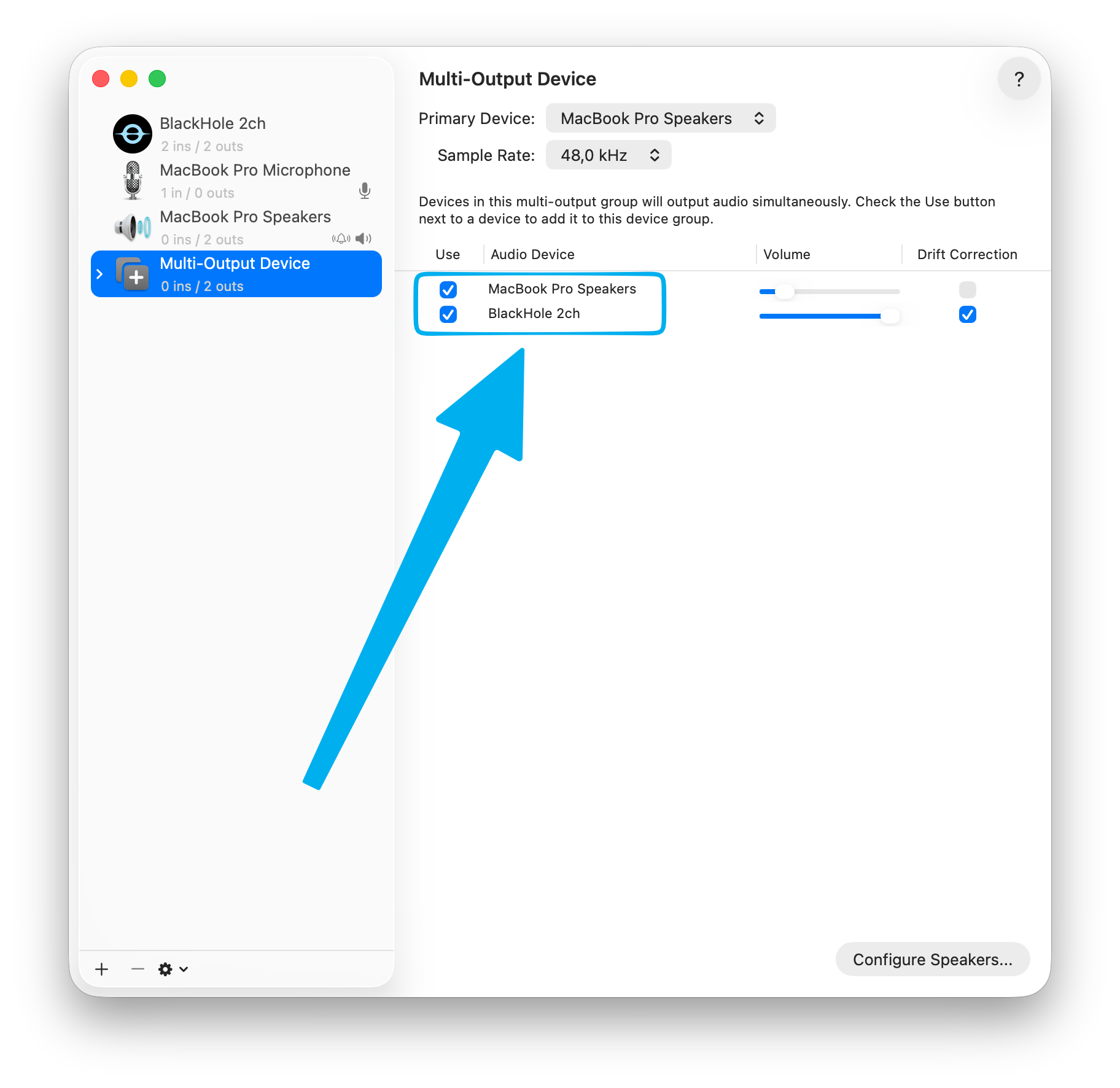
- Set your speakers as the Primary Device and check Drift Correction for BlackHole 2ch
Step 3 — Set it as your default output: Go to System Settings → Sound → Output and select the Multi-Output Device you just created. Now your Mac sends audio to both your speakers and BlackHole simultaneously.
Step 4 — Record in QuickTime:
- Open QuickTime → File → New Screen Recording
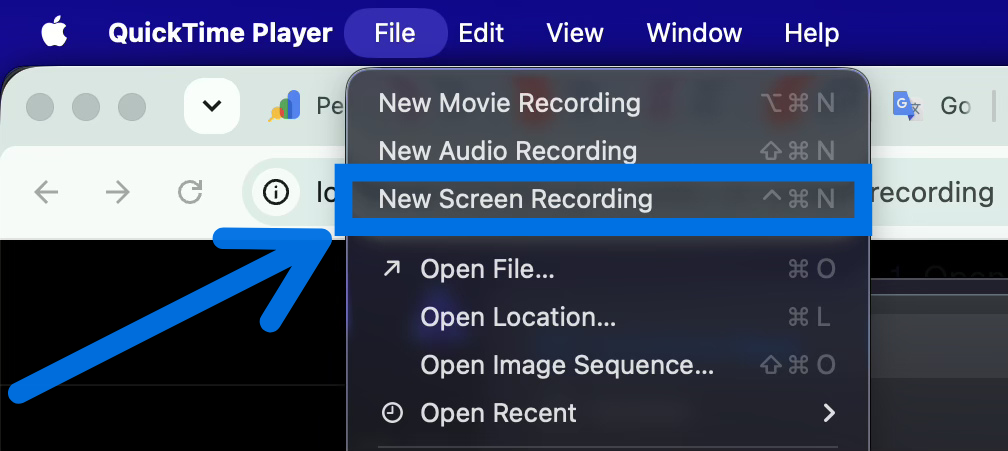
- Click the dropdown arrow next to the record button
- Select BlackHole 2ch as the microphone input
- Record
This is a one-time setup. Once configured, QuickTime will always record system audio through BlackHole until you change it back. For a more detailed walkthrough, see our guide on recording internal audio on Mac.
Method 4: Loopback — Advanced Multi-Source Audio Routing
For complex setups — mixing audio from specific apps, a USB mic, and background music into one clean recording — Loopback by Rogue Amoeba is the professional option.
How it works: Create a virtual audio device in Loopback's visual interface and drag in any combination of apps and microphones. Adjust each source's volume independently. The result appears as a single input in any recording app.
Example setup for a product demo:
- USB mic → your voice
- Chrome → app interface sounds
- Spotify → background music at low volume
Loopback isolates audio on a per-app basis, so system alerts from other apps don't bleed in. Once configured, select your Loopback device as the input in Screen Charm or QuickTime.
Method 5: OBS Studio — Free with Full Control
OBS Studio is the free power-user option: no watermark, no time limits, and full control over every audio source. The trade-off is setup time.
How to record screen with audio in OBS:
- Download OBS Studio and open it
- In Sources, click + → Display Capture to add your screen
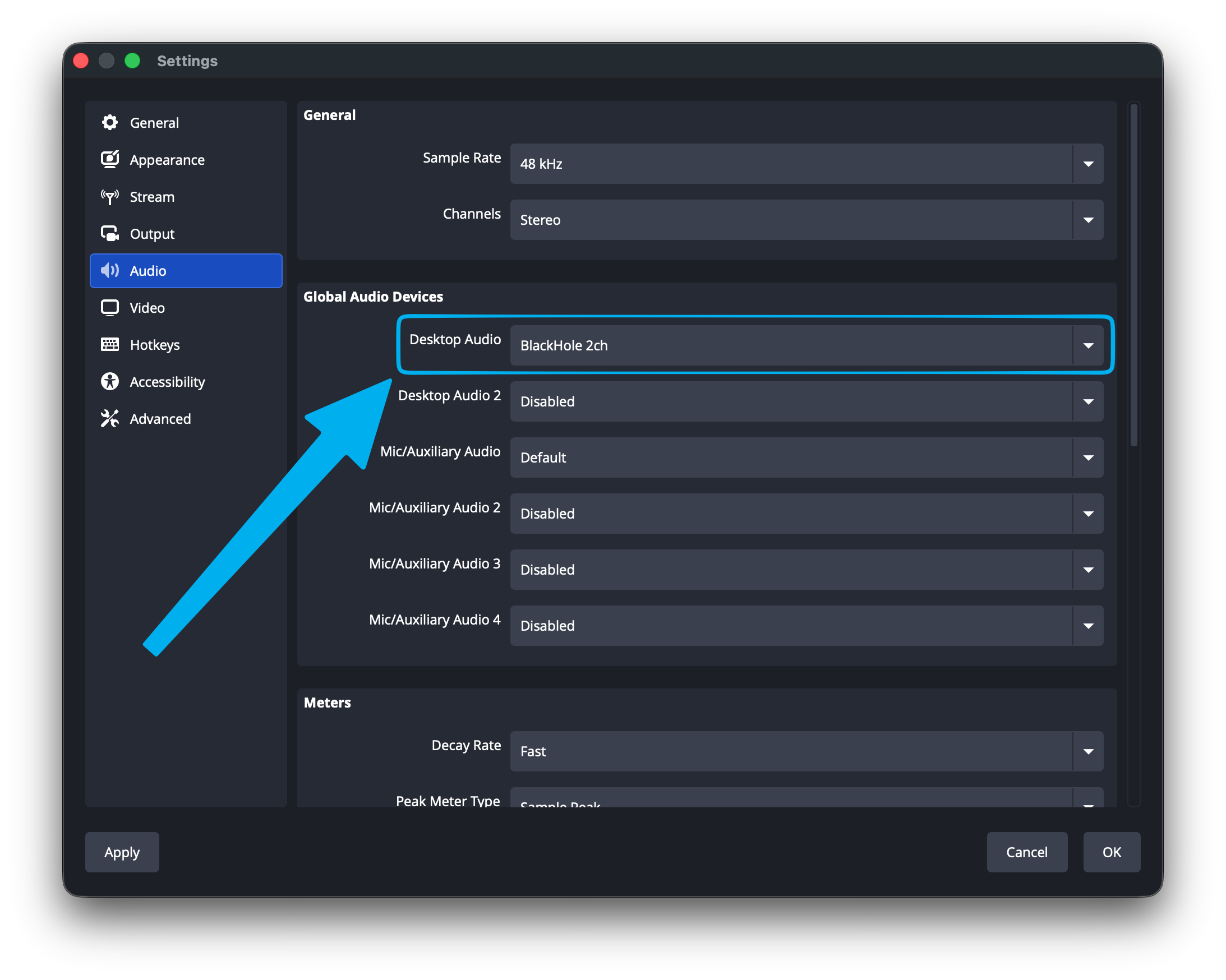
- Check Settings → Audio: set Mic/Auxiliary Audio to your microphone
- For system audio, install BlackHole (same driver as Method 3) and set Desktop Audio to BlackHole 2ch
- Watch the audio mixer at the bottom of the OBS window — both meters should move when you speak and when app audio plays
- Click Start Recording
Why choose OBS over QuickTime + BlackHole: the built-in audio mixer. You can balance mic and system audio levels independently, add noise suppression filters to your mic, and monitor levels live while recording — none of which QuickTime can do. If your recordings will be long or you plan to stream as well, the setup investment pays off.
Why not: for a quick one-off recording, the scene/source model is overkill, and misconfigured audio is the most common OBS mistake — always do a 10-second test recording first.
Common Scenarios
Recording a Zoom, Teams, or Google Meet call
Two options:
- The meeting tool's own recorder — easiest, but quality is compressed and layouts are fixed. In Zoom, the host can record locally for free; in Teams and Meet, recording typically requires a paid workspace plan.
- A screen recorder with system audio — captures exactly what you see and hear at full quality. Use Screen Charm or QuickTime + BlackHole, and enable your mic too if you want your own voice in the recording.
Important: recording calls without consent is illegal in many jurisdictions. Always announce that you're recording and get agreement from participants.
Recording a browser video with sound (YouTube, webinars, courses)
Any system-audio method works: the browser's sound is just app audio. Set your Multi-Output Device (Method 3) or enable system audio in Screen Charm, then record the browser window. Recording a single window instead of the full screen keeps notifications and other apps out of the frame.
Recording a presentation with narration
Mic-only is enough — use the free Screenshot Toolbar (Cmd + Shift + 5) with your microphone selected under Options. If your slides contain videos with sound, you'll need system audio capture as well, which the Toolbar can't do — switch to Screen Charm or QuickTime + BlackHole.
Recording gameplay with game audio and voice
You need system audio and mic simultaneously, mixed at sensible levels. OBS is the standard choice here: set Desktop Audio to BlackHole, your mic as Mic/Auxiliary, and balance them in the mixer so your voice sits above the game audio.
Choosing Your Microphone
The microphone is the single biggest factor in audio quality. Here's how the main types compare:
| Type | Best For | Pros | Cons |
|---|---|---|---|
| Built-in Mac mic | Quick informal recordings | Zero setup | Picks up background noise, lower quality |
| USB microphone | Tutorials, demos, webinars | Plug-and-play, big quality upgrade | More expensive than built-in |
| XLR microphone | Professional voiceovers, podcasts | Best audio quality | Needs an audio interface, complex setup |
| AirPods | Casual recordings on the go | Convenient, always available | Bluetooth compression, lower clarity |
Recommended starting point: A USB microphone (Blue Yeti, Rode NT-USB+, or Samson Q2U) delivers a significant quality jump over built-in audio at a reasonable price. Place it 6–8 inches from your mouth, slightly to the side to avoid harsh "p" and "b" pops.
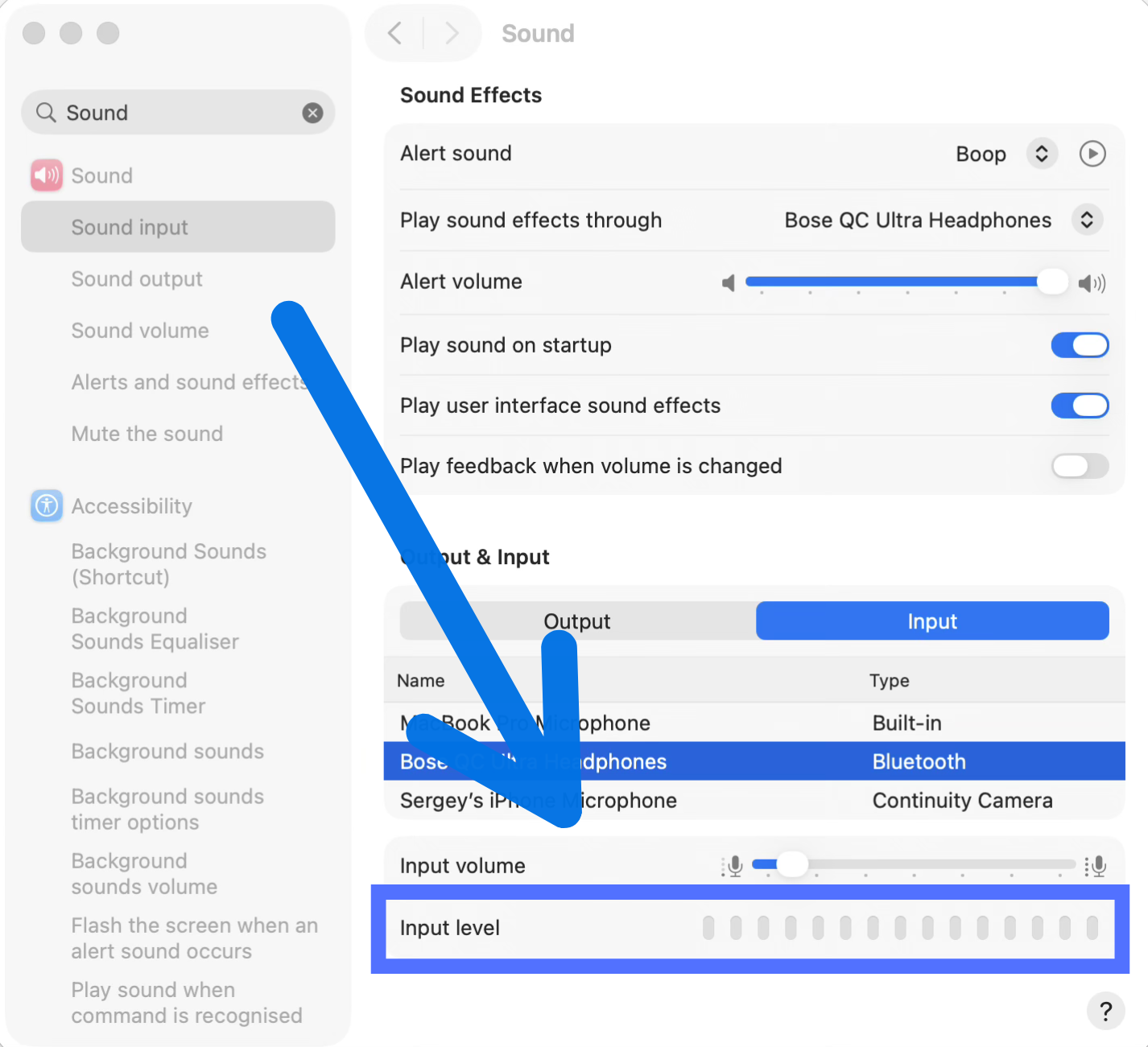
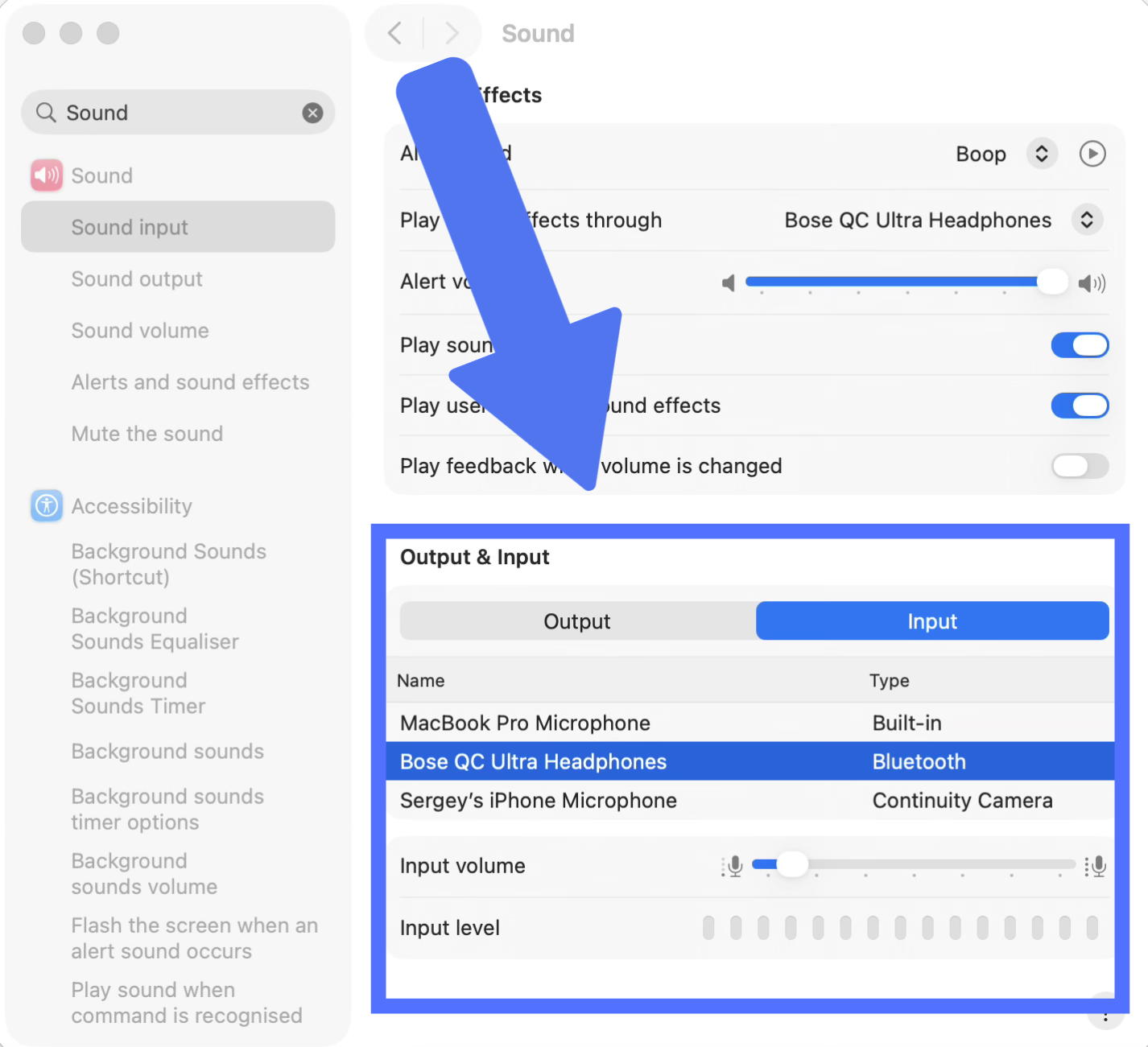
Setting input level: Go to System Settings → Sound → Input, select your mic, and aim for the level meter bouncing in the upper-half without hitting red. A starting point of ~75% input volume works for most USB mics. For a quick check before you record, this free microphone test shows whether your mic is live and how loud it is.
Set Up a Quiet Recording Environment
Where you record matters almost as much as what you record with. You don't need a soundproof booth: close windows to cut street noise, switch off fans and air conditioning, and pick a room with soft surfaces. Carpets, curtains and a couch absorb sound and cut that hollow, echoey feel. For a deeper dive, see our guide to setting up a home studio for recording.
Tips for Professional-Quality Results
Before you record:
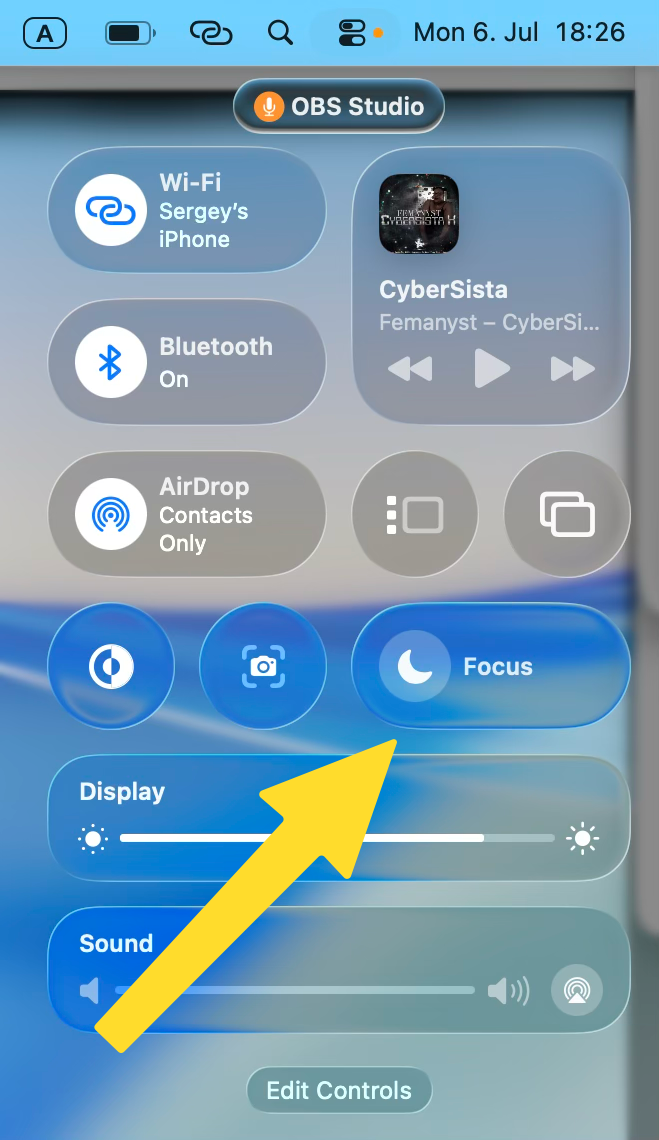
- Enable Do Not Disturb (
Focus → Do Not Disturbin Control Centre)
- Close unnecessary apps to reduce system load
- Clean up your desktop — anything visible in the recording reflects on you
- Do a 30-second test recording and play it back — check framing, audio levels, and that system audio is captured
Recording environment:
- Soft furnishings (carpet, curtains, bookshelves) absorb echo — hard empty rooms amplify it
- A walk-in wardrobe makes a surprisingly good recording booth
- Close the door; background sounds (HVAC, traffic) are more audible in recordings than in person
Export settings for most use cases:
- Format: MP4
- Video codec: H.264 (universal compatibility)
- Audio codec: AAC
- Resolution: 1080p (1920×1080) for tutorials and YouTube
- Frame rate: 30 fps standard, 60 fps if recording fast motion
Troubleshooting
Mac won't capture microphone audio
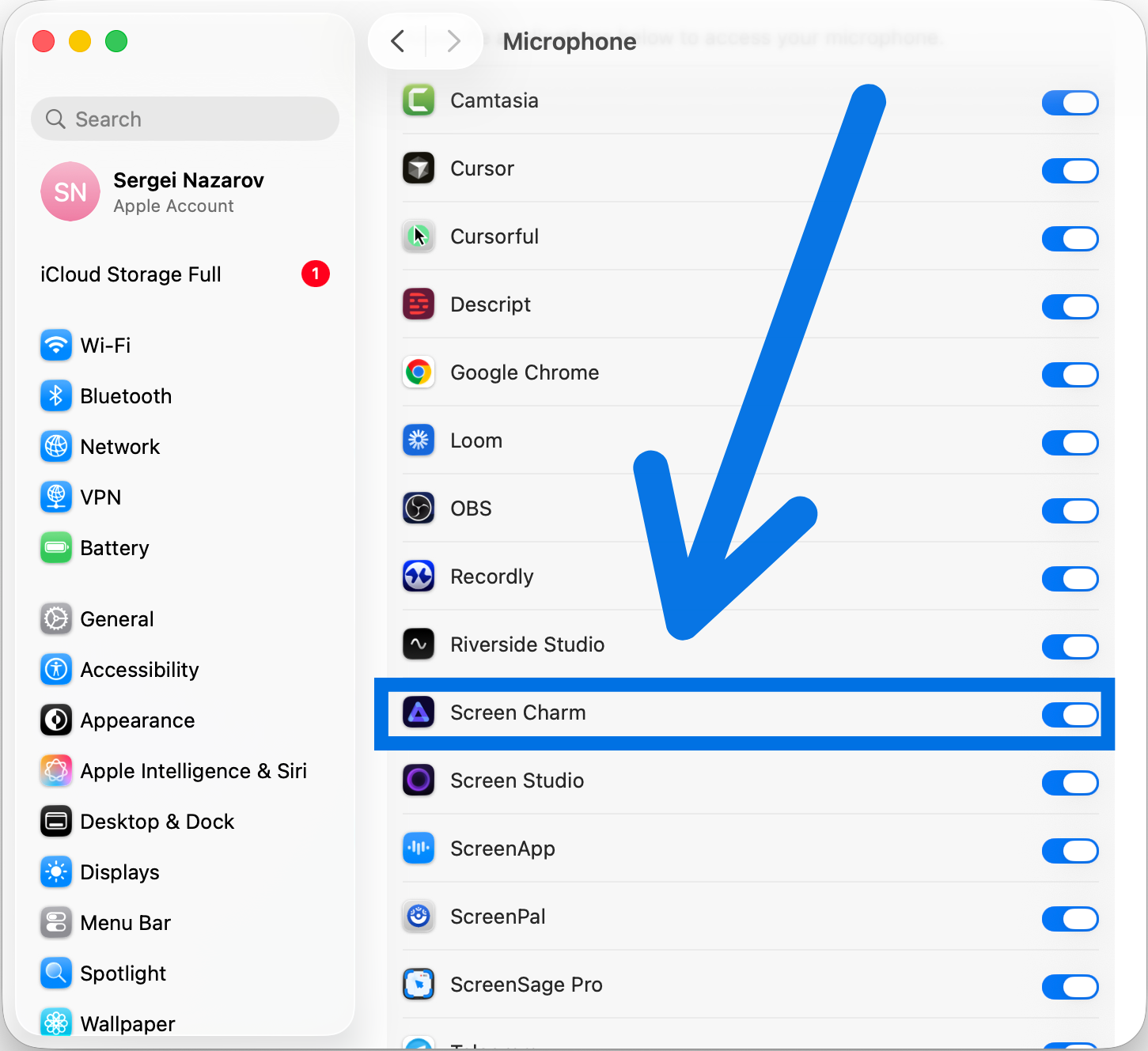
Check permissions first: System Settings → Privacy & Security → Microphone — find your recording app and toggle it on. After a macOS update, these permissions sometimes reset. If the app doesn't appear in the list, open it and try recording once to trigger the permission prompt.
Also check System Settings → Sound → Input — confirm your mic is selected and the input level meter responds when you speak.
Echo or background noise in recording
Echo happens when your microphone picks up sound from your speakers — creating a feedback loop. Fix it by:
- Using headphones instead of speakers while recording
- Moving your mic closer to your mouth and lowering the input gain
- Recording in a room with soft surfaces
If you're using BlackHole, double-check your Multi-Output Device setup — if the routing is wrong, you can get a doubled audio signal.
Audio out of sync with video
Sync drift usually means your Mac is under heavy load. Try:
- Closing background apps (especially browsers with many tabs)
- Lowering recording resolution to 1080p if you were using 4K
- Restarting your Mac before a long recording session
Screen Charm handles sync natively — if you're seeing drift there, check that your audio driver is fully installed (Screen Settings → reinstall audio driver).
Audio recorded but sounds silent on playback
If you used the Screenshot Toolbar or QuickTime without a virtual audio driver, system audio won't be in the recording — only your mic if you selected one. Re-record using Screen Charm or QuickTime + BlackHole for system audio.
Add a Voiceover to a Silent Recording
If the screen was recorded silent and the voice is a separate file, add the audio to the video. If the original sound is unusable, mute the video first and record a clean voiceover. Drop both files. The picture stays, and the new track replaces any sound already on the video.
If the recording already has a voice and you want music underneath it, add background music. The voice stays. Three royalty-free tracks are built in.
Turn a Screen Recording into an MP3
Once the recording has a mic or system-audio track, you can throw away the video and keep the sound. A screen recording to MP3 conversion is useful for a voiceover you want to reuse, a call you only need to listen back to, or a tutorial you want transcribed.
- Open the free screen recording to MP3 converter.
- Drop in the recording — QuickTime, Screenshot toolbar, or Screen Charm. MOV and MP4 both work.
- Leave the format on MP3 (or switch to M4A or WAV) and download.
Everything runs in the browser. The file is not uploaded. If the export is silent, the recording never had an audio track — go back to the mic and system-audio steps above before you convert.
Frequently Asked Questions
Why can't QuickTime record Mac system audio?
It's an intentional macOS privacy feature — apps can't listen to each other's audio streams by default. You need a virtual audio driver (BlackHole, Soundflower, Loopback) to create a bridge, or use an all-in-one app like Screen Charm that ships with its own driver.
What are the best export settings for YouTube or demos?
MP4 with H.264 video and AAC audio at 1080p / 30fps covers almost every use case. Jump to 4K if your UI has fine detail (dense code, small typography) or if you're recording on a Retina display and want pixel-perfect output.
My audio level is too quiet — what should I fix first?
Move your microphone physically closer before touching any software gain settings. 6–8 inches is a good starting distance. Then check System Settings → Sound → Input and raise the input volume slider. Avoid cranking digital gain above 100% — it adds noise without adding clarity.
If the recording is already saved and still too quiet, make the video louder in the browser. Boosting a quiet take also raises the noise, so a closer mic on the next recording still sounds better.
Can I record my screen with audio and webcam at the same time?
Yes. Screen Charm records all three simultaneously with a single click. See our screen and webcam recording guide for a full walkthrough including OBS and free options.
What's the best free way to screen record with system audio on Mac?
QuickTime + BlackHole is the best free combination. One-time setup, no watermark, no recording limits. For instructions, see the capture internal audio on Mac guide. OBS Studio is another fully free option with more control but a steeper setup.
Can I record system audio without installing anything?
Not with the built-in tools alone — the Screenshot Toolbar and QuickTime only capture microphone input. Every system audio solution on macOS involves installing either a virtual audio driver (BlackHole, Loopback) or an app that ships with its own driver (Screen Charm). There is no Terminal trick or hidden setting that bypasses this.
Do I need to redo the BlackHole setup every time I record?
No — it's a one-time configuration. The only recurring step: remember to switch your output back to your normal speakers after recording, because while the Multi-Output Device is active, your volume keys stop working (macOS can't control the volume of a multi-output device). That's the most common "my Mac volume is stuck" complaint after following BlackHole guides.
Is it legal to record a video call with audio?
It depends on where you and the other participants are. Many jurisdictions require all-party consent for recording conversations. The safe rule: announce that you're recording at the start of the call and get verbal agreement. Most meeting platforms also show a recording indicator when their built-in recorder is used — a third-party screen recorder won't, which makes the verbal announcement more important.
Can I use AirPods as a microphone for screen recording?
Yes. When your AirPods are connected, they appear as a microphone option in System Settings and in recording apps. They're fine for quick, informal recordings. For polished tutorials or client-facing demos, a USB microphone sounds noticeably clearer — Bluetooth audio is more compressed and picks up more room noise than a wired mic close to your mouth.
Why are my screen recording files so huge?
Resolution and frame rate are almost always the cause. Record at 1080p unless you really need 4K, and use 30 FPS for tutorials and presentations — 60 FPS can double the file size with no visible benefit for UI recordings. To shrink a file you already have, export it as H.264 or H.265 (HEVC), or run it through a free video compressor.
Why is my recorded audio quiet even though it sounded fine live?
Usually the input gain was set too low, or the mic was too far away. Check the recorded waveform: if it's a thin line, re-record with the mic 6–8 inches away and input volume around 75%. Boosting a quiet recording in post amplifies the background noise along with your voice, so getting the level right at capture time matters.
Ready to skip the configuration and record your screen, mic, and system audio in one click? Screen Charm handles all the audio routing automatically. For a broader comparison of Mac screen recorders, see best screen recording software for Mac.