

6 Best Video Editing Software for Beginners on Mac (2026)
Diving into video editing can feel overwhelming, especially on a Mac where quality expectations are high. You need a tool that's powerful yet intuitive, allowing you to bring your creative vision to life without a steep learning curve. This guide cuts through the noise to reveal the best video editing software for beginners using macOS in 2026. We'll explore options that balance ease of use with robust features — from genuinely free tools to affordable one-time purchases — so you can stop wrestling with complicated software and start creating polished, professional-looking videos right away.
This article is designed to be your definitive resource. For each editor, you will find a detailed breakdown of its core features, pros and cons, and clear pricing information. To help you visualize the workflow, we’ve included screenshots and direct links to each platform, making it easy to explore them further. Our goal is to provide a comprehensive comparison, so you can confidently select the software that aligns with your specific projects, whether you're crafting product demos, educational tutorials, or engaging social media content.
We will cover a range of powerful yet accessible tools, including Apple iMovie, DaVinci Resolve, Adobe Premiere Elements, Wondershare Filmora, CyberLink PowerDirector, and Movavi Video Editor. Your ideal starting point is on this list.
1. Apple iMovie
For anyone inside the Apple ecosystem, the journey into video editing often begins with a familiar name: iMovie. Pre-installed and completely free on every new Mac, iPhone, and iPad, iMovie removes the first barrier to entry-cost and installation. It is a quintessential starting point and one of the best video editing software for beginners, especially for macOS users who want to create high-quality videos without an immediate financial investment.
iMovie’s core philosophy is elegant simplicity. It provides a clean, intuitive interface that makes assembling clips, adding music, and applying titles feel natural from the first launch. Rather than overwhelming users with options, it focuses on the essential tools needed to turn raw footage into a polished final product, making it perfect for family videos, school projects, or even a brand's first social media content.
Key Features and User Experience
The user experience is classic Apple: seamless and streamlined. The magnetic timeline helps clips snap into place, preventing accidental gaps, while its deep integration with other Apple apps like Photos and Music allows for easy asset importing. This cohesive environment is a significant advantage for macOS users.
- Magic Movie & Storyboards: These features act as creative guides. Magic Movie instantly creates a stylized video with titles and transitions from your selected media, while Storyboards offer pre-built templates for specific video types like tutorials or product reviews.
- Seamless Apple Ecosystem Integration: Start a project on your iPhone during your commute and effortlessly finish it on your Mac at home using iCloud. This continuity is a powerful and unique workflow advantage.
- High-Fidelity Editing: Despite its simplicity, iMovie supports 4K video editing, providing the power to work with high-resolution footage from modern cameras and iPhones. It also includes surprisingly effective color correction tools, stabilization for shaky video, and audio enhancement options.
Pricing and Platform
The value proposition of iMovie is unbeatable for its target audience. It is completely free and exclusive to Apple devices, with no hidden fees, subscriptions, or feature paywalls.
| Product | Price | Best For |
|---|---|---|
| Apple iMovie | Free (with macOS, iOS, iPadOS) | Apple users looking for a powerful, no-cost entry into video editing. |
This makes iMovie the default choice for millions and a fantastic way to learn the fundamentals of video editing before potentially graduating to more advanced software.
Expert Tip: Use the Storyboards feature when creating structured content like tutorials or course videos. It provides a step-by-step shot list and editing guide, ensuring you capture all the necessary footage and maintain a professional narrative structure. For those creating educational content, this feature streamlines the entire online course video production process.
While iMovie lacks the multi-cam editing, advanced effects, and plugin support of professional NLEs like Final Cut Pro, its limitations are also its strength. By focusing on the essentials and delivering them in an elegant, easy-to-use package, Apple provides a powerful tool that empowers beginners to create impressive videos right out of the box.
Website: https://www.apple.com/imovie/
2. DaVinci Resolve
Venturing into the world of video editing can feel like choosing a path, and DaVinci Resolve presents one that leads directly to professional-grade production. While known in Hollywood for its unparalleled color correction capabilities, its free version is so comprehensive that it stands as one of the best video editing software for beginners who are serious about growing their skills, especially on macOS. Resolve isn't just a simple editor; it's an all-in-one post-production suite.
DaVinci Resolve, from Blackmagic Design, challenges the notion that beginner software must be simplistic. It provides a robust, completely free platform that integrates editing, color grading, visual effects (VFX), and audio post-production into a single application. This unified workflow means you never have to switch programs, allowing you to learn every facet of video creation within one ecosystem. While its learning curve is steeper than most, the payoff is a mastery of tools used on major films and television shows.
Key Features and User Experience
The software is organized into different "pages," each dedicated to a specific task: Media, Cut, Edit, Fusion, Color, Fairlight, and Deliver. The Cut page offers a streamlined interface for quick edits, while the Edit page provides a traditional, more complex timeline for precise control. This structure allows new users to start simply on the Cut page and progressively explore more advanced features.
- Advanced Color Grading: Resolve’s legendary color tools allow for precise adjustments to perfect the mood and tone of your videos, a critical skill for effective visual storytelling.
- Fusion VFX: A full-blown 3D compositing and motion graphics engine is built directly into the software, enabling you to create cinematic visual effects and titles without needing a separate application.
- Multi-User Collaboration: Even the free version allows multiple users to work on the same project simultaneously, a feature typically reserved for expensive, enterprise-level software.
Pricing and Platform
The value proposition of DaVinci Resolve is nearly unbeatable. The free version contains more features than many paid applications, making it accessible to everyone. It is fully supported on Windows, macOS, and Linux.
| Product | Price | Best For |
|---|---|---|
| DaVinci Resolve | Free | Ambitious beginners and users wanting professional tools without a budget. |
| DaVinci Resolve Studio | $295 (One-Time) | Professionals needing advanced features like neural engine AI tools, more effects, and higher resolution support. |
This makes it a fantastic, no-cost option for macOS users who want to learn on a platform they will never outgrow.
Expert Tip: Start your journey on the "Cut" page. Its simplified, dual-timeline interface is designed for speed and is less intimidating. Once you're comfortable with basic cuts and assembly, transition to the "Edit" page to begin mastering the more traditional, powerful NLE workflow.
DaVinci Resolve is the ideal choice for the aspiring filmmaker or content creator who wants to learn the craft from the ground up on professional software. While it demands a greater time investment to learn and requires a more powerful computer, the skills you gain are directly transferable to a career in the video industry.
Website: https://www.blackmagicdesign.com/products/davinciresolve/
3. Adobe Premiere Elements
For those dipping their toes into the world of video editing, the name "Adobe" can be both inspiring and intimidating. While Premiere Pro is the industry-standard powerhouse, Adobe Premiere Elements is its welcoming, beginner-friendly sibling. It strips away the overwhelming complexity of its professional counterpart, focusing instead on providing a powerful yet accessible toolset that makes it one of the best video editing software for beginners, especially on macOS.
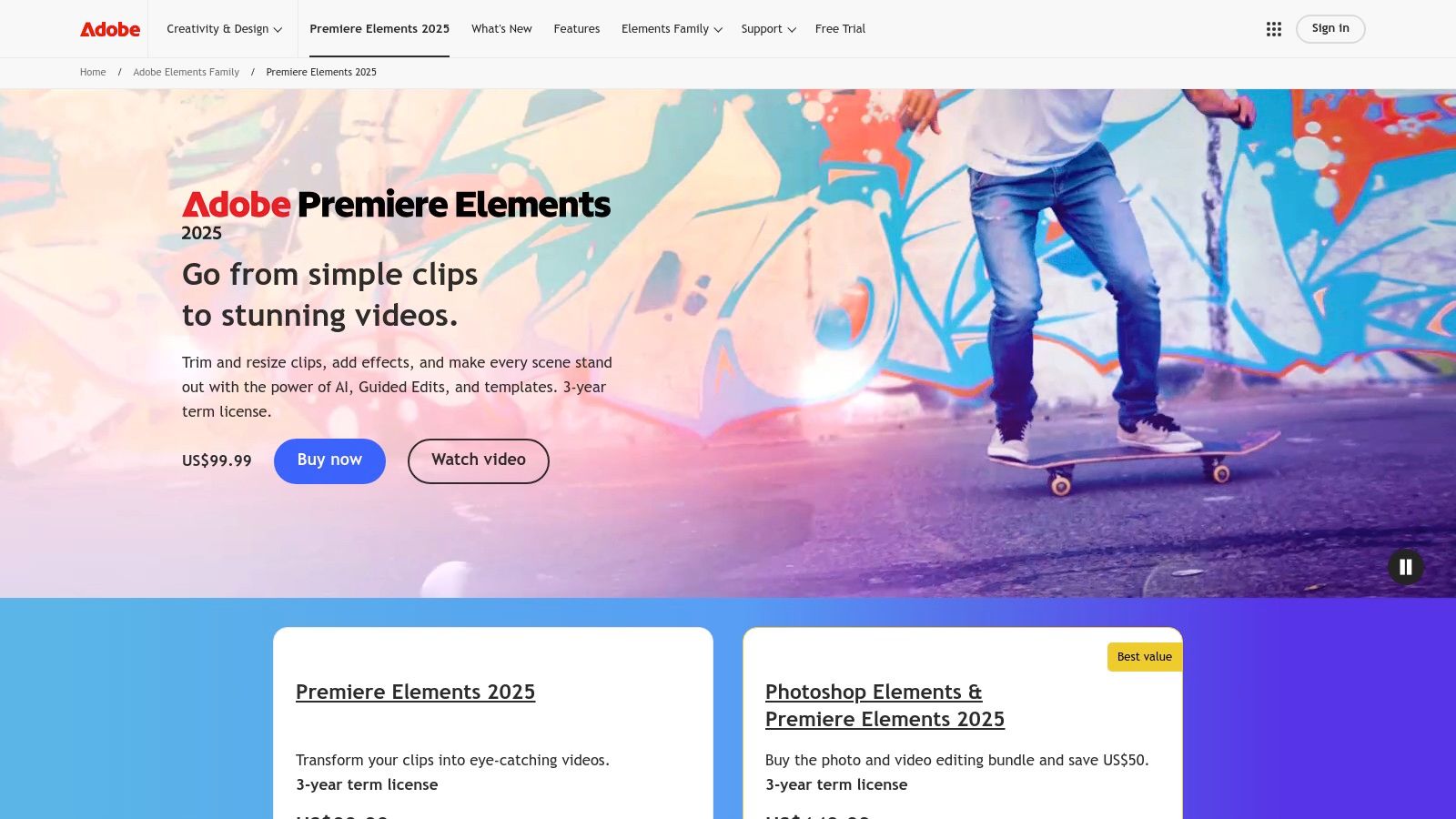
Premiere Elements is built on a simple premise: great-looking videos shouldn't require a steep learning curve. Its standout feature, Guided Edits, acts as an interactive tutor. Instead of just pointing you to a help menu, it walks you through creative processes step-by-step, right within the project. This is perfect for creators who want to learn techniques like creating a time-lapse video or applying a double exposure effect without getting lost in menus.
Key Features and User Experience
The software's interface is divided into three modes: Quick, Guided, and Expert. This layered approach allows you to grow with the software. You can start in Quick mode for simple drag-and-drop edits, move to Guided mode to learn new skills, and eventually transition to the Expert mode for more granular control over your timeline.
- Guided Edits: Offers 26 step-by-step tutorials for creating effects like animated social posts, picture-in-picture, and selective color.
- AI-Powered Automation: Adobe Sensei AI technology automates tedious tasks. It can automatically reframe your subject for different social media aspect ratios, select your best photos for a slideshow, and even reduce video noise from low-light footage.
- Face Detection & Smart Trim: The software intelligently identifies faces to keep subjects in focus. Its Smart Trim feature finds and suggests the best moments in your raw footage, saving you significant time during the initial editing phase.
Pricing and Platform
One of the most significant advantages of Premiere Elements is its pricing model. Unlike the subscription-based Creative Cloud, Premiere Elements is available for a one-time purchase.
| Product | Price (One-Time) | Best For |
|---|---|---|
| Adobe Premiere Elements 2024 | $99.99 | Beginners wanting a powerful editor without a subscription. |
| Photoshop Elements & Premiere Elements Bundle | $149.99 | Users who need both photo and video editing capabilities. |
This makes it an excellent, budget-friendly choice for macOS users who prefer to own their software outright.
Expert Tip: Use the Auto Reframe feature when creating promotional videos for multiple platforms. Edit your master video in a standard 16:9 format, then let Premiere Elements automatically create vertical (9:16) or square (1:1) versions for Instagram Stories and feeds, ensuring your subject always stays in the frame.
Premiere Elements carves out a unique space by offering a blend of consumer-friendly automation and robust, under-the-hood Adobe technology. While it lacks the advanced color grading tools and multi-cam editing of Premiere Pro, its focus on guided learning and a one-time fee makes it an exceptional starting point for anyone new to video editing.
Website: https://www.adobe.com/products/premiere-elements.html
4. Wondershare Filmora
Wondershare Filmora strikes a perfect balance between user-friendliness and powerful features, making it a standout choice for those just starting their video editing journey on a Mac. It's often hailed as one of the best video editing software for beginners because it demystifies the editing process without sacrificing functionality. Filmora’s clean, intuitive interface is its greatest asset, encouraging new creators on macOS to experiment and produce professional-looking videos from day one.
Unlike more complex software that presents a steep learning curve, Filmora is built around a drag-and-drop philosophy. This approach extends from basic clip arrangement to applying sophisticated effects and titles. The software comes packed with a massive, built-in library of royalty-free music, sound effects, animated titles, and transitions, allowing beginners to add creative flair to their projects without needing to source assets externally.
Key Features and User Experience
Filmora’s user interface is incredibly welcoming, especially for those who have never used video editing software before. The timeline is easy to navigate, and most core functions are accessible with just a few clicks. This simplicity, however, hides a surprisingly robust set of tools that you can grow into.
- Drag-and-Drop Interface: Simplifies the entire editing workflow. You can easily add clips, effects, music, and titles directly onto the timeline without navigating complex menus.
- Extensive Effects Library: Access a huge collection of built-in filters, overlays, transitions, and animated elements. This library is regularly updated, providing fresh creative options for your videos.
- AI-Powered Tools: Filmora incorporates AI features like AI Portrait, which can remove video backgrounds without a green screen, and Auto Reframe to adapt your video for different social media platforms.
- Advanced Features Made Simple: Tools that are often intimidating in other software, like motion tracking, color correction, and audio keyframing, are presented in a straightforward, accessible way.
Pricing and Platform
Filmora offers flexible pricing that caters to different user needs, a significant advantage over strict subscription-only models. It’s fully compatible with macOS and provides both a recurring plan and a one-time purchase option.
| Plan | Price | Best For |
|---|---|---|
| Filmora Annual Plan | $49.99/year | Users who want continuous updates and access to new effects. |
| Filmora Perpetual Plan | $79.99 (One-Time) | Beginners who prefer to own their software license outright. |
The free version is a great way to test the software, but it does add a watermark to all exported videos.
Expert Tip: Dive into Filmora's "Stock Media" tab to find high-quality stock footage from Giphy, Pixabay, and Unsplash directly within the editor. This is perfect for adding b-roll to tutorials or product demos, making your content more dynamic without ever leaving the application.
Filmora excels by providing a gentle entry point into video editing while still offering a high ceiling for creativity. While some of its most advanced effects packs require an additional subscription, its core offering is more than enough for beginners to create polished, compelling videos. Its combination of an intuitive design, a vast built-in asset library, and flexible pricing makes it a top contender for new macOS editors.
Website: https://filmora.wondershare.com/
5. CyberLink PowerDirector
CyberLink PowerDirector strikes an impressive balance between user-friendly design and high-end functionality, making it a strong contender for the best video editing software for beginners on macOS who want room to grow. It bridges the gap between basic editors and professional suites, offering a platform where new users can start with simple projects and gradually tackle more complex techniques without needing to switch software. Its performance on Apple Silicon Macs and robust feature set provide a compelling package.
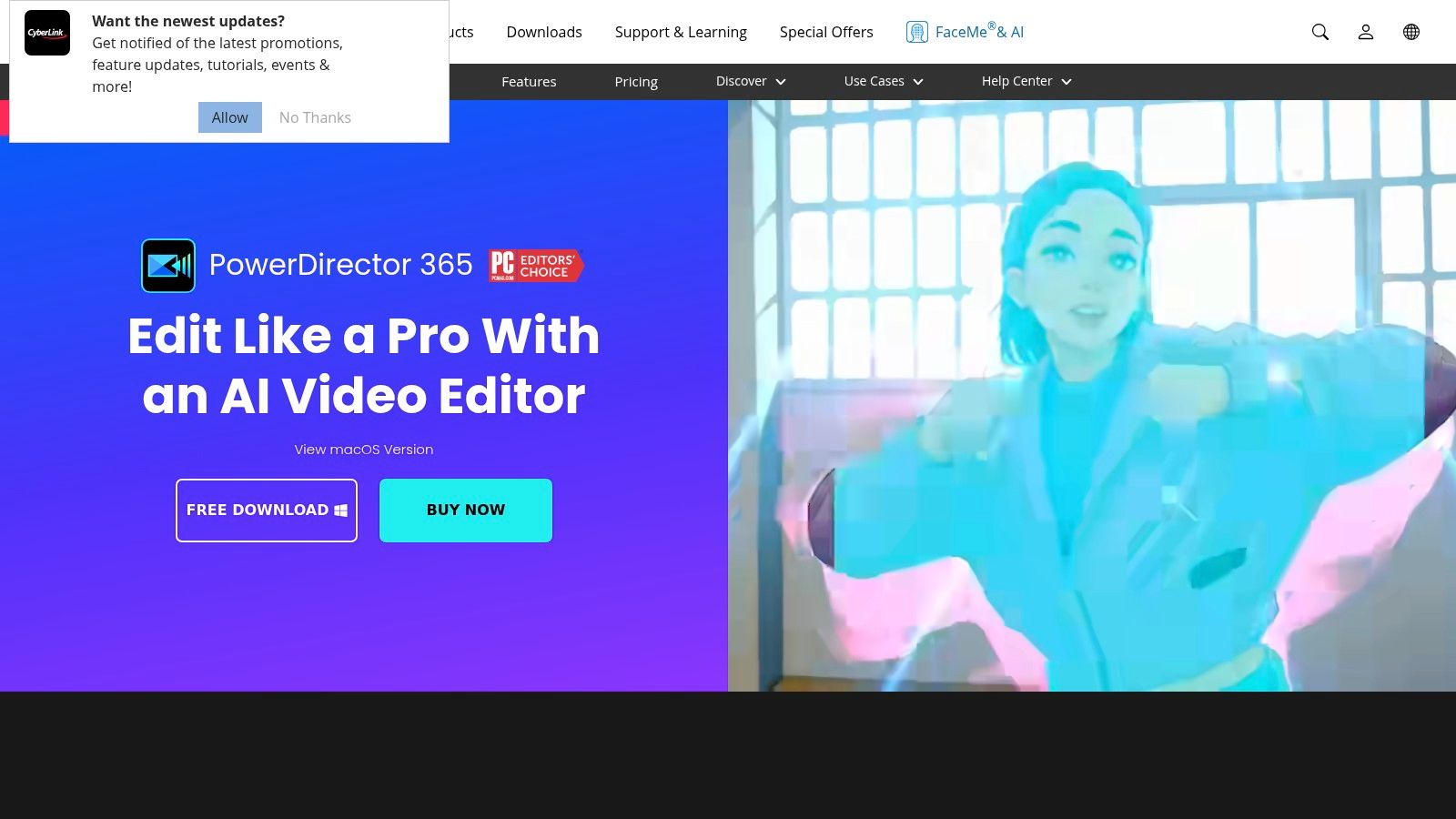
PowerDirector excels by providing multiple editing workflows. Beginners can use the Express Project module, which offers a template-based approach to video creation. You simply drag and drop your clips into a pre-designed sequence, and the software handles the rest. This feature is a fantastic way to produce polished videos quickly while learning the fundamentals of pacing and structure. As your confidence grows, you can seamlessly transition to the full-featured timeline editor for complete creative control.
Key Features and User Experience
The interface is feature-rich but organized logically, with distinct modes for media import, editing, and production. While it might seem busy at first glance compared to more minimalist apps, its extensive library of tutorials and guides helps flatten the learning curve significantly.
- MultiCam Editing: A standout feature at this price point, the MultiCam Designer allows you to sync and edit footage from multiple cameras. This is invaluable for creators filming interviews, events, or product demos from different angles.
- AI-Powered Tools: PowerDirector integrates powerful AI tools that simplify advanced edits. Features like AI Sky Replacement, Object Detection, and Speech Enhancement automate complex tasks that would otherwise require significant manual effort.
- Express Project Templates: These pre-made project templates provide a creative shortcut, allowing you to create professional-looking intro and outro sequences with minimal effort. This is ideal for content creators needing a consistent brand look for their videos.
Pricing and Platform
CyberLink offers both a subscription model (PowerDirector 365) and a perpetual license, giving users flexibility. The subscription provides continuous updates and access to a massive library of stock assets, effects, and plugins.
| Product | Price (Subscription) | Price (Perpetual) | Best For |
|---|---|---|---|
| PowerDirector 365 | From $54.99/year | N/A | Users wanting constant updates and access to stock assets. |
| PowerDirector 2024 Ultra | N/A | $99.99 | Beginners who prefer a one-time purchase for a core set of features. |
This flexible pricing makes PowerDirector an accessible option for various budgets and preferences on macOS.
Expert Tip: When creating a tutorial or product demo, use the MultiCam Designer to combine a screen recording with a webcam shot of yourself. PowerDirector makes it easy to sync the clips and switch between your face and the screen, adding a professional, engaging touch to your instructional content.
PowerDirector is an excellent choice for ambitious beginners. It provides the hand-holding needed to get started, but its deep feature set, including advanced tools like keyframing and mask design, ensures you won't outgrow it quickly. While the interface can feel crowded, its powerful rendering engine and comprehensive tutorials make it a top-tier editing solution for Mac users.
Website: https://www.cyberlink.com/products/powerdirector-video-editing-software/overview.html
6. Movavi Video Editor
For beginners who prioritize speed and simplicity above all else, Movavi Video Editor is a compelling choice. It’s designed from the ground up to be intuitive, enabling users to go from raw footage to a polished final video with minimal fuss. This focus on a streamlined workflow makes it one of the best video editing software for beginners who want quick, impressive results without getting bogged down in technical complexities, and it performs exceptionally well on macOS.
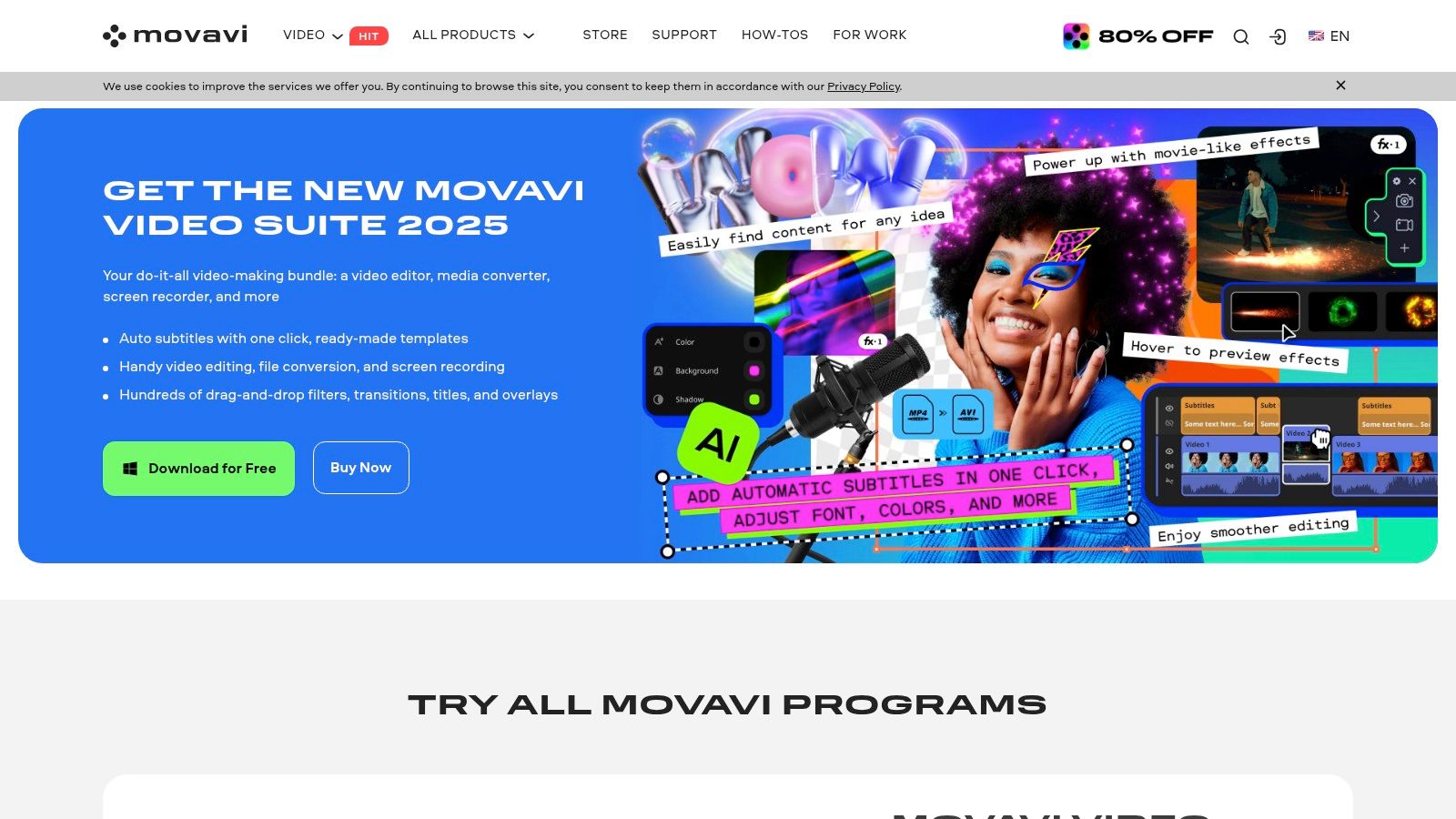
Movavi’s core philosophy is accessibility. The interface is clean and uncluttered, centered around a simple drag-and-drop timeline that feels natural even to absolute newcomers. Where other programs might hide features behind complex menus, Movavi puts creative tools like filters, transitions, and titles front and center. This approach empowers creators to experiment freely and produce professional-looking content for social media, tutorials, or personal projects in record time.
Key Features and User Experience
The user experience in Movavi is built for efficiency. Its fast rendering and processing speeds mean less time waiting and more time creating. The software also incorporates clever AI tools to automate common but time-consuming editing tasks, further simplifying the creative process.
- Drag-and-Drop Interface: Easily add video clips, audio files, and effects directly onto the timeline. The straightforward layout is perfect for learning the fundamentals of video editing.
- Built-in Effects and Transitions: A vast library of ready-to-use effects, filters, animated titles, and transitions is included, allowing for quick creative enhancements without third-party plugins.
- AI-Powered Tools: Features like AI background removal and AI noise reduction handle complex jobs with a single click. This is ideal for creators making product demos or tutorials who need a clean, professional look without a green screen or expensive audio equipment.
Pricing and Platform
Movavi offers flexible pricing, with both subscription plans and a lifetime license, making it an attractive option for different budgets. While the free version includes a watermark, the paid options provide great value.
| Product | Price | Best For |
|---|---|---|
| Video Editor 1-Year Subscription | $54.95 | Users who want ongoing access with the latest updates. |
| Video Editor Lifetime License | $79.95 | Beginners who prefer a one-time purchase for long-term use. |
Its affordability and availability on macOS make it a strong contender for those who want a capable editor without a significant financial commitment.
Expert Tip: When creating tutorial videos, use Movavi's AI noise reduction to instantly clean up your voice-over audio. Record in a normal room without worrying about minor background hums, and let the software isolate and remove the distracting sounds for a clear, professional narration.
Movavi Video Editor excels by delivering a fast, user-friendly experience packed with helpful AI features. While it may lack the granular control of more advanced professional software, its combination of an intuitive interface, quick performance, and affordable pricing makes it an excellent choice for beginners eager to start creating high-quality videos immediately.
Website: https://www.movavi.com/videoeditor/
Smart Features to Look For as a Beginner
Before picking a tool, check for these time-saving features. They separate a truly beginner-friendly editor from one that just claims to be:
- Automated captions: With 85% of social media videos watched on mute, an editor that auto-transcribes your audio into styled captions saves enormous manual work.
- AI scene detection: Automatically chops a long recording into clips based on natural pauses or screen changes. Essential if you record long and edit short.
- One-click effects and filters: You should not need to fiddle with a dozen sliders for basic colour correction or audio cleanup. Presets get you to "good enough" in seconds.
- Auto-reframing: Converts a horizontal recording to 9:16 for TikTok/Reels without manually nudging every clip.
- Integrated screen recorder + editor: If your videos are mostly screen recordings, the biggest time-saver is an app that records and edits in one place — no import/export cycle.
The best beginner editor removes friction. Every extra step between raw footage and finished video is an opportunity to give up.
Top 6 Beginner Video Editors for macOS Comparison
| Software | Implementation Complexity 🔄 | Resource Requirements ⚡ | Expected Outcomes 📊 | Ideal Use Cases 💡 | Key Advantages ⭐ |
|---|---|---|---|---|---|
| Apple iMovie | Low - very simple, pre-installed | Low - macOS/iOS only | Basic polished videos | Apple users new to editing | Free, seamless Apple integration |
| DaVinci Resolve | High - professional-level interface | High - strong system requirements | Cinema-grade video production | Advanced users or beginners willing to learn | Extensive free features, cross-platform, color grading |
| Adobe Premiere Elements | Low - guided edits, beginner-friendly | Moderate - moderate hardware | Good for casual video editing | Beginners wanting simple editing w/o subs | Guided edits, one-time purchase, Adobe ecosys |
| Wondershare Filmora | Low to Moderate - drag & drop UI | Moderate - cross-platform | Creative videos with effects | Beginners needing feature-rich editing | Intuitive UI, rich media library, regular updates |
| CyberLink PowerDirector | Moderate - feature-rich, some complexity | High - powerful PC recommended | Professional looking outputs | Beginners to intermediates growing skills | Fast rendering, multi-cam, AI tools |
| Movavi Video Editor | Low - very user-friendly | Low to Moderate | Fast, simple video creation | Beginners needing speed & ease | AI tools, affordable, fast processing |
Choosing Your First Video Editor: Final Thoughts and Next Steps
We've journeyed through a comprehensive lineup of the best video editing software for beginners available on macOS. From the professional-grade power of DaVinci Resolve, it’s clear that there is no single "best" editor for everyone. The ideal tool is the one that best aligns with your specific goals, project types, and willingness to learn.
Your decision-making process shouldn't end here. The real test begins when you start a project. Let's distill our findings into actionable insights to help you make your final choice and take the next confident step in your video creation journey.
Recapping Your Top macOS Options
To simplify your choice, let's categorize the tools we've discussed based on primary user needs:
- For Maximum Simplicity and Efficiency: Apple iMovie is the undisputed starting point for any macOS user. It's free, pre-installed, and covers all the fundamentals without overwhelming you. If your goal is to simply trim clips, add music, and create clean, straightforward videos, iMovie is an excellent, no-cost choice.
- For a Gentle Learning Curve with Room to Grow: Wondershare Filmora and Movavi Video Editor strike a perfect balance. They offer a vast library of templates, effects, and user-friendly interfaces that feel like a significant step up from iMovie, but without the intimidating complexity of professional software. They are ideal for social media creators and marketers.
- For Aspiring Professionals: DaVinci Resolve offers a free version that is more powerful than many paid applications. If you have ambitions to become a professional editor, starting with Resolve gives you a direct pathway to industry-standard tools for color grading, audio post-production, and visual effects, all within one ecosystem. Be prepared for a steeper learning curve.
- For a Traditional, Feature-Rich Experience: Adobe Premiere Elements and CyberLink PowerDirector provide a robust, guided editing experience. They leverage AI features to simplify complex tasks and offer a structured workflow that appeals to hobbyists and those creating family videos or more involved projects who appreciate a helping hand.
How to Make Your Final Decision
Feeling stuck between two or three options? Use this checklist to pinpoint the right software for your needs:
- Identify Your Primary Video Type: Is it a 30-second social media clip, a 10-minute software tutorial, or a 30-minute documentary-style video? The demands of each are vastly different. Be honest about what you will create 80% of the time.
- Evaluate Your Budget: Start with the free options like iMovie or DaVinci Resolve to learn the basics. A one-time purchase from Filmora or Movavi might be more cost-effective long-term than a subscription if you are on a tight budget.
- Assess Your Time Commitment: How much time can you dedicate to learning? If you need to produce a video by the end of the day, a simple tool like iMovie is your best bet. If you see video editing as a long-term skill, investing time to learn Resolve will pay dividends.
- Use the Free Trial: This is the most crucial step. All the paid software on our list offers a free trial. Download your top two contenders and try to complete the same simple project in both. This hands-on experience will reveal which interface feels more intuitive to you. For a more extensive analysis of the leading options, refer to our full guide on the Top Video Editing Software for Beginners to compare even more features.
Choosing your first video editor is a pivotal step. It’s the beginning of a rewarding creative process that allows you to share your ideas, teach others, and tell compelling stories. Don’t get paralyzed by the options. Pick one that feels right, commit to learning its basics, and start creating. Your skills will grow with every project you complete.
Already know which tool you want — now need to sharpen your editing skills? See Video Editing Tips for Beginners for techniques like J-cuts, L-cuts, colour grading, and pacing. Need a deeper head-to-head? See macOS Video Editing Software Comparison for Screen Charm vs. Premiere Pro vs. Final Cut Pro.