Best Webcam Recording Software for Mac (2026) — 12 Honest Reviews
Quick picks by use case:
| Use Case | Best Pick | Price |
|---|---|---|
| Best free | OBS Studio | Free |
| Best premium Mac product demos with webcam | Screen Studio | $29/mo or $108/yr |
| Best one-time purchase for screen + webcam | Screen Charm | $79 one-time |
| Best for educators | TechSmith Camtasia | $299/yr |
| Best for async video messages | Loom | Free / $15 mo |
| Best for live streaming + webcam | OBS Studio | Free |
Just need to record your screen and webcam at the same time? See our step-by-step how to record screen and webcam on Mac guide covering QuickTime, OBS, and Screen Charm.
This guide covers 12 webcam recording tools for macOS in depth — ease of use, recording quality, webcam overlay support, audio capabilities, and pricing. Each review is based on hands-on testing, not marketing copy. If you need the short answer: choose OBS Studio for free control, Screen Studio for premium screen-and-webcam product demos, Screen Charm for polished Mac recordings with one-time pricing, and Loom for quick async video messages.
1. OBS Studio
Best for: Power users and streamers on Mac seeking ultimate customization and control.
OBS (Open Broadcaster Software) Studio is the undisputed heavyweight champion of free, open-source recording and streaming software, with excellent support for macOS. While renowned for complex streaming setups, it's also an exceptionally powerful tool for webcam recording, offering a level of control that most dedicated apps can't match. Its scene-based editor allows you to composite multiple sources, meaning you can easily overlay your webcam feed on top of a presentation, add text, graphics, and even mix multiple camera angles.
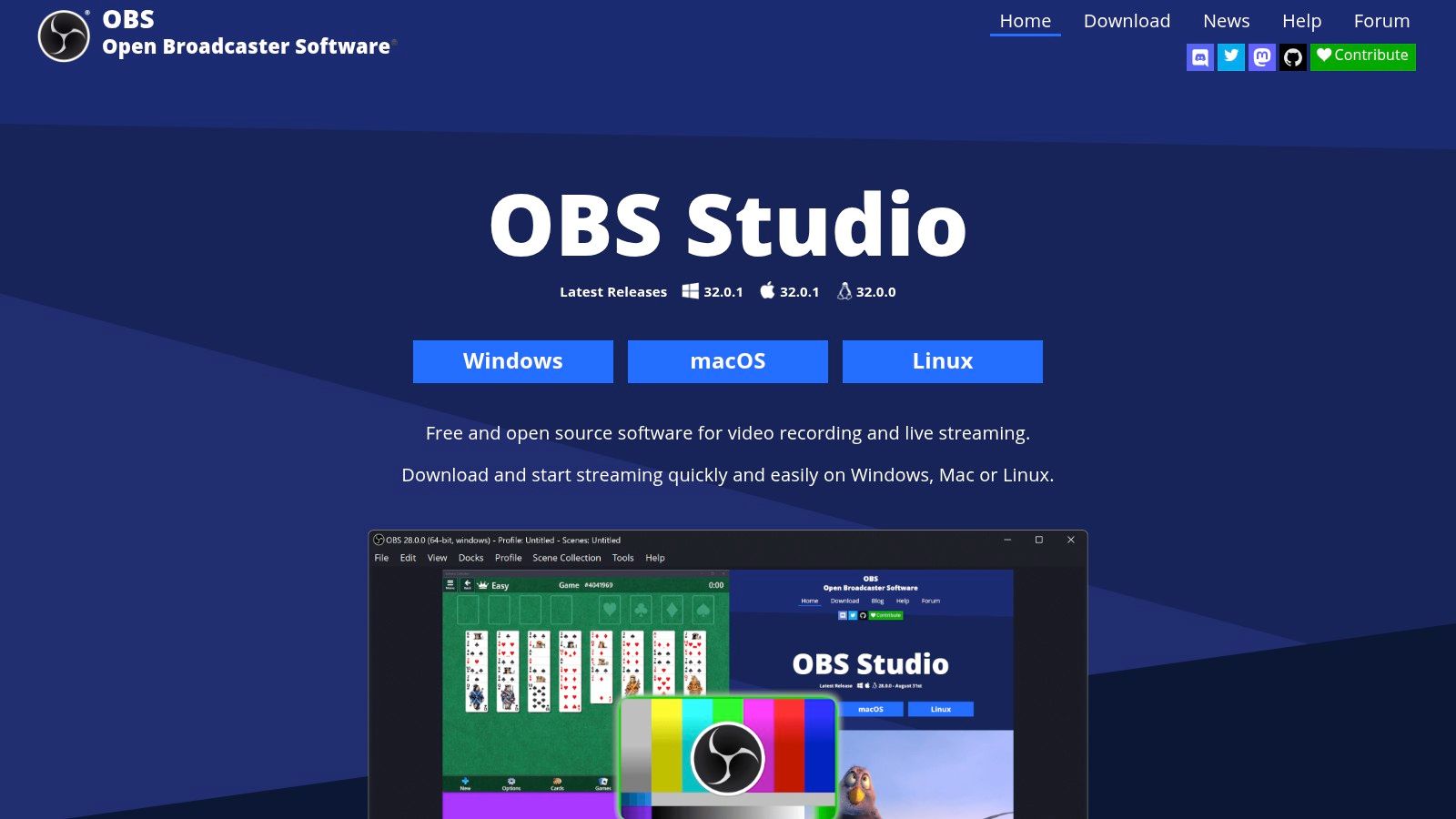
For macOS users, OBS Studio leverages hardware acceleration like Apple's VideoToolbox (VT) encoder, ensuring efficient performance without overburdening your system. One of its standout features is the Virtual Camera, which lets you pipe your polished OBS scene directly into other applications like Zoom, Teams, or Google Meet, replacing your standard webcam feed with a professional, multi-layered presentation.
While OBS Studio has a robust chroma key filter for green screen effects, users seeking more advanced background replacement without a physical green screen may find it limiting. For those situations, exploring dedicated AI video background removers can offer more sophisticated and flexible options to refine your visual presentation. The primary drawback is its complexity; the interface isn't intuitive for beginners and has a significant learning curve compared to simpler tools. However, its vast community support and extensive plugin ecosystem make it an infinitely expandable recording solution for Mac.
Key Details & Features
- Pricing: Completely free (Open-Source).
- No Watermarks/Time Limits: Record as much as you want without branding.
- Scene Compositing: Mix webcam, screen captures, images, and other media sources.
- Virtual Camera: Output your customized OBS scene to other apps.
- Website: obsproject.com
Sponsored by the makers
Tired of boring screen recordings?
Try Screen Charm.
Auto-zoom, motion blur, camera overlay, and background music. All built in. Record once, export a polished video.
See what it does2. Screen Studio
Best for: macOS users creating premium product demos, tutorials, and launch videos with webcam.
Screen Studio is a strong choice for Mac creators who want screen and webcam recordings to look polished without building every motion effect manually. It is especially relevant for SaaS founders, product marketers, designers, and educators who need public-facing tutorials where visual quality matters.
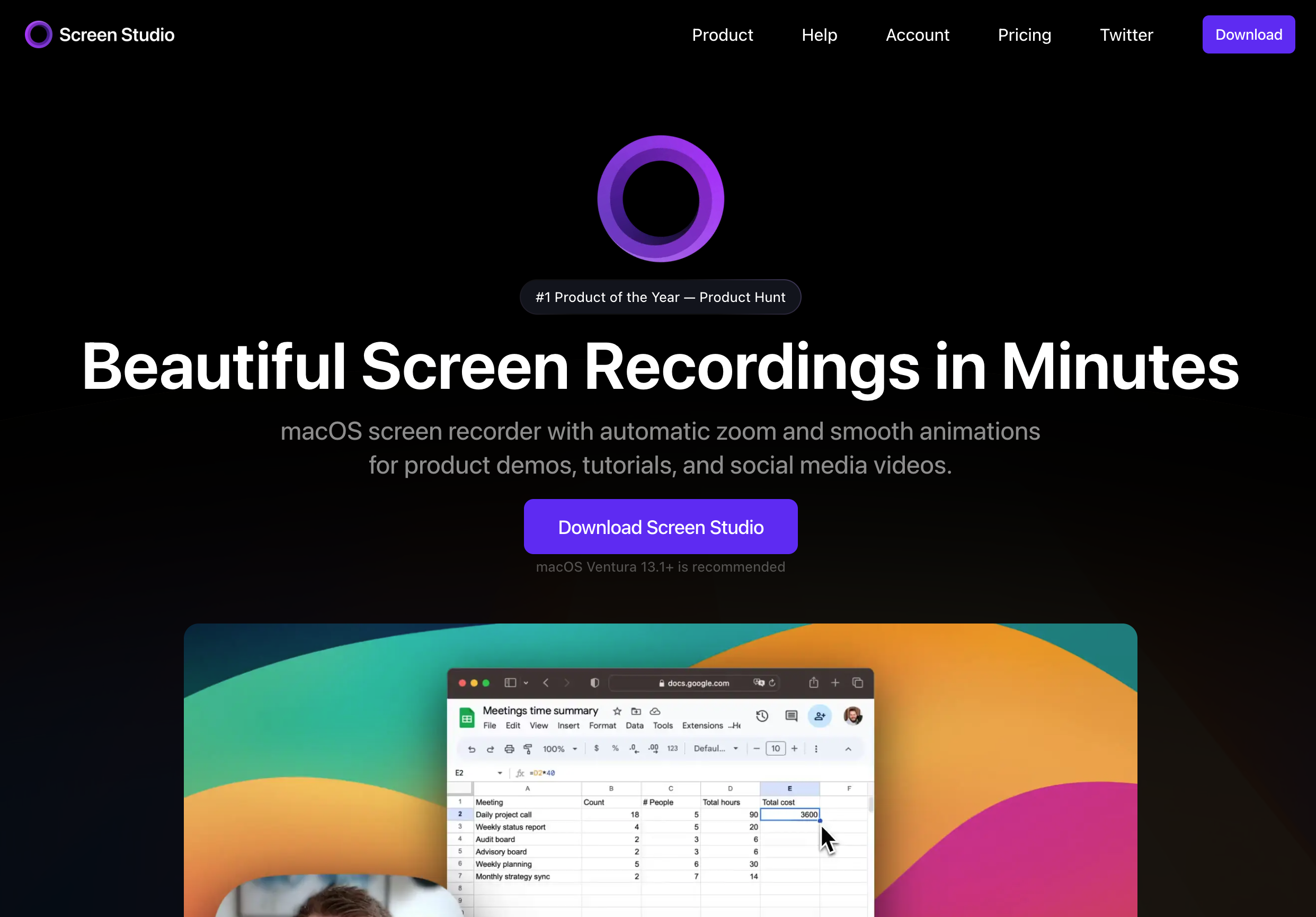
The app combines screen recording, webcam overlay, microphone capture, automatic zoom, motion blur, cursor styling, and visual presets. Compared with quick message tools like Loom, Screen Studio is less about fast internal sharing and more about creating a finished demo video that feels edited.
Key Features and Analysis
Screen Studio’s biggest advantage is presentation quality. Automatic zoom and motion blur guide viewers through the interface, while webcam support helps add a personal explanation layer. Its style presets make it easier to produce polished tutorial videos, product walkthroughs, and launch clips without spending hours in a traditional video editor.
Pricing & Platform
- Platform: macOS only
- Price: $29/month or $108/year.
Pros and Cons
| Pros | Cons |
|---|---|
| Premium visual polish for screen and webcam product demos. | Subscription pricing becomes more expensive over time. |
| Automatic zoom, motion blur, cursor styling, and presets reduce manual editing. | macOS exclusive, not available for Windows or Linux users. |
| Useful for public-facing SaaS demos, onboarding videos, and tutorials. | More advanced visual controls than some users need for simple webcam recordings. |
3. Screen Charm
Best for: macOS users creating polished product demos and tutorials.
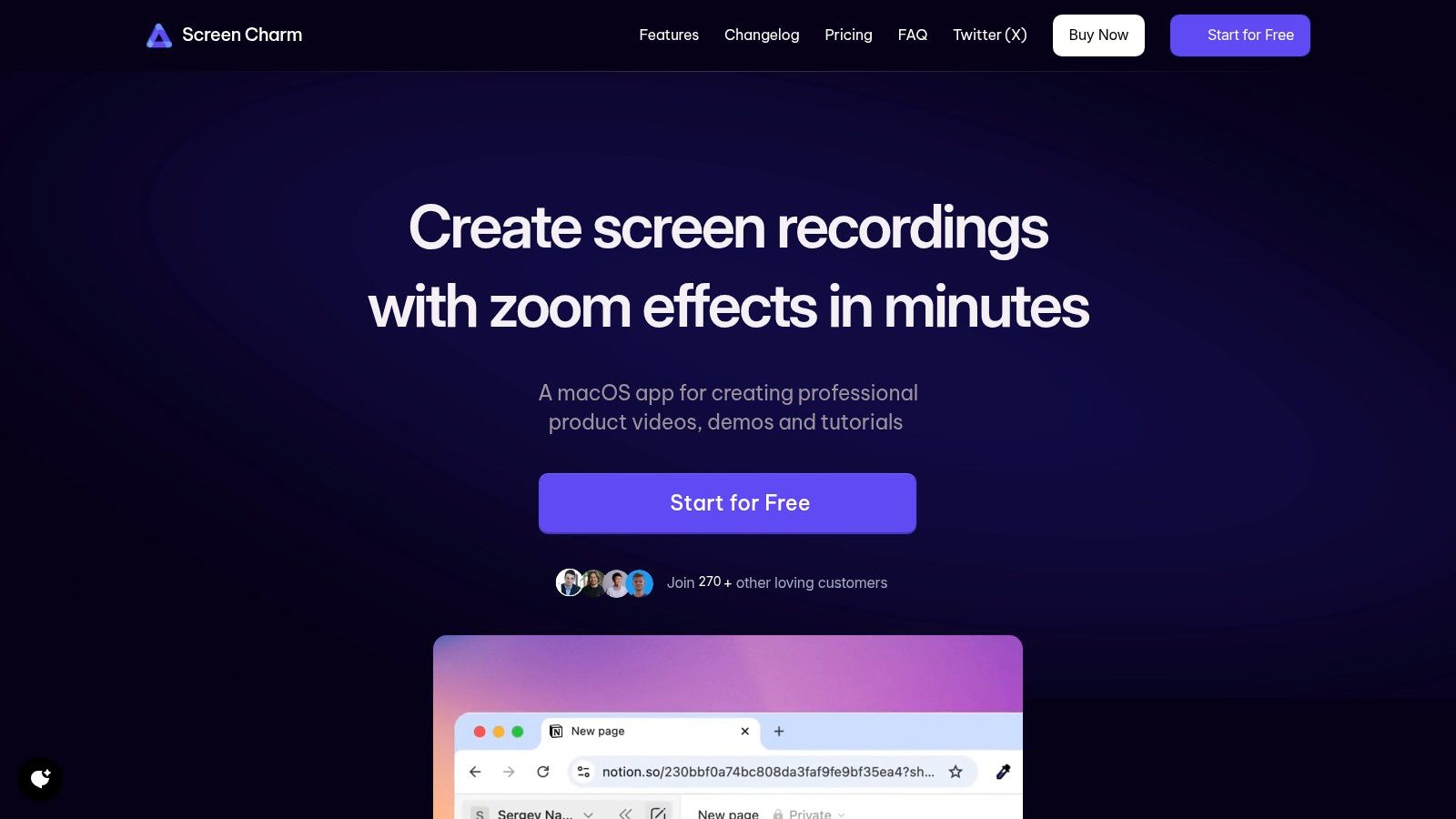
Screen Charm stands out as a Mac screen recorder for users creating polished, professional-quality video content with webcam. It masterfully integrates screen, webcam, and audio recording into a single, intuitive application, eliminating the need to juggle multiple tools. This all-in-one approach is specifically designed for entrepreneurs, educators, and developers who need to produce high-impact tutorials, product demonstrations, or marketing videos on their Mac without a steep learning curve.
Its most powerful feature is smart auto-zoom. This intelligent function automatically follows your cursor movements, dynamically zooming in on key interface elements. Automatic motion blur smooths fast cursor moves and zooms, while background music helps finished webcam demos feel more complete. Together, these features create a clear and engaging viewing experience that feels professionally edited, but is achieved automatically during the recording process.
Key Features and Analysis
Beyond its standout zoom capability, Screen Charm offers robust customization to align videos with your brand identity. You can personalize cursor icons, adjust their size, add background music, and select custom backgrounds, which is invaluable for creating a consistent and professional look across all your content. The webcam overlay is seamless, allowing you to build a personal connection with your audience.
The built-in editor is a significant advantage. It allows you to trim clips, refine the auto-zoom effects, and make other essential edits without ever leaving the application. This streamlined workflow is a massive time-saver compared to exporting raw footage to a separate, more complex video editing suite. To understand how to best utilize these audio features, you can explore Screen Charm's guide on using a screen recorder with voice.
Pricing & Platform
- Platform: macOS only
- Price: A one-time payment of $79 for a lifetime license.
- Guarantee: 14-day money-back guarantee.
Pros and Cons
| Pros | Cons |
|---|---|
| Smart auto-zoom dynamically highlights key on-screen actions. | macOS exclusive, not available for Windows or Linux users. |
| Automatic motion blur and background music help demos feel more finished. | |
| All-in-one screen, webcam, and audio recording simplifies workflow. | The built-in editor may be too basic for users needing advanced multi-track editing or VFX. |
| One-time price with unlimited 4K UHD exports offers exceptional value. | |
| Built-in editor for quick trims and zoom adjustments without external software. | |
| Customization options for cursors and backgrounds support professional branding. |
Screen Studio vs Screen Charm: both tools can create polished screen-and-webcam demos with auto-zoom and motion blur. Choose Screen Studio when you want style presets, GIF export, iPhone/iPad recording, and more detailed visual controls. Choose Screen Charm when you want a simpler Mac screen recorder with background music, webcam recording, system audio, 4K export, shareable links, and one-time pricing. For a deeper product-demo workflow, see the Mac screen recorder for SaaS product demos guide.
4. TechSmith Camtasia
Best for: Mac-based educators and professionals creating polished tutorials and training content.
TechSmith Camtasia is a comprehensive, all-in-one solution that expertly combines a powerful screen recorder with a full-featured video editor. It excels at producing high-quality instructional videos, product demos, and presentations. On macOS, Camtasia feels right at home, offering a smooth, intuitive workflow that allows users to simultaneously record their screen and webcam, capturing both their presentation and personal delivery in separate tracks for maximum editing flexibility.
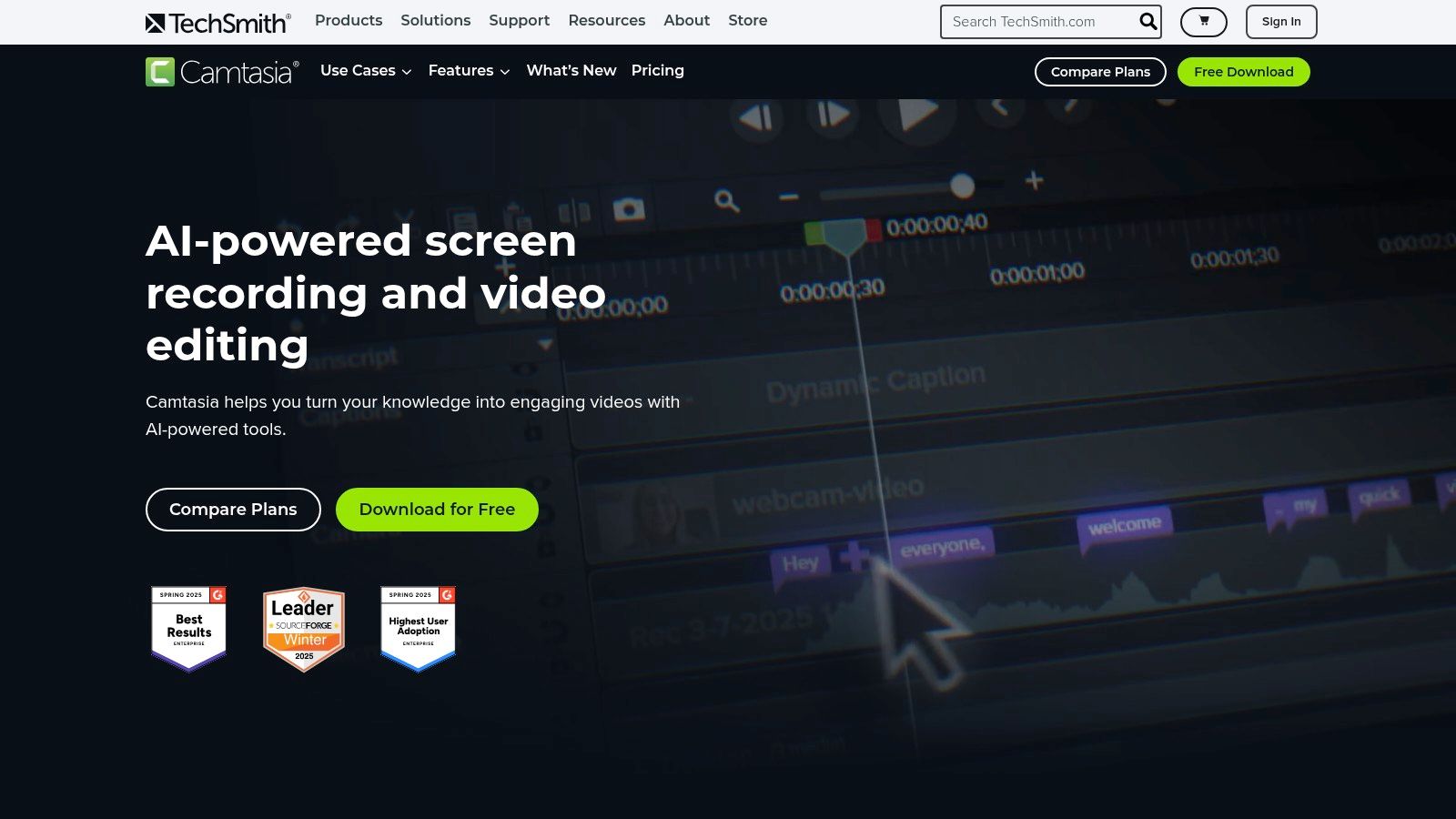
What sets Camtasia apart is its approachable yet powerful nonlinear editor. It's packed with tools specifically designed for educational content, such as cursor effects to highlight clicks, easy-to-add annotations and callouts, and pre-built templates to maintain brand consistency. For Mac creators looking to refine their footage, Camtasia's editing capabilities make it one of the best video editing software for beginners who need more than just a simple recorder.
The primary drawback is its premium price point, which follows a subscription model after the initial purchase for continued updates and support. As a robust application with a built-in editor, it's also more resource-intensive than simple, lightweight recorders, which might be a consideration for users on older Mac hardware. However, for those who need a single, reliable tool to handle the entire video creation process from recording to final export, Camtasia offers an unmatched combination of power and usability.
Key Details & Features
- Pricing: Premium software with a one-time purchase fee and optional annual subscription for updates.
- All-in-One Editor: Seamlessly transitions from recording to a multi-track editing timeline.
- Annotation Tools: Includes cursor effects, callouts, text overlays, and shapes.
- Asset Library: Provides templates, royalty-free music, and animated backgrounds.
- Website: techsmith.com/camtasia.html
5. Bandicam
Best for: This is a Windows-only application and is not suitable for macOS users.
Bandicam is a popular and highly efficient screen and webcam recording software, but it is exclusively for Windows. This makes it an unsuitable choice for macOS users, who should consider native alternatives like Screen Charm or ScreenFlow. For those on the Windows platform, it shines with its low system resource usage, making it an excellent tool for recording high-framerate gameplay or creating tutorials without impacting PC performance. Its interface is straightforward, allowing users to quickly select recording areas, configure audio inputs, and add a webcam overlay.
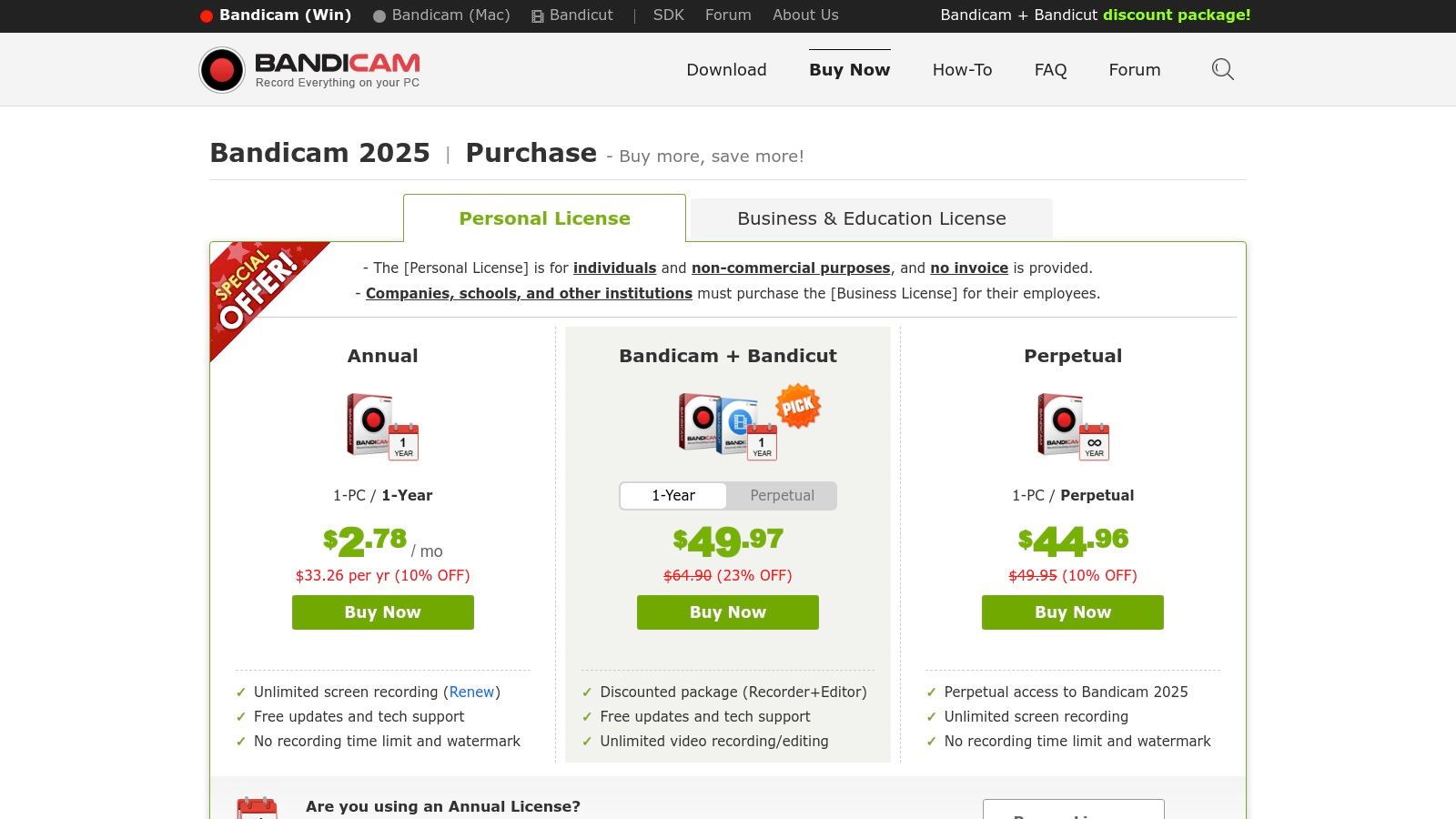
While it's a strong contender for the best webcam recording software on Windows, its lack of a Mac version means users in the Apple ecosystem must look elsewhere. The software leverages hardware-accelerated H.264 codecs to capture high-quality video with a small file size, but its built-in editing capabilities are virtually nonexistent. Simple cuts and merges require their separate editor, Bandicut. For Mac users needing similar performance-focused recording, OBS Studio is a powerful, free alternative that is fully compatible with macOS.
Key Details & Features
- Pricing: Free version with watermarks; Paid licenses start at $33.26/year or a one-time lifetime purchase.
- Platform: Windows only.
- Device & Screen Capture: Record webcam, screen, HDMI devices, and add webcam overlays (Windows only).
- Performance-Focused: Low CPU usage with support for hardware-accelerated codecs (Windows only).
- Website: bandicam.com
6. ManyCam
Best for: Mac-based educators and presenters needing an all-in-one virtual studio with creative effects.
ManyCam transforms your webcam feed into a dynamic production studio, making it a powerful choice for more than just basic recording on your Mac. It excels at mixing multiple video sources on the fly, allowing you to seamlessly switch between your webcam, pre-recorded videos, images, and even your iPhone camera. For macOS users, it functions as a comprehensive virtual camera, letting you design a polished presentation with lower thirds, graphic overlays, and picture-in-picture layouts, then pipe that polished feed directly into other applications like Zoom, FaceTime, or QuickTime for recording.
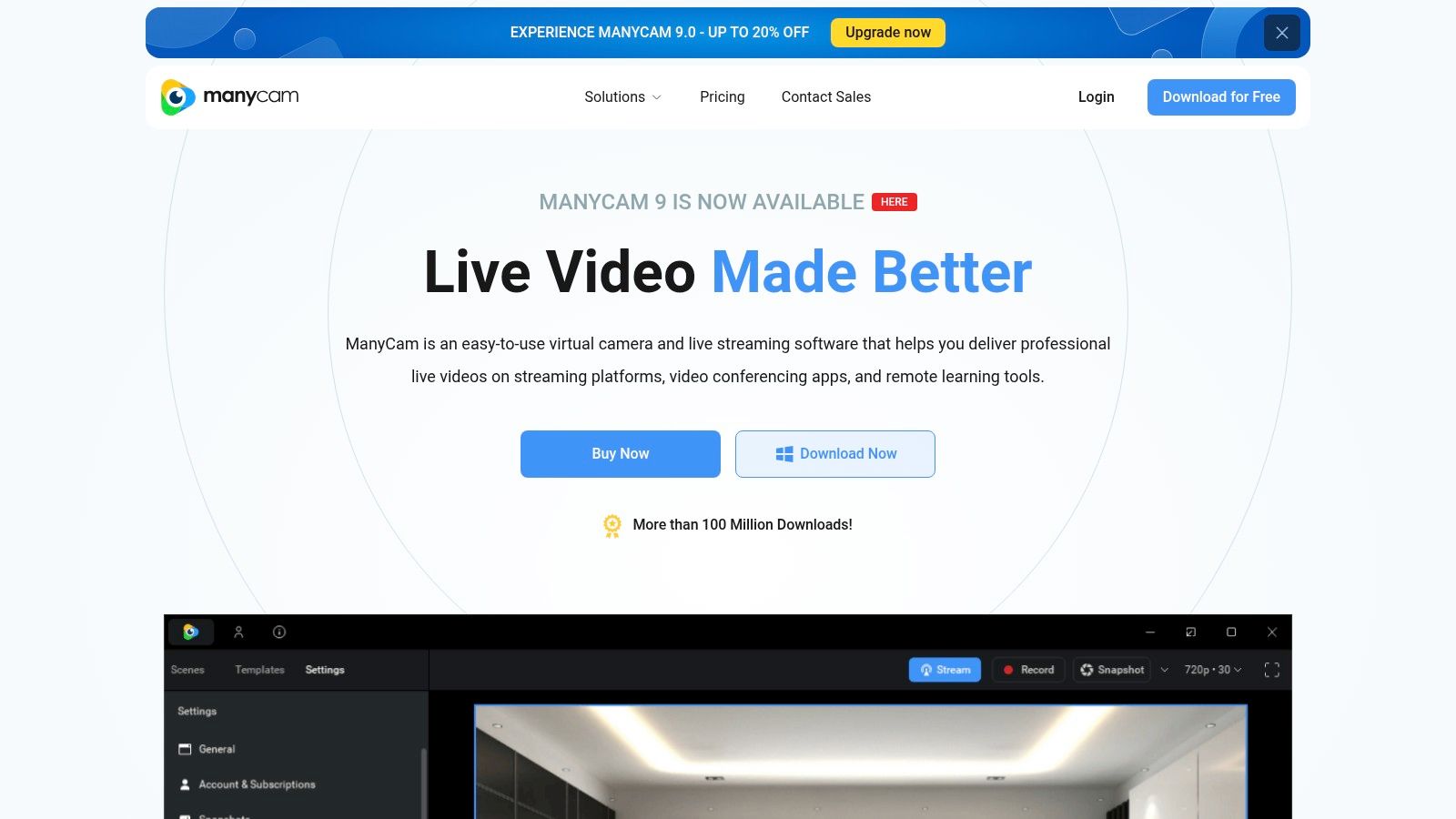
While its direct recording capabilities are solid, ManyCam's true strength lies in its live production features that enhance your video calls and recordings simultaneously. It offers robust background effects, including blur, removal, and replacement, alongside chroma key support for green screens. The software also supports advanced protocols like NDI and RTMP, catering to Mac users with more complex streaming or multi-system setups.
The primary drawback is its subscription-based model and somewhat confusing pricing tiers, which lock key features like higher resolutions behind more expensive plans. Furthermore, using multiple high-resolution sources and effects can be resource-intensive, potentially straining your Mac's CPU more than simpler webcam recording software. However, for those who need a versatile tool for teaching, live streaming, or creating engaging video presentations, ManyCam provides a feature-rich environment that combines recording and live production into a single, cohesive application for Mac.
Key Details & Features
- Pricing: Free version available; Paid plans start at $49/year.
- No Watermarks/Time Limits: Watermark is present on the free version; removed on paid plans.
- Multiple Video Sources: Combine webcams, IP cameras, mobile devices, and screen shares.
- Virtual Backgrounds: Built-in background blur, removal, and replacement effects.
- Website: manycam.com
7. CyberLink YouCam
Best for: This is a Windows-only application and is not suitable for macOS users.
CyberLink YouCam is a popular webcam software suite designed to add a layer of polish and personality to your video calls and recordings. It focuses on a user-friendly toolkit of live video effects, like skin-smoothing filters, lighting adjustments, and AR stickers. However, its biggest limitation for this guide's audience is its platform exclusivity; CyberLink YouCam is a Windows-only application, with no version available for macOS users. This makes it a non-starter for anyone in the Apple ecosystem.
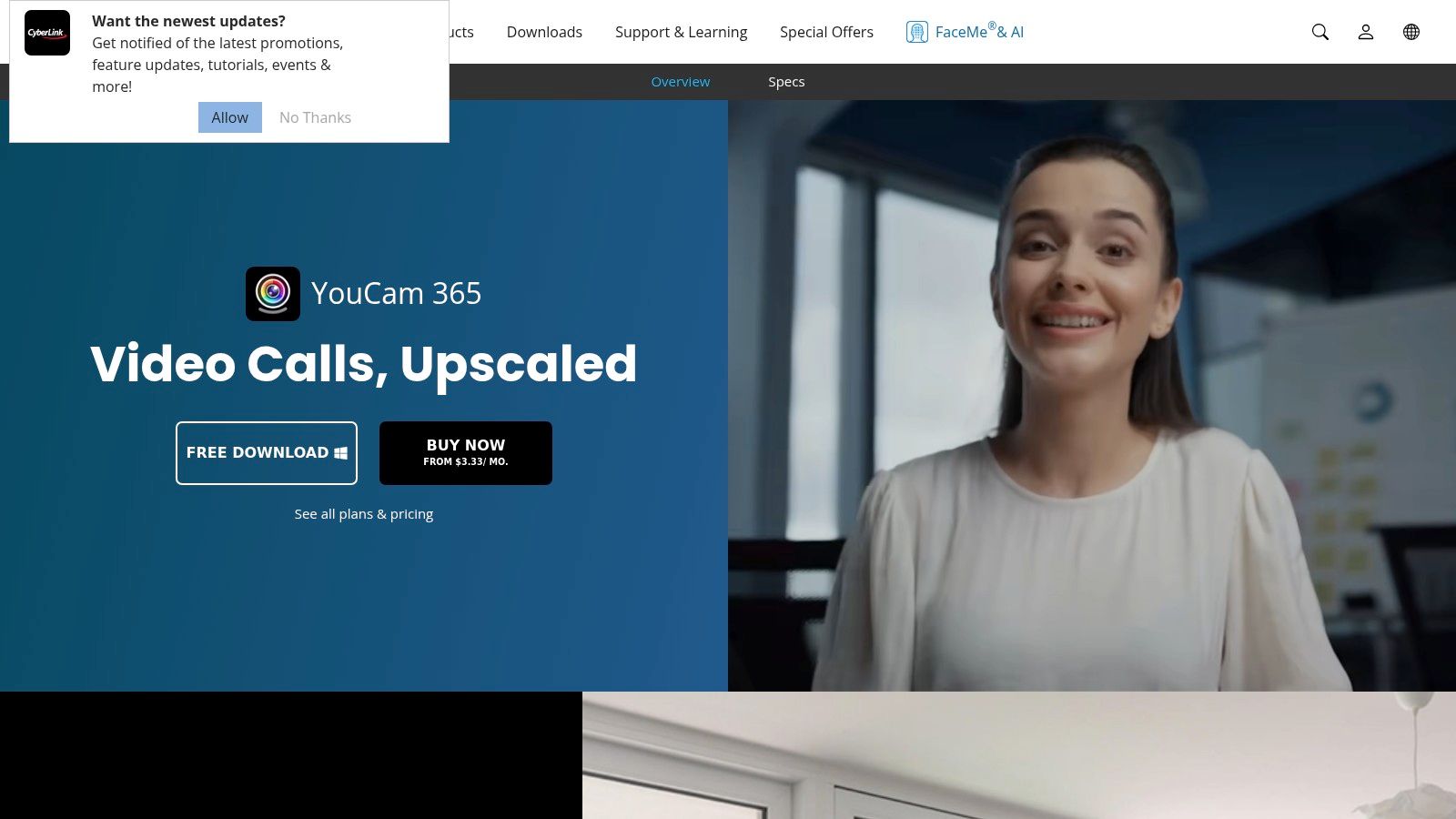
The primary strength of YouCam on Windows lies in its seamless integration with major video conferencing apps, where it acts as a virtual camera to apply effects in real-time. For Mac users seeking a simple yet powerful recording solution, a tool like Screen Charm offers a native macOS experience designed for clarity and ease of use, focusing on core recording features rather than live effects. Alternatively, ManyCam provides similar live enhancement capabilities and is fully compatible with macOS.
Key Details & Features
- Pricing: Paid software with various subscription and perpetual license options (free trial available).
- Platform: Windows only.
- Live Beautification Tools: Includes skin smoothers, lighting adjustments, and makeup filters (Windows only).
- Background Effects: Offers background blur, replacement, and removal (Windows only).
- Website: cyberlink.com/products/youcam
8. Telestream ScreenFlow
Best for: macOS users needing an integrated screen recorder and powerful video editor for polished tutorials.
Telestream ScreenFlow is a premium, all-in-one solution built from the ground up for macOS users who need more than just simple webcam recording. It excels by combining high-fidelity screen and webcam capture with a sophisticated, timeline-based video editor in a single, cohesive package. This integration allows users to seamlessly record their screen, webcam, and microphone simultaneously and then immediately dive into editing without switching applications. It's the go-to choice for creating professional-grade software tutorials, online courses, and detailed product demonstrations on a Mac.
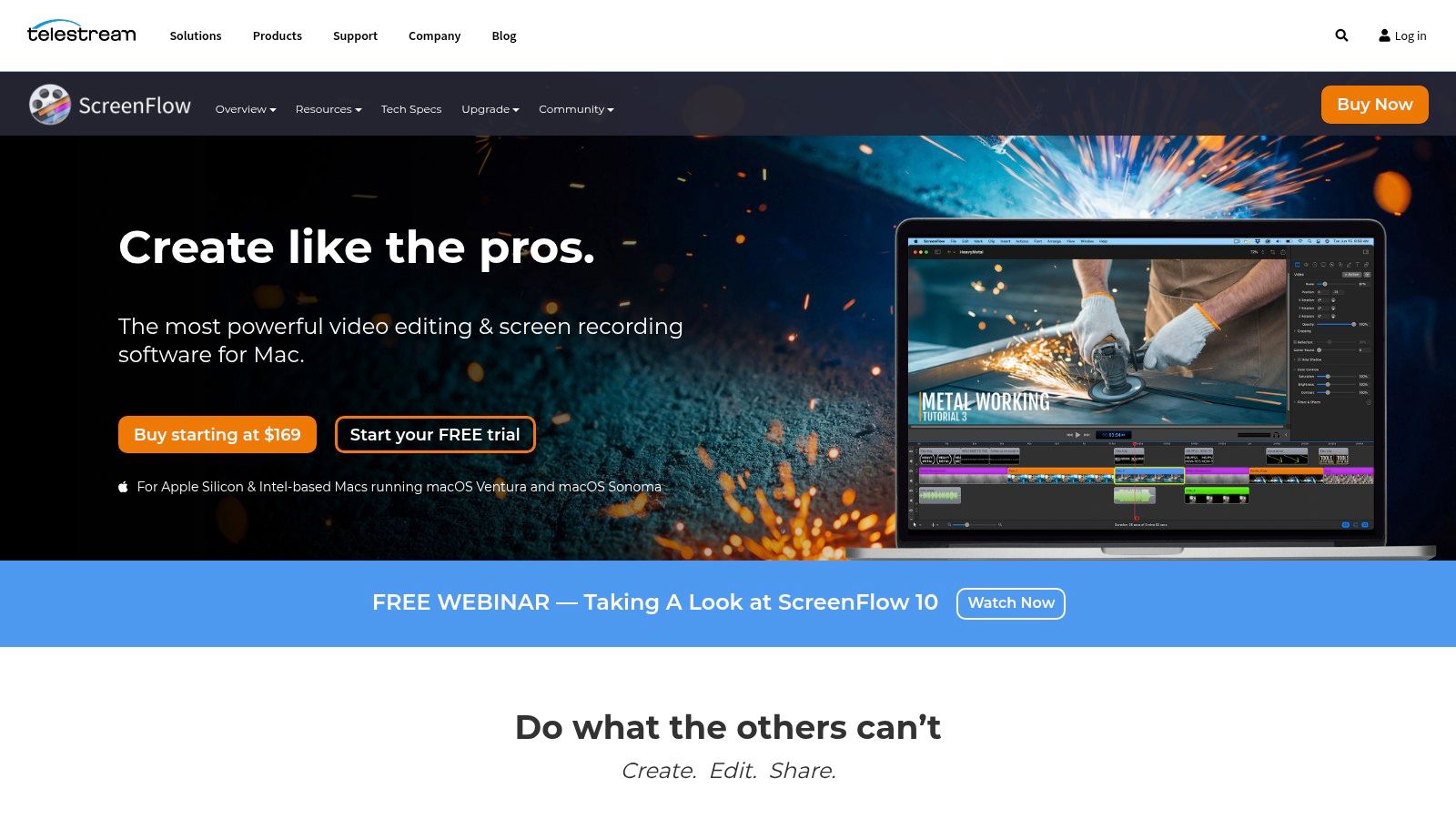
Designed exclusively for the Apple ecosystem, ScreenFlow delivers an exceptionally smooth and reliable user experience that feels native to macOS. The built-in editor is its standout feature, offering tools to add callouts, text overlays, annotations, and even complex motion effects to your webcam and screen recordings. While the initial cost is for a perpetual license, which many users prefer over subscriptions, be aware that premium support and access to an integrated stock media library come at an additional cost. Its specialization makes it one of the best webcam recording software options for Mac-based creators who demand both capture and post-production power.
Key Details & Features
- Pricing: Starts at $169 for a perpetual license (one-time purchase).
- No Watermarks/Time Limits: Full recording freedom after purchase.
- Integrated Editor: Powerful timeline editor with annotations, callouts, and effects.
- Multi-Source Recording: Simultaneously captures screen, webcam, system audio, and microphone.
- Website: telestream.net/screenflow/
9. ScreenPal (formerly Screencast-O-Matic)
Best for: Mac-based educators and teams needing an all-in-one solution for quick recording, editing, and sharing.
ScreenPal, widely known by its former name Screencast-O-Matic, is a streamlined, cross-platform tool that excels at simplifying the entire video creation workflow. It's more than just a webcam recorder; it's an integrated suite for capturing your screen and camera, performing essential edits, and hosting the final video for easy sharing. This makes it an ideal piece of best webcam recording software for macOS educators creating tutorials or teams producing training materials who value speed and efficiency over complex production features.

For macOS users, ScreenPal offers a lightweight native app that feels responsive and easy to navigate. Its standout features are built for practicality, including automated captioning to improve accessibility, built-in cloud hosting with analytics, and drawing tools to annotate recordings in real-time. Higher-tier plans even provide access to a stock media library and a teleprompter feature, helping you deliver a polished message directly from the app.
The primary advantage of ScreenPal is its cohesive record-to-share process, which eliminates the need to juggle multiple applications. While its video editor is sufficient for trimming clips, adding overlays, and basic effects, it lacks the timeline complexity of dedicated editors like ScreenFlow. The free version includes a watermark and has recording time limits, making a paid subscription almost essential for professional use, but its affordable tiers offer substantial value for its target audience.
Key Details & Features
- Pricing: Free version with limitations; Paid plans start at $3/month (billed annually).
- No Watermarks/Time Limits: Available on paid plans.
- Integrated Workflow: Record, edit, host, and share all within one platform.
- Productivity Tools: Includes automated captions, teleprompter, and drawing tools.
- Website: screenpal.com
10. Movavi Screen Recorder
Best for: Mac beginners and educators needing an all-in-one recorder and basic editor.
Movavi Screen Recorder strikes a balance between simplicity and functionality, making it an excellent choice for Mac users who find tools like OBS overwhelming. It's designed for quick, straightforward screen and webcam recording sessions, perfect for creating tutorials, presentations, or video messages without a steep learning curve. The software allows you to capture your webcam and screen simultaneously or separately, and includes handy on-screen drawing tools to annotate your recordings in real-time.
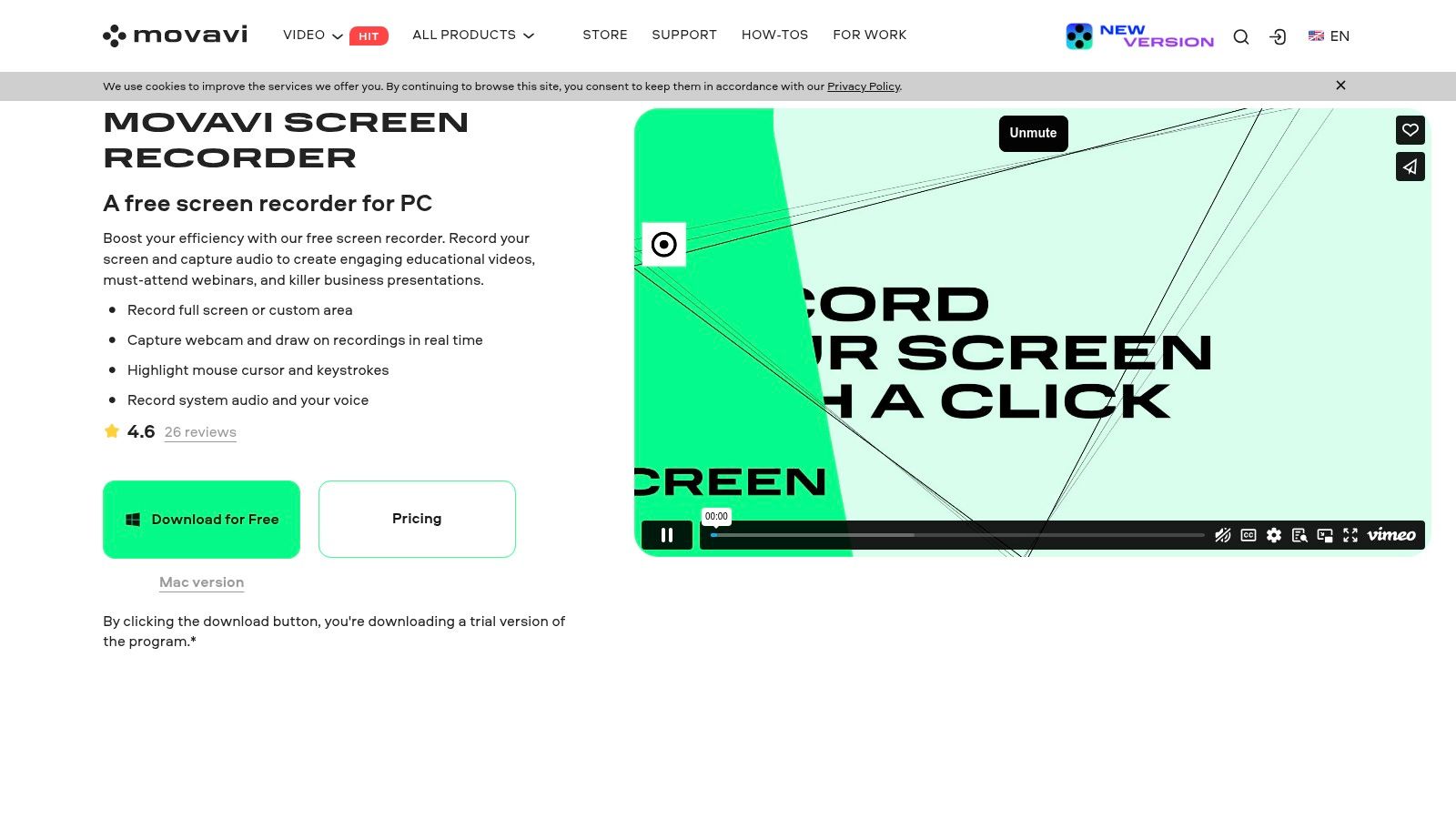
For macOS users, Movavi provides a native and responsive experience that feels right at home on the platform. Unique features like scheduled recordings allow you to automatically capture lectures or webinars even when you're away from your desk. The built-in editing tools are basic but sufficient for trimming clips and removing unwanted sections, which is often all that's needed for a clean final video. While it includes useful cursor effects to guide viewers' attention, it lacks the advanced scene compositing or virtual camera output found in more complex software.
The primary appeal of Movavi is its accessibility. The interface is clean and intuitive, guiding you through the setup process in just a few clicks. It's often available in discounted bundles with the more powerful Movavi Video Editor, offering a clear upgrade path for users who eventually need more comprehensive editing capabilities. This combination makes it a strong contender in the best webcam recording software category for those who prioritize ease of use over granular control on their Mac.
Key Details & Features
- Pricing: Starts with a free trial; paid plans from $44.95/year.
- Watermarks/Time Limits: Free version has watermarks and recording limits.
- Scheduled Recording: Set a time and date for automatic recording.
- Drawing Tools: Annotate videos with shapes, lines, and text during capture.
- Website: movavi.com/screen-recorder/
11. Loom
Best for: Mac-based teams and individuals needing to create and share quick video messages and screen recordings.
Loom has revolutionized asynchronous communication by making webcam and screen recording incredibly fast and shareable. Designed for efficiency, it allows users to capture their camera, screen, or both with a single click and instantly generate a shareable link. This workflow eliminates the need for rendering, uploading, or file transfers, making it an exceptional tool for quick tutorials, team updates, and feedback loops. Its web-first approach is complemented by a robust desktop app specifically for macOS.
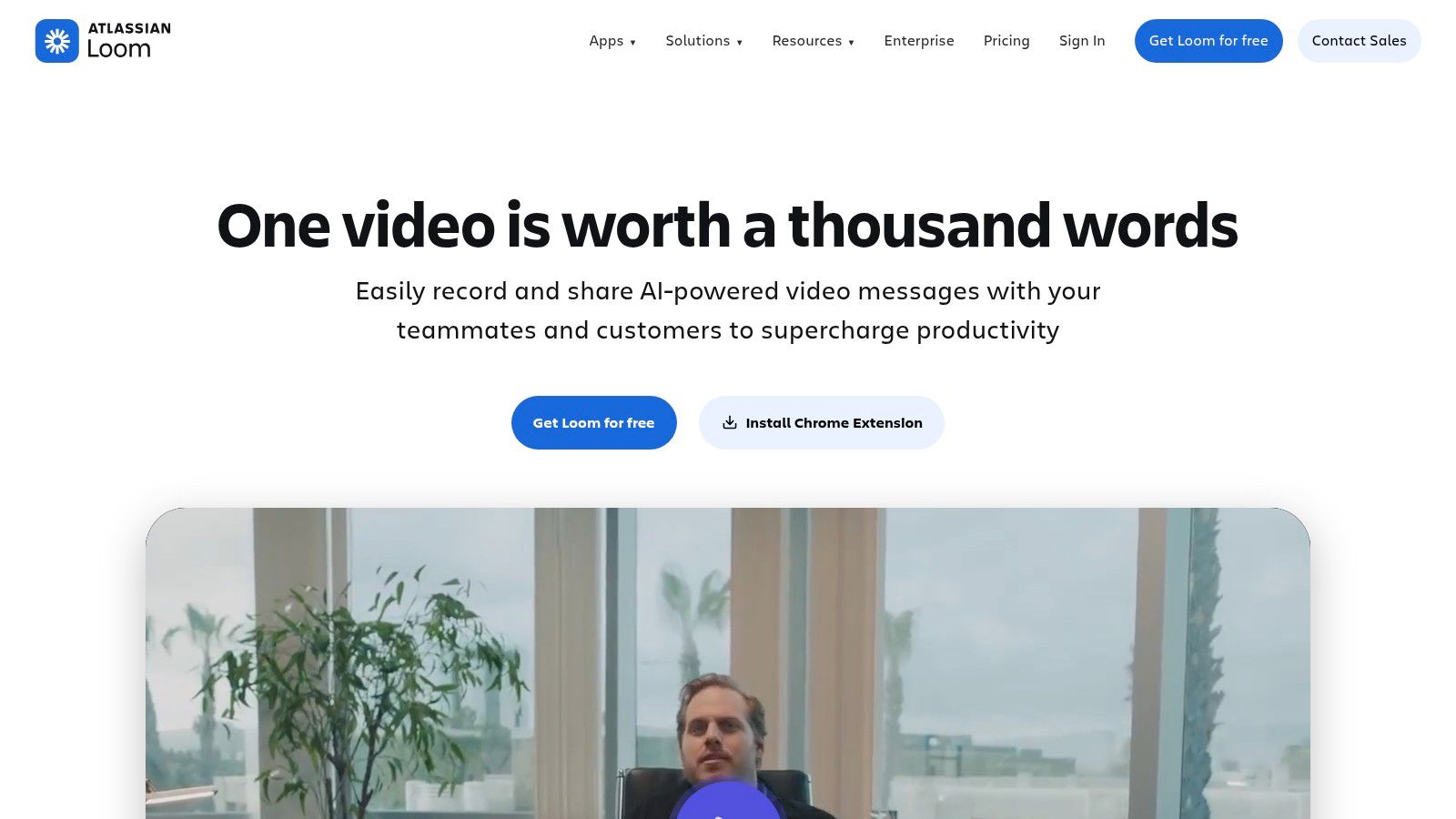
The macOS desktop application is lightweight and integrates smoothly into the operating system, providing a native recording experience. Loom's platform is built around collaboration, offering features like viewer analytics, emoji reactions, and time-stamped comments directly on the video. Higher-tier plans unlock powerful AI features, including automatic summaries, chapters, and title suggestions, which further streamline the creation process. While its built-in editor is basic, focused on simple trimming, its strength lies in rapid creation and distribution, not advanced post-production. For those seeking more advanced features or fewer limitations than the free plan, it's worth exploring some powerful alternatives to Loom.
Key Details & Features
- Pricing: Free plan with limitations (5 mins/video, 25 videos/person); Paid plans start at $12.50/month.
- Instant Sharing: Videos are hosted on the cloud with an immediately available link.
- Viewer Analytics: Track who has watched your video and see engagement metrics.
- AI Enhancements: Premium plans offer auto-summaries, chapters, and noise removal.
- Website: loom.com
12. Microsoft Clipchamp
Best for: macOS users who need a free, browser-based recorder and editor with cloud integration.
Microsoft Clipchamp has evolved into a powerful, integrated solution. While it comes preinstalled on Windows, its excellent browser-based version ensures full accessibility for macOS users, offering a streamlined workflow for creating polished videos. It functions as both a webcam recording software and a full-featured timeline editor, allowing Mac users to capture their camera, screen, and audio, then immediately start editing without needing to download a separate application.
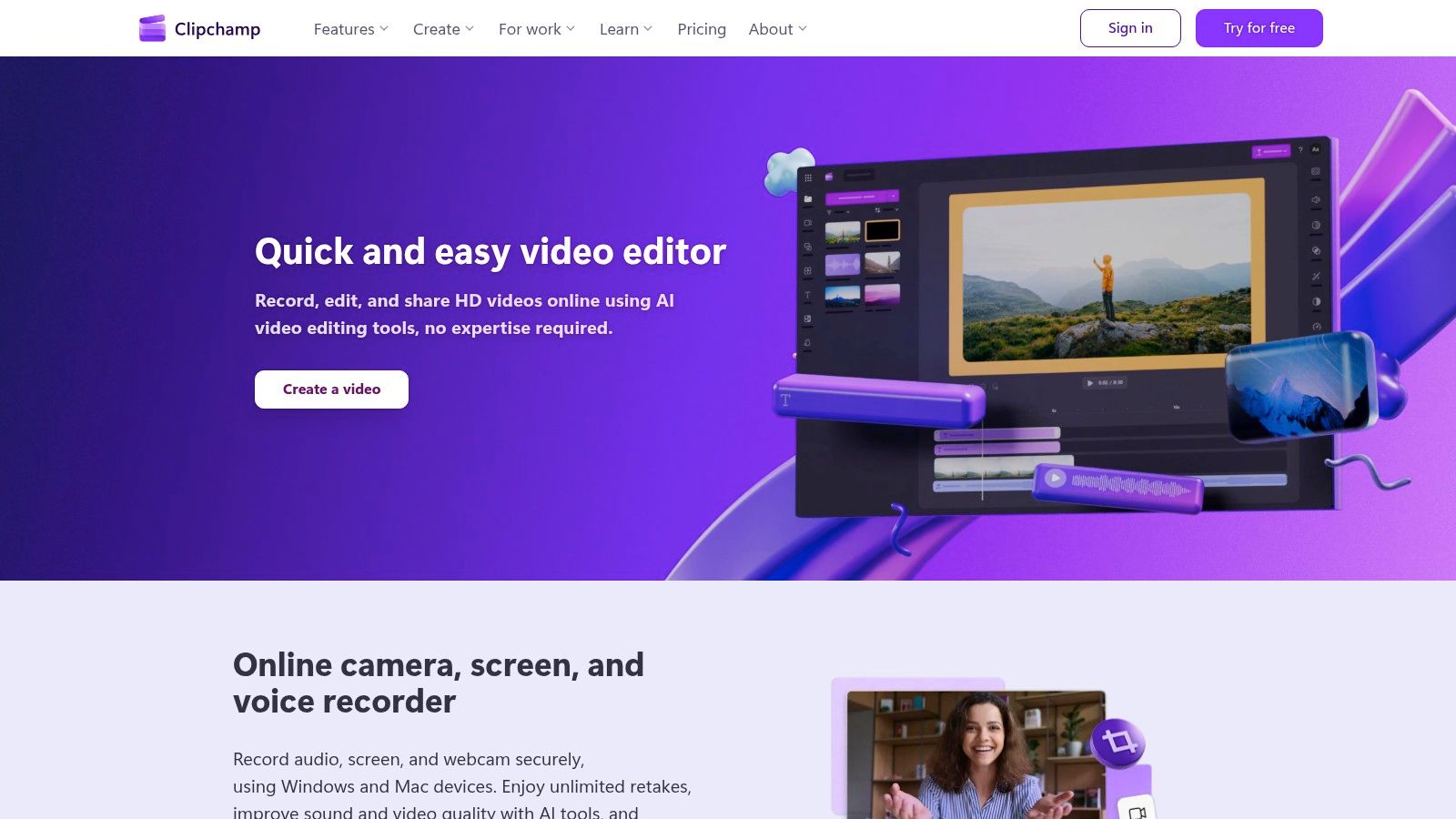
The primary advantage for many is its seamless integration with OneDrive, enabling automatic cloud backup and making your projects accessible across different devices. For macOS users, this means you can record a quick video on your MacBook and later access and edit it on any other computer. The free tier is quite generous, offering unlimited watermark-free exports at up to 1080p resolution, which is perfect for most online content creators and educators on a Mac.
However, many of its premium features, such as 4K exports and access to an extensive stock media library, are locked behind a Microsoft 365 subscription. This makes it an incredibly compelling value for existing subscribers but a potentially less attractive option for those outside the Microsoft ecosystem. While its editing tools are user-friendly, they lack the advanced compositing and live production capabilities found in more specialized software like OBS Studio.
Key Details & Features
- Pricing: Free plan available; Premium features included with Microsoft 365 subscriptions.
- No Watermarks/Time Limits: Unlimited watermark-free exports on the free plan (up to 1080p).
- Integrated Editor: A built-in, timeline-based video editor for trimming, adding text, and effects.
- Cloud Integration: Seamlessly backs up projects and media to OneDrive for cross-device access.
- Website: clipchamp.com
Top 12 Webcam Recording Software Features Comparison
| Product | Core Features & Highlights | User Experience & Quality ★★★★☆ | Value & Pricing 💰 | Target Audience 👥 | Unique Selling Points ✨ |
|---|---|---|---|---|---|
| OBS Studio | Multi-source, plugin support, virtual camera, cross-platform | High customization, open-source | Free | Mac power users, streamers, developers | Unlimited recording, strong community |
| Screen Studio | Auto-zoom, motion blur, webcam overlay, style presets | Premium visual polish | $29/mo or $108/yr | SaaS founders, marketers, educators | Polished screen-and-webcam product demos |
| Screen Charm | Smart auto-zoom, motion blur, background music, webcam + screen, built-in editor, 4K export | Intuitive, beginner-friendly, polished UX | One-time $79, unlimited exports, 14-day refund | macOS entrepreneurs, developers, educators | Dynamic auto-zoom, customizable cursor, branded videos |
| TechSmith Camtasia | Multi-track editor, effects, templates | Polished, professional, accessible workflow | Premium subscription | Educators, trainers, pros on Mac | Robust annotation, full editing suite |
| Bandicam | Windows-only application | Not applicable for macOS | N/A for Mac | Windows users | No macOS version |
| ManyCam | Virtual webcam, background effects, NDI support | Feature-rich but CPU heavy on Mac | Tiered pricing | Mac creators, online teachers | All-in-one camera studio software |
| CyberLink YouCam | Windows-only application | Not applicable for macOS | N/A for Mac | Windows users | No macOS version |
| Telestream ScreenFlow | Mac-only, powerful timeline editor | Smooth macOS experience | Perpetual license + add-ons | Mac users, educators, marketing pros | Integrated editor, professional presets |
| ScreenPal (Screencast-O-Matic) | Quick record & edit, cloud hosting, automated captions | Fast, simple workflow | Affordable tiers | Mac educators, teams | Hosting + analytics, automated captions |
| Movavi Screen Recorder | Simultaneous webcam/screen, cursor effects | Beginner-friendly | One-time + bundles | Mac beginners, casual users | Scheduled recording, easy export |
| Loom | Web/cloud-based, instant sharing, AI features | Simple for non-tech users | Free tier + premium plans | Mac teams, business, remote workers | Instant sharing, collaboration analytics |
| Microsoft Clipchamp | Webcam/screen capture, timeline editor | Seamless for web users on Mac | Free + subscription for premium | macOS users in Microsoft ecosystem | Browser-based, cloud backup |
Recording Your Next Masterpiece on macOS
Navigating the landscape of the best webcam recording software for macOS can feel overwhelming, but as we've explored, the perfect tool is the one that aligns perfectly with your specific goals. From creating intricate software tutorials to recording a quick, personal message, the right application can transform your workflow from a frustrating chore into a creative and efficient process. This guide was designed to cut through the noise, providing a clear roadmap to help you make an informed decision based on your unique needs as a Mac user.
Choosing Your Path: A Final Recap
The key takeaway is this: define your project first, then select your tool. Don't get drawn in by a long list of features you'll never use. Instead, match the software's core strengths to your intended outcome.
We've broken down the top contenders for macOS into several distinct categories:
- All-in-One Powerhouses: For those who need a comprehensive solution for recording, editing, and producing highly polished content, tools like Telestream ScreenFlow and TechSmith Camtasia are the undisputed champions on macOS. They offer deep editing capabilities but come with a steeper learning curve and a premium price tag.
- Specialized and Efficient Tools: If your workflow demands speed and a specific function, specialized apps are your best bet. Loom excels at asynchronous communication with its fast sharing features, while OBS Studio remains the go-to for live streamers and technical users who need granular control over every aspect of their production.
- Polished Product Demo Tools: This is where Screen Studio and Screen Charm stand out. Screen Studio is best when you want style presets, GIF export, iPhone/iPad recording, and the most detailed visual controls. Screen Charm is best when you want auto-zoom, motion blur, background music, webcam recording, system audio, 4K export, and a one-time purchase.
- Accessible and Budget-Friendly Options: For quick recordings or users just starting out, free and accessible tools are invaluable. macOS's built-in QuickTime Player is perfect for basic screen captures, while Microsoft Clipchamp and ScreenPal offer robust free tiers with pathways to more advanced features.
Final Considerations Before You Hit Record
Before you commit, remember to consider the implementation details. Think about your entire production cycle. Do you need advanced editing features like transitions and annotations? Is 4K recording a necessity? How important is direct integration with cloud storage or video hosting platforms? Your answer to these questions will guide you toward the most suitable software. A developer creating a product demo on a Mac has vastly different needs than a support agent recording a quick walkthrough.
The world of video is also constantly evolving. As you master your recording workflow, you might find yourself looking toward the next frontier of content creation. The rise of generative AI is opening up new possibilities for producing engaging visuals with minimal effort. To learn more about this exciting space, you can explore the 12 best AI video creation tools and see how technology is shaping the future of video.
Ultimately, the best way to find the right webcam recording software is to start creating. Pick a tool from this list that resonates with your immediate needs, take advantage of its free trial, and begin recording on your Mac. Your first video doesn't have to be perfect, but it is the first step toward producing your next masterpiece.
Ready to create stunning software demos and tutorials on your Mac without the steep learning curve? Screen Charm is designed to automate the hard parts, with smart zoom, beautiful backgrounds, webcam recording, and an intuitive interface so you can produce professional-quality videos in minutes. Download Screen Charm today and see how effortless great recordings can be.
Comparing Screen Charm to alternatives? Screen Charm vs Screen Studio | Screen Charm vs Loom