Finding the right software documentation tools for your macOS workflow can make a complex, time-consuming task easier to manage. Whether you are a developer maintaining API docs, a technical writer building a knowledge base, or a product team documenting workflows, the platform you choose affects how clearly information is written, maintained, searched, and shared.
This guide is designed to help you compare practical options without treating every product as the same kind of solution. Some tools are built for internal wikis, some for public knowledge bases, some for API references, and others for structured enterprise documentation. For each tool, you will find key strengths, trade-offs, pricing notes, and the use cases where it makes the most sense.
The focus here is documentation software: tools that help teams write, organize, publish, govern, or compare product and technical documentation. Understanding the broader context of essential development stacks is also helpful; many teams integrate their documentation solution with a suite of other platforms. To see what a complete toolkit looks like, consider exploring this list of tools used by successful startups to gain further insight. This article, however, concentrates on one critical component: choosing documentation software that fits your team.
1. Atlassian Confluence
Atlassian Confluence is a collaborative wiki-style workspace for internal documentation, project notes, and public-facing user guides. While not exclusive to macOS, its web-based interface gives Mac users a consistent experience and fits naturally into teams that already use Atlassian products like Jira.
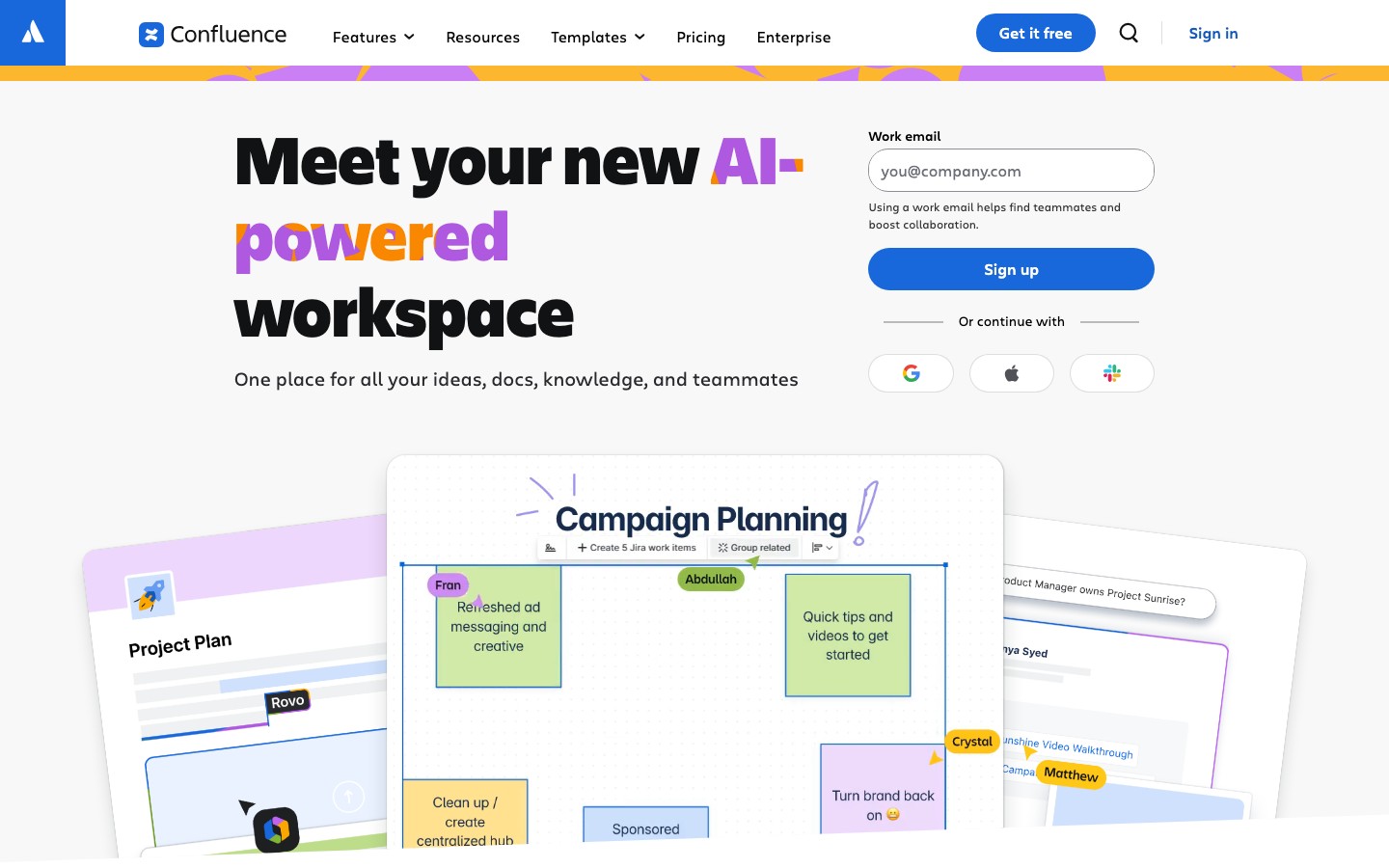
Confluence is strongest when documentation needs to stay connected to planning and development work. Linking Jira tickets to documentation pages, for instance, gives developers and support teams useful context. The platform's versioning and granular permissions make it a practical choice for teams that need governance. For those new to the platform, learning how to use Confluence effectively is key to getting value from it.
Key Features & Considerations
| Feature/Aspect | Details |
|---|---|
| Best For | macOS-based teams already using Jira; creating extensive internal and external knowledge bases. |
| Pros | Excellent Jira integration, highly scalable, large marketplace for apps, robust permissions. |
| Cons | Can become slow and disorganized without proper governance; key features locked behind higher tiers. |
| Pricing | Free plan for up to 10 users. Standard starts at $6.05/user/month. Premium and self-managed Data Center options are also available. |
| Website | atlassian.com/software/confluence |
Sponsored by the makers
Tired of boring screen recordings?
Try Screen Charm.
Auto-zoom, motion blur, camera overlay, and background music. All built in. Record once, export a polished video.
See what it does2. GitBook
GitBook is a developer-friendly documentation platform that combines a clean, block-based editor with Git synchronization. While it is web-based, its Git integration makes it a good fit for macOS developers who rely on Terminal, GitHub, GitLab, and pull request workflows. The platform is especially useful for public-facing documentation sites that need to be searchable, readable, and easy to update.
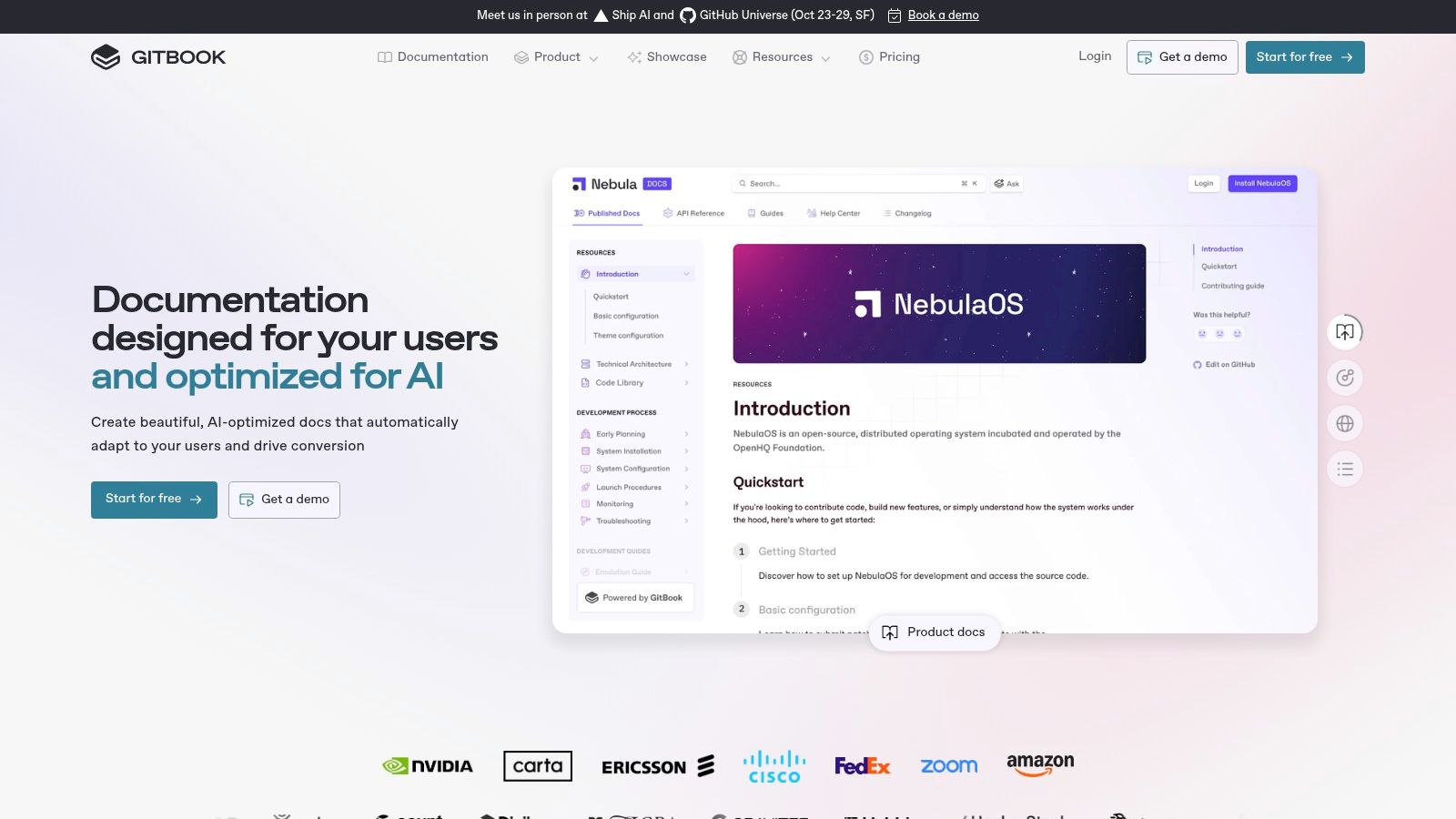
GitBook's main advantage is the experience for both writers and readers. The editor is approachable, and the ability to sync content directly from a GitHub or GitLab repository means documentation can be updated via pull requests, just like code. This docs-as-code approach helps teams keep public-facing materials closer to product changes.
Key Features & Considerations
| Feature/Aspect | Details |
|---|---|
| Best For | Public-facing developer docs, product manuals, and open-source project documentation for macOS teams. |
| Pros | Excellent reader experience, docs-as-code workflow with Git sync, fast and easy to publish, AI-powered search and content generation. |
| Cons | Per-user pricing can become expensive for larger teams; less suited for purely internal, private knowledge bases compared to competitors. |
| Pricing | Free plan for individuals and open-source projects. Plus plan starts at $8/user/month. Pro and Enterprise plans are also available. |
| Website | www.gitbook.com |
3. Document360
Document360 is a dedicated knowledge base platform for public, private, or mixed-access documentation. As a web-based solution, it provides a consistent experience for macOS users and focuses on an approachable authoring environment with structured content management. Its primary strength is helping technical and non-technical team members contribute to a centralized source of truth.
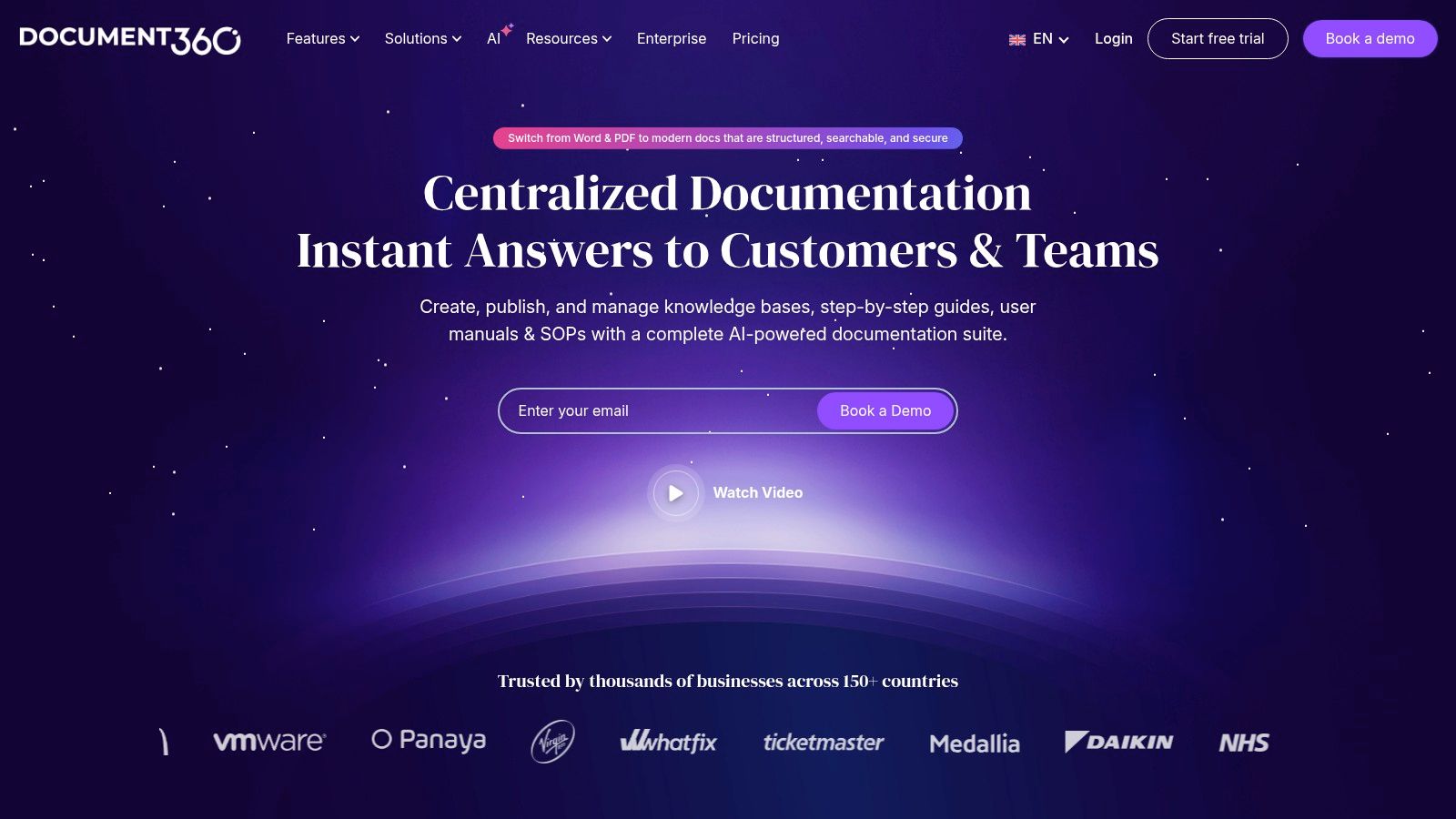
The platform includes analytics to track article performance and AI-powered search to help users find relevant answers. For teams managing complex information, Document360's version control and structured workflow can help keep content accurate and up to date. It is most relevant for companies managing both internal knowledge and external customer-facing guides.
Key Features & Considerations
| Feature/Aspect | Details |
|---|---|
| Best For | Growing SaaS companies needing a scalable platform for both internal and public-facing knowledge bases. |
| Pros | Powerful analytics and reporting, enterprise-grade SSO and security, AI-powered search, clean UI. |
| Cons | Can be more expensive than simpler solutions; pricing for higher tiers requires a sales quote. |
| Pricing | Standard plan starts at $149 per project/month. Business and Enterprise plans are also available with custom pricing. |
| Website | document360.com |
4. MadCap Flare
MadCap Flare is a mature help authoring tool (HAT) used by many professional technical writing teams. While it is a Windows-native application, Mac users can run it through virtualization software like Parallels Desktop. That extra setup may be worthwhile for teams that need single-sourcing and multi-channel publishing for web, print, and desktop formats.
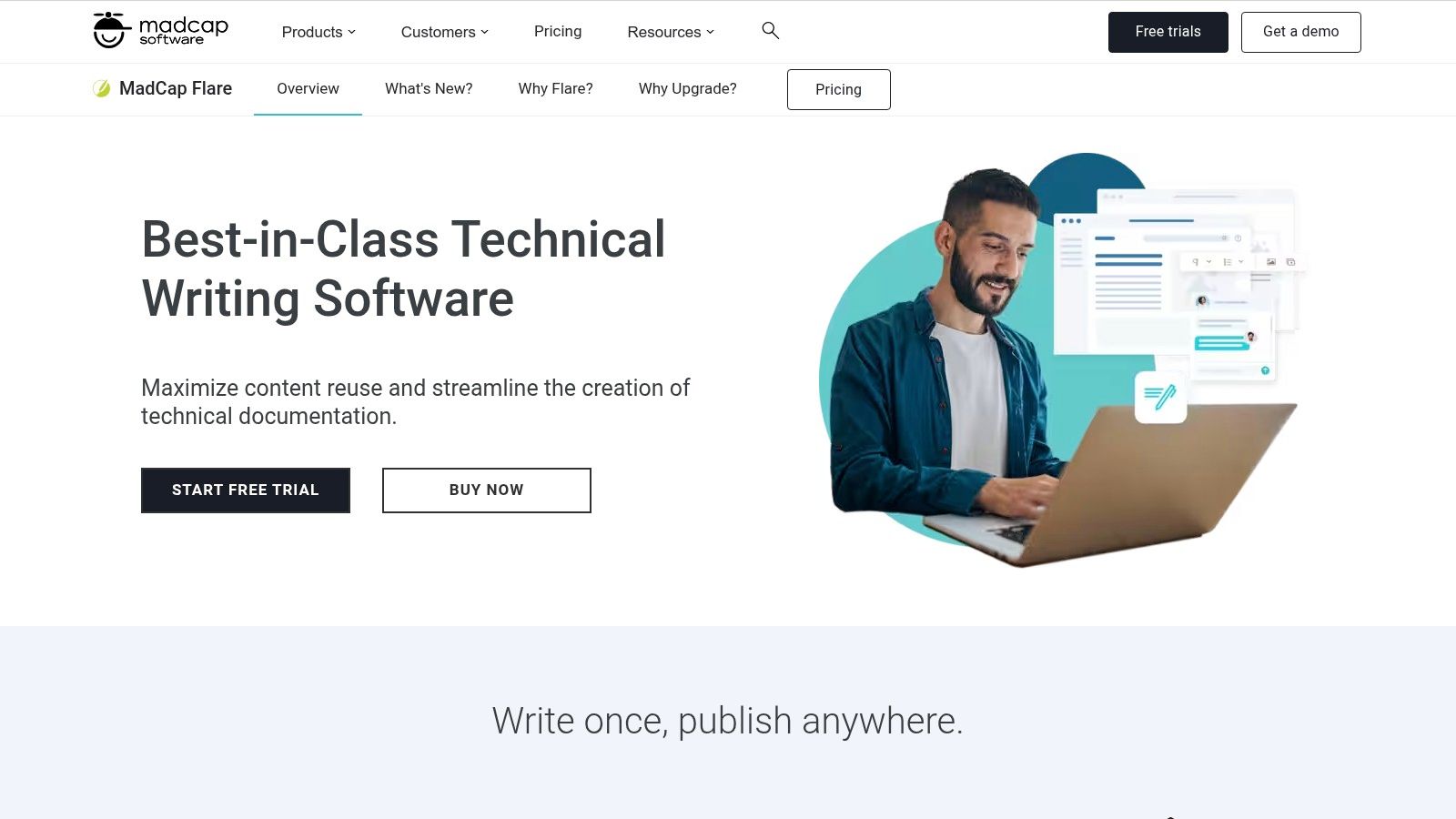
Flare's strength lies in its topic-based authoring approach, which treats pieces of information as reusable blocks. This is useful for large documentation sets where consistency matters. It can create HTML5 websites, in-app help, PDFs, and knowledge bases, with import capabilities and optional cloud features for collaboration and analytics. The trade-off is complexity.
Key Features & Considerations
| Feature/Aspect | Details |
|---|---|
| Best For | Professional technical writers on macOS using Parallels; creating complex, multi-format documentation. |
| Pros | Unmatched single-sourcing capabilities, highly customizable output, mature ecosystem with extensive support and training. |
| Cons | Windows-only (requires virtualization on Mac), steep learning curve, can be expensive for smaller teams. |
| Pricing | Pricing is provided via a custom quote. A 30-day free trial is available. |
| Website | www.madcapsoftware.com/products/flare |
5. Paligo
Paligo is an enterprise-grade Component Content Management System (CCMS) built around structured, topic-based authoring. This web-based platform is aimed at technical writers who manage complex documentation at scale, moving beyond simple pages to reusable content components. Its cloud-based architecture works across operating systems, including macOS.
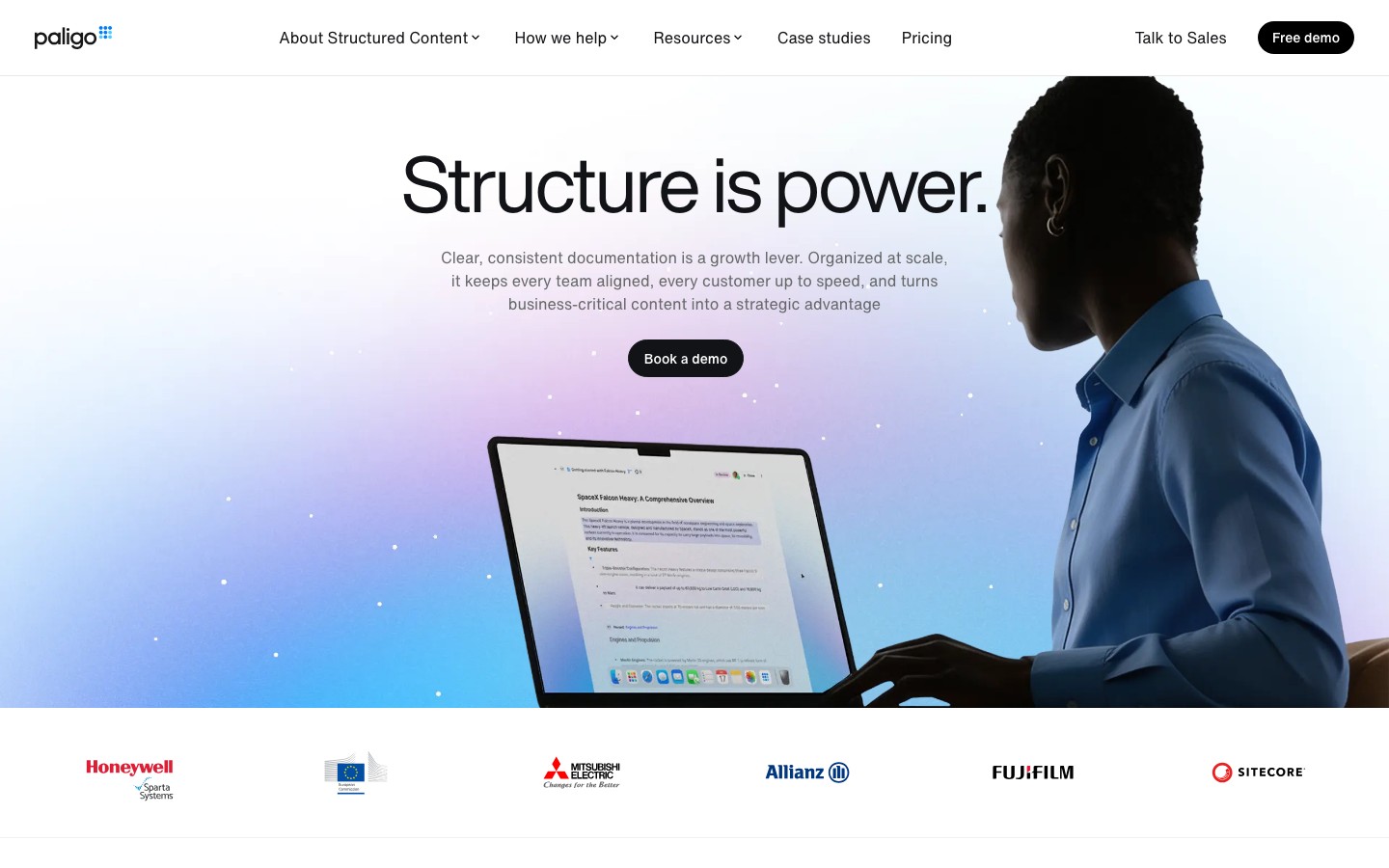
The platform's core strength is content reuse. Authors write topics once and can publish them across PDFs, HTML help centers, and knowledge bases in platforms like Zendesk or Salesforce. This can help organizations with multiple products that share common features. Its taxonomy and variable management support consistency and localization, but the tool requires a disciplined, structured authoring approach.
Key Features & Considerations
| Feature/Aspect | Details |
|---|---|
| Best For | Enterprise teams on macOS managing complex documentation for multiple product lines. |
| Pros | Powerful content reuse and component management, strong governance and translation workflows, enterprise-grade security and SLAs. |
| Cons | Significant learning curve; requires a shift to a structured authoring mindset; higher price point than other tools. |
| Pricing | Paligo does not publish public pricing. Plans are customized based on team size and requirements, and you must contact their sales team for a quote. |
| Website | paligo.net |
6. Adobe RoboHelp
Adobe RoboHelp is a long-standing help authoring tool (HAT) for help systems, policies, and knowledge bases. Similar to other enterprise tools, it runs on Windows, but Mac users can access it through virtualization software like Parallels. It is most useful for teams that need multi-format outputs from a single source project.

RoboHelp's advantage is its enterprise feature set and familiar Adobe interface, which may help organizations already standardized on Adobe Creative Cloud or Technical Communication Suite. The ability to generate responsive HTML5, PDF, Microsoft Help (CHM), and other formats from the same content can reduce repeated publishing work. Its CSS and JavaScript customization options support branded and interactive user assistance.
Key Features & Considerations
| Feature/Aspect | Details |
|---|---|
| Best For | Enterprise teams needing to publish to multiple output formats; organizations invested in the Adobe ecosystem. |
| Pros | Powerful single-sourcing and multi-format publishing, extensive customization with modern themes, familiar Adobe workflow. |
| Cons | Windows-native application requiring virtualization on macOS; advanced enterprise licensing can be complex. |
| Pricing | Subscription-based, starting at $29.99/month (billed annually). A 30-day free trial is available. Enterprise licensing is offered via Adobe VIP and ETLA programs. |
| Website | adobe.com/products/robohelp |
7. ReadMe
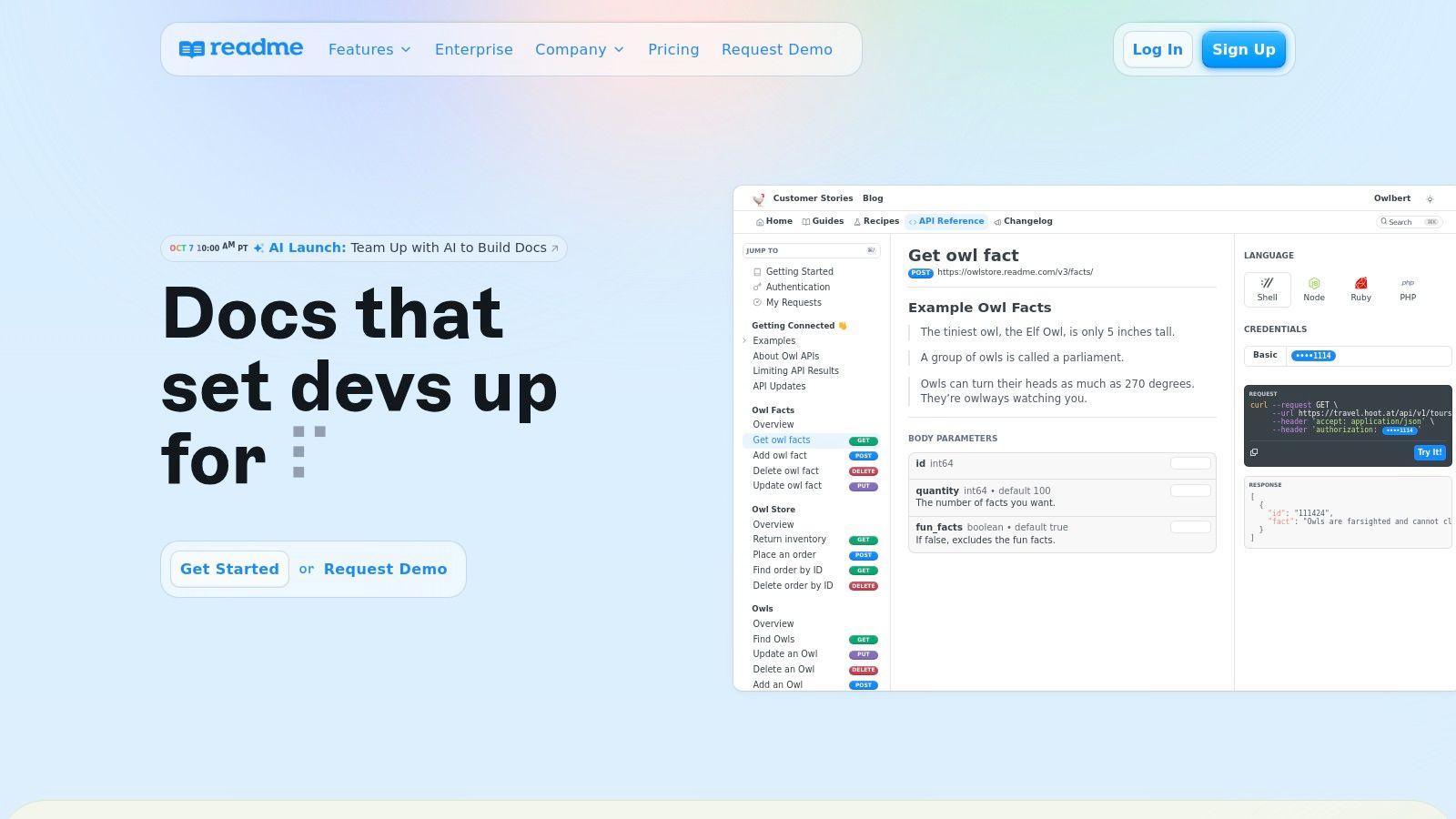
ReadMe is a developer hub platform focused on API documentation. Its web-based nature makes it platform-agnostic and fully functional for macOS users, and its strength is building interactive developer portals. It goes beyond static text by allowing companies to generate API references directly from OpenAPI Specifications (OAS/Swagger), publish guides, and maintain a public changelog from one place.
The platform is designed to make APIs easier to understand and test. Its interactive API reference lets users make real API calls directly from the documentation, which can reduce friction during onboarding. This focus on developer experience makes it a relevant option for API-first companies.
Key Features & Considerations
| Feature/Aspect | Details |
|---|---|
| Best For | API-first companies on macOS, SaaS businesses wanting to create interactive developer hubs. |
| Pros | Excellent interactive API reference, fast setup from OpenAPI specs, powerful API usage metrics, enterprise SSO options. |
| Cons | Can be costly for larger teams; advanced features like multi-project administration are locked behind higher tiers. |
| Pricing | Free plan for open-source projects. Startup plan starts at $99/project/month. Business and Enterprise plans are also available. |
| Website | readme.com |
8. SwaggerHub (SmartBear API Hub)
SwaggerHub is a platform for API design and documentation built around the widely adopted OpenAPI Specification (formerly Swagger). As a web-based tool, it offers a consistent experience for macOS users and focuses on collaboration across the API lifecycle. Its strength lies in enforcing design standards and generating interactive documentation directly from the API definition.
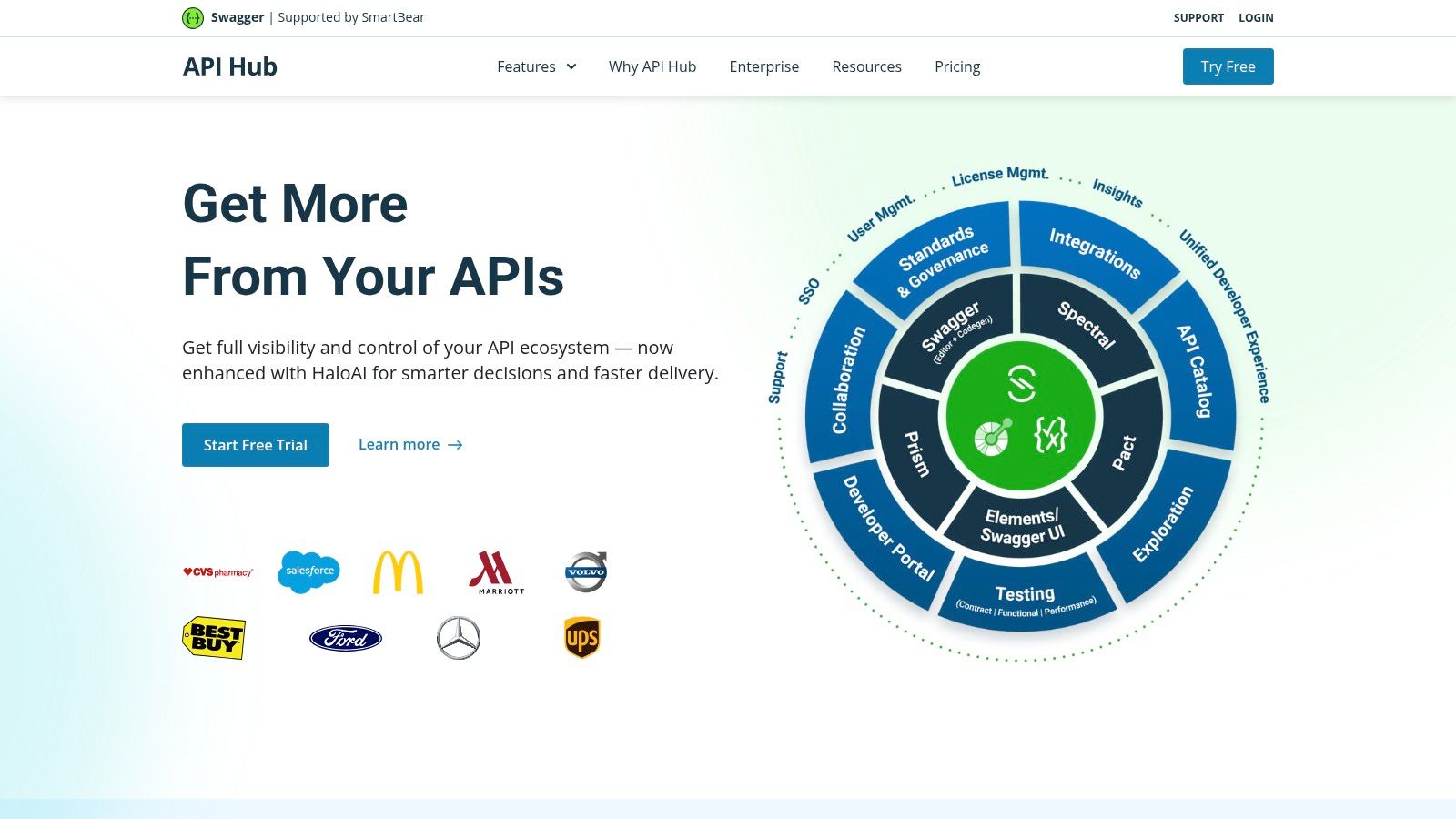
The platform provides a centralized hub where teams can collaborate on API design, use reusable components, and enforce governance rules across projects. For developers on macOS, the ability to auto-generate interactive documentation and test endpoints in the browser can be useful. Versioning and team management features make it more suitable for teams with formal API processes.
Key Features & Considerations
| Feature/Aspect | Details |
|---|---|
| Best For | API-first development teams on macOS; organizations needing standardized API design and documentation. |
| Pros | Enforces OpenAPI standards, auto-generates interactive documentation, strong collaboration features, integrates into the SDLC. |
| Cons | Can be costly for larger teams due to its per-user pricing model; the interface can be complex for beginners. |
| Pricing | Free plan for individuals. Team plans start at $75/month for 3 users. Enterprise and on-premises options are also available. |
| Website | swagger.io/tools/swaggerhub |
9. Docusaurus
Docusaurus is a modern static site generator built by Facebook for maintainable documentation websites. As a Node.js-based tool, it works well on macOS and lets developers use existing environments like Terminal and VS Code to build, test, and deploy documentation. It is a good fit for fast, version-controlled developer docs.
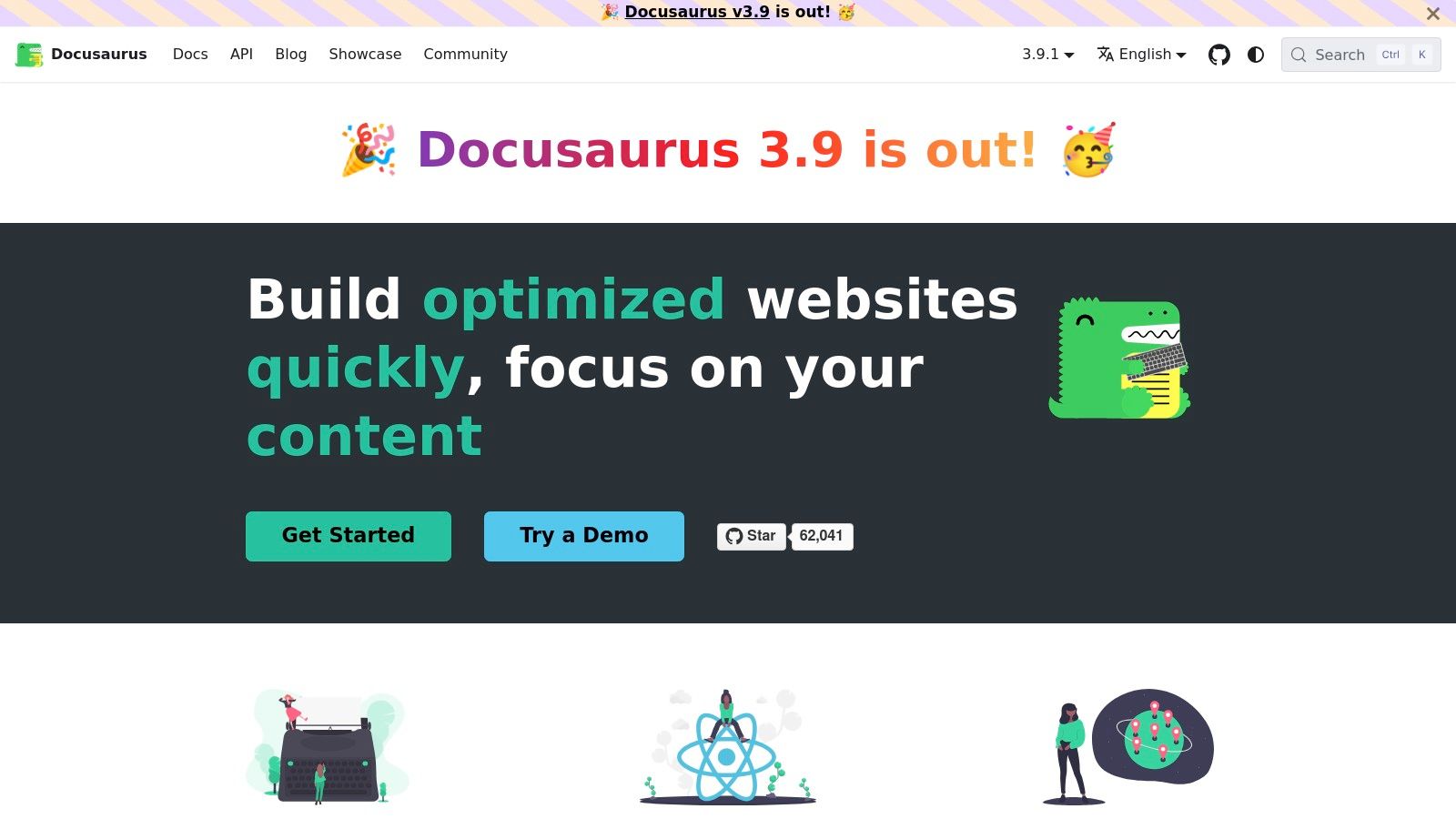
The platform lets developers write documentation using Markdown and MDX, including interactive React components when needed. Its support for versioning and internationalization makes it useful for projects with multiple release cycles or global audiences. The built-in Algolia search integration can also improve discoverability.
Key Features & Considerations
| Feature/Aspect | Details |
|---|---|
| Best For | Open-source projects; developer-centric documentation requiring versioning and interactivity on macOS. |
| Pros | Completely free (MIT license), highly customizable, great performance, strong community support. |
| Cons | Requires engineering resources for setup and maintenance; no built-in hosting or GUI editor. |
| Pricing | Free and open-source. Costs are associated with your chosen hosting provider (e.g., Netlify, Vercel). |
| Website | docusaurus.io |
10. G2 - API Documentation Management
While not a documentation tool itself, G2's category for API Documentation Management can help macOS teams evaluate options. It functions as a user-review marketplace, aggregating peer reviews, feature comparisons, and satisfaction ratings in one place.
G2 excels at helping you cut through marketing noise by filtering options based on company size, specific features, and user satisfaction scores. This allows macOS-based development teams to quickly shortlist tools that fit their precise workflow and budget, comparing everything from dedicated API solutions to broader knowledge bases. The platform’s strength lies in its aggregated, real-world data, offering an honest look at a tool’s performance before you commit. A key tip is to use the comparison matrix to evaluate up to four vendors side-by-side.
Key Features & Considerations
| Feature/Aspect | Details |
|---|---|
| Best For | Researching and comparing different software documentation tools based on real user feedback. |
| Pros | Provides a valuable snapshot of real-world user sentiment; helps quickly discover and compare vendors. |
| Cons | Pricing information can be vendor-submitted or aggregated and should be verified on the official site. |
| Pricing | Free to browse and use for research. |
| Website | g2.com/categories/api-documentation-management |
11. Capterra - Knowledge Base Software
Capterra is not a documentation tool itself; it is a B2B software marketplace where you can discover and compare options. Owned by Gartner, it provides a filterable directory of software documentation tools. For macOS users, filters for deployment options like "Mac" or "Web-based" can help narrow the field.
The platform's strength lies in aggregated user reviews and buyer guides. You can create side-by-side comparisons of contenders, evaluating features, pricing models, and user satisfaction scores. Use Capterra to build a shortlist, then validate claims with trials and hands-on testing on your own Mac.
Key Features & Considerations
| Feature/Aspect | Details |
|---|---|
| Best For | Initial research and creating a shortlist of potential software documentation tools for macOS. |
| Pros | Broad coverage of tools, active user review corpus, helpful filters for deployment and pricing. |
| Cons | Rankings can be influenced by vendor listing optimizations; user reviews should be cross-referenced. |
| Pricing | Free to use for software buyers. Vendors pay for listings and lead generation. |
| Website | capterra.com/knowledge-base-software/ |
Top Software Documentation Tools Comparison
| Product | Core Features / Characteristics | User Experience | Pricing Model | Target Audience | Notable Strengths |
|---|---|---|---|---|---|
| Atlassian Confluence | Wiki-style docs, permissions, templates | Familiar UX, strong integrations | Tiered pricing, scales from SMB to enterprise | Teams needing scalable internal/external docs | Robust Jira integration, large app marketplace |
| GitBook | Block editor, GitHub sync, branding, AI-powered | Polished reader, fast publishing | Per-site + per-user pricing | macOS developers, tech writers | Git sync, AI answers, SEO controls |
| Document360 | Public/private KB, API docs, AI search | Strong analytics, authoring workflow | Sales-quoted, enterprise options | Software teams, enterprise users | AI search, decision-tree guides, strong APIs |
| MadCap Flare | Multi-channel output, topic-based authoring | Powerful, mature ecosystem | Desktop license, learning curve | Professional tech writers (using Parallels) | Complex multi-format publishing |
| Paligo | CCMS, topic reuse, REST API | Enterprise SLAs, strong governance | Higher entry price | Enterprise doc teams | DITA-like structured authoring, integrations |
| Adobe RoboHelp | Multi-format publishing, Adobe ecosystem | Familiar Adobe UI, templates | Subscription-based, 30-day trial | Adobe users, medium-large teams | Adobe integration, extensive templates |
| ReadMe | API reference hub, metrics, customizations | Fast launch, good DX | Tiered pricing | API developers, product teams | Interactive API docs, developer dashboard |
| SwaggerHub | API design, collaborative portals, governance | Popular API tool, integrates in SDLC | Per-user pricing (premium at scale) | API teams, enterprises | API design + doc combo, AWS Marketplace availability |
| Docusaurus | Open-source static site generator, MDX, i18n | Free, customizable | Free (MIT license) | Developers, open-source projects | React-based, versioning, i18n support |
| G2 | Review marketplace, comparisons, ratings | Useful for research, not authoring docs | Free for buyers | Teams comparing documentation vendors | Peer reviews and side-by-side comparisons |
| Capterra | Software directory, filters, buyer guides | Useful for shortlisting, not authoring docs | Free for buyers | Teams researching knowledge base software | Broad vendor coverage and filtering |
Choosing the Right Documentation Tool for Your macOS Team
Navigating the landscape of software documentation tools can feel overwhelming, but the decision becomes easier once you separate authoring needs from publishing, governance, API reference, and research needs. This list covers dedicated knowledge bases like Confluence and Document360, developer-centric platforms like GitBook and ReadMe, structured authoring systems like Paligo and Flare, and marketplaces that help with vendor research.
There is no single "best" tool for every team. The right choice depends on your team size, technical expertise, workflow, publishing requirements, and audience. A startup building API docs will have different needs from an enterprise maintaining internal policies or a support team managing a public help center.
Synthesizing Your Options: Key Decision Factors
Before committing to a platform, it’s crucial to distill your needs into a clear set of criteria. As you reflect on the tools we've covered, consider these pivotal factors from the perspective of a macOS-centric workflow:
- Audience and Purpose: Are you creating internal documentation for your engineering team, or are you building a public-facing help center for non-technical users? Tools like SwaggerHub are built for the former, while platforms like Document360 excel at the latter.
- Workflow Integration: How well does the tool fit into your existing processes? If your team lives in Git, a Docs-as-Code solution like Docusaurus or GitBook offers a seamless, version-controlled workflow. If you prefer a more traditional, GUI-driven approach, a standalone platform like Paligo might be a better fit.
- macOS Compatibility and Experience: For macOS-focused teams, a native or web-based tool with a smooth, intuitive user experience on Apple hardware is non-negotiable. Evaluate how each platform performs in Safari and whether it offers any native macOS applications or integrations that can streamline your work.
- Scalability and Future Needs: Consider where your project will be in one, three, or five years. A simple Markdown-based system might be perfect today, but will it support the complex features, user roles, and localization needs you anticipate in the future? Enterprise-grade tools like MadCap Flare and Adobe RoboHelp are built for this kind of long-term complexity.
Actionable Next Steps for Your Team
Making the final decision requires hands-on evaluation. Don't rely solely on feature lists or reviews; get your team involved and put your top contenders to the test with a real-world project.
- Shortlist Your Top 3: Based on the factors above, select the three most promising software documentation tools from our list.
- Define a Pilot Project: Choose a small, manageable piece of documentation to create, such as a single feature guide, an API endpoint reference, or a getting-started tutorial.
- Run Concurrent Trials: Have your team build the same piece of documentation in each of your shortlisted tools. This direct comparison is the most effective way to identify friction points and highlight a tool's strengths.
- Gather Feedback: Collect structured feedback from everyone involved. Focus on ease of use, collaboration features, the quality of the final output, and how the tool felt to use on a daily basis within your macOS environment.
Ultimately, a documentation platform should make content easier to maintain and easier for readers to use. Define your requirements, test a small real project, and choose the tool that reduces long-term maintenance work instead of adding another process your team will avoid.
Software Documentation Best Practices
The best tool in the world won't save poorly structured documentation. These 10 practices apply regardless of which platform you choose:
- Use clear, concise language — write for a first-time reader, not an expert. Remove jargon unless you define it. Short sentences reduce cognitive load.
- Keep documentation up to date — stale docs erode trust faster than no docs. Assign ownership per section and tie doc updates to your release process.
- Include practical code examples — abstract explanations fail where a concrete snippet succeeds. Show inputs, outputs, and edge cases.
- Organise hierarchically — structure content from general to specific. Top-level = product overview, mid-level = feature guides, bottom-level = reference/API.
- Automate where possible — use tools like JSDoc, Swagger, or Docusaurus to generate reference docs from code comments. Less manual work, always in sync.
- Write effective Getting Started guides — most users judge your documentation by their first 10 minutes. A getting-started guide should get someone to their first success in under 5 minutes.
- Use consistent formatting and style — agree on heading conventions, code block style, terminology, and voice. A style guide prevents drift across contributors.
- Optimise for search — use the same language your users use (not internal jargon). Add meta descriptions and headings that match search intent.
- Document common pitfalls and troubleshooting — every support ticket is a documentation gap. Add a troubleshooting section to high-traffic pages.
- Use multiple formats — some users read, some watch. Supplement text with screen recordings, annotated screenshots, and short demo videos for complex workflows.
Documentation tools work best when they match the content you actually need to maintain. A small developer project may be well served by GitBook or Docusaurus, while a larger support organization may need governance, analytics, permissions, and review workflows from a dedicated knowledge base or CCMS. Choose the tool that keeps your docs accurate over time, not just the one that looks best in a first demo.