

Best Screen Recording Software for Mac (2026) — Honest Comparison
The best screen recording software for Mac depends on what you're making. For free, unlimited recording with no watermark, OBS Studio is unmatched. For polished product demos and tutorials, Screen Charm is built specifically for macOS with intelligent auto-zoom and a built-in editor. For quick annotated captures, CleanShot X is the fastest option on any Mac.
New to screen recording on Mac? Start with our guide on how to screen record on Mac. If your recording has no audio, see the screen recording no sound fix guide. Need to capture system audio? See how to record internal audio on Mac.
What Is the Best Screen Recording Software for Mac?
- Best free screen recorder — OBS Studio (no watermark, no limits, no subscription)
- Best for polished demos — Screen Charm (auto-zoom, built-in editor, Mac-only)
- Best for corporate training — Camtasia (multitrack editor, quizzes, templates)
- Best Mac-native editor — ScreenFlow (timeline editor, Apple silicon optimised)
- Best for quick capture — CleanShot X (fastest capture-to-share on macOS)
- Best for team messaging — Loom (instant cloud share, AI summaries)
Mac Screen Recording Software Comparison
| Tool | Pricing | System Audio | No Watermark | Best For |
|---|---|---|---|---|
| OBS Studio | Free | Needs setup | Yes | Full control, streaming, free |
| Screen Charm | $79 one-time | Native | Yes | Polished demos, tutorials |
| Camtasia | $179+/yr | Native | Yes | Corporate training, e-learning |
| ScreenFlow | $149 one-time | Native | Yes | Mac-native pro editing |
| CleanShot X | ~$29 one-time | Native | Yes | Quick captures, annotations |
| Loom | Free / $12.50+/mo | Limited | Yes (paid) | Team async communication |
| Mac App Store | Varies | Varies | Varies | Browsing vetted apps |
How we picked these: macOS compatibility, no-watermark on paid tier, system audio support, webcam recording, editing workflow, and price-to-value ratio.
1. OBS Studio — Best Free Screen Recorder for Mac (No Watermark)
OBS Studio is completely free, open-source, and has no watermark, no recording limits, and no subscription. It's the best free screen recorder for Mac with audio that handles professional-grade multi-source compositions.
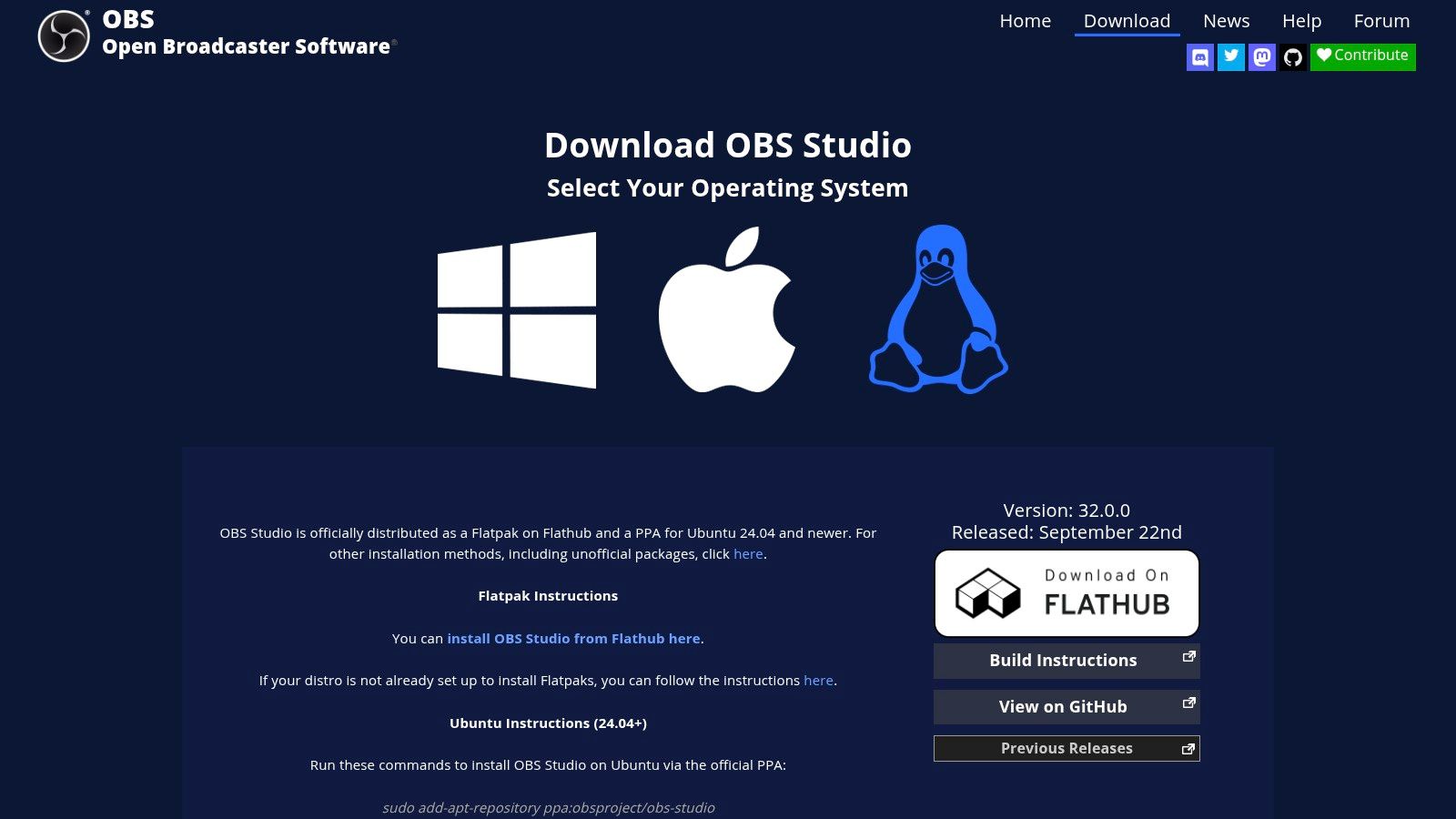
OBS records your screen, webcam, microphone, and system audio simultaneously. You can build multi-scene layouts, apply noise filters, control bitrate, and extend functionality via plugins. It runs natively on both Intel and Apple silicon Macs.
Pricing: Free — no watermark, no limits.
Pros:
- Completely free with no watermark
- Records screen, webcam, mic, and system audio together
- Granular control over every recording parameter
- Native Apple silicon support
Cons:
- Steep learning curve for new users
- No built-in video editor — requires separate post-production
Website: obsproject.com
2. Screen Charm — Best for Polished Demos and Tutorials
Screen Charm is a Mac-only screen recorder designed for one thing: turning a raw screen recording into a polished, professional video without hours of manual editing.
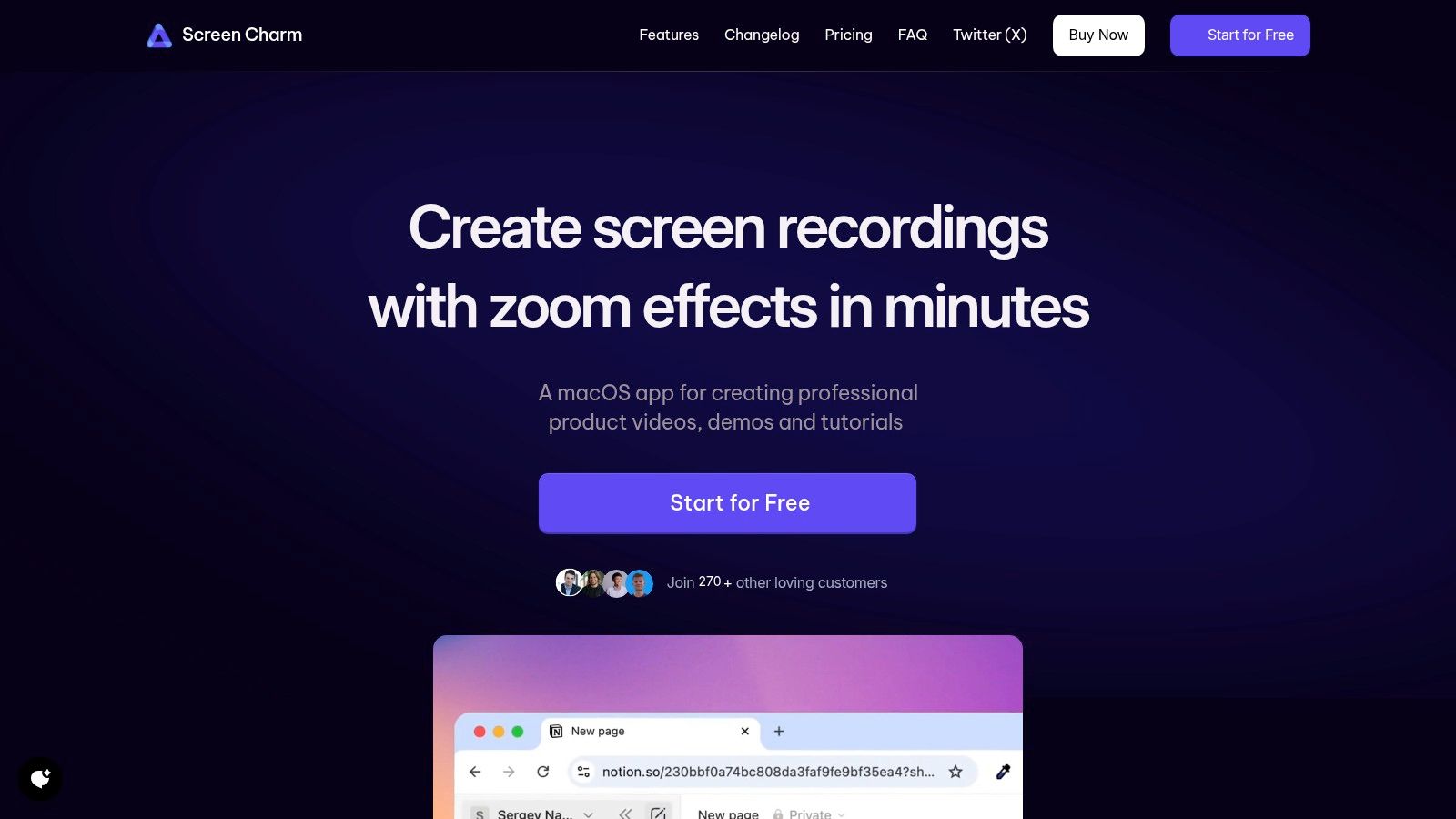
Its signature feature is intelligent auto-zoom — the recorder automatically tracks your cursor and zooms in on interface elements as you interact with them, creating a cinematic focus effect with zero manual keyframing. The integrated editor lets you trim, fine-tune zoom points, and export in 4K without leaving the app.
Additional features include simultaneous webcam recording, customizable cursors, and branded backgrounds for consistent visual identity across videos.
Pricing: $79 one-time purchase — lifetime license, unlimited 4K exports, all future updates.
Pros:
- Auto-zoom creates pro-quality focus without manual editing
- All-in-one: record, edit, and export in a single app
- Records microphone and system audio simultaneously
- One-time purchase with lifetime updates
Cons:
- macOS only — no Windows version
- No multi-track timeline for complex video editing
Website: screencharm.com
3. Camtasia — Best for Corporate Training and E-Learning
Camtasia by TechSmith is the industry standard for corporate training videos, e-learning courses, and instructional content. It combines a full-featured screen recorder with a professional multitrack video editor in a single Mac-compatible package.
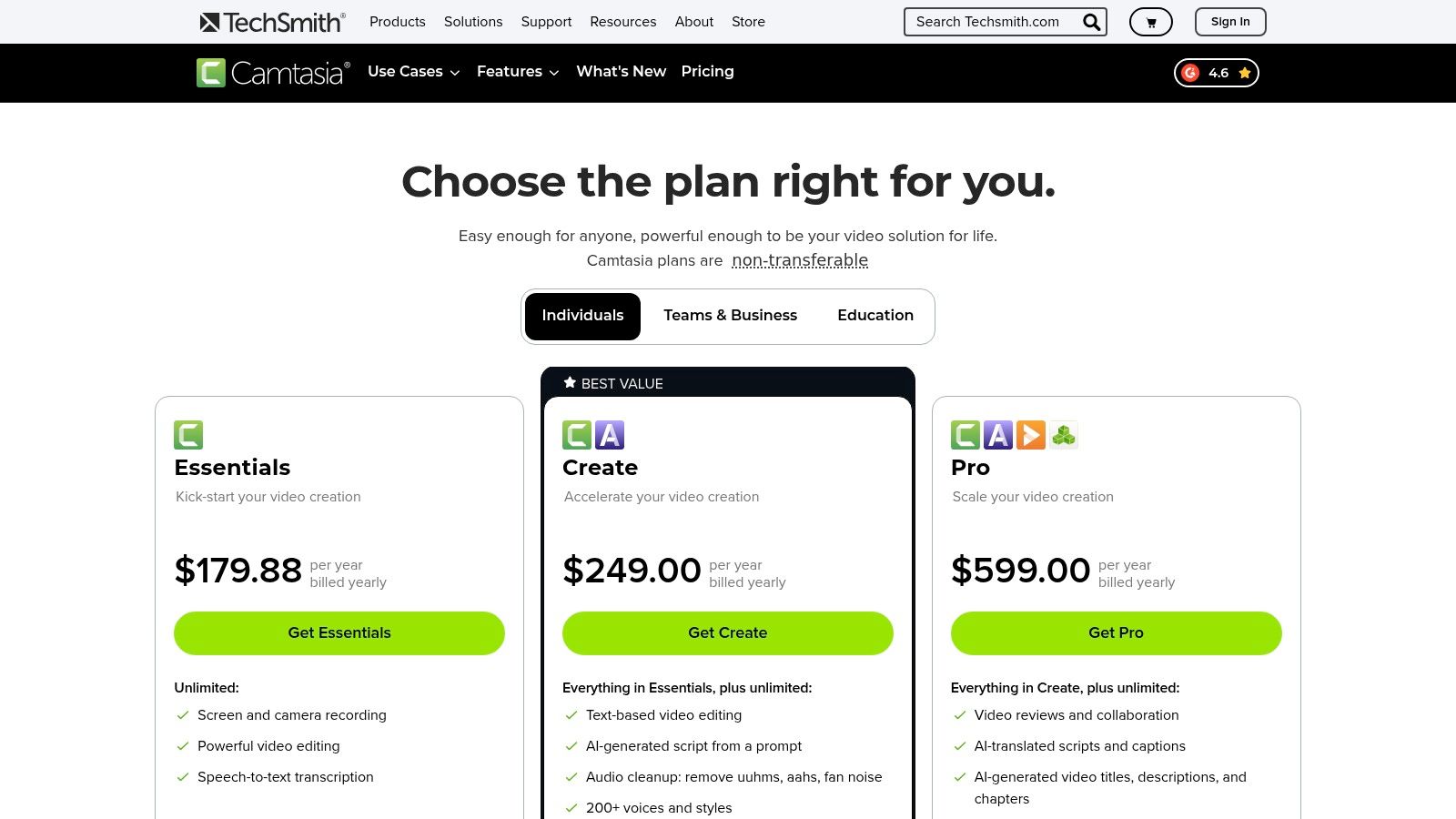
Camtasia records screen, webcam, and all audio sources, then places them on a multitrack timeline for editing. It includes a library of royalty-free assets, templates, annotations, and quiz interactions — making it a complete production platform for serious instructional designers.
Pricing: $179+/year subscription. Free trial available.
Pros:
- Multitrack editor with quizzes and interactive elements
- Cross-platform: one license covers macOS and Windows
- Extensive template and asset library
Cons:
- Highest price point of any tool on this list
- Heavier learning curve than lightweight recorders
Website: techsmith.com/camtasia
4. ScreenFlow — Best Mac-Native Video Editor + Recorder
ScreenFlow is a Mac-only screen recorder and timeline editor built specifically for macOS and Apple silicon. It captures your screen, webcam, microphone, and system audio onto separate tracks, ready for immediate editing in its integrated timeline.
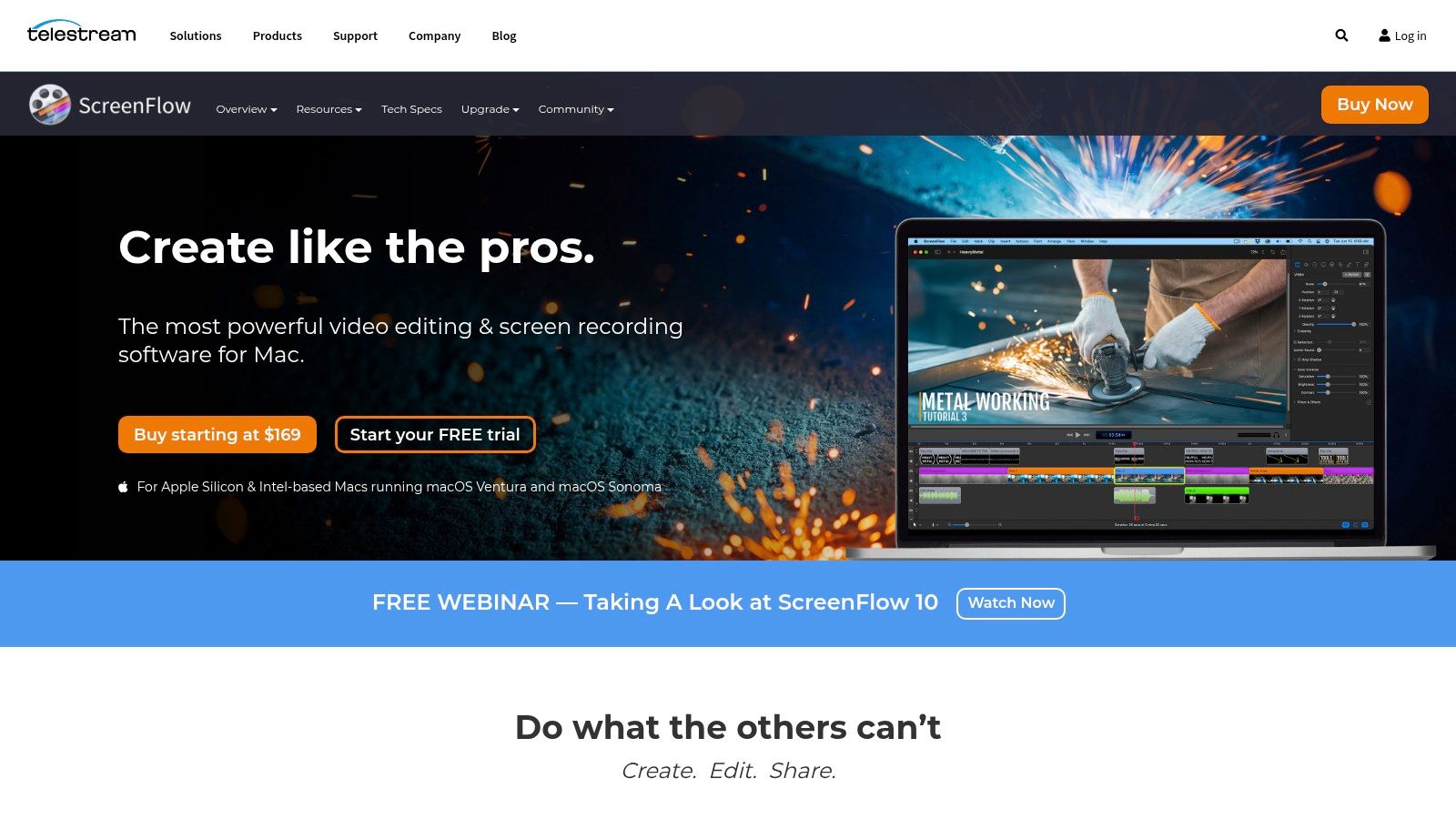
Where ScreenFlow stands apart is its Mac-first optimisation — it takes full advantage of Apple silicon for smooth performance on high-resolution recordings. The timeline editor supports annotations, callouts, text overlays, transitions, and cursor effects. It's the go-to for Mac creators who want a dedicated non-linear editor without switching to Final Cut Pro.
Pricing: $149 one-time purchase. Free trial available.
Pros:
- Deep macOS and Apple silicon optimisation
- Full timeline editor with multi-track support
- One-time purchase with direct upgrade path
Cons:
- macOS only — no Windows version
- Single-machine license by default
Website: telestream.net/screenflow
5. CleanShot X — Best for Quick Mac Screen Capture With Annotation
CleanShot X is a Mac-only capture utility that handles both screenshots and screen recordings from a menubar icon. It's built for speed — capture, annotate, and share in seconds without opening a dedicated editor.
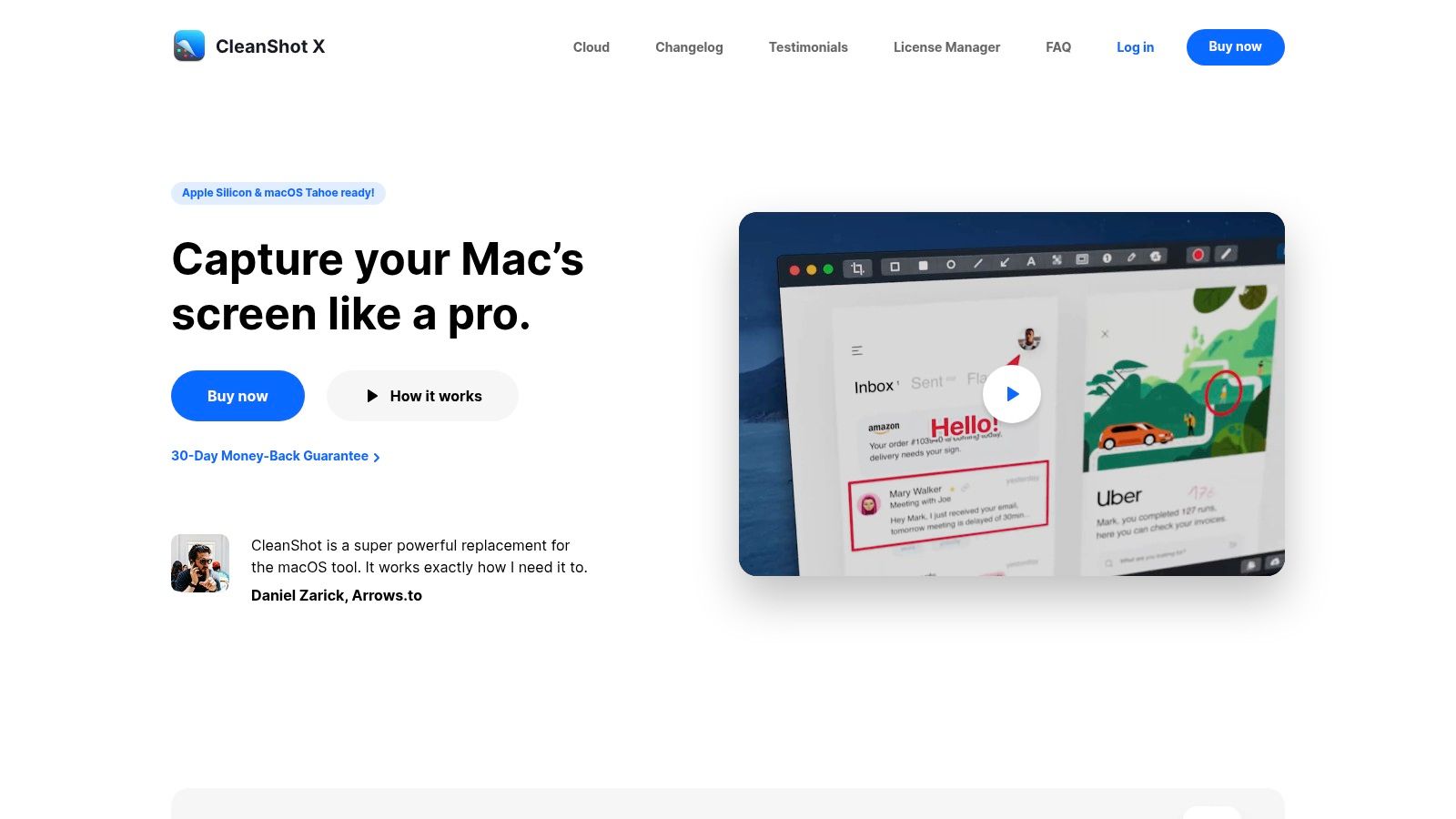
CleanShot X records screen video with microphone and system audio, highlights mouse clicks, and lets you trim and annotate immediately after stopping. You can export as MP4 or GIF, or upload with one click to CleanShot Cloud for an instant shareable link.
Pricing: ~$29 one-time + optional annual renewal for cloud and updates.
Pros:
- Fastest capture-to-share workflow on macOS
- Annotation tools built into the capture flow
- Instant cloud sharing with auto-copied link
Cons:
- Not a full video editor — trim only, no timeline
- Cloud features require annual renewal
Website: cleanshot.com
6. Loom — Best for Team Async Video Messaging
Loom transforms screen recording into a communication tool. Record your screen and face, stop, and your video is immediately uploaded to the cloud with a shareable link copied to your clipboard — no rendering, no uploading manually.
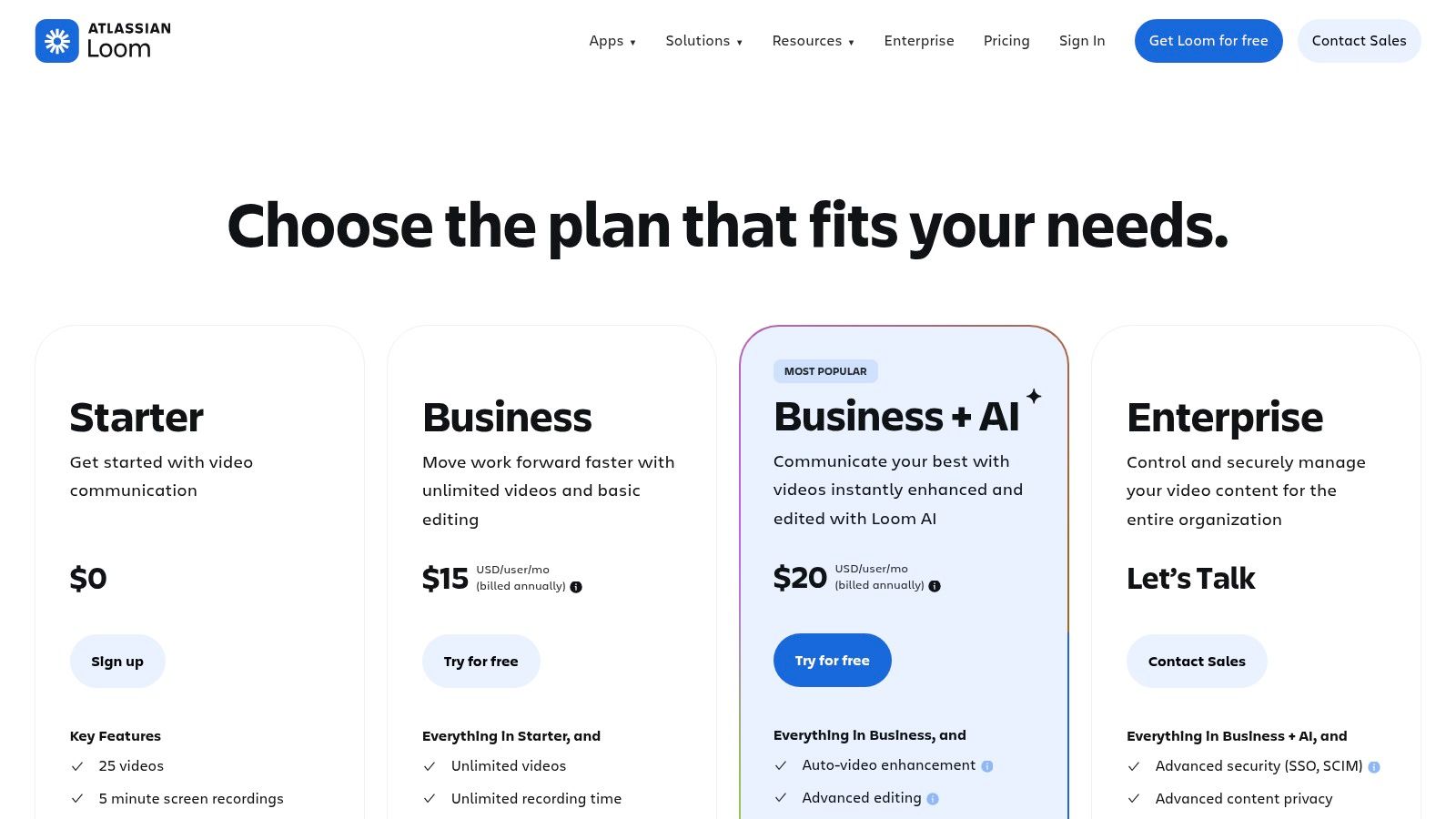
Loom AI can auto-generate titles, summaries, and chapters, and remove filler words from your recordings. Team workspaces provide shared libraries, time-stamped comments, and permission controls. Available on Mac, Windows, iOS, Android, and Chrome.
Pricing: Free (25 videos, 5 min limit) / $12.50+/month for unlimited.
Pros:
- Instant share as soon as you stop recording
- AI summaries and filler-word removal
- Built for team feedback with timestamped comments
Cons:
- Minimal editing — no timeline editor
- Free plan limits recordings to 5 minutes
Website: loom.com
7. Mac App Store
Not a single product — but worth mentioning as a discovery source. Apple vets every app for security and privacy, updates are automatic, and purchases are tied to your Apple ID for easy reinstall across Macs. Notable screen recorders available there include Screenium and Rottenwood.
The trade-off: sandbox restrictions can limit advanced features (system audio capture in particular), and there is no discounted upgrade pricing between major versions.
Website: apps.apple.com
Best Free Screen Recorder for Mac With No Watermark
OBS Studio is the clear winner — completely free, no watermark, no time limits, no subscription. It records screen, webcam, mic, and system audio together in a single session with no quality restrictions.
If OBS feels too complex, Loom's free plan records up to 5 minutes per video with no watermark. For screenshot-heavy workflows, CleanShot X offers a free trial.
Best Screen Recorder for Mac With Audio
Every tool on this list records microphone audio. The distinction is system audio (sounds from apps and videos):
- Screen Charm — records mic + system audio natively, no extra setup
- OBS Studio — records system audio using a virtual audio driver (e.g., BlackHole)
- ScreenFlow and Camtasia — both record system audio natively on Mac
- QuickTime Player (built-in) — records microphone only; cannot capture system audio without a virtual driver
If your recording has no audio, see the screen recording no sound fix guide.
Best Screen Recorder for Mac With Webcam
All tools on this list support simultaneous screen + webcam recording:
- Screen Charm — webcam overlay with customisable position and background replacement
- Camtasia — webcam on a separate track for flexible editing
- ScreenFlow — webcam on its own timeline track
- OBS Studio — free, supports webcam as a scene source alongside screen capture
- Loom — webcam bubble overlay, instant cloud share after recording
Best Screen Recorder for Mac for YouTube
For YouTube-ready recordings you need: 1080p or 4K export, microphone + system audio, and ideally some editing capability.
- OBS Studio — free, outputs high-bitrate video, no quality restrictions
- Screen Charm — 4K export, auto-zoom creates engaging tutorials without editing
- Camtasia — professional editor, chapter markers, royalty-free music library
- ScreenFlow — timeline editor with transitions and annotations
Best Screen Recorder for Mac by Use Case
For Educators and Course Creators
Teachers and instructors need tools that are powerful but don't require a steep learning curve. Common workflows: recording a slideshow, demoing software, annotating key points, exporting for an LMS or YouTube.
- Top pick: Camtasia — built-in annotation tools, interactive quizzes, a large asset library, and callout effects designed for breaking down complex subjects. Ideal when the editing suite matters as much as the recording.
- Alternative: ScreenFlow — similarly powerful editor that feels more native on macOS. Great for detailed tutorials and lesson plans.
- Budget option: OBS + DaVinci Resolve — free combination if you're comfortable editing in a separate app.
For Developers Documenting Bugs and Processes
Developers need precision and speed — capturing the exact sequence of UI interactions, console output, or a bug reproduction. Production value is secondary to clarity.
- Top pick: Loom — record and instantly get a shareable link to drop in Slack, Jira, or GitHub. Zero friction from recording to sharing.
- Alternative: Screen Charm — when a bug report needs more detail, auto-zoom automatically highlights every click and menu interaction without manual keyframing.
For Podcasters and Musicians Needing Multi-Source Audio
When audio has to be perfect, general-purpose screen recorders fall short. Podcasters and musicians need to manage multiple sources simultaneously — a high-quality USB mic, a specific app's output, and sometimes a co-host feed.
- Top pick: OBS Studio + Loopback — OBS handles the recording; Loopback routes per-app audio to separate tracks with a drag-and-drop interface. Full control, no guesswork.
- Alternative: Audio Hijack — purpose-built for macOS audio routing, records any app or device independently, ideal when the recording is audio-only or audio-primary.
For Marketers and Product Teams Creating Demos
Product demos need to look polished, load fast, and stay on-brand. Key requirements: smooth walkthrough, webcam overlay, custom branding, and 4K export.
- Top pick: Screen Charm — auto-zoom creates a dynamic, engaging video automatically. Custom webcam backgrounds, cursor effects, and 4K export get you a branded demo in a fraction of the time compared to manual editing.
- Alternative: Camtasia — best if the campaign calls for complex animations, multiple video tracks, or a large stock media library.
Screen Charm Workflow: Product Demo in 5 Steps
A typical Screen Charm workflow from idea to finished file:
- Select recording area — full screen, app window, or custom region
- Configure audio — pick microphone + enable system audio capture with one toggle
- Add webcam — choose position, enable background replacement with your logo or brand colour
- Record — auto-zoom follows your cursor and magnifies menus, buttons, and text fields automatically
- Trim and export — remove dead air at start/end, export at 4K UHD — done in minutes
CPU and Performance Impact on Mac
A recorder that hogs system resources is counter-productive — especially if you're recording demanding apps like Figma, Xcode, or a browser with many tabs.
| Tool | CPU Impact | Notes |
|---|---|---|
| QuickTime Player | Very Low | Native app, minimal overhead — but no system audio, no editing |
| Screen Charm | Low | Built as a native macOS app, optimised for Apple Silicon |
| Loom | Low–Medium | Cloud-based processing helps; slow internet can be a bottleneck |
| OBS Studio | Medium–High | Scene rendering is CPU-intensive; settings need tuning for lower footprint |
| Camtasia / ScreenFlow | Medium | Recording is reasonable; editing is heavier, especially with multi-track projects |
Practical tip: Before any long recording, open Activity Monitor → CPU tab and close any process above 15–20% that you don't need. On Apple Silicon Macs, also check the Energy Impact column.
Free vs Paid Screen Recorder for Mac
Use a free tool if: You need occasional recordings, have time to learn OBS, or are just starting out.
Use a paid tool if: You're making client-facing videos, product demos, tutorials, or anything that needs to look polished.
| Situation | Recommendation |
|---|---|
| Occasional recording, no budget | OBS Studio (free, no watermark) |
| Quick team communication | Loom free plan |
| Polished demos and product videos | Screen Charm ($79 one-time) |
| Corporate training / e-learning | Camtasia ($179+/yr) |
| Mac video editor with recording | ScreenFlow ($149 one-time) |
| Fast annotation + sharing | CleanShot X (~$29) |
The main trade-off with free tools is post-production time — OBS gives you raw footage that still needs editing. Paid tools like Screen Charm automate polish during the recording itself, saving significant time per video.
Ready to create polished product demos without hours of editing? Screen Charm is purpose-built for macOS — intelligent auto-zoom, built-in editor, records mic and system audio, $79 one-time with lifetime updates. Try Screen Charm today.